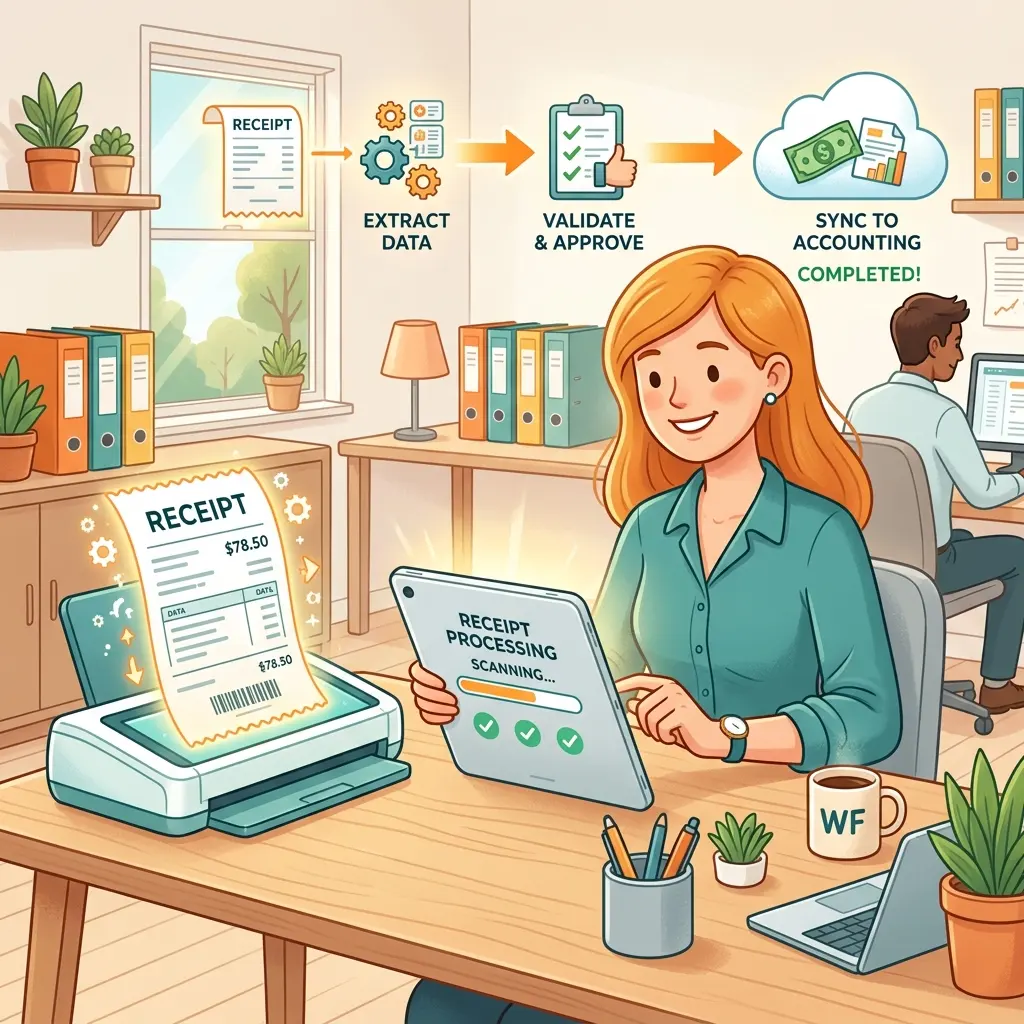
AI Invoice Processing Pipeline in Power Automate

Writer

Managing enterprise financial workflows is historically a manual, friction-heavy endeavor. In this guide we’ll go beyond the architecture diagram and actually build the thing — clicking through each action, calling out the specific fields to map, and fixing the handful of subtle gotchas that cause these flows to fail silently in production.
The Problem Context (Manual Processing)
Imagine a typical week for an accounting team receiving 50 to 100 invoices via email. The traditional manual steps look something like this:
- Receive email
- Download attachment
- Save to a local/network drive
- Read and extract data
- Copy to the ERP/accounting system
- Request manual manager approval (if over a threshold)
- Update the database
- Create payment reminders
- Send confirmation emails
- Update audit logs
Business impact: This leads to a high risk of human error — especially transposed digits and typos in amounts.
Financial impact: Industry studies put the hidden cost of manual invoice processing at roughly $10 to $15 per invoice. Multiplied across thousands of transactions, that inefficiency drains resources and introduces critical errors.
In this technical guide, we’ll architect a fully automated, AI-powered invoice processing system using Power Automate. We’ll transform a sluggish manual pipeline into an event-driven workflow that extracts data, evaluates conditional business logic, routes approvals, and updates the system of record — typically in well under a minute per invoice.
Prerequisites & Licensing (Read This First)
This is the section most tutorials skip, and it’s the one that stops people on step one. Before you build anything, confirm you have:
| Requirement | Why it matters |
|---|---|
| A Power Automate plan | The base flow uses standard connectors (Outlook, SharePoint, Approvals). |
| AI Builder capacity | The invoice model consumes AI Builder credits. These come bundled with some plans (e.g., per-user Power Automate with attended RPA) or are bought as an add-on. Without capacity, the AI Builder action errors out. |
| A SharePoint site + list | We’ll use a SharePoint List as our “database.” You need permission to create a list and a document library on the target site. |
| An Outlook / Microsoft 365 mailbox | The trigger reads from the inbox where vendors send invoices. A shared mailbox is fine, but see the note in Phase 1. |
| Permission to create the SharePoint list columns | The amount and date columns must be typed correctly (more on this in Phase 5). |
Cost-control tip: AI Builder bills per document processed. If you test the flow 40 times, you spend 40 credits. Use a single representative test PDF and the Test panel’s “manually” option rather than re-emailing yourself dozens of times.
Build the SharePoint pieces before you open Power Automate:
-
Create a document library (or reuse
Shared Documents) to archive the raw PDFs. -
Create a list called
Invoice Processingwith these columns and types:Column Type Vendor NameSingle line of text Invoice NumberSingle line of text Invoice AmountCurrency (or Number) Invoice DateDate and Time Due DateDate and Time StatusChoice ( Auto-Approved,Manager-Approved,Rejected,Needs Review)ApproverSingle line of text
Getting the column types right now saves you from the most common failure later: trying to write the string "$14,940.00" into a Currency column and watching the flow throw a 400 error.
High-Level Architecture

Our automated workflow consists of six phases. Here’s the map, with the connector each phase relies on:
| Phase | What it does | Connector / Action |
|---|---|---|
| 1. Event Ingestion | Intercept targeted incoming emails | Office 365 Outlook — When a new email arrives (V3) |
| 2. Document Management | Stage the attachment in SharePoint | SharePoint — Get attachments / Create file |
| 3. Intelligent Extraction | Read the PDF and pull structured fields | AI Builder — Extract information from invoices |
| 4. Conditional Logic | Route approvals based on amount | Control — Condition + Approvals |
| 5. System of Record | Write the record to the database | SharePoint — Create item |
| 6. Notification | Confirm receipt to the vendor | Office 365 Outlook — Send an email (V2) |
We’ll also wrap the whole thing in error handling (Phase 7) so a single malformed PDF doesn’t silently kill your pipeline.
Step-by-Step Implementation Guide
Phase 1: Event Ingestion & Trigger Configuration
We begin with an Automated Cloud Flow triggered by an incoming email.
Add the When a new email arrives (V3) trigger (Office 365 Outlook). In the advanced parameters, tighten the scope so the flow only runs when it should:
- Set Include Attachments to Yes.
- Set Only with Attachments to Yes.
- Optionally set From to the vendor domain(s), or Folder to a dedicated
Invoicesinbox folder you route mail into with an Outlook rule.
The gotcha most people hit — case sensitivity. Power Automate’s contains() function is case-sensitive. A naïve subject filter of 'invoice' will silently ignore “Invoice”, “INVOICE”, and “Invoice #4021”. Always lower-case both sides of the comparison with toLower().
Pro tip — filter at the trigger, not in the flow. There are two different places to filter, and they are not the same thing:
- The Subject Filter advanced field does a simple substring match — quick, but limited.
- A Trigger Condition (under the trigger’s Settings → Trigger conditions) is a Power Fx expression that must evaluate to
true. If it’s false, the flow never runs and no run is logged — which saves your Power Platform request quota.
Add this as a Trigger Condition (note the leading @ and the toLower() wrapper):
Filtering here, instead of with a Condition action inside the flow, means non-invoice emails don’t consume runs at all.
Phase 2: Document Extraction & Storage
Before feeding anything to AI, isolate the attachment and stage it in a secure repository.
- Add the Get attachments (V2) action. Map the dynamic Message ID from the trigger.
Attachments are an array — and the loop is automatic. A single email can carry several attachments (an invoice PDF plus a logo in the email signature). The moment you reference Attachments in the next step, Power Automate auto-wraps everything in an Apply to each loop. That’s expected — but it has two consequences:
- Filter out the junk. Add a Condition inside the loop so you only process real invoices — e.g., the content type contains
pdfand the attachment is not inline. Otherwise you’ll try to run AI extraction on a signature image and waste an AI Builder credit. - Variables behave differently inside loops. Prefer per-item Compose actions over Set Variable inside the loop to avoid race conditions if multiple attachments slip through.
-
Add a Create file action (SharePoint).
- Site Address / Folder Path: your accounting directory (e.g.,
Shared Documents/Invoices). - File Name: make it unique to avoid overwrites. Don’t use the raw attachment name alone — two vendors both sending
invoice.pdfwould clobber each other. Use an expression like:Code - File Content: the attachment’s content (
Content/contentBytesfrom Get attachments).
- Site Address / Folder Path: your accounting directory (e.g.,
-
Add a Get file content action (SharePoint). In the File parameter, use the Id (file identifier) output from the Create file step above. This guarantees the binary is handed to AI Builder in the format it expects.
Shortcut: AI Builder’s Invoice file input accepts file content directly. If you don’t need the SharePoint archive for audit purposes, you can skip steps 2–3 and feed the attachment’s contentBytes straight into Phase 3. We keep the archive here because finance teams almost always want the original PDF retained.
Phase 3: Intelligent Data Extraction via AI Builder
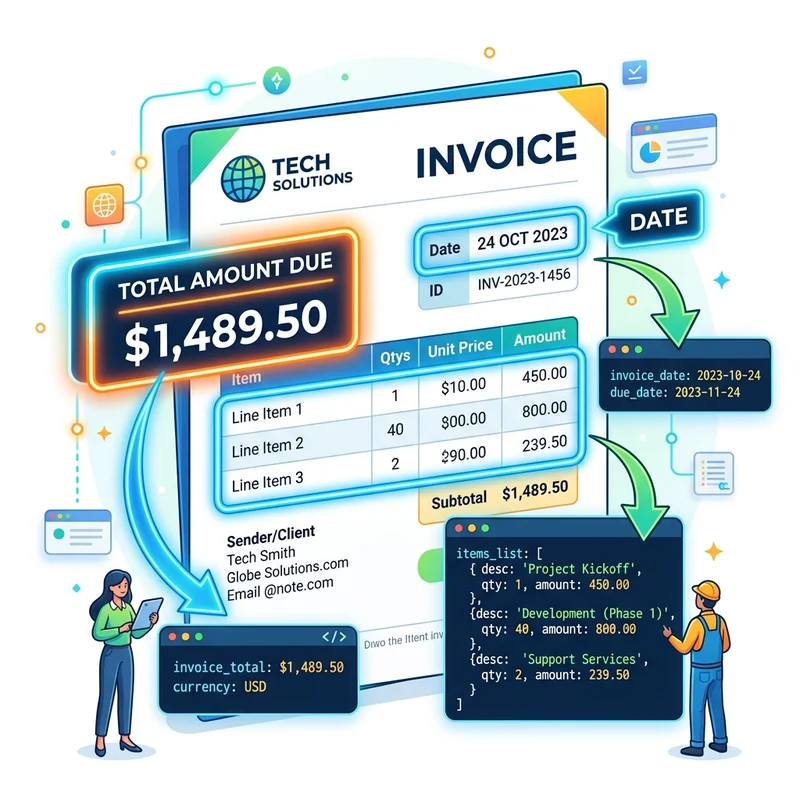
This is where the automation moves from simple routing to intelligent processing.
Add the AI Builder action Extract information from invoices (the prebuilt Invoice processing model). Map the Invoice file parameter to the file content from the previous step. The model scans the document and returns a rich set of fields — and, crucially, it returns two flavors of each value:
- A text version — exactly as printed on the invoice (e.g.,
"$14,940.00"). - A standardized version — a clean machine value (e.g., the number
14940.00, or a date as2026-05-31T00:00:00Z).
Always prefer the standardized outputs for logic and storage. This single fact eliminates most of the string-parsing pain that trips up beginners. The fields you’ll use most:
| AI Builder output | Use this version |
|---|---|
| Vendor name | text |
| Invoice ID (the invoice number) | text |
| Invoice date (date) | standardized date |
| Due date (date) | standardized date |
| Invoice total (number) | standardized float — use for the threshold check and the Currency column |
Data sanitization: Add a few Compose actions (Data Operations) to capture each field cleanly. This makes downstream steps readable and makes debugging far easier when a value comes back unexpected:
Vendor_Name→ Vendor nameInvoice_Number→ Invoice IDInvoice_Date→ Invoice date (date)Invoice_Amount→ Invoice total (number)Invoice_Due_Date→ Due date (date)
Use confidence scores as a quality gate. Every field comes with a confidence value between 0 and 1. AI Builder occasionally misreads a decimal delimiter (reading 58,58 as 5858, for example). Add a Condition early: if the confidence of Invoice total is below, say, 0.80, set the SharePoint Status to Needs Review and route it to a human instead of auto-posting it. This one check is the difference between “automation I trust” and “automation that quietly pays the wrong amount.”
Performance & cost tip: If a single PDF contains one invoice but many pages, set the Pages parameter (e.g., 1) to target it. Processing fewer pages is faster and cheaper per prediction.
Phase 4: Business Logic & Conditional Routing
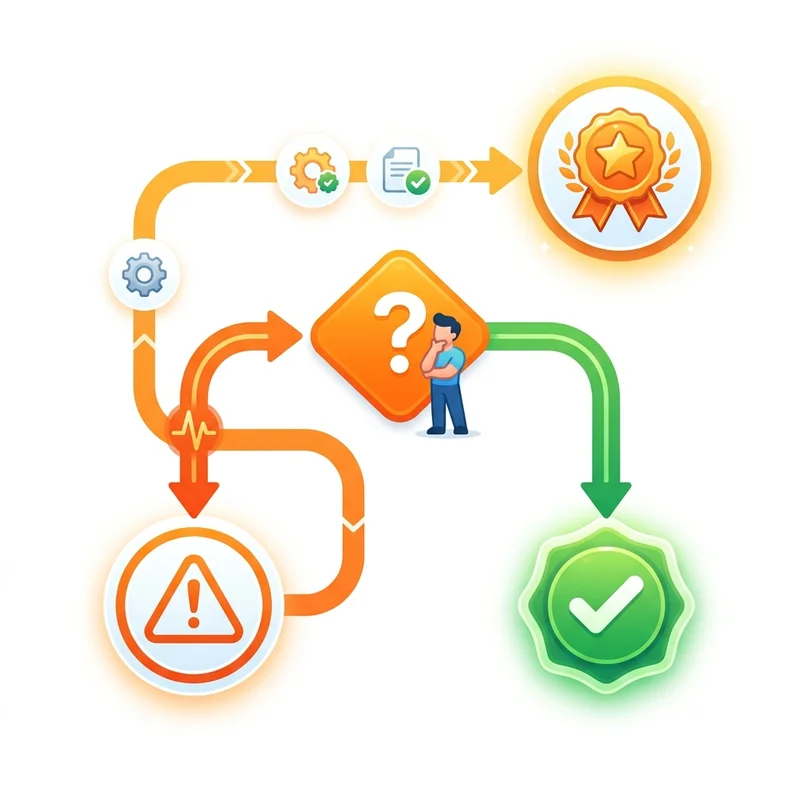
Enterprise environments require governance. Here, any invoice over $5,000 requires explicit manager approval before it’s written to the system of record.
Add a Condition control:
- Left value: the
Invoice_AmountCompose output (the standardized number from Phase 3). - Operator: is greater than.
- Right value:
5000.
That’s it — because you’re using the standardized numeric output, no casting is required.
Why the old int() trick is a trap. A very common (and broken) pattern is to cast the text amount with int():
int() throws an error the moment it sees a currency symbol, a thousands separator, or a decimal point — and it truncates decimals even when it doesn’t error. If you ever must work from the text value (because the standardized number is blank), clean it first and use float(), not int():
And guard against empty extractions so the whole flow doesn’t fail on one bad PDF:
Configuring the “True” branch (approval routing)
If the invoice exceeds the threshold:
- (Optional but recommended) Add Get manager (V2) (Office 365 Users) on the original sender, so the approval routes to the right person dynamically instead of a hard-coded address.
- Add a Start and wait for an approval action.
- Approval type: Approve/Reject — First to respond.
- Title: make it scannable, e.g.,
concat('Invoice Approval — ', outputs('Vendor_Name'), ' — $', outputs('Invoice_Amount')). - Assigned to: the manager’s email (from step 1, or a static approver).
- Details: include everything the approver needs to decide without leaving Outlook — vendor, invoice number, amount, due date, and a link to the archived PDF (use the Link to item output from the Create file step).
- Add a nested Condition to evaluate the outcome. Check whether the approval Outcome is exactly equal to the string
Approve:- True (Approved): continue to Phase 5.
- False (Rejected): don’t drop it on the floor. Set the SharePoint
StatustoRejected, and send a brief internal notification so finance knows the invoice was declined and why (the approver’s comments are available as a dynamic value).
Don’t forget the reject path. The original “happy path” only handles approvals. In the real world, managers reject invoices — and a flow that silently does nothing on rejection looks identical to a flow that’s broken. Always handle the False branch explicitly.
Phase 5: System of Record Integration
Whether the invoice was under $5,000 (auto-approved) or over $5,000 and explicitly approved, the next step is writing the record.
Avoid duplicating the write in two branches. The naïve approach is to copy a Create item action into both the True and False branches. It works, but now you maintain the same logic in two places — and people forget to update one of them. The cleaner pattern:
- At the top of the flow, initialize a boolean variable
Proceed=falseand a string variableDecisionStatus. - In the under-$5,000 branch, set
Proceed=trueandDecisionStatus=Auto-Approved. - In the approved branch, set
Proceed=trueandDecisionStatus=Manager-Approved. - After the condition (where the branches rejoin), do a single check:
if Proceed is true → Create item.
One write action, one place to maintain.
Add a Create item action (SharePoint), targeting your site and the Invoice Processing list. Map the fields, being deliberate about which version of each value you use:
- Vendor Name →
Vendor_Name(text) - Invoice Number →
Invoice_Number(text) - Invoice Amount →
Invoice_Amount— the standardized number (so it lands cleanly in the Currency column) - Invoice Date →
Invoice_Date— the standardized date - Due Date →
Invoice_Due_Date— the standardized date - Status →
DecisionStatus - Approver → the manager’s email (or
Systemfor auto-approved items)
Type mismatches are the #1 silent failure here. Mapping a text value like "31 May 2026" into a Date and Time column, or "$14,940.00" into a Currency column, throws a 400. Using the standardized AI Builder outputs (date and number) makes these map without fuss.
Duplicate detection (idempotency)
Vendors resend invoices. Email gets delivered twice. Without a guard, you create duplicate records and risk double-paying.
Before the Create item, add a Get items (SharePoint) action filtered on the invoice number:
If length(body('Get_items')?['value']) is greater than 0, the invoice already exists — skip the create and log it as a duplicate instead.
Phase 6: Automated Vendor Notifications
Closing the loop with the vendor reduces inbound “did you get my invoice?” emails.
Add a Send an email (V2) action.
- To: the vendor’s email. The AI model extracts the vendor name, not necessarily a reply address — so the safest source is the From address of the original trigger email:
triggerOutputs()?['body/from']. - Subject: build it dynamically, e.g.:
Code
- Body (HTML): keep it human:
Hello [Vendor Name], your invoice [Invoice Number] for [Invoice Amount] has been received and processed. No further action is required on your part.
Phase 7: Error Handling & Resilience
A pipeline that processes financial documents cannot fail silently. Two patterns make it production-grade:
- Wrap the core logic in a Scope. Put the AI extraction, conditional routing, and write actions inside a Scope named
Try. Add a second Scope namedCatchand, in its settings, Configure run after so it runs only whenTryhas failed / timed out. InCatch, post a message to a Teams channel or email the operations owner with the run link, so a failure becomes a notification — not a mystery. - Don’t let one bad PDF stop the batch. Because attachments run inside an Apply to each, set the loop’s concurrency and error behavior so a single failed item is logged and skipped rather than halting every other invoice in the same email.
Testing & Validation
Don’t validate by emailing yourself and hoping. Use the Test panel (top-right of the designer) → Manually → then trigger the flow, and watch each action light up green/red in the run. Click any action to inspect its raw inputs and outputs — this is where you confirm the AI actually extracted what you expected.
Test against these payloads:
- Standard invoice ($840). A sub-$5,000 invoice should bypass the approval block entirely, write the record with
Status = Auto-Approved, and send the vendor confirmation. Typical end-to-end time: ~15 seconds. - High-value invoice ($14,940 — “Urban Bill Contractor”). A large invoice trips the condition. The run state changes to Running and pauses, sending an interactive Adaptive Card to the manager’s Outlook. On Approve, the flow resumes, writes the record (
Status = Manager-Approved), and notifies the vendor.
Then deliberately test the edge cases that real inboxes throw at you:
| Edge case | Expected behavior |
|---|---|
| Manager clicks Reject | Status = Rejected, internal notice sent, no list write to the AP queue |
| The same invoice arrives twice | Duplicate detected, second copy skipped |
| A non-invoice PDF (or signature image) | Filtered out in Phase 2 — no AI credit spent |
| AI returns a low-confidence amount | Status = Needs Review, routed to a human |
| AI extracts a blank amount | Handled by the empty-guard; no flow crash |
Inspect the run history. Every run (success or fail) is logged under the flow’s 28-day run history. When something looks off, open the failed run, find the red action, and read the error text — it almost always names the exact field and value that broke.
Common Pitfalls — Quick Reference
| Symptom | Root cause | Fix |
|---|---|---|
| Flow ignores some invoice emails | contains() is case-sensitive | Wrap the subject in toLower() in a Trigger Condition |
The template language function 'int' was invoked with a parameter that is not valid | int() on a currency string | Use the standardized Invoice total (number) output; if parsing text, clean it and use float() |
| 400 error on Create item | Text value mapped to a typed column | Map the standardized date/number outputs to Date/Currency columns |
| AI Builder action errors immediately | No AI Builder capacity | Confirm credits/add-on are assigned to the environment |
| Duplicate records appear | No idempotency check | Add a Get items lookup on invoice number before Create item |
| Signature images get “processed” | Inline attachments not filtered | Filter to non-inline PDFs inside the Apply to each |
| Amount is off by a factor of 100 | AI misread the decimal delimiter | Gate on the confidence score; route low-confidence to review |
Future Enhancements
This pipeline resolves the ingestion and approval bottleneck, but enterprise orchestration rarely stops there. Logical next steps:
- Accounts Payable scheduling. Using the extracted Due Date, build a secondary Scheduled Cloud Flow that runs daily, queries the list for unpaid invoices nearing their due date, and dispatches reminders to finance so vendors are paid on time.
- Swap SharePoint for a real ERP. Replace the Create item step with a premium connector (Dataverse, SAP, Dynamics 365, or a custom connector) once you outgrow the list-as-database pattern.
- Three-way match. Cross-check each invoice against its purchase order and goods-receipt record before approval — the gold standard for AP controls.
- Teams-native approvals. Route the approval card into a Teams channel for faster turnaround and a shared audit trail.
- Duplicate & fraud heuristics. Flag invoices with identical amounts from new vendors, or amounts just under the approval threshold, for a closer look.
Build it phase by phase, test each gate before adding the next, and you’ll have an invoice pipeline you can actually trust to run unattended.
Read next