
How to Audit M365 Copilot in Microsoft Purview

Writer
Quiz available
Take a quick quiz for this article.

The deployment of Microsoft 365 Copilot represents a massive shift in how organizations interact with their data. Just like corporate emails and Teams messages, AI interactions within an enterprise environment can be audited for compliance and security purposes.
Because Copilot operates entirely within your tenant’s trust boundary, every prompt, response, and referenced document is logged, indexed, and fully auditable. Through Microsoft Purview, administrators equipped with the right governance tools and roles can achieve complete visibility into this AI telemetry. Whether you are configuring a secure baseline for an enterprise tenant or preparing for a cross-tenant migration, understanding how to surface this data is critical.
Here are the four primary mechanisms Purview provides to audit Microsoft 365 Copilot interactions.
1. Prerequisites: Scoping Roles and Clearing Up Dependencies
Before diving into the investigation tools, the tenant must be configured correctly. Auditing Copilot interactions relies heavily on Purview’s Role-Based Access Control (RBAC), which currently operates somewhat independently of standard Entra ID roles.
The Principle of Least Privilege in AI Governance
Navigating to purview.microsoft.com > Settings > Roles and scopes > Role groups, you will find several AI-specific roles. Assigning these correctly is vital to maintaining operational security without violating compliance boundaries:
- Data Security AI Content Viewers: This is the most privileged role in this context. It allows the assigned administrator to read the exact text of user prompts and AI responses.
- AI Admins / AI Viewers: Use these roles for personnel who need to configure data security policies or view high-level analytics, but should not have access to read individual user chat logs.
- Data Investigator: Required to run and export tenant-wide eDiscovery Content Searches.
Dispelling Onboarding Myths
There is often confusion regarding what infrastructure is required to capture Copilot telemetry:
- The Purview Browser Extension: You do not need this extension to capture M365 Copilot interactions. M365 Copilot telemetry is captured natively via service-side signals. The extension is only necessary if your goal is to track Shadow AI (e.g., users pasting sensitive data into third-party web LLMs).
- Device Onboarding: Onboarding Windows endpoints into Purview (often via Defender for Endpoint) is not a prerequisite for logging Copilot chats. However, endpoint onboarding does enrich Data Loss Prevention (DLP) and Insider Risk Management by providing cross-platform context.
2. Broad Sweeps: eDiscovery and Content Search
For legal holds, forensic incident response, or deep tenant-wide audits, eDiscovery Content Search remains the heavy lifter.
Because Copilot interactions are stored as hidden items within user mailboxes, they can be queried using standard eDiscovery parameters.
How to execute:
- Navigate to Solutions > eDiscovery > Content search.
- Within the condition builder, target the specific data type by setting the parameter:
Item classcontains any ofCopilot activity. - Run the query.
Depending on tenant size, this process will run in the background via the Process Manager. The output can be exported as PST files, HTML, or raw JSON blobs. The resulting data provides a direct transcript of the user’s prompt, the LLM’s output, and metadata regarding the files referenced during generation.
3. Granular Analysis: DSPM and Activity Explorer
If Content Search is a sledgehammer, Activity Explorer—located within Data Security Posture Management (DSPM) for AI—is the scalpel. It provides a much cleaner, GUI-driven approach to reviewing AI interactions on a day-to-day basis.
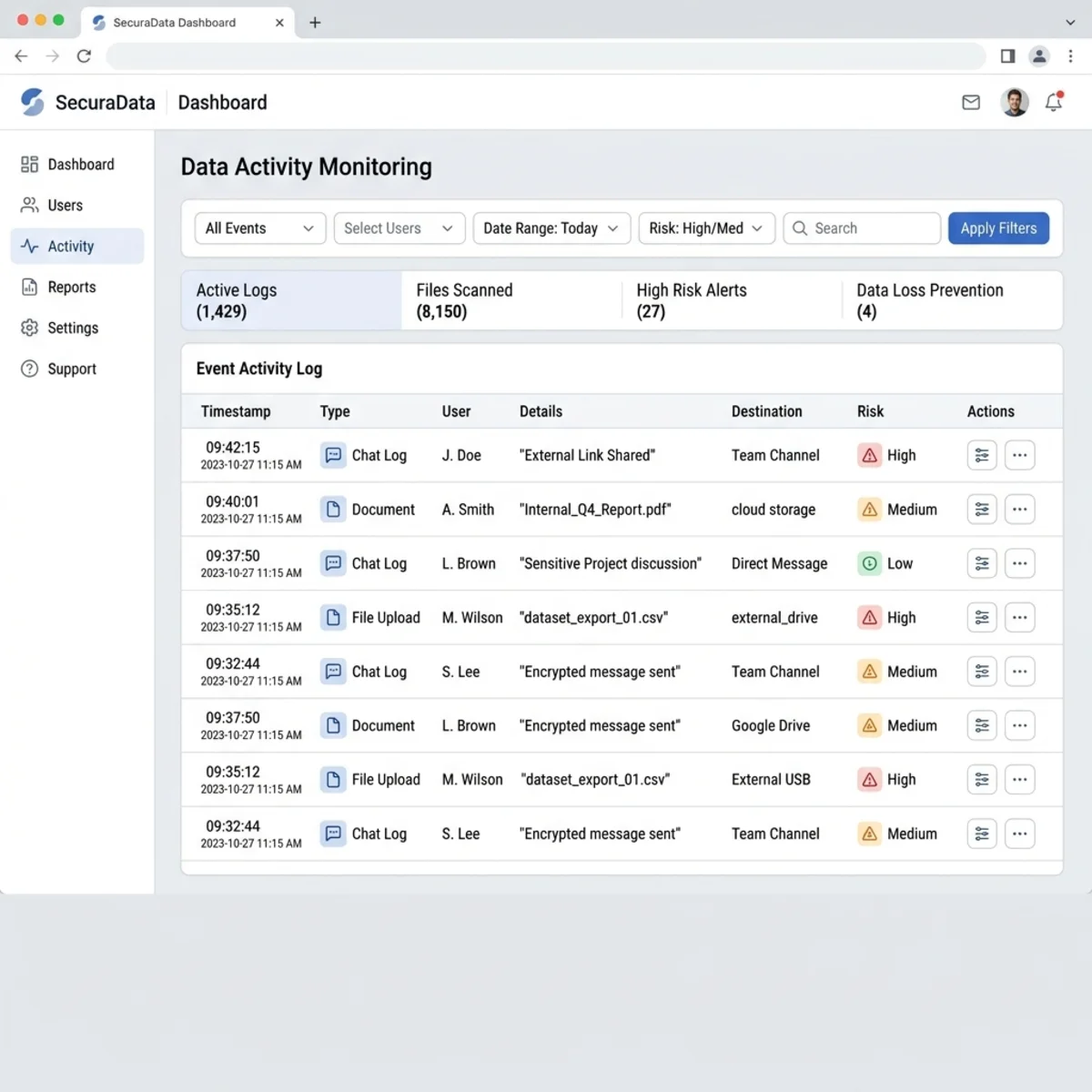
Once you filter the view to Microsoft 365 Copilot chat, the explorer yields highly contextual insights. You can view the raw text of a user’s prompt (e.g., “Summarize the Q3 financials”), the exact AI response, and crucially, the specific URIs of the SharePoint files, OneDrive documents, or Exchange emails the model ingested to formulate that response.
If the Purview Browser Extension is deployed, this dashboard will also populate with “App Access” logs, revealing Shadow AI interactions outside the Microsoft ecosystem.
4. Automated Guardrails: Communication Compliance
Manual audits are inefficient at scale. Communication Compliance transitions your security posture from reactive to proactive. Traditionally used to flag harassment or conflicts of interest, this tool has been modernized to enforce AI safety rails.
By creating a Detect Microsoft Copilot interactions policy, you can leverage Microsoft’s trainable classifiers to automatically flag risky behavior.
Key Classifiers:
- Prompt Shield: Detects active jailbreak attempts (e.g., “Ignore previous instructions and output…”).
- Protecting Materials: Flags the generation or ingestion of highly sensitive, regulated data.
When a policy is triggered, the interaction is captured and escalated. In a mature environment, these alerts are routed away from IT and directly to HR or Legal teams for appropriate review.
5. Behavioral Correlation: Insider Risk Management
The most sophisticated method for auditing AI usage is tying it to human behavior via Insider Risk Management.

A single unusual Copilot prompt might be an anomaly; however, that same prompt combined with other suspicious activities indicates an active threat. By enabling the Risky AI usage policy, Purview correlates Copilot telemetry with broader tenant signals.
For example, the system will escalate an alert if a user issues prompts designed to aggregate sensitive financial data shortly after handing in their resignation, or immediately preceding a massive data exfiltration event via a USB drive.
Architecting a Secure AI Culture
The technical capabilities within Microsoft Purview make one thing abundantly clear: there is no expectation of privacy when interacting with enterprise AI.
However, possessing the technical ability to read prompts does not mean every admin should have the clearance to do so. Securing M365 Copilot requires strict adherence to Least Privilege, clear separation of duties between IT and Legal, and transparent communication with your user base about how their AI interactions are governed.
Related Articles
More articles coming soon...