Intelligent AI Agents with Dataverse Fuzzy Search

Writer

When designing AI agents for enterprise data, you will quickly discover that users rarely type perfectly. They misspell words, flip product numbers, omit hyphens, and mix up column ordering. In standard keyword-based search architectures, these minor human errors result in broken matches, empty agent responses, and a poor user experience.
This technical guide walks through how to build a highly resilient Car Pricing Retrieval Agent inside Copilot Studio backed by Microsoft Dataverse. You will learn how to unlock Dataverse’s native fuzzy search engine via unbound actions, dive deep into the response payloads, and use dynamic orchestration to seamlessly chain data searches into custom Power Automate flows that calculate complex inventory metrics on the fly.
1. The Core Data Model: Lookup Relationships at Scale
To understand how our agent will navigate enterprise records, we must first look at the relational data structure inside Dataverse. Our system uses a two-table inventory architecture designed to separate static model definitions from individual physical stock assets.
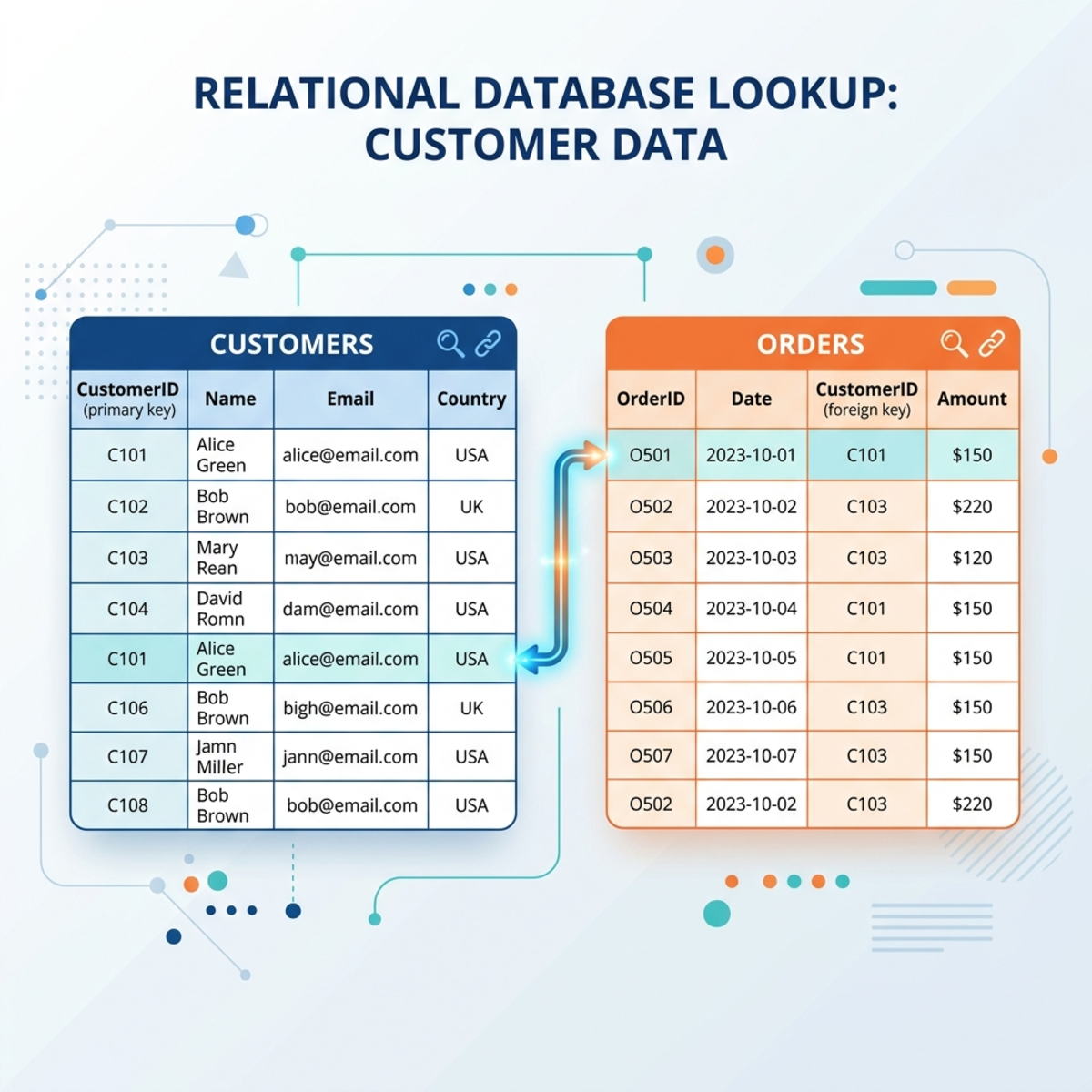
Table A: Car Model (cd_car_model)
This master table tracks all generic vehicle definitions produced by manufacturers.
- Model (
cd_model): Text column storing the variant (e.g., Civic, F-150). - Make (
cd_make): Text column defining the manufacturer (e.g., Honda, Ford). - List Price (
cd_listprice): Currency field reflecting the manufacturer’s suggested retail price (MSRP). - Quantity in Stock (
cd_quantityinstock): Whole number tracking total physical availability.
Table B: Car (cd_car)
This transactional table tracks every individual vehicle physically sitting on the dealership lot.
- Unit Number (
cd_unitnumber): Unique alphanumeric identifier/SKU. - Model Lookup (
cd_model_lookup): A native Dataverse lookup column creating a many-to-one (N:1) relationship pointing back to a record in the Car Model table. - Selling Price (
cd_sellingprice): The actual negotiated or marked price for that specific asset instance.
This model allows our agent to execute a two-stage retrieval process: first, use a fuzzy match to identify the master Car Model, and second, hop across the lookup boundary to aggregate real-time pricing distributions from the Car table.
2. Setting Up the Agent and Phase 1 Instructions
We begin inside Copilot Studio with a blank agent using an advanced orchestration model (such as Claude 3.5/4.5 or Azure OpenAI GPT-4o variants depending on your regional configuration) that supports generative tool selection.
To control how the agent orchestrates tools and maps information back to the end user, inject the following system rules into your agent’s core instructions:
Phase 1 Agent Instructions
For each car model the user would like to know the pricing of, perform these steps sequentially:
- Use the tool named
search_for_a_car_modelto locate a valid car model record matching the user’s raw description. - Once pricing data has been evaluated for all requested variants, generate a clean response containing a bulleted list of all car models matching the request along with their baseline list prices.
Response Formatting Guidelines:
- Format each bullet item strictly as:
[Make] [Model]: [Price]. - If a model is completely out of stock, explicitly add (Not in stock).
- Never provide both an itemized physical price range and a list price for the same vehicle in a single output line.
3. Exposing Dataverse Fuzzy Search via Unbound Actions
Copilot Studio has no built-in “Search Rows” action exposed out-of-the-box for canvas actions. To bypass this limitation, we tap directly into the underlying Dataverse API using Unbound Actions.
Understanding Bound vs. Unbound Actions
- Bound Actions: Highly localized operations tied directly to a single specific row of a designated table (e.g., executing an Approve or Reject routine on a specific row inside an approvals table).
- Unbound Actions: Static, global operations decoupled from a single row instance that can be called across the entire environment namespace (e.g., running global text search queries across multiple entity registries).
Tool Configuration Steps
- Navigate to your Agent’s Tools Menu and select Add a Tool.
- Search for the Microsoft Dataverse connector and select Perform an unbound action.
- Name the tool
search_for_a_car_modeland write a crisp description: “Performs a fuzzy search of vehicle models using raw make or model parameters and retrieves corresponding metadata.” - Map the Environment input parameter to a custom value set to
Current. - Define the Action Name by selecting
searchquerytoolfrom the dropdown menu. This invokes Dataverse’s underlying relevance search backend.
Engineering the Input Parameters
Click Add Input and expose these four system parameters to control the execution scope of the searchquerytool:
| Parameter | Type | Configuration Strategy |
|---|---|---|
search | String (Dynamic) | “User query. Do not alter or correct spelling.” |
entities | JSON (Formula) | Complex schema defining target scope & selectors. |
top | Integer | Hardcoded string “10” |
count | Boolean | Hardcoded boolean “true” |
To configure the entities input property, toggle the input method to the Power Fx / Formula Editor and construct a JSON array object outlining the precise internal logical names of your tables and target columns:
[!TIP] Pro Tip: The schema string inside
entitiesevaluates purely as text at design time. Dataverse will not throw an error if you type a column name wrong here; the action will simply fail silently or returnnullduring execution. Always copy your logical names directly from the Power Apps solution editor pane.
4. The Hidden Requirement: Enabling the Dataverse Search Index
Configuring your JSON array inside Copilot Studio is meaningless if Dataverse hasn’t indexed the columns. If you skip the following configurations, your unbound action will return blank results.
Step 1: Elevate Table Properties
Open your Power Apps environment solution, locate the Car Model table, and click Properties. Under advanced options, verify that Appear in search results is checked. This tells the asynchronous Dataverse indexing worker to include this entity in its global search indexes.
Step 2: Configure Column Searchability
Navigate to your columns list. The primary name column (cd_model) is generally indexed by default. However, manual columns like cd_make must be explicitly marked as searchable. Edit the column and ensure its search setting is active.
Step 3: Modify the Quick Find View
The searchquerytool relies heavily on the legacy table Quick Find View configurations to assemble execution parameters.
- Open the Views sub-menu of your Car Model table and choose Quick Find Active Car Models.
- In the bottom-right layout panel, locate the Find by… section. Click it and ensure both
cd_modelandcd_makeare explicitly checked. - In the central display grid view, use the View columns menu to append
cd_make,cd_model,cd_listprice, andcd_quantityinstock. - Click Save & Publish.
5. Under the Hood: Analyzing the Fuzzy Search Response Payload
When a user submits an altered query like “Tell me the price of a Civic, an F-150 Ford, and an Elantra,” the agent passes the raw misspelled string into the unbound action.

If you copy the raw engine payload from Copilot Studio’s telemetry log and open it in an editor like VS Code, the structured array looks like this:
Key Architectural Takeaways from the Payload
- Relevance Scoring (
@search.score): Dataverse processes strings through a BM25-based token relevance algorithm. Higher positive scores indicate precise token matching. Notice that even though the user typed “F-150” with no dash, the search engine successfully ranked the hyphenated “F-150” highest (21.94). Partial matches like “F-150 Lightning” score lower (14.21), and distant keyword associations drop into negative scores but are preserved for context fallback. - Query Context Transformation (
@search.querycontext): Behind the scenes, Dataverse automatically expands, stems, and builds known phrase combinations. It maps the typo-ridden input text into logical conditional pairings (like injecting “Ford Motor Company” automatically), boosting the hit rate of fuzzy phrases without requiring the agent developer to build tedious regex translation matrices.
6. Advanced Optimization: Dynamic Chaining via Agent Flows
Now we will scale our agent’s architecture to calculate real-time live pricing variance. If a vehicle model has active instances sitting on the lot, we want to extract the absolute minimum and maximum actual selling prices from our child table and output a range. If it’s out of stock, we fall back to the static MSRP list price.
Step 1: Update the Core System Instructions
Modify your primary agent instructions to support dynamic orchestration branching:
Phase 2 Agent Instructions
Use search_for_a_car_model to resolve raw user inputs into structured records.
Conditional Branching Rule: For each resolved record, inspect the cd_quantityinstock property. If the integer value is strictly greater than 0, immediately orchestrate a secondary call to the tool find_price_range_for_car_model by passing the underlying record GUID.
Format final outputs as a bulleted directory:
- In-Stock Format:
[Make] [Model]: [X] available vehicles ranging from $[Min] to $[Max]. - Out-of-Stock Format:
[Make] [Model]: $[MSRP List Price] (Not currently in stock).
Step 2: Creating the Power Automate Agent Flow
Go to the tools workshop, create a cloud flow optimized for Copilot Studio execution, and construct a lightning-fast data pipeline without expensive loop structures.

Detailed Pipeline Configuration
- Define the Input Contract: Set up an input property string named
car_model_id. Provide an explicit description so the orchestration model knows how to parse it: “The unique internal Dataverse identifier of a car model in GUID format (e.g., 00000000-0000-0000-0000-000000000000).” - Execute OData Filtered Fetch (List Rows): Target the physical Cars table. Expand the advanced features and write a precise OData filter query to isolate instances mapping back to the matched parent record:
(Note: When filtering on lookup columns in Dataverse, you must prefix the logical column name with an underscore and append _value to correctly target the foreign key registry).
- Perform High-Speed Array Extraction (
Select): Avoid dragging performance down with an “Apply to each” loop. Instead, place a native Select Data Operation action directly underneath your List Rows step.- From: Set this to the array output value:
outputs('List_Rows')?['body/value']. - Map Rules: Click the small text configuration button on the right side of the card to transition the key-value input fields into a single raw value entry box. Enter the singular JSON item mapping property:
item()?['cd_sellingprice'].
- From: Set this to the array output value:
- Extract Bounds via Expression Math: In the final Respond to an Agent card, expose two number variables:
maximum_selling_priceandminimum_selling_price. Use native Power Automate expressions to automatically parse the flat numeric array generated by the previous step:- For Maximum:
max(body('Select_Selling_Prices')) - For Minimum:
min(body('Select_Selling_Prices'))
- For Maximum:
Save the flow with an descriptive engineering title like find_price_range_for_car_model, link it within your Copilot Studio canvas suite, and run your publishing routine.
7. The End Architecture: Generative Orchestration in Practice
When you run your finalized agent configuration and prompt it with a messy sequence, the agent leverages Generative Orchestration / Dynamic Chaining to process the data layout iteratively:
User: “Tell me the price of a Civic, an F-150 Ford, and an Elantra”
- Step 1 (Parallel Evaluation): The runtime analyzes the input token groupings, identifies three distinct entities, and concurrently invokes
search_for_a_car_modelthree times with the raw strings. - Step 2 (Typo Resolution): Dataverse’s search index resolves the records to:
- Record 1: Honda Civic (In Stock: 8, GUID:
...81a) - Record 2: Ford F-150 (In Stock: 7, GUID:
...92b) - Record 3: Hyundai Elantra (In Stock: 0, GUID:
...43c)
- Record 1: Honda Civic (In Stock: 8, GUID:
- Step 3 (Dynamic Tool Chaining): The agent notes that the Civic and F-150 have inventory quantities greater than 0. It executes a secondary chain, calling the
find_price_range_for_car_modelcloud flow twice, passing the respective GUIDs. It completely skips the flow for the Elantra because it evaluates the conditional instruction rule (Quantity > 0) as false. - Step 4 (Final Synthesis): The agent formats the outputs into a coherent presentation according to the system’s layout rules:
- Honda Civic: 8 available vehicles ranging from $28,400 to $34,100.
- Ford F-150: 7 available vehicles ranging from $51,000 to $62,500.
- Hyundai Elantra: $24,500 (Not currently in stock).
By relying on native Dataverse fuzzy queries instead of forcing users to match your exact structural records, you eliminate user friction and dramatically decrease conversational drop-off points in your enterprise agent applications.
Read next
Related articles

Mastering Document Automation: 4 Ways to Populate Word Documents with Copilot Studio Agents

The Evolution of Automation: Mastering the New Copilot Studio Workflow Designer (May 2026 Preview)