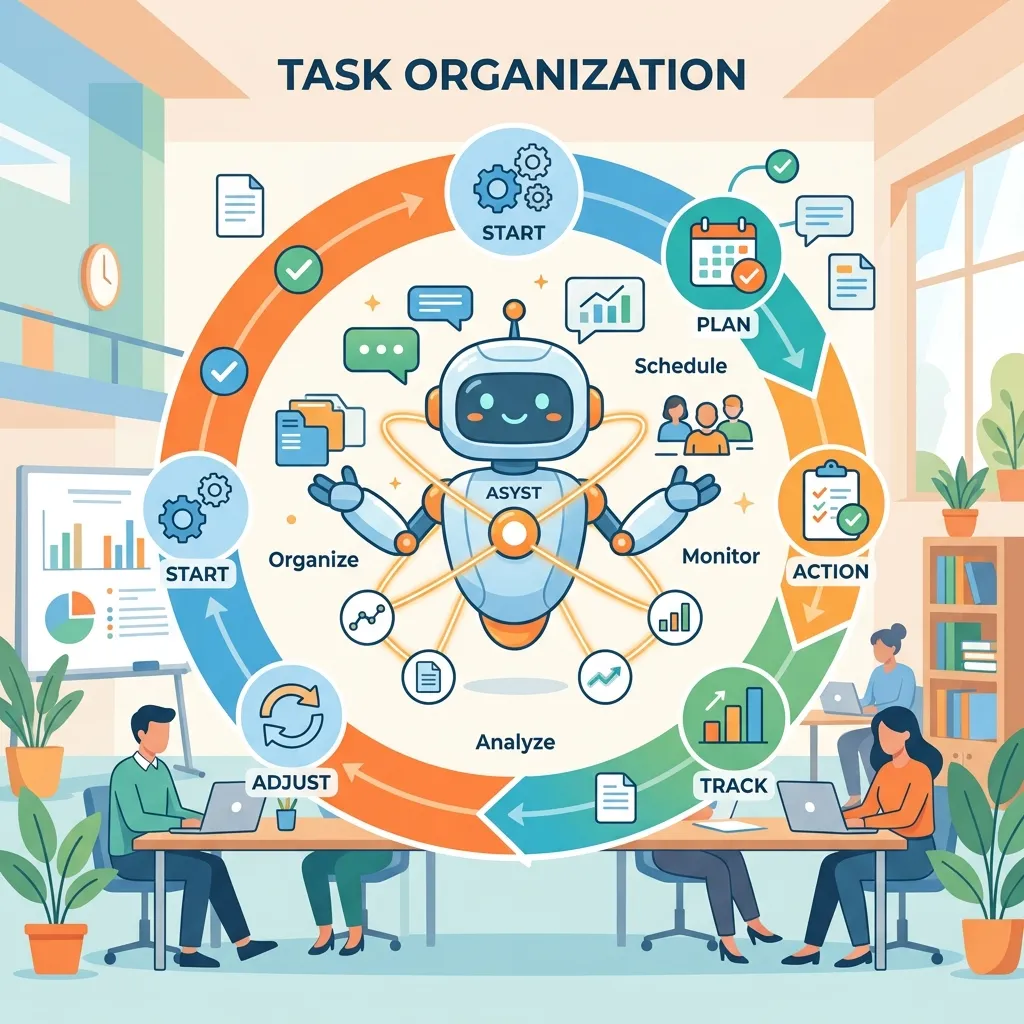
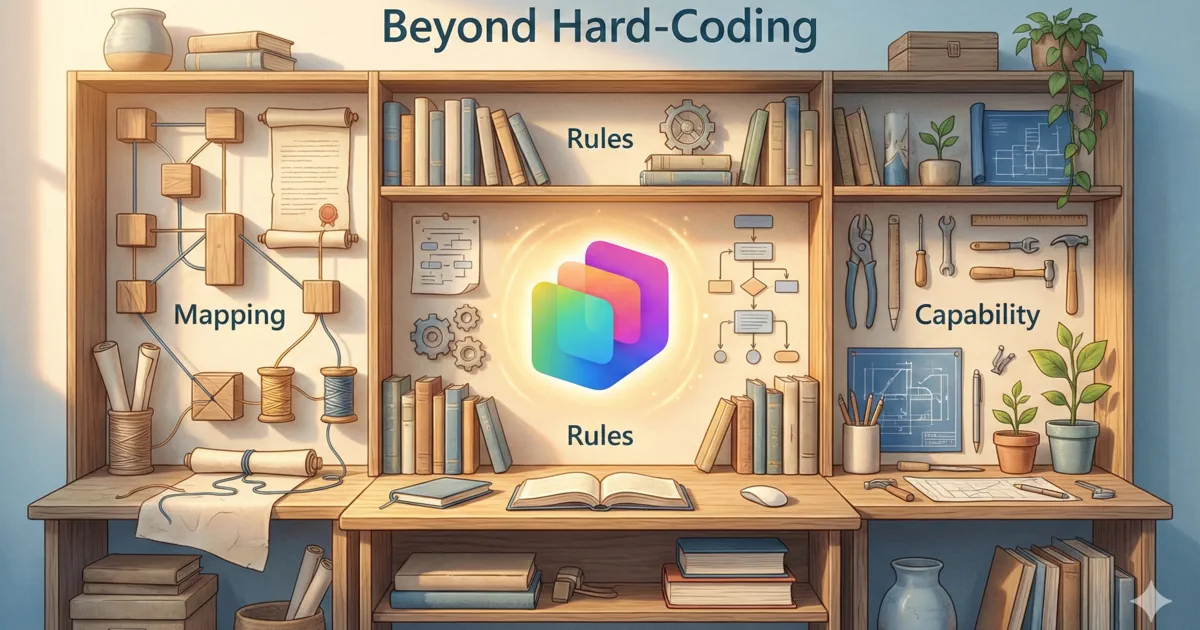
Architecting Autonomous Agents in Copilot Studio

Writer
Quiz available
Take a quick quiz for this article.

Welcome to your hands-on guide to building autonomous agents in Microsoft Copilot Studio. The way we architect enterprise AI agents has fundamentally shifted. Copilot Studio has moved away from rigid, pre-programmed conversation trees and leaned hard into generative orchestration — an LLM-driven planning layer that reasons about your tools, knowledge, and instructions and decides what to do at runtime.
This guide goes beyond a standard “101.” We’ll dissect the new architecture, then — for every concept — show you exactly where to click, what to configure, and the gotchas that bite people in production. We cover the Model Context Protocol (MCP), the code interpreter, cross-session memory, Markdown skills, and what actually happens to Conversation Topics.
Who this is for: makers and architects who have built at least one basic agent and want to operate at the autonomous tier.
What you’ll be able to do by the end: stand up a generative-orchestration agent, ground it on enterprise data, extend it with MCP tools, and lock in repeatable behavior with a skill.md file — without hand-writing integration code or conversation scripts.
Let’s dive in.
Before You Start: Prerequisites & Setup
Before any of the architecture below applies, three things have to be true in your environment. Get these right first — most “it doesn’t work like the blog says” problems trace back to one of them.
- Licensing & environment. You need access to Copilot Studio (a trial works) and a Power Platform environment where it’s enabled. Standalone Copilot Studio gives you the full enterprise surface; the “light” experience inside M365 Copilot is for declarative agents and won’t expose everything here.
- Turn on generative orchestration. This is the master switch for everything in this article. In your agent, go to Settings → generative AI (orchestration) and select Generative (not Classic). MCP tools, autonomous behavior, and multi-step planning are all gated behind this toggle — if it’s off, none of it shows up.
- (Optional) Enable a frontier reasoning model. Copilot Studio supports model choice. You select the model during agent creation, and the autonomous patterns in this guide shine when you pick a strong reasoning model — Anthropic’s Claude (Sonnet 4.5 / Opus 4.5) or the latest GPT line.
Governance Tip: Claude is opt-in and lives outside the Microsoft compliance boundary
If you want to use Anthropic’s Claude models, a tenant admin must first enable them in the Microsoft 365 admin center. Two things every architect should know before flipping that switch:
- Anthropic models are hosted outside Microsoft-managed environments. Depending on your tenant’s terms, your prompts and grounding data may be processed under Anthropic’s commitments rather than Microsoft’s — treat Claude as experimental and keep regulated, customer-facing workloads on Microsoft-hosted models until your data-governance team signs off.
- In EU/EFTA and the UK, Claude is off by default because Anthropic-processed data is presently excluded from the EU Data Boundary. If you’re in those regions, you must explicitly opt in.
Pick the model that matches your data-sensitivity posture, not just the leaderboard.
The Four Modes of Agent Lifecycle Management
The interface splits agent work into four explicit modes. Think of it as a lightweight CI/CD loop rather than a single drafting canvas.
- Build: The workbench where you write the agent’s instructions, select the base model, and attach tools and knowledge sources. In practice: spend most of your effort on the instructions field — under generative orchestration, this is your primary control surface (it replaces a lot of what topics used to do).
- Preview: A live sandbox to chat with the agent. In practice: turn on the activity map / orchestration trace so you can see the plan the orchestrator generated — which tools it considered, what it called, and why. This is where you’ll do 80% of your debugging.
- Evaluate: A regression suite that replays structured test cases so behavior stays consistent as you iterate. In practice: seed it with your top 15–20 real user questions plus the expected answer or expected tool call. Run it after every instruction change — autonomous agents drift, and this is your early-warning system.
- Monitor: The production observability dashboard: session analytics, token usage, latency, and errors. In practice: watch the unanswered / escalated rate and token-per-session trend — a sudden climb usually means an instruction change made the planner take a longer path.
Pro-Tip: Treat Evaluate as a gate, not an afterthought. The single biggest difference between a demo agent and a production agent is whether you can change an instruction on Friday and prove on Monday that you didn’t break the other twelve scenarios.
Under the Hood: Generative Orchestration
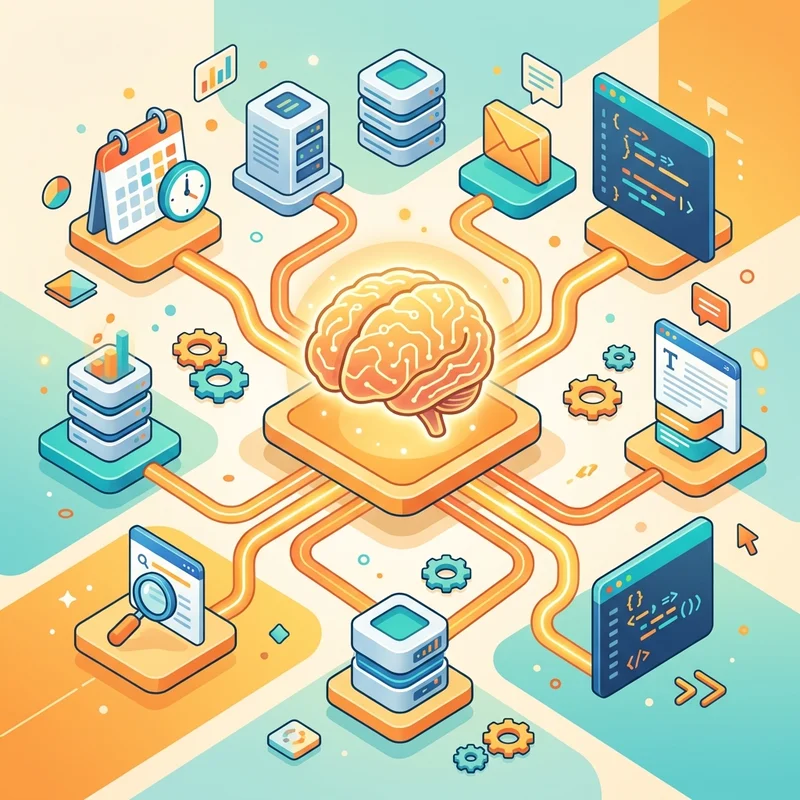
The core engineering shift is generative orchestration — an LLM-driven planner that replaces the old intent-routing switch.
When a user sends a message (or an event fires), the orchestrator:
- Interprets intent and breaks the request into steps.
- Evaluates its entire inventory — instructions, knowledge sources, tools, connected agents — and decides which combination to use.
- Emits an ordered plan the runtime executes, calling tools and retrieving knowledge as needed.
- Passes everything through a unified response layer so the user gets one clean, synthesized answer instead of five raw tool dumps.
If the planner genuinely can’t find a path, it routes to a fallback and can escalate to a human. When you power this planner with a high-end reasoning model like Claude Opus 4.5, it behaves much more like an autonomous reasoning agent than a router — which is exactly why model choice matters here.
The Code Interpreter (Sandbox Runtime)
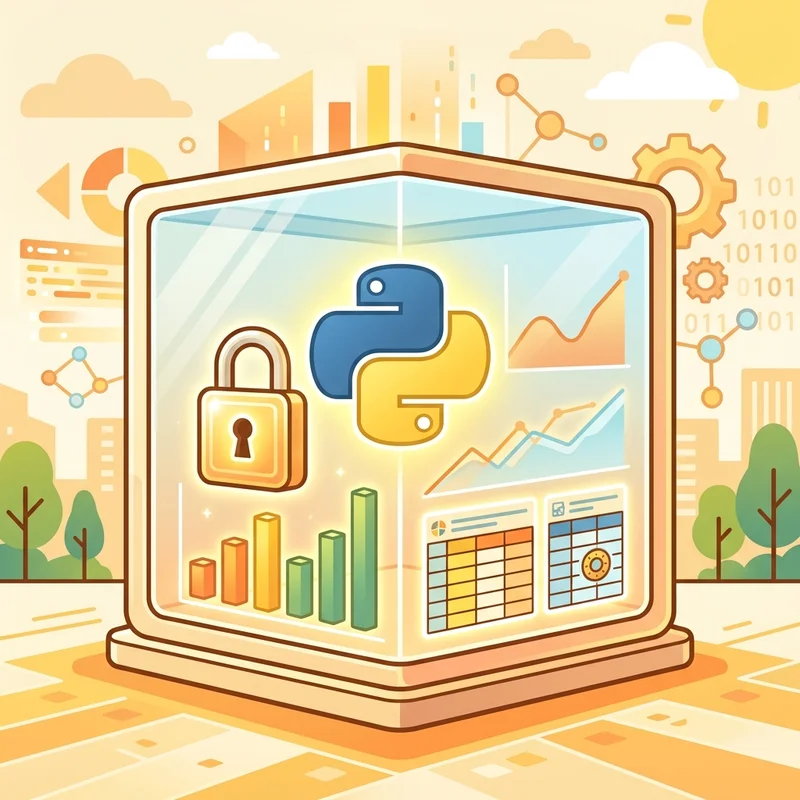
Generative-orchestration agents can include a code interpreter capability: an isolated, per-session sandbox where the agent writes and runs its own code to satisfy a request, instead of you wiring up a connector or flow for every transformation.
Inside that sandbox the agent gets:
- A working file space for uploads, intermediate artifacts, and generated outputs.
- Native parsing of common formats out of the box (Excel, CSV, PDF, Word, PowerPoint).
- A Python runtime with data libraries such as pandas and openpyxl available.
Because it can run code dynamically, the agent can do things that would otherwise need custom development — for example, reading an uploaded CSV, reshaping it, and emitting a multi-tab Excel workbook, all from a single natural-language request.
Try it yourself. Upload a messy sales CSV in Preview and prompt:
“Clean this file, pivot revenue by region and month, and give me back an Excel workbook with one tab per region.”
Watch the orchestration trace: you’ll see the agent decide to use the interpreter, write the transformation, and return a downloadable file.
Reality check (as of June 2026): the exact runtimes and libraries exposed in the sandbox are still rolling out and vary by tenant and model. Validate what’s actually available in your environment before you design a workload around it, and don’t assume a specific runtime (or package) is present just because it appears in a demo. The capability is powerful but evolving — version-pin nothing you can’t re-check.
Knowledge: The 7-Stage RAG Pipeline
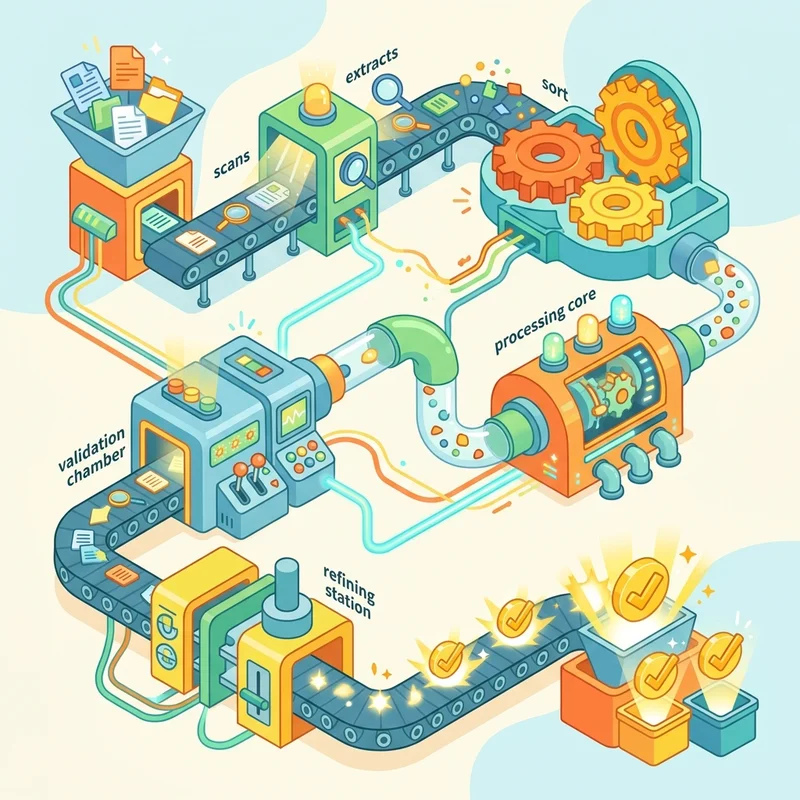
“Knowledge” in Copilot Studio is a managed RAG (Retrieval-Augmented Generation) pattern — a commodity implementation so you don’t build search infrastructure yourself. A crucial mental model: Copilot Studio doesn’t index your data; it orchestrates and delegates the search to trusted services (Bing, SharePoint/Graph, Dataverse, Azure AI Search) and then grounds the answer on what comes back.
While the architecture changed how you connect data (Dataverse is now reachable via MCP), the underlying pipeline is the gold standard for how a knowledge query is processed:
- Message Moderation — Screens the incoming query for unsafe content. If it’s blocked, it never reaches a model.
- Query Optimization — Rewrites the conversational message into a search-friendly query, pulling in context from recent turns.
- Information Retrieval — Runs the optimized query against each configured source and pulls back the top results from each (the platform deliberately caps results per source to balance relevance and speed).
- Summarization — The model drafts a coherent answer from the retrieved snippets, with Microsoft’s Responsible AI guardrails applied.
- Provenance Validation — Confirms the drafted answer is actually supported by the retrieved source data and generates verified citations. (This stage is often mis-typed as “Providence” — the correct term is provenance, meaning the traceable origin of the information.)
- Summary Moderation — A final safety check on the generated response before it leaves the engine.
- Return Response — Delivers the cited, moderated answer and logs telemetry.
Hands-on: the knowledge-source limits that will trip you up
Most “the agent can’t find it” tickets come down to a source-specific constraint, not the pipeline. Keep this table handy when you configure grounding:
| Knowledge source | Auth | Key limits to remember |
|---|---|---|
| Public websites | None | Site must be indexed by Bing; crawl reaches ~2 subpage levels deep. If Bing can’t see it, neither can your agent. |
| SharePoint / OneDrive | Entra (delegated) | Files up to 15 MB are summarized (up to 200 MB with Enhanced Search). Security-trimmed — users only get content they already have rights to. |
| Uploaded files | None | Up to 512 MB per file, 500 files per agent, stored in Dataverse. Good image/table recognition in PDFs. |
| Dataverse tables | Entra (delegated) | Up to 15 tables. Add synonyms + a glossary — natural-language queries become analytical queries, and synonyms dramatically improve hit rate. |
| Graph connectors | Entra (delegated) | Brings indexed enterprise apps (e.g., ServiceNow, Jira) into the same retrieval path. |
Security Tip: The Global Web toggle
The option to let the agent use the entire web via Bing now lives as an explicit toggle on the Public Websites configuration page. This gives you crisp control over whether an agent is air-gapped to a specified URL list or open to global indexing. For internal or compliance-sensitive agents, leave it off and pin specific URLs — an open web toggle is the most common way an “internal” agent starts citing random public pages.
Cross-Session User Memory
Memory is now a native state-retention layer. Agents can capture and persist context across distinct chat sessions without you manually injecting tokens or managing parent-app state.
When a user states a durable fact (“Remember that I manage the Atlanta field crew”), the orchestrator updates a long-term user profile. On the next session, the agent silently reads that state and can filter accordingly (e.g., default to Atlanta schedules) without re-asking.
Hands-on notes:
- Enable it in the agent’s settings (look for the user memory / personalization option under the generative AI settings) — it isn’t always on by default.
- Tell the agent what to remember. In your instructions, be explicit: “Persist the user’s team, region, and preferred report format across sessions; do not persist anything they ask you to forget.” The model won’t reliably decide what’s durable on its own.
- Plan for privacy. Memory means PII can outlive a conversation. Document what’s stored, give users a way to reset it (“forget what you know about me”), and confirm the retention behavior matches your data-handling policy before you ship.
Tooling Infrastructure: MCP, Connectors, and Agent Flows
Extensibility is organized into three tiers, with a strong push toward open, standardized integration. Remember: all of this requires generative orchestration to be on.
1. Model Context Protocol (MCP) Servers
MCP servers are a first-class citizen in the tooling stack. Rather than a single-action wrapper, one MCP server exposes a whole collection of schema-defined tools, and the orchestrator uses natural-language reasoning to pick the right one at runtime. Copilot Studio dynamically reflects changes on the server — add or remove a tool there, and the agent’s inventory updates automatically.
How to add one (the fast path):
- Open your agent and go to the Tools page.
- Select Add a tool → Model Context Protocol.
- Pick a prebuilt connector (e.g., the Dataverse MCP server) or choose New tool → MCP and supply your server’s URL.
- Authorize the connection, then Add and configure.
- On the server’s settings page, review the Tools and Resources it exposes.
Security Tip: least privilege is a per-tool toggle
When you add an MCP server, all its tools are enabled by default (the Allow all toggle is on). For an expansive server like Dataverse MCP, turn Allow all off and enable only the tools you need. Explicitly disable high-risk, data-definition operations (table creation, schema modification, bulk delete) before publishing. Bonus: with Allow all off, any new tools the server adds later are disabled by default — so a server-side change can’t silently widen your agent’s blast radius. MCP access is also governed by Power Platform data-loss-prevention policies, so coordinate with your admin.
2. Connectors
Traditional Power Platform connectors remain available. They let you map a single, explicit action from any standard connector (hundreds of Microsoft and third-party services) directly into the agent’s action inventory. Reach for a connector when you need one well-defined action — “create a ServiceNow ticket,” “send a Teams message” — rather than a whole tool collection.
3. Agent Flows (Workflows)
What the new experience surfaces as workflows are agent flows — deterministic, sequenced logic you build right inside the agent workspace. Use them when “always produce the same result” matters more than flexibility (commission math, approval routing, anything mission-critical or irreversible).
- Variables & types: strongly typed variables (integers, strings, booleans) pass state between steps.
- Expression assistant: a natural-language-to-formula helper that generates Power Fx expressions from your intent — describe the calculation, get the formula.
- Tool publishing: once compiled and published, the flow is exposed to the agent as a semantic tool the orchestrator can call on demand.
Architecture rule of thumb: put irreversible or compliance-critical actions in a deterministic agent flow, and let the generative orchestrator handle everything ambiguous around it. Never let the planner free-hand a payment or a record deletion.
Breaking Paradigms: Critical Structural Changes
Moving to a reasoning-based autonomous agent changes how several classic components are used. Here’s what’s actually true (with the nuance that matters for migration planning).
1. Conversation Topics: deprecated as the default, not deleted
The visual topic canvas — scripting conversation trees, pre-programmed questions, static answer nodes — is no longer the primary way you build in the generative experience. Under generative orchestration, the planner composes instructions, tools, and knowledge dynamically, so the sprawling topic inventories of the past largely disappear.
But “deprecated as the default” is not the same as “gone.” Topics still exist and still matter when you need hard determinism. You have two migration paths:
- Hybrid / classic fallback: Switch the agent (or specific flows) to classic orchestration when a hard-coded, deterministic conversation tree is a genuine business requirement — regulated scripts, fixed disclosures, strict slot-filling.
- Declarative engineering (preferred): Move that procedural guidance into the agent’s instructions and Markdown skills. A strong reasoning model follows complex prompt-based boundaries far more reliably than its predecessor, so most “we need a topic for this” cases are better solved with a well-written instruction block.
Migration gotcha: Don’t assume your old topics auto-translate into great instructions. Re-author them. A topic encodes control flow; an instruction encodes intent and boundaries. Paste a topic’s logic verbatim into instructions and you’ll usually get an agent that’s both rigid and vague — the worst of both worlds.
2. Inline Child Agents → Connected Agents
Previously you could nest child agents tightly inside a single parent. The new architecture favors a clean separation of concerns: build child agents as standalone entities and wire them in through the Connected Agents experience, which gives you modular, reusable multi-agent fabrics. For lighter cases, replace a child agent entirely with a targeted Markdown skill.
3. Triggers Move to the Flow / Automation Layer
Autonomous triggers are no longer buried in the conversational design space. You define an entry point — a time-based recurrence schedule or an event-driven connector (e.g., a record update) — and position the agent invocation downstream in that automated flow. This keeps the “when does this run” concern cleanly separated from the “what does it say” concern.
The “Skills” Paradigm & skill.md Architecture
With topics no longer the default, how do you make autonomous behavior repeatable? The most powerful pattern is the Markdown skill — a declarative blueprint you write in a skill.md file instead of hand-configuring branches. A skill file combines metadata, activation cues, and an ordered execution recipe:
Why this works: you’re giving the reasoning model a named, reusable procedure with clear entry conditions and concrete steps. The orchestrator can match it by description and follow the recipe consistently — which is exactly the repeatability topics used to provide, minus the rigid canvas.
A note on terminology: historically “Skills” in Copilot Studio referred to Bot Framework / M365 Agents SDK skills registered via a manifest URL — a different, pro-code feature. The skill.md pattern here is the lightweight, declarative approach for instructing the generative orchestrator. Don’t confuse the two when you’re reading older docs.
Pro-Tip: Interactive skill extraction (the fastest way to author a skill)
Hand-writing skill files is fine, but the efficient pattern is to let the agent write its own:
- In Preview, prompt the agent to perform the multi-step task manually, start to finish.
- Iteratively refine the output format in natural language until it’s exactly right.
- Once it matches spec, ask the agent to capture its own procedure: “Generate a downloadable skill.md that reproduces this exact output format for future requests, including the trigger phrases and the tools you used.”
- Review it (especially the tool calls), then add that markdown file back into the agent so the capability is locked in.
You’re essentially recording a macro by demonstration, then promoting it to a reusable skill.
Hands-On Walkthrough: An Autonomous Agent in ~20 Minutes
Tie it all together with a concrete build. Goal: an agent that generates a location-and-month construction shift schedule as an Excel file.
- Create the agent and select a strong reasoning model (Claude Opus 4.5 or your best GPT). Confirm the admin has opted in if you choose Claude.
- Turn on generative orchestration (Settings → generative AI).
- Write tight instructions. State the agent’s job, its boundaries, and its tone. Example: “You generate workforce shift schedules. Only use the Dataverse Job Assignments and Construction Workers tables. Never invent worker names. Always return an Excel file plus a one-line headcount summary.”
- Add the Dataverse MCP server (Tools → Add a tool → MCP), then turn off Allow all and enable only the read tools you need.
- Enable the code interpreter so the agent can build the workbook.
- Add the skill.md from the section above to make the behavior repeatable.
- Test in Preview with the orchestration trace on. Confirm it queries Dataverse, runs the transformation, and returns a file.
- Seed Evaluate with 5–10 variants (“schedule for Dallas in July,” “shift matrix for 2026-08,” an out-of-range location) and lock in expected behavior.
- Publish, then watch Monitor for token spikes and unanswered queries.
Troubleshooting & Common Pitfalls
| Symptom | Most likely cause | Fix |
|---|---|---|
| MCP / tools don’t appear | Generative orchestration is off | Switch orchestration to Generative in settings |
| Agent ignores a tool it has | Vague tool/skill description | Rewrite the description to state exactly when to use it — the planner routes on descriptions |
| ”Can’t find” internal docs | Source-specific limit (file too big, not Bing-indexed, no access) | Check the limits table above; remember SharePoint is security-trimmed |
| Behavior drifts after an edit | No regression gate | Run Evaluate after every instruction change |
| Agent over-reaches on data | MCP least privilege not applied | Turn off Allow all; disable DDL/delete tools |
| Wrong/irreversible action taken | Critical logic left to the planner | Move it into a deterministic agent flow |
Conclusion: Architectural Best Practices
Shift your mental model away from conversation flowcharts and toward capability boundaries: give the agent good instructions, the right tools, grounded knowledge, and deterministic guardrails where it counts.
| Architectural target | Legacy solution | Modern solution |
|---|---|---|
| Data ingestion | Dataverse knowledge connector | Dataverse MCP server |
| Data manipulation | Complex Power Automate loops | Code interpreter (Python sandbox) |
| Context retention | Custom session variables | Native cross-session memory |
| Structured interactions | Rigid Conversation Topics | Instructions + Markdown skills (skill.md) |
| Deterministic logic | Hand-scripted topic branches | Agent flows (Power Fx) |
| Multi-agent design | Nested inline child agents | Connected Agents |
By mastering the code interpreter, the semantic routing of MCP servers, deterministic agent flows for the parts that must never vary, and interactive skill extraction, you can build resilient, highly autonomous agents that handle data engineering, analysis, and orchestration — while you write far less integration code and zero conversation scripts.
Further Reading (official docs)
- Apply generative orchestration capabilities
- Enhance AI responses with Retrieval Augmented Generation
- Extend your agent with Model Context Protocol (MCP)
- Anthropic models in Microsoft Online Services
Read next