GitHub Copilot CLI: The Intelligent Agent for Everyone

Writer
Quiz available
Take a quick quiz for this article.

For decades, the “Command Line” has been a gated community. If you knew the secret handshakes (commands), you had infinite power. If you didn’t, it was just a scary black box.
The Revolution: From Commands to Conversation
GitHub Copilot CLI has transformed the terminal from a tool for executing commands into an intelligent agent that can reason, plan, and execute complex tasks. It’s not just a “smarter autocomplete”—it’s an LLM that has read/write access to your system.
This bridges the gap between what you want done and how to do it. You provide the intent; it handles the execution.
| Feature | Traditional CLI | Copilot CLI |
|---|---|---|
| Interface | Strict Commands & Flags | Natural Language Chat |
| Learning Curve | Steep (Manuals & Memorization) | Zero (Just Talk) |
| Intelligence | Static Scripts | AI Planning & Reasoning |
| Vision/OCR | Requires 3rd party tools | Native Context Awareness |
Getting Started in 3 Steps
Prerequisite: You need an active GitHub Copilot subscription to use the CLI.
You don’t need to be a computer wizard to set this up. If you have a GitHub Copilot subscription, you’re already halfway there.
1. Install it
Open your terminal (Command Prompt on Windows, Terminal on Mac) and run one command.
On Mac (using Homebrew):
On Windows:
Using NPM (Any OS):
2. Wake it up
Once installed, just type:
This launches Interactive Mode, which is basically a conversation.
3. Log in and Chat
It will ask you to log in on your first run. Follow the link to authorize with your GitHub account, and that’s it. You are now dropped into a chat interface.
No memorization required: You can just ask Copilot CLI anything in plain English, and it will figure out the right commands for you.
You don’t need to memorize commands. You can just ask:
- “How do I check my internet speed?”
- “List all the files I modified yesterday.”
- “Explain what this error message means.”
Or, as I did, you can give it a real challenge.
The “Messy Desktop” Experiment
I decided to put it to the test with a real-world disaster: my own Desktop.
I am a digital hoarder. My desktop was a warzone of:
- Screenshots of error messages
- PDF invoices from freelancers
- Random images of design ideas
- Personal receipts
I wanted to clean it up, but I didn’t want to just sort by file type. I wanted to organize by context. I wanted all my financial stuff together, whether it was a PDF text file or a PNG image of a receipt.
The Ask
I opened the terminal and gave it a prompt that would usually require a custom Python script and several API keys:
The Prompt: “Organize my desktop by semantic context, not file type. Use OCR to read screenshots and identify bills (like ‘du’ or invoices), designs, and proposals.”
This is actually a very complex request. I was asking the AI to:
- Look at every file on my desktop.
- Read the text inside the images (using OCR).
- Read the text inside the PDFs.
- Understand what the document actually is (distinguishing “du” the telecom company from “du” the disk usage command).
- Create new folders and sort them logically.
The “Oh No” Moment: Broken Paths
The cleanup worked perfectly. My desktop was spotless. But then, I tried to open my VS Code workspace, and it was empty.
Why?
The workspace file (candede_astro.code-workspace) is just a text file that tells VS Code where your projects are using relative paths.
When it lived on my Desktop, it looked for my projects here:
"path": "../repo/my-project"
But when Copilot moved it into the new Development & Code/ folder, it was now one level deeper. It was looking for a repo folder inside the Development & Code folder, which didn’t exist.
Self-Correction
Instead of manually editing the JSON file, I just asked Copilot to fix its own mess:
Second Prompt: “You moved my workspace file into a subfolder, so the relative paths are broken. Can you find the correct paths based on the file’s new location and update them for me?”
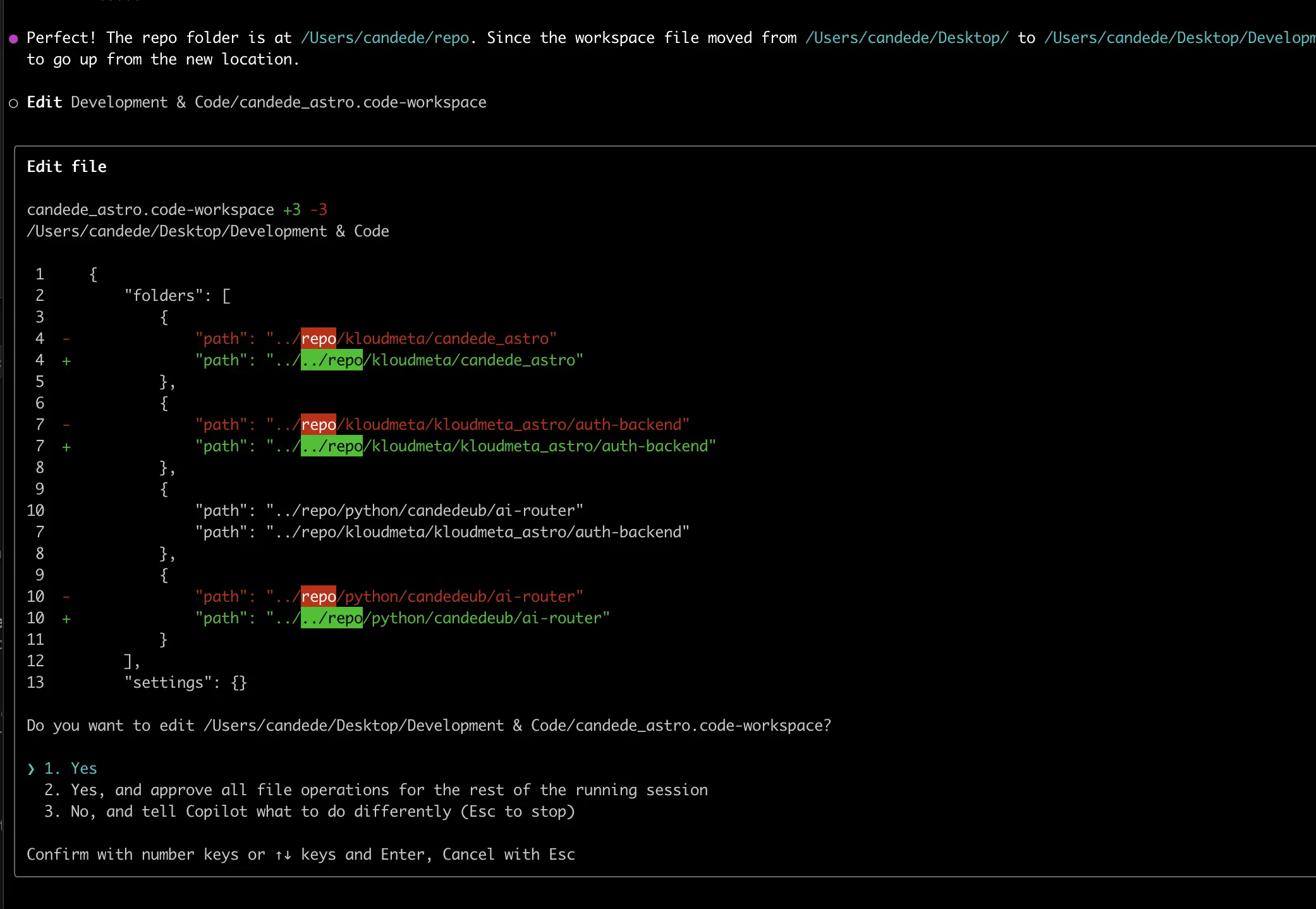
Instead of just doing a blind find-and-replace, Copilot actually investigated the filesystem. It checked if the repositories existed relative to the Desktop, then verified the user home directory, found where the projects were actually stored, and calculated the correct relative paths itself. This is the true power of an agent: it doesn’t just “do a task”—it investigates, reasons, and solves the problem based on the real state of your system.
It found Attachment Removal Design.png.
It saw UI elements and wireframes inside the image.
“This belongs in Design & UI Work.”
It found coffee_bean_2025.pdf.
“This looks like an invoice.”
The Result
After thinking for a moment, it proposed a brand new folder structure for me:
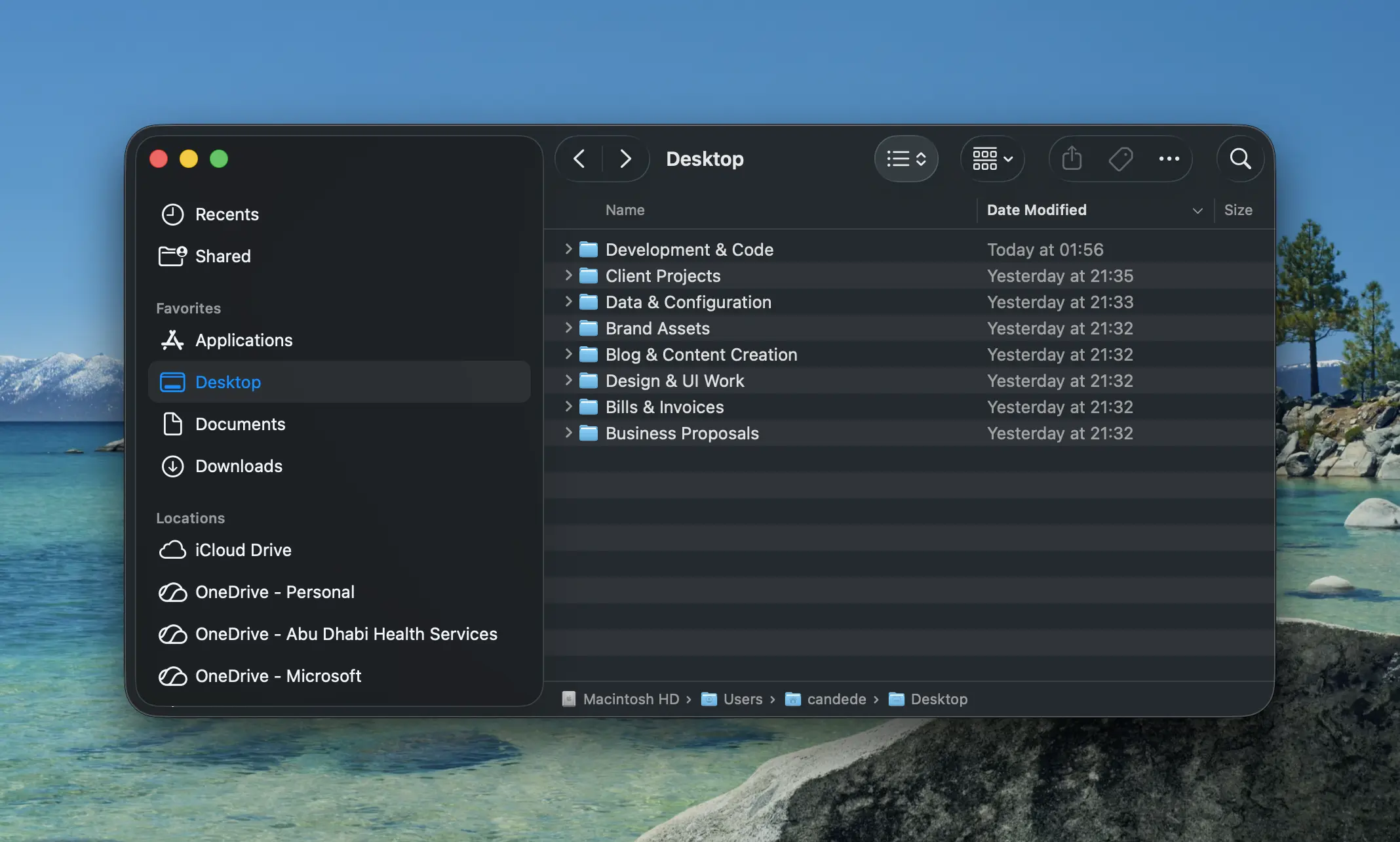
It successfully bridged the gap between what the computer sees (file formats) and what I see (actual tasks).
Why This Matters for the “Average Joe”
You might not care about terminal commands or scripting, and that’s fine. But this represents a huge shift in how we use computers.
For decades, we’ve had to organize our files the way the computer wants us to: by type, size, or date. Now, we are entering an era where we can organize things the way we think.
You can simply tell your computer: “Here is my mess, please fix it based on what these files actually are.”
GitHub Copilot CLI isn’t just a tool for programmers to write code faster. It’s a glimpse into a future where our computers finally understand us, making digital spring cleaning a whole lot easier.
Read next