Governing Agent Access in Microsoft Copilot Studio

Writer

Sharing a Copilot Studio agent looks simple: open Share, choose a person or group, and assign access. In practice, that dialog is only one layer of the authorization model.
An agent lives inside a Power Platform environment, its components are stored in Dataverse, publishing can be constrained by tenant and environment policy, and transcript drill-downs require permissions beyond access to the Analytics page. If you reason only about the role shown in the sharing pane, you can easily grant too much access—or troubleshoot the wrong control.
This guide explains how those layers fit together and how to make reliable access decisions without treating every collaborator as a full maker.
The central mental model: Agent sharing answers what can this person do with this agent? Environment security answers what can this person do in the environment that contains it? Effective access is the combination of both.
Start with the access outcome, not the role name
Before assigning anything, decide which outcome the person actually needs:
- Use the agent — interact with the published experience.
- Build the agent — edit configuration, test changes, share it, and publish it.
- Observe the agent — inspect performance metrics without changing the agent.
- Administer the platform — manage environments, policies, security roles, or orphaned assets.
These are different jobs. Collapsing them into a single broad “agent access” request is how least privilege gets lost.
| Intended outcome | Agent-level assignment | Additional requirement to check | What it should not imply |
|---|---|---|---|
| Chat with or trigger the agent | Viewer / User – can use the agent | Authentication, channel access, and user access to underlying data or connections | Authoring rights or the ability to change prompts, knowledge, or publishing |
| Collaboratively author | Editor | Environment membership, Environment Maker, and appropriate Copilot Studio access | Ownership or delete rights |
| View aggregate analytics | Analytics Viewer | Copilot Studio access as required by the sharing experience | Editing, testing, sharing, or publishing |
| Drill into transcripts | Analytics Viewer | Bot Transcript Viewer or another role with the required transcript read privilege | Agent authoring rights |
| Reassign an orphaned agent | No ordinary sharing role is sufficient | Supported admin role, API permissions, and a supported agent type | Routine maker access |
The names visible in the product can vary slightly by surface. For example, the viewer option can appear as User – can use the agent, while Managed Environment sharing controls describe Editor and Viewer assignments. Focus on the capability granted, not only the label.
The four layers of effective access

A useful way to reason about Copilot Studio authorization is as a four-gate path. A user must pass every relevant gate for the intended task.
Layer 1: Product access
The user must be able to access Copilot Studio through an eligible route, such as a Copilot Studio user license, a Microsoft 365 Copilot license, an applicable author configuration, or a trial where supported. Licensing is not the main subject of this article, but it matters during troubleshooting because a correct sharing assignment does not automatically make the authoring service available.
Be precise about the distinction between makers and end users. Microsoft states that users who create and manage agents require the appropriate author access, while users of a published agent do not necessarily require a separate Copilot Studio maker license. Publishing has its own eligibility and capacity conditions, and a trial allows creation and testing but not publishing.
Layer 2: Environment access and Dataverse security
Every Copilot Studio agent belongs to a Power Platform environment. That environment is not just a container; it is a security boundary with Dataverse roles and potentially a Microsoft Entra security group controlling membership.
For collaborative authoring, Microsoft documents Environment Maker as a required Dataverse security role. If the prospective coauthor does not already have it, Copilot Studio can assign it only when the person performing the share has sufficient administrative privileges; otherwise, an administrator must help.
This is why “I shared the agent as Editor” is not always the end of the story. Editor is the agent relationship. Environment Maker supplies the environment-level authoring privileges needed to work with the agent and its components.
Layer 3: Agent-level sharing
Agent sharing defines the relationship to a specific agent:
- Editor allows an individual to view, edit, configure, share, and publish the agent. An editor cannot delete it.
- Viewer—shown in some interfaces as User – can use the agent or end-user access—allows a person to chat with or trigger the published agent without authoring it. Depending on how the agent’s tools are authenticated, the user can also be prompted to create, refresh, or revoke their own connections so the agent can perform actions on their behalf. That is connection consent, not permission to reconfigure the agent.
- Analytics Viewer provides read-only access to that agent’s Analytics page. It can expose metrics such as sessions, engagement, and conversation outcomes, but it does not provide access to topics, actions, settings, testing tools, sharing, or publishing.
Two restrictions are especially important:
- Collaborative authoring can be granted only to individual users, not security groups.
- Analytics Viewer can also be assigned only to individual users.
By contrast, chat access can be assigned to individuals, supported security groups, security-enabled Microsoft 365 groups, or everyone in the organization, subject to authentication and administrative sharing controls. In the share pane, removing a person or selecting no access is a revocation operation; it is not a fourth operational role alongside Viewer, Editor, and Analytics Viewer.
Layer 4: Data, connection, and policy access
Opening the agent does not guarantee that every operation inside it will work.
An agent can depend on knowledge sources, connectors, flows, connection references, and user-scoped OAuth connections. A shared agent might therefore work for its maker but fail for another user whose identity cannot access the same resource. Depending on the integration, the design may require individual authentication, a supported service principal, or an environment-level connection using a shared identity.
Administrative policy can add another boundary. In Managed Environments, administrators can restrict whether owners and editors may grant Editor or Viewer access, prohibit group sharing, or limit the number of viewers. These rules are evaluated when a new sharing action occurs; they do not automatically revoke access that existed before the rule was introduced. Microsoft notes that enforcement can take up to an hour after configuration.
Understand which sharing experience you are using
Copilot Studio currently has more than one authoring and sharing experience. That makes screenshots and instructions easy to misread.
In the established authoring experience, open the agent, select the More menu (...), and choose Share. The sharing pane can also expose Use Classic Sharing for tasks such as sending an email invitation. That is a change of sharing surface, not a different authorization model.
Microsoft is also documenting a new agent experience as a production-ready preview. In that experience, sharing is oriented toward viewing and testing: you can share with individual users, supported security groups, or the organization, but you cannot currently grant editing rights there. To share an agent for collaborative authoring, turn off Use new experience and use the established experience. Because the new experience is prerelease functionality, its behavior and limitations can change.
Practical rule: Before troubleshooting a missing role, first identify the authoring experience. A role that is supported by the platform might not yet be exposed in the sharing surface you are using.
Sharing for use, authoring, or analytics
Share for chat or autonomous execution
Use viewer access when a person needs to interact with the agent—or allow its published triggers and tools to operate for them—but should not modify its design.
- Open the agent in Copilot Studio.
- Open the Share pane from the top menu.
- Add an individual, a supported security group, a security-enabled Microsoft 365 group, or—when appropriate—everyone in the organization.
- Select Viewer or User – can use the agent, depending on the interface.
- Save the assignment and share the direct link or publish through the intended channel.
A viewer can converse with or trigger the published agent. A viewer cannot edit prompts, add knowledge sources, change tools, or publish updates. If a tool uses end-user authentication, the user can be asked to authenticate and manage the connection used for that tool. This does not turn the user into an agent editor.
Do not confuse direct sharing with enterprise deployment. Sharing determines who may access an agent; publishing and channel configuration determine where the user encounters it.
Share for collaborative authoring
Use Editor access only when the person must change the agent.
- Add the collaborator as an individual user.
- Assign Editor access.
- Verify that the user belongs to the environment and has the required Environment Maker role.
- Confirm that the user has access to Copilot Studio and to any related flows, connections, or resources they must maintain.
- If the agent uses an agent flow, verify that the editor can access the relevant flow and its connections. Current documentation focuses on resource access and the flow’s technical requirements rather than prescribing a universal Power Automate User prerequisite for every editor.
- Test with the collaborator’s identity rather than assuming the owner’s successful test proves shared access.
An editor can change prompts and knowledge, configure tools, add eligible published agent flows, share the agent, and publish updates. An agent flow used as a tool must use the expected agent trigger and response action, run synchronously, be published, and normally respond within the documented 100-second action limit. A shared editor still cannot delete the agent. That difference is intentional: collaboration and ownership are not the same security relationship.
Share analytics without sharing the agent design
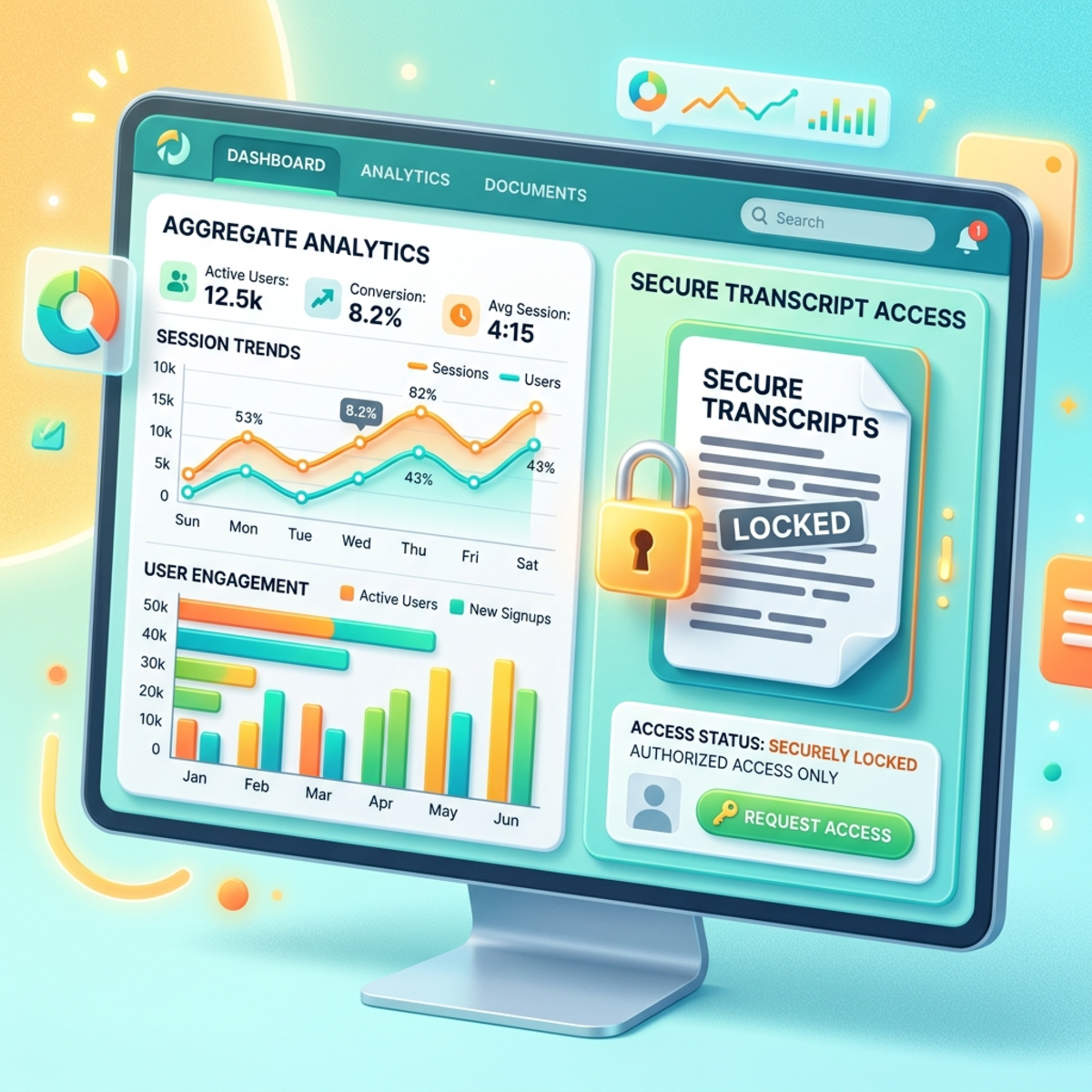
Analytics Viewer is the right role for analysts, service owners, and operational stakeholders who need performance visibility but should not touch the agent configuration.
There is one important split inside analytics:
- Analytics Viewer grants access to the agent’s Analytics page and aggregate metrics.
- Transcript and session-level drill-downs additionally require the Bot Transcript Viewer Dataverse security role, or equivalent transcript read permission, at the environment level.
This separation is a strong least-privilege pattern. It lets an organization expose operational metrics more broadly while keeping conversation-level data restricted to people with a legitimate need.
Rule of thumb: Treat aggregate analytics and conversation transcripts as two different data classes. Grant them separately.
Do not “fix” access conflicts by blindly removing roles
The original version of this guidance suggested removing Environment Maker whenever it conflicts with Analytics Viewer. That advice is too broad.
Environment Maker is required for people who author agents. Removing it can break legitimate responsibilities across the environment, not just access to one agent. It may also fail to solve the real issue if access is inherited through a Microsoft Entra group team, another Dataverse role, ownership, or an existing share.
Use this safer diagnostic sequence:
- Restate the intended outcome. Does the person need to author, use, or observe?
- Inspect every assignment source. Check direct agent shares, ownership, environment roles, Dataverse teams, and group-based membership.
- Separate agent access from transcript access. Analytics Viewer alone is not enough for transcript drill-downs.
- Check Managed Environment sharing rules. A policy may block the new assignment even though existing access remains.
- Remove broad access only when it is genuinely unnecessary. If Environment Maker is inherited, change the correct group or team assignment rather than applying a temporary direct-role workaround.
- Retest with the affected identity. Allow for documented propagation delays before concluding that the change failed.
The goal is not to make the sharing dialog accept a narrower label. The goal is to make the person’s effective permissions match their job.
Ownership, deletion, and orphaned agents
Ownership is a lifecycle responsibility, not just a stronger version of Editor.
An editor can configure, share, and publish an agent, but cannot delete it through the ordinary authoring experience. The owner can delete the agent. Administrators can also manage lifecycle actions from the Microsoft 365 admin center Agent Registry, including blocking, deleting, and assigning a new owner to an active or ownerless agent.
Transfer ownership from the Microsoft 365 admin center
For an agent visible in the tenant’s Agent Registry, an eligible administrator can:
- Open the Microsoft 365 admin center.
- Go to Agents > All agents > Registry.
- Find and open the target agent.
- Select Assign a new owner.
- Choose the replacement owner and complete the assignment.
The exact UI can evolve, so treat the labels above as the current administrative path rather than a timeless product contract. Reassignment should also trigger a dependency review: flows, uploaded files, knowledge sources, connections, and service accounts might have their own owners and permissions.
Reassign an orphaned Copilot Studio agent through the API
Microsoft also provides a Power Platform API operation for reassigning orphaned Copilot Studio agents—for example, after the original owner leaves the organization. After API-based reassignment:
- the new owner receives Environment Maker permissions in the agent’s environment;
- the previous owner loses access to the agent;
- existing transcripts become available to the new owner only if the new owner also has the required transcript read privilege.
The operation requires the environment ID, bot ID, the new owner’s Microsoft Entra user ID, a user access token, an eligible administrative role, and the CopilotStudio.AdminActions.Invoke scope. It does not support classic chatbots.
Ownership transfer solves the agent-record problem. It does not automatically transfer every dependency. Validate the complete application chain before deleting the former owner’s account or role assignments.
A practical troubleshooting checklist
When access does not behave as expected, work from the outside in.
The user cannot find or open the agent
- Confirm the user was shared the correct agent in the correct environment.
- Confirm environment membership and any Microsoft Entra security-group restriction on that environment.
- Confirm eligible Copilot Studio access.
- Wait for propagation: Microsoft documents that a newly added environment member can take up to 10 minutes to see the agent.
An editor cannot modify or publish
- Confirm the agent was shared with the individual as Editor; groups cannot receive Editor access.
- Verify Environment Maker and access to dependent flows, connectors, connection references, and knowledge sources.
- Check tenant and environment policy, including controls that can disable generative-AI publishing.
- Confirm publishing eligibility and available capacity. Trial licenses do not qualify for publishing.
- Review validation or readiness issues in the authoring experience before publishing.
An Analytics Viewer cannot open transcript details
- Keep Analytics Viewer on the agent.
- Add the required environment-level Bot Transcript Viewer role, if the person has a legitimate need for session data.
- Confirm transcript settings and retention make the requested data available.
A group cannot receive the requested role
- Use groups for chat access where supported.
- Use individual assignments for Editor and Analytics Viewer.
- Check whether Managed Environment sharing rules prohibit security groups altogether.
The agent works for its maker but not for other users
- Test the knowledge sources and tools with the end user’s identity.
- Determine whether each connection is user-scoped or shared.
- Verify permissions on underlying data; sharing the agent does not universally grant access to every connected resource.
- Where supported and appropriate, choose between delegated user access, a service principal, or an environment-level shared connection.
A sustainable operating model

Reliable agent governance is less about inventing more roles and more about assigning responsibility at the correct layer.
- Environment administrators control the security boundary, Dataverse roles, policies, and administrative recovery actions.
- Agent owners remain accountable for the agent, its sharing posture, and lifecycle.
- Editors collaborate on design and publication without implicitly becoming owners.
- Analytics viewers observe performance without changing the production asset.
- Transcript viewers receive access only when conversation-level investigation is part of their job.
- End users receive the narrowest access required to use the published experience.
For production agents, avoid concentrating long-term ownership in a person who may leave the project without a succession plan. Maintain an inventory of owners, dependencies, connections, and support contacts, and periodically test the reassignment procedure before it becomes an emergency.
Final takeaway
Copilot Studio access is not one permission switch. It is a layered authorization system:
product access + environment security + agent sharing + resource and policy access = effective capability
Once you use that model, common problems become easier to diagnose. Editor access is not ownership. Analytics access is not transcript access. Sharing an agent is not the same as sharing every data source behind it. And removing Environment Maker is not a universal fix for a role conflict.
Treat the agent as a governed application asset rather than a shared document. Assign access by outcome, inspect inherited permissions, separate aggregate analytics from sensitive transcripts, and plan ownership continuity before the original owner disappears.
References
- Share agents with other users
- Configure user authentication for tools
- Create and manage connections
- Share agents with other makers and groups in the new experience (preview)
- Control how agents are shared
- Secure your Copilot Studio projects
- Use agent flows with your agent
- Add an agent flow as a tool
- Control transcript access and retention
- Explore questions, sessions, and feedback data
- Copilot Studio licensing
- FAQ for Copilot Studio billing and licensing
- Manage governance and lifecycle actions in the Microsoft 365 admin center
- Manage the Agent Registry in the Microsoft 365 admin center
- Reassign ownership of orphaned agents with the Power Platform API
- Delete agents with the Power Platform API
Read next