Automating Email Triage with Copilot Studio Workflows

Writer

Enterprise automation is shifting away from brittle, hand-coded if/else rule trees toward hybrid architectures that blend deterministic control flow with native LLM intelligence. Microsoft Copilot Studio’s redesigned Workflows canvas sits exactly on that seam: you keep the predictability of a rule-based flow, but you can drop an AI action into any node and let a model do the messy semantic work — like reading an email and deciding where it should go.
This post is a build guide, not a feature tour. By the end you’ll have a working inbound email triage system that watches a Microsoft 365 shared mailbox, uses the native Classify action to sort each message into a business category, and routes it to the right agent, data store, or dead end — with the testing, error handling, and capacity guardrails you need before it touches production.
Preview status — read this first. At the time of writing, the new Workflows canvas is in public preview. Preview features can change without notice and aren’t covered by production SLAs, so pilot in a non-production environment first and re-check the official docs before you promote anything to a live queue. The architecture below holds regardless, but exact labels and limits may drift.
What you’ll build

A single deterministic workflow with one AI decision point in the middle. The shared mailbox is the intake; Classify is the brain; the four branches are the muscle.
Prerequisites: what you need before you start
Most triage builds fail not in the logic but in setup — missing mailbox permissions, the wrong connector, or no environment to build in. Clear these first.
| # | Requirement | Notes |
|---|---|---|
| 1 | Copilot Studio access in a Power Platform environment where you can create agents and workflows | Maker permissions (Environment Maker / System Customizer). |
| 2 | A Microsoft 365 shared mailbox (e.g., inquiries@company.com) | Created in the M365 Admin Center — see below. Only an admin can create one. |
| 3 | A connection identity with access to that mailbox | The single most overlooked step. The account the connector authenticates as needs at least Read / Full Access on the shared mailbox, or the trigger never fires. |
| 4 | The Office 365 Outlook connector | A Standard connector — no premium license required. (Don’t confuse it with the consumer “Outlook.com” connector.) |
| 5 | Downstream targets (optional, depending on your routes) | A custom Copilot Studio agent, a Dataverse table, a SQL instance, or a ticketing API. |
Use a service account, not your personal login. Binding a production flow to your own identity is a governance and continuity risk — when you change roles or lose mailbox access, the flow silently breaks. Provision a dedicated service account, grant it access to the shared mailbox, and create the connection as that account.
Creating the shared mailbox (admin path)
For customer or IT support queues, a shared mailbox is the right intake object — not a distribution list (no persistent state or single tracking surface), not a security group (those are for access control), and not a broad M365 group (over-scoped for automated intake). A shared mailbox lets a designated team monitor and send from one centralized address while each member keeps their own identity and license.
- Go to the Microsoft 365 Admin Center (
admin.cloud.microsoft). - Expand Teams & groups → Shared mailboxes, then select + Add a shared mailbox.
- Give it a name and an email (e.g.,
inquiries@company.com) and save. Provisioning takes a few minutes. - Select Add members and add the people who’ll monitor the queue — plus your automation’s service account.
- Confirm the service account has Read and manage (Full Access). If your routes will also reply from the mailbox, grant Send as as well.
The #1 cause of “my trigger never fires”: the connection account doesn’t have Read/Full Access to the shared mailbox. If sample emails don’t show up in the run history, fix the permission here before debugging anything else in the flow.
1. Architectural blueprint: Workflows vs. Agents
Before building, be clear about which Copilot Studio construct you’re choosing — and a common naming trap. Copilot Studio has two deterministic automation experiences and one autonomous one:
| Attribute | Workflows (and agent flows) | Agents |
|---|---|---|
| Execution style | Deterministic — explicit, rule-based path. The same input produces the same output. | Autonomous — non-deterministic, driven by dynamic planning over instructions, knowledge, and tools. |
| Core structure | Triggers (events) + Actions (tasks), stitched on a visual canvas. | Instructions, knowledge bases, and dynamic tool/skill delegation. |
| Capacity model | Consumes Copilot Studio capacity per action executed. | Consumes Copilot Studio message/session capacity based on usage. |
| Best used for | Repetitive task automation, strict data routing, integration. | Open-ended interaction, research, dynamic problem-solving. |
Clearing up the terminology. Microsoft’s docs state that both workflows and the older agent flows are deterministic — same input, same output. The genuinely autonomous, “plans its own steps” construct is an Agent. So the meaningful architectural decision isn’t “Workflows vs. agent flows” — it’s deterministic automation (a workflow) vs. autonomous reasoning (an agent). In this build, the workflow makes the deterministic routing decision, then hands the hard, open-ended work off to agents. Best of both worlds.
Where do “agent flows” fit? They’re the previous deterministic automation experience, still available. Workflows is the new, redesigned canvas that adds native AI actions (like Classify), agent handoffs, and node-level testing. For a new triage build, use Workflows.
Capacity implications. Because workflow actions each draw on your tenant’s
Copilot Studio capacity — and the Classify action is an AI action that
calls a model on every run — high-volume mailboxes can quietly burn through
quota. Estimate emails/day × AI-actions-per-email early, watch it in the
Analytics tab, and turn non-production flows off when idle (see §6).
The Copilot Studio interface triad
When building, the management surface splits into three pillars — learn where each one lives now, because you’ll bounce between them constantly:
- Build tab — the visual canvas where triggers, native AI actions, loops, connectors, and agent handoffs are wired together.
- Activity tab — the execution observability plane. Node-by-node runtime inspection: input/output payloads, variable states, and exact processing latency per run.
- Analytics tab — the macro health dashboard: aggregate telemetry, failure rates, run frequency, and capacity consumption.
2. Step-by-step: building the triage flow
Step 2.1 — Connection and trigger boundaries
In Copilot Studio, create a New Workflow on the Workflows page. The canvas opens with a trigger to configure.
- Choose Connector as the workflow’s initialization type.
- Search for and select Office 365 Outlook — not “Outlook.com” (consumer accounts) and not the generic “When a new email arrives (V3)” trigger.
- Pick the operation: When a new email arrives in a shared mailbox (V2). The V2 trigger runs on Microsoft Graph under the hood.
Configure the trigger parameters:
- Original Mailbox Address — the exact SMTP address of the shared mailbox (e.g.,
inquiries@company.com). If the dropdown can’t see it, your connection identity lacks access (back to Prerequisites). - Folder — defaults to
Inbox; point it at a custom subfolder if you pre-sort upstream. - Advanced options — scope tightly with
To,CC,To or CC,From,Importance,Only with Attachments, and Subject Filter. Narrow scoping = fewer runs = less capacity spend.
It’s a polling trigger, not a push. The connector checks the mailbox on an interval rather than receiving an instant push, so expect a short delay between an email landing and the workflow firing. Design SLAs around minutes, not milliseconds.
Message-size limit. The Office 365 Outlook connector won’t pick up emails
whose total payload (body + attachments) exceeds roughly 50 MB — they’re
skipped, not queued. If large attachments matter to you, strip or offload them
upstream, or branch on hasAttachments and handle big files via a separate
path.
Null-safe field access. Some fields (like CC) are only present when
populated, and To/CC are semicolon-delimited strings, not arrays. Read
them defensively: triggerOutputs()?['body/ccRecipients'], and split(...)
on ; if you need a real list. Skipping the ? operator is a classic cause
of “flow failed on an email with no CC.”
Step 2.2 — Configuring the AI Classify action
The Classify action is the centerpiece. It replaces nested if statements, regex, and brittle string matching with an LLM that reads the text and assigns it to a discrete business bucket — semantically, not by literal keyword.
1. Define the input
Pass the text you want evaluated. For triage, concatenate Subject + Body so the model has full context. A simple expression:
Use bodyPreview for a fast, plain-text snippet, or the full Body when you need everything (remember the body can be HTML — strip tags if classification quality suffers).
2. Choose the model deliberately
The action exposes a dropdown of available models, from frontier reasoning models down to lightweight utilities.
Optimization tip. For low-ambiguity classification, pick a lighter, cheaper model (a GPT-4o mini–class model) rather than a heavy reasoning model. Triage is a short, well-bounded task — a small model keeps latency low and conserves capacity with no real accuracy loss. Reserve reasoning models for genuinely nuanced or multilingual text where category boundaries blur.
3. Define your category buckets
Add one category per business outcome. The action has been used reliably with 15+ concurrent categories, but start narrow — three is plenty to prove the pattern. For this build: Sales, Marketing, IT.
Name categories the way you’ll route them. The branch logic downstream keys off these exact names, so keep them stable and unambiguous. “IT” is fine; “IT / Facilities / Other-ish” is asking for trouble.
4. Anchor with few-shot examples (the part that actually moves accuracy)
Examples are technically optional, but they’re where you get your accuracy back. Because Classify reasons semantically, the most effective examples are representative phrases or sample sentences — not bare keyword lists. Keyword lists undersell the model and create false negatives the moment a customer phrases something differently.
| Category | Representative example phrases (semantic anchors) |
|---|---|
| Sales | ”Can I get a quote for 200 licenses?” · “Where’s my invoice #4471?” · “We’d like to purchase the enterprise plan.” |
| Marketing | ”Add us to your newsletter list.” · “Can we co-promote on Instagram?” · “Question about your spring campaign.” |
| IT | ”The office router keeps dropping.” · “My Mac can’t reach the VPN.” · “Server returned a 500 on login.” |
| Default | (auto-generated catch-all — see below) |
Two to four varied phrases per category is the sweet spot. If a real-world email gets mis-sorted in testing, the fix is almost always add it (or a paraphrase) as a new anchor.
5. The Default catch-all
Copilot Studio auto-creates a Default category. Anything that doesn’t confidently map to one of your declared buckets falls here, so no message is ever lost or left in a deadlock. Treat Default as a real signal: a spike in Default-bucket volume usually means a category is missing or your anchors are too narrow.
3. Downstream orchestration: intelligent routing
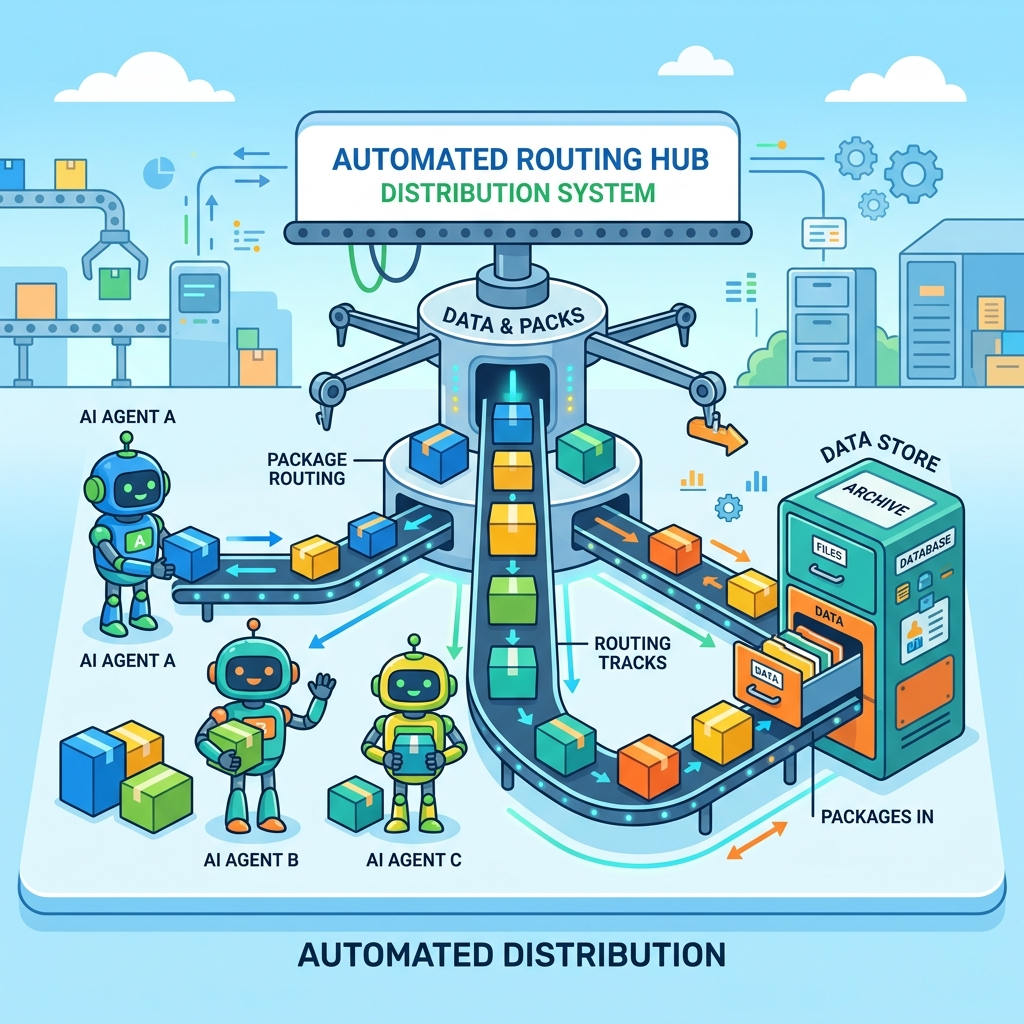
Once Classify returns a result, the workflow branches to the matching node path.
-
Path A — Custom Agent handoff (Sales). Delegate to a purpose-built Copilot Studio agent (e.g., a booking or quoting agent). Pass the email body in via an input variable so the agent can parse parameters autonomously. This is the deterministic-workflow-meets-autonomous-agent pattern in action.
-
Path B — Enterprise Agent handoff (Marketing). Route to a designated Microsoft 365 Copilot agent that’s grounded on your enterprise knowledge repositories. Pass the content as plain text; the agent reasons over it against established data sources.
-
Path C — Low-code data processing (IT). For categories that need logging or ticketing rather than conversation, keep it lightweight. Add a Data Operations → Compose to normalize the body, then actually write it somewhere — a Dataverse row, a SQL insert, or a POST to your ticketing API — and optionally fire a “We’ve received your request” acknowledgement back to the sender. Don’t stop at Compose; Compose only formats — it doesn’t persist anything.
-
Path D — Safe termination (Default). For spam or unparseable noise, drop in an End the workflow node to halt cleanly and avoid wasting downstream compute. Consider logging a lightweight record first so you can audit what’s landing in Default.
Add an error branch. Downstream calls fail — an agent times out, a SQL write rejects, an API 500s. Wrap risky actions in a scope (or use run-after / “has failed” configuration) so a failure routes to an error path that alerts an admin and, ideally, parks the email in a “Needs review” folder — instead of failing silently and dropping a customer request.
4. Testing and validation
Don’t promote a triage flow you’ve only watched succeed once. Build a deliberate test pass.
Use node-level testing. The Workflows canvas lets you test individual nodes, so you can validate the Classify action in isolation — feed it sample text and confirm the bucket before wiring the branches.
Send real sample emails from an external account into the shared mailbox — one clean example per category, plus at least one deliberately ambiguous one to confirm it lands in Default. A useful matrix:
| Test email subject | Expected category | What it proves |
|---|---|---|
| ”Quote request for 50 seats” | Sales | Clean positive match + agent handoff |
| ”Newsletter signup” | Marketing | Distinguishes Marketing from Sales |
| ”VPN down on my laptop” | IT | Technical language routes correctly |
| ”Re: lunch tomorrow?” | Default | Off-topic noise falls through safely |
| ”Invoice question about our campaign” | (your call) | Surfaces overlap between two categories |
Watch the Activity tab while you test: trace the execution path node by node, inspect input/output payloads and variable states, and read the latency per step (it’s normal to see, say, ~14 seconds on a downstream agent action). This is where you catch a mis-mapped variable or an unexpectedly empty Classify input.
5. Production hardening
The logic working is table stakes. Before this runs against a live customer queue:
- Idempotency / duplicate handling. Polling triggers can occasionally re-deliver. Make downstream writes safe to repeat (e.g., dedupe on the message
Id), and consider moving processed mail to a “Processed” folder so re-runs don’t double-handle it. - Security & compliance. Email bodies routinely contain PII. The Classify action sends that text to a model — confirm it fits your data-handling and DLP posture, apply DLP policies to the connectors in the environment, keep the connection on least privilege, and don’t dump full bodies into plain Compose/logs if they’re sensitive.
- Capacity monitoring. Every action — including each AI Classify call — consumes Copilot Studio capacity. Track consumption in Analytics, set expectations against
volume × actions-per-email, and alert before you hit quota. - Naming & versioning. Rename the workflow and its nodes to reflect production scope (e.g.,
Email Classification — Shared Mailbox). Saving preserves a draft; nothing affects live behavior until you Publish.
6. Lifecycle management and hygiene
- Save vs. Publish. Saving stores configuration state in draft. Changes don’t touch live infrastructure until you explicitly Publish — so you can iterate safely on a running flow.
- Activity-tab inspection in steady state. Keep using the Activity tab post-launch to spot creeping latency, rising Default volume, or intermittent downstream failures before they become tickets of their own.
- Turn flows off when idle. Active workflows continuously poll their endpoints and draw capacity. If a flow is for a demo, a seasonal campaign, or temporary testing, go to its configuration and Turn Off — this is the simplest way to protect your tenant’s Copilot Studio quota from quiet drainage.
Troubleshooting cheat sheet
| Symptom | Likely cause | Fix |
|---|---|---|
| Trigger never fires; run history empty | Connection identity lacks Read/Full Access to the shared mailbox | Grant access in the Admin Center; reconnect the connection |
| Some emails silently skipped | Message exceeds the connector’s ~50 MB limit | Filter/offload large attachments upstream; branch on hasAttachments |
| Emails land in the wrong category | Weak few-shot anchors or overlapping category definitions | Add representative example phrases; sharpen category boundaries |
| Everything routes to Default | Classify input is empty, or categories too narrow | Verify Subject/Body is actually passed; broaden anchors |
| Flow fails on emails with no CC | Reading an absent field as if present | Use null-safe ?[...] and split(...,';') |
| Capacity draining unexpectedly | A test/seasonal flow left On | Turn it Off when idle; monitor Analytics |
Conclusion and next steps
You now have the full pattern: a deterministic Workflow that intakes from a shared mailbox, makes one semantic decision with the native Classify action, and hands off to autonomous agents or low-code data actions — wrapped in testing, error handling, and capacity guardrails.
From here, natural extensions include:
- Auto-acknowledgement and SLA timers — reply on intake and escalate if a category sits untouched.
- Sentiment- or urgency-based prioritization — add a second AI action to flag angry or time-critical mail.
- Multi-language triage — lean on a reasoning model and language-diverse anchors.
- Closed-loop analytics — log every classification to Dataverse and chart category trends over time.
A final reminder: Workflows is in public preview. Pilot in a sandbox, validate behavior and limits against the current Microsoft Learn documentation and the Office 365 Outlook connector reference, and only then point it at a live queue.
Read next