Automating Legacy Systems with Copilot Studio Computer Use

Writer
Automating Legacy Systems with Copilot Studio Computer Use: The Governance and Cost-Control Playbook
Every enterprise has at least one system that everyone quietly works around.
It might be an old finance portal, a supplier website, an internal claims application, a government site, or a business-critical desktop app that was never designed for modern integration. No API. No connector. No clean event stream. Just screens, buttons, forms, exports, and a long-suffering operations team doing the same work every day.
That is where Computer Use in Microsoft Copilot Studio becomes interesting.
Not because it is “cool AI automation.” It is interesting because it gives IT leaders and tenant administrators a new option between two painful extremes:
- Do nothing and keep paying the hidden tax of manual work.
- Launch a full modernization project and wait months for APIs, refactoring, funding, and business alignment.
Computer Use creates a third lane: an AI agent can interact with a Windows computer, website, or desktop application through the user interface by selecting buttons, choosing menus, and entering text, guided by natural-language instructions. Microsoft positions it for scenarios such as automated data entry, invoice processing, and data extraction when no direct API exists.
The mental model I use is simple:
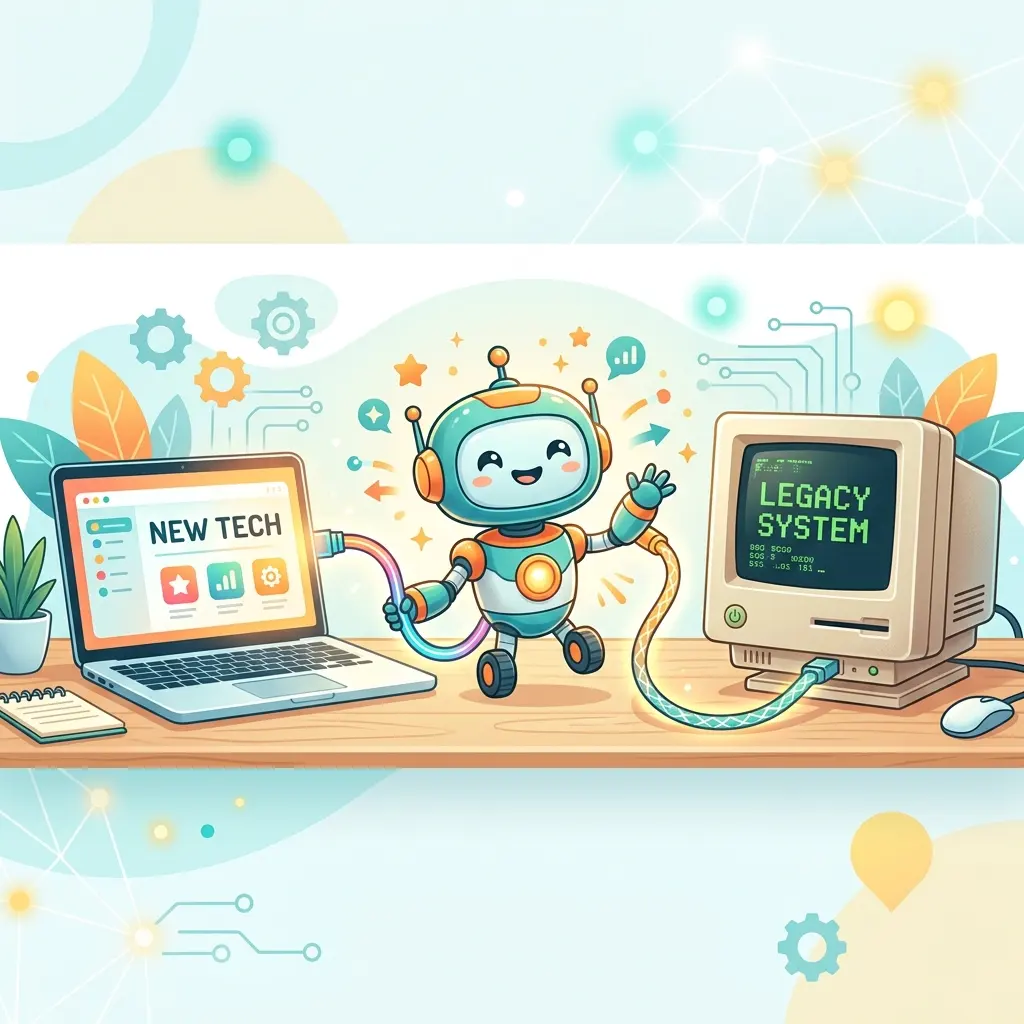
APIs are highways. Connectors are paved roads. Computer Use is the all-terrain vehicle.
You do not use an all-terrain vehicle for every commute. You use it when the road does not exist yet.
This article is not a “click here, then click there” tutorial. It is a strategic guide for deciding when Computer Use makes sense, how to govern it, and how to build a cost model before you scale it across your tenant.
Executive Summary
| Question | Practical Answer |
|---|---|
| What is Computer Use? | A Copilot Studio tool that lets an agent operate websites and desktop apps through a configured Windows machine using a virtual mouse and keyboard. |
| When should I use it? | When the target system has no API, connector, export pipeline, or reliable integration path, but the business process is valuable enough to automate. |
| What should I use first? | APIs, Microsoft or Power Platform connectors, agent flows, or direct data integration. Use Computer Use as a bridge, not the default architecture. |
| What is the main risk? | The agent is operating a real UI with real credentials. Governance, least privilege, domain allow lists, supervision, and monitoring are mandatory. |
| What is the cost model? | Copilot Studio uses Copilot Credits. Computer-Using Agents are billed at the agent action rate, and overall consumption depends on the design and frequency of the process. |
| What is the safest rollout strategy? | Start with read-only or low-risk tasks, use dedicated environments and machines, restrict access, monitor consumption, then expand gradually. |
The Real Business Problem: Legacy Work Is Usually Invisible Spend
Legacy automation discussions often start with technology. That is backwards.
The better starting point is cost leakage.
A finance analyst spends 15 minutes per invoice moving data from a portal into an email. A service operations team spends two hours every morning checking supplier statuses. A compliance analyst exports the same reports from five portals before every weekly review. Nobody calls this “technical debt” on the balance sheet, but the business is paying for it every day.
The cost is not only salary. It is also:
- delayed cycle times,
- inconsistent data entry,
- audit gaps,
- employee frustration,
- poor scalability during month-end or seasonal peaks,
- and opportunity cost from skilled people doing clerical work.
A useful rule of thumb:
If a person follows the same screen-based process more than 100 times per month, and the system has no clean integration path, it is worth evaluating Computer Use.
Not always implementing it. Evaluating it.
What Computer Use Actually Does
Computer Use allows a Copilot Studio agent to complete tasks on a computer in a way that resembles a human operator. The agent can work with websites and desktop applications by looking at the UI, reasoning through the task, clicking controls, selecting menus, and typing into fields.
Microsoft describes the capability as useful when there is no API to connect directly to the system. The agent uses a configured computer, a virtual mouse, and a virtual keyboard, and the instructions are written in natural language rather than code.
That distinction matters.
Traditional RPA often depends heavily on selectors, screen coordinates, recorded steps, or fragile UI assumptions. Computer Use uses AI vision and reasoning, which can help it adapt when a button moves or a screen changes slightly. That does not mean it is magic. It means the failure mode changes.
| Traditional RPA Mental Model | Computer Use Mental Model |
|---|---|
| “Replay these exact steps.” | “Understand the screen and complete this goal.” |
| Brittle when selectors or layouts change. | More flexible for moderate UI variation. |
| Fast and deterministic when well-designed. | Slower, because the model observes, reasons, and acts step by step. |
| Best for stable, repetitive UI paths. | Best for legacy workflows where business context and UI interpretation matter. |
| Often engineering-heavy. | More accessible to makers, but requires stronger governance. |
The punchline: Computer Use is not a universal RPA replacement. It is a bridge for systems that refuse to integrate.
The Automation Routing Model: Pick the Cheapest Reliable Path

Before building anything, force every use case through an automation routing decision.
Think of this as a “cost and reliability ladder.” Start at the top and only move down when the better option is unavailable or unjustified.
| Route | Use When | Cost Intuition | Governance Notes |
|---|---|---|---|
| Native API | The system exposes a supported API. | Usually best unit economics and best performance. | Use managed identities, service principals, API permissions, throttling rules, and logging. |
| Power Platform connector | A standard, premium, or custom connector exists. | Often cheaper and more reliable than UI automation. | Govern connector usage with DLP policies and environment strategy. |
| Agent flow | The process is deterministic and can be expressed as workflow steps. | Good for repeatable actions because less reasoning is required per step. | Prefer for business rules, approvals, structured actions, and repeatable orchestration. |
| Computer Use | The system only exposes a UI and the task is valuable enough to automate. | Higher variance. Costs grow with actions, retries, document processing, and frequency. | Requires the strongest controls: dedicated machines, limited permissions, allow lists, supervision, and monitoring. |
| Manual process | Volume is low, risk is high, or automation cost exceeds value. | Sometimes the cheapest option. | Document the decision and revisit when volume or risk changes. |
My opinionated guidance:
If an API exists, use the API. If a connector exists, use the connector. If a deterministic workflow exists, use an agent flow. If all you have is a screen, then Computer Use enters the conversation.
Scenario: Invoice Review Without an API

Let us use a practical example.
A finance team receives invoices in a SharePoint document library. Today, an employee opens each PDF, reads the invoice details, signs in to a supplier portal or Outlook on the web, and sends a summary email for approval.
The required fields are predictable:
- invoice number,
- vendor name,
- invoice date,
- amount,
- currency,
- payment terms,
- and recipient email.
There is no supplier API. The portal is business-critical. Manual processing is slow, but a full modernization project would take months.
This is a good candidate for a controlled Computer Use pilot because:
| Evaluation Dimension | Assessment |
|---|---|
| Business value | High: reduces manual invoice handling and improves cycle time. |
| Integration maturity | Low: no API or supported connector for the target system. |
| Process repeatability | Medium to high: invoices differ, but the process pattern is stable. |
| Risk | Medium: financial data and email sending require controls. |
| Governance feasibility | Good if scoped to dedicated accounts, approved domains, and monitored runs. |
Write Instructions Like You Are Delegating to a Careful Employee
Computer Use instructions should not read like vague chatbot prompts. They should read like a standard operating procedure.
Bad instruction:
“Process the invoice and send an email.”
Better instruction:
“Open the specified SharePoint site, navigate to the specified document library, locate the invoice PDF by file name, extract the invoice number, vendor name, invoice date, total amount, currency, and payment terms. Then open Outlook on the web, create a new email to the specified recipient, use the subject
Invoice Summary - [Invoice File Name], include the extracted fields as a structured list, verify the recipient address before sending, send the email, and return a confirmation status.”
Best instruction for enterprise use:
- State the business objective.
- Identify the exact websites or applications to use.
- Define allowed inputs.
- Define what data to extract.
- Define the output format.
- Define when to stop and ask for supervision.
- Define what the agent must not do.
Example:
The goal is not to make the agent clever. The goal is to make it bounded.
Dynamic Inputs: Make the Tool Reusable Without Making It Dangerous
Hardcoding values is tempting in a demo and dangerous in production.
For the invoice scenario, define runtime inputs such as:
| Input | Why It Matters | Governance Tip |
|---|---|---|
| SharePoint site URL | Avoids creating a separate tool for every site. | Restrict to approved SharePoint domains or known site patterns. |
| Document library name | Keeps the process reusable across teams. | Use controlled values where possible. |
| Invoice file name | Prevents broad browsing behavior. | Require exact file names from upstream workflow triggers. |
| Recipient email | Enables routing to the right approver. | Validate against an approved domain or approver list before sending. |
A good FinOps and governance principle:
Parameterize the process, not the guardrails.
Let the file name vary. Let the recipient vary within a policy. Do not let the agent choose arbitrary websites, accounts, or destinations.
Where Should Computer Use Run?
Computer Use needs a machine. That is not an implementation detail. It is a governance decision.
Microsoft documents several options, including hosted browser, Cloud PC pool, and bring-your-own-machine patterns. Hosted browser is useful for getting started quickly, but Microsoft notes it is preview, runs in a Microsoft-managed environment, is not Microsoft Entra joined to your tenant, is not managed by your Intune policies, and is not recommended for production use.
| Runtime Option | Best Fit | Watch Outs |
|---|---|---|
| Hosted browser | Fast experiments, demos, early validation of web automation. | Preview limitations, not recommended for production, not Entra joined, not Intune managed. |
| Cloud PC pool | Scalable enterprise pattern where organization-linked resources and policy governance matter. | Still review preview status and licensing implications before production use. |
| Bring-your-own-machine | Highly controlled scenarios where IT manages the Windows machine lifecycle directly. | Requires machine registration, patching, monitoring, isolation, and operational ownership. |
My recommended rollout path:
- Prototype with the lowest-friction environment.
- Pilot with a dedicated, isolated machine or governed Cloud PC approach.
- Productionize only after you have identity, monitoring, cost limits, retry behavior, and exception handling in place.
Do not let a proof of concept accidentally become production infrastructure.
Security Model: The Agent Is Holding a Keyboard
The most important governance mindset is this:
Computer Use is not “just an AI response.” It is an agent operating a computer with credentials.
That means your controls must look more like privileged access management than prompt management.
Microsoft’s Computer Use configuration supports credential options, stored credentials, access control, and human supervision patterns. Stored credentials can use Power Platform internal storage or Azure Key Vault-backed secrets. Microsoft also warns that maker-provided credentials can allow users of a shared agent to act with the original author’s access on the configured machine.
Use this governance checklist before any production pilot:
| Control | Why It Matters | Practical Guidance |
|---|---|---|
| Dedicated machine | Reduces cross-contamination and unexpected user session state. | Do not run Computer Use on someone’s daily workstation. |
| Least-privilege account | Limits blast radius if the agent does the wrong thing. | Use purpose-specific accounts with only required access. |
| Domain allow list | Prevents the agent from interacting with unapproved websites. | Restrict to exact business domains wherever possible. |
| Application allow list | Prevents the agent from using tools outside the intended process. | Only install and allow required desktop apps. |
| Stored credentials governance | Prevents secrets from being embedded in prompts or documents. | Prefer governed secret management; use Key Vault where appropriate. |
| Human supervision | Adds a checkpoint for risky or ambiguous steps. | Use for financial approvals, destructive actions, or unexpected instructions. |
| Monitoring and run logs | Makes support, audit, and optimization possible. | Track success rate, retries, duration, exceptions, and credits consumed. |
Also be careful with language. “Allow list” does not mean the agent is physically unable to open every site in every circumstance. Microsoft notes that access control prevents the model from taking actions on websites or applications outside the allow list, but it does not necessarily stop sites from being opened. Design network, browser, identity, and device controls accordingly.
Cost Intuition: How to Think in Copilot Credits
This is where many teams under-plan.
Copilot Studio uses Copilot Credits as the unit that measures agent usage. Microsoft states that the number of credits consumed depends on the agent design, interaction frequency, and features used. Microsoft’s Azure pricing page lists pay-as-you-go Copilot Credits at $0.01 per credit; Microsoft’s billing documentation also notes that Computer-Using Agents are billed at the agent action rate, and the listed agent action rate is 5 Copilot Credits.
Important: the math below is a directional planning aid, not a Microsoft quote. Always validate with the current licensing guide, your agreement, and the Copilot Studio usage estimator.
Directional Unit Math
| Item | Directional Credit Impact | Directional PAYG Cost at $0.01/Credit |
|---|---|---|
| One agent action | 5 credits | $0.05 |
| Ten agent actions | 50 credits | $0.50 |
| One content processing page | 8 credits | $0.08 |
| Ten content processing pages | 80 credits | $0.80 |
| One generative answer | 2 credits | $0.02 |
| One tenant graph grounded message | 10 credits | $0.10 |
Directional Invoice Scenario
Imagine one invoice automation run includes:
- opening SharePoint and locating the file,
- reading a 2-page invoice,
- opening Outlook,
- drafting and sending an email,
- returning a confirmation.
A simplified planning estimate might look like this:
| Component | Assumption | Directional Credits |
|---|---|---|
| Computer Use actions | 4 agent actions × 5 credits | 20 |
| Content processing | 2 pages × 8 credits | 16 |
| Final generative response | 1 response × 2 credits | 2 |
| Estimated total | Planning estimate only | 38 credits |
| Directional PAYG equivalent | 38 × $0.01 | $0.38 |
Now scale that intuition:
| Monthly Volume | Directional Credits | Directional PAYG Equivalent |
|---|---|---|
| 100 invoice runs | 3,800 credits | $38 |
| 1,000 invoice runs | 38,000 credits | $380 |
| 10,000 invoice runs | 380,000 credits | $3,800 |
Again, this is not a quote. Real consumption depends on tool design, retries, model choice, document size, grounding, flow actions, and whether usage is covered by Microsoft 365 Copilot licensed user scenarios or billed through Copilot Studio capacity.
The point is to build the habit:
Do not ask “How much does an agent cost?” Ask “How many actions, pages, reasoning steps, and runs does this process create per month?”
FinOps Controls: How to Prevent Surprise Spend

A well-governed Computer Use deployment should have financial controls from day one.
| FinOps Lever | What To Do | Why It Works |
|---|---|---|
| Start with a metered pilot | Use limited volume and measure real credit consumption. | Prevents spreadsheet fantasy from becoming budget reality. |
| Track cost per successful run | Divide monthly credits by completed business transactions. | Focuses on business value, not raw activity. |
| Cap process volume during pilot | Limit runs per day or per queue. | Prevents runaway automation from consuming capacity. |
| Separate environments | Use dev, test, pilot, and production environments. | Makes capacity allocation and governance cleaner. |
| Monitor retries | Track repeated failures and looping behavior. | Retries can quietly destroy ROI. |
| Use deterministic flows where possible | Move stable steps into agent flows or connectors. | Reduces unnecessary reasoning and UI interaction. |
| Review high-cost features | Watch document processing, tenant graph grounding, premium reasoning, and repeated actions. | These can change the unit economics quickly. |
Microsoft’s billing documentation states that prepaid capacity can be pooled across the tenant and that enforcement can occur when capacity thresholds are exceeded. For tenant administrators, that means cost control is not only a finance exercise; it is service reliability engineering.
Safe Rollout Plan for Tenant Administrators
Here is the rollout model I recommend.
Phase 1: Discover and Rank Use Cases
Create a lightweight intake list:
| Criteria | Question |
|---|---|
| Manual effort | How many hours per month are spent on this task? |
| Volume | How many transactions per month? |
| Error impact | What happens if the task is wrong or late? |
| Integration option | Is there an API, connector, export, or database route? |
| Data sensitivity | Does the task involve personal, financial, health, or regulated data? |
| UI stability | How often does the interface change? |
| Exception rate | How often does the process require human judgment? |
Prioritize high-effort, medium-risk, repeatable tasks where no clean integration exists.
Phase 2: Build the Guardrails Before the Agent
Before writing instructions, define:
- approved environments,
- approved makers,
- approved runtime machines,
- allowed domains,
- credential handling policy,
- supervision rules,
- logging requirements,
- exception handling,
- and cost reporting.
This is the part teams skip. It is also the part that prevents bad headlines.
Phase 3: Pilot With a Read-Only or Low-Risk Process
Good first pilots:
- extracting data from a portal,
- comparing values across systems,
- preparing a draft email but not sending it,
- downloading reports from a known site,
- validating invoice fields without posting payment actions.
Avoid as first pilots:
- payment submission,
- destructive record updates,
- broad mailbox access,
- admin portals,
- HR or regulated personal data workflows,
- anything where “oops” becomes a legal or financial event.
Phase 4: Measure Business Value and Cost Per Outcome
For every pilot, track:
| Metric | Why It Matters |
|---|---|
| Runs attempted | Shows adoption and operational demand. |
| Runs completed successfully | Measures reliability. |
| Average duration | Helps compare against human processing time. |
| Exception rate | Shows where human supervision is still required. |
| Credits consumed | Drives cost model. |
| Cost per successful transaction | Converts AI usage into FinOps language. |
| Hours saved | Converts automation into business value. |
| Error reduction | Builds the governance and audit case. |
If you cannot measure the outcome, you are not ready to scale.
Phase 5: Scale With Platform Routing
As volume increases, revisit the automation routing model.
A Computer Use pilot might prove the business case for a proper API. That is a win.
The endgame is not “put Computer Use everywhere.” The endgame is:
- use Computer Use to unlock value quickly,
- collect operational evidence,
- identify which legacy processes deserve investment,
- then move stable high-volume workloads to more deterministic integration paths where possible.
Common Failure Modes
| Failure Mode | What It Looks Like | Prevention |
|---|---|---|
| Demo-to-production drift | A prototype starts processing real business data without governance. | Require formal production readiness gates. |
| Over-permissioned account | The agent can access more than the process requires. | Use dedicated least-privilege identities. |
| Weak instructions | The agent takes unexpected paths or asks for clarification too often. | Use step-by-step instructions and explicit stop conditions. |
| No allow list | The agent can interact with unrelated websites or apps. | Restrict domains and applications. |
| Hidden retry cost | Failed runs repeat and consume credits. | Add retry limits and alerting. |
| Wrong workload fit | Computer Use is used despite an available API or connector. | Enforce the automation routing model. |
| No business metric | Teams celebrate automation activity without proving value. | Measure cost per successful business transaction. |
Practical Decision Guide
Use this quick test before approving a Computer Use build.
| If This Is True | Recommendation |
|---|---|
| The system has a supported API. | Do not use Computer Use as the primary path. Use the API. |
| A reliable connector exists. | Prefer the connector and govern it through Power Platform policies. |
| The process is deterministic and system-to-system. | Prefer agent flows, Power Automate, or direct integration. |
| The process requires interpreting a UI with no integration path. | Consider Computer Use. |
| The task is high-risk and irreversible. | Require human approval or avoid automation until controls mature. |
| The task volume is low and exceptions are common. | Manual processing may be cheaper. |
| The task volume is high and stable. | Use Computer Use as a bridge; evaluate API modernization. |
The Verdict: Use Computer Use Like a Bridge, Not a Foundation
Computer Use is powerful because it gives enterprises a practical way to automate the systems that modernization programs have not reached yet.
But that power comes with responsibility.
It is slower and less deterministic than an API. It requires stronger operational controls than a normal chatbot. It can consume credits in ways that surprise teams if they do not model actions, pages, retries, and volume. And because it operates real interfaces with real credentials, the governance bar must be high.
My recommendation is straightforward:
Use Computer Use to unlock trapped business value in legacy systems. Govern it like privileged automation. Measure it like a FinOps workload. Replace it with APIs or connectors when the business case justifies modernization.
That is the sweet spot.
Not AI for the sake of AI.
AI as an operational bridge between yesterday’s systems and tomorrow’s architecture.
Sources and Validation Notes
This article was rewritten as a strategic guide and validated against current Microsoft documentation and pricing pages available at the time of writing:
- Microsoft Learn: Automate web and desktop apps with computer use
- Microsoft Learn: Configure where computer use runs
- Microsoft Learn: Billing rates and management for Copilot Studio
- Azure pricing: Copilot Studio pay-as-you-go pricing
- Microsoft Copilot Studio pricing page: Microsoft 365 Copilot pricing and AI agents
- Microsoft Learn: Configure secrets in Azure Key Vault
Pricing examples in this article are directional planning aids only. They are not quotes and should be validated against your Microsoft agreement, region, licensing guide, billing meter, and current product documentation before production rollout.
Read next