Bypassing RPA: Legacy Automation with Copilot Studio

Writer

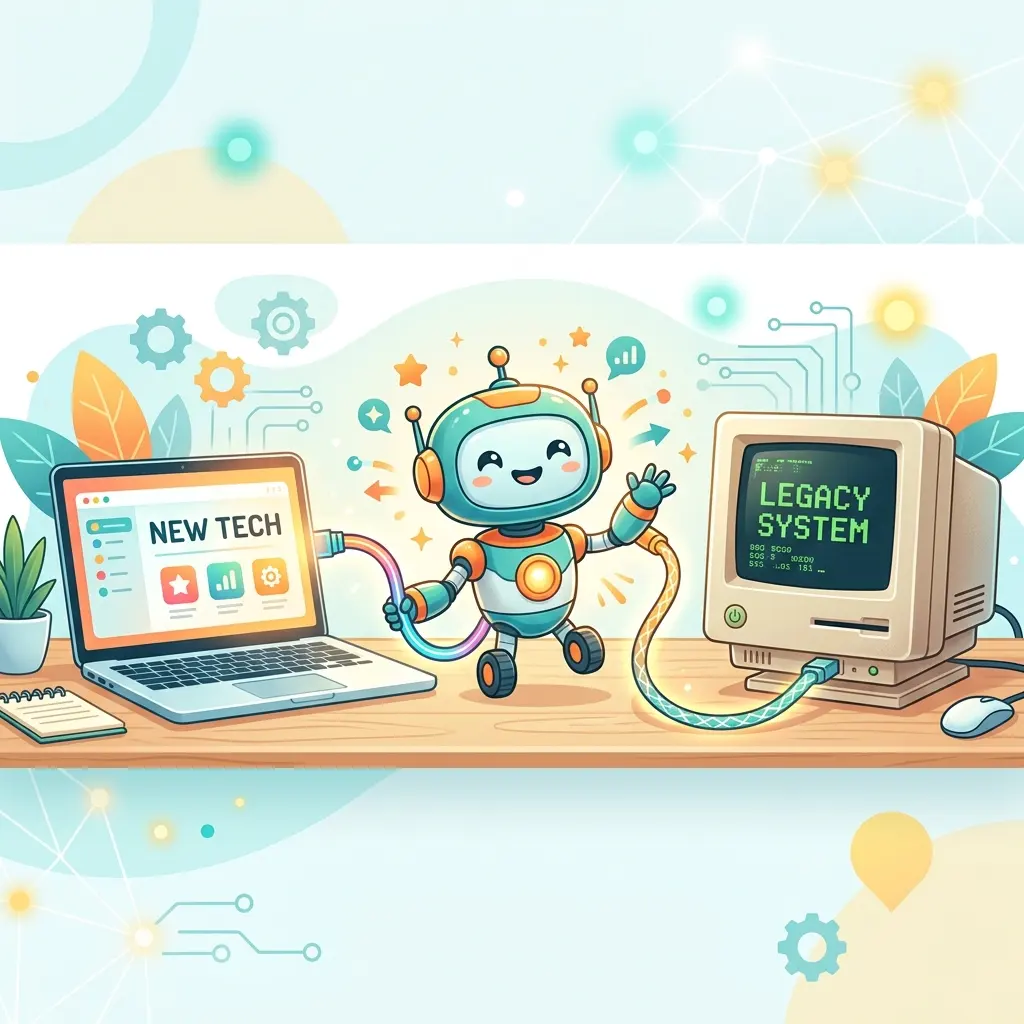
The rapid evolution of Microsoft Copilot Studio has introduced sophisticated capabilities to enterprise architectures—autonomous agents, generative orchestration, agent flows, and Model Context Protocol (MCP) integrations. Yet one problem stubbornly resists modern tooling: the automation of legacy systems. Many enterprise portals, internal line-of-business apps, and old mainframes simply have no API, no connector, and no webhook to call.
Traditionally, the answer was Robotic Process Automation (RPA): brittle desktop flows wired to UI selectors and XPaths that shatter the moment a developer renames a button. This article walks through a different approach—using the Computer Use tool in Copilot Studio to build a generative agent that interacts with a UI exactly like a human employee would. It reads the screen, reasons about what it sees, and clicks, types, and navigates accordingly. No selectors. No XPaths. No screen-scraping scripts to maintain.
We’ll go end to end: what Computer Use actually is, what you need before you start, how to build an invoice-processing agent step by step, how to secure it, what it costs, and how to run it unattended on a schedule.
What Computer Use Actually Is
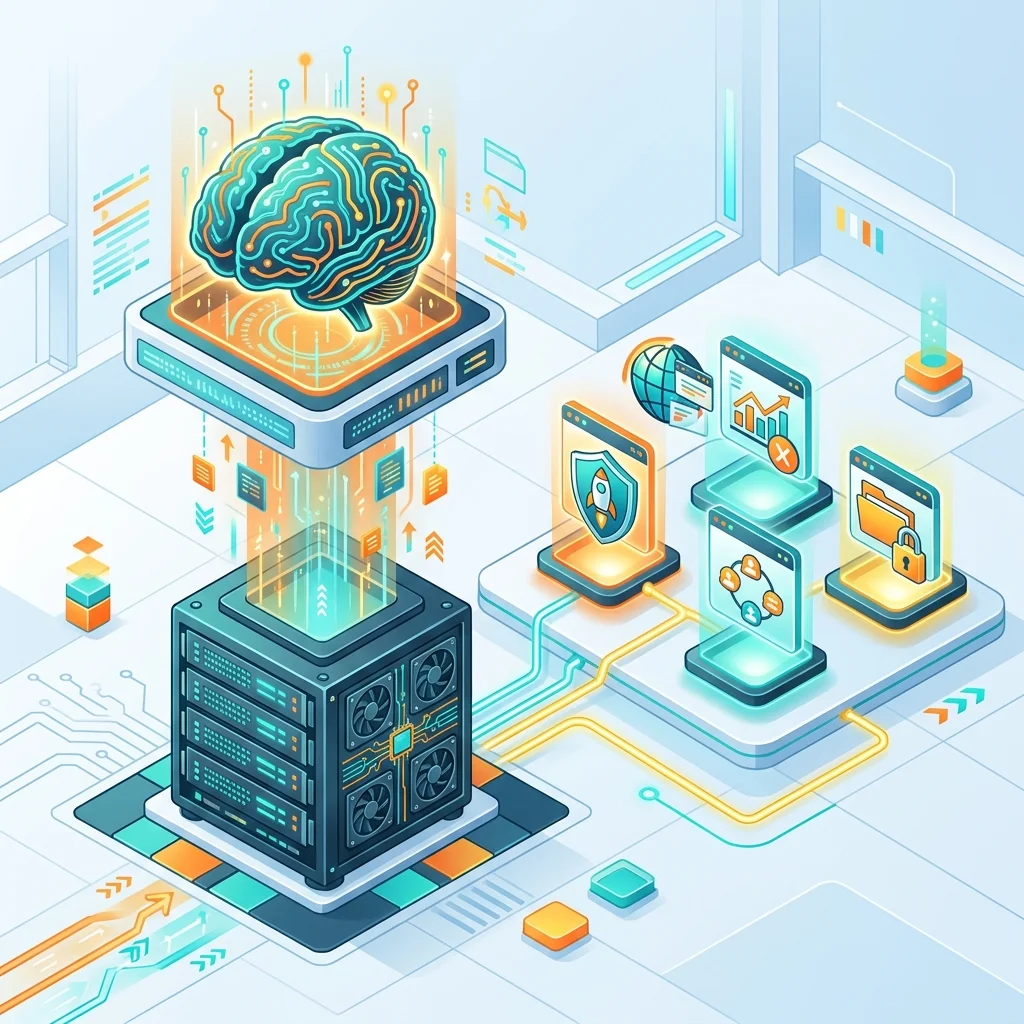
Computer Use is a tool you add to a Copilot Studio agent. It’s powered by a Computer-Using Agent (CUA) model that combines vision with reasoning: it takes a screenshot of the machine, decides what to do, and drives a virtual mouse and keyboard to do it. Because it works from what’s on the screen rather than from the underlying markup, it adapts when buttons move or layouts change—the failure mode that breaks classic RPA.
A few things that are easy to get wrong, so let’s be precise up front:
- It is not Classic-only. Computer Use is a feature of the modern, generative experience. In fact, it’s only available when generative orchestration is turned on for your agent. You add it directly from the agent’s Tools page—there’s no need to build in a “classic” designer and bridge into a modern one.
- It works with web and desktop apps. Websites are the most common scenario, but the same tool can drive Windows desktop applications (WinForms, WPF, UWP, WinUI, Win32). Our example uses the web, but keep the desktop capability in mind for true legacy systems.
- It runs on a machine, not “magically in the cloud.” Computer Use executes on a Windows machine that you configure and select (more on this below). It is not a zero-setup browser that appears out of thin air.
Before You Start: Prerequisites and Cost
This is the part most write-ups skip, and it’s exactly what trips up the first real deployment. Get these in place first.
Prerequisites
- Generative orchestration enabled on the agent. Without it, the Computer Use tool simply isn’t available.
- A target machine. Computer Use runs on a Windows machine surfaced through Power Automate’s machine management (a Microsoft-hosted machine or one you connect). You select it under the tool’s Machine setting, and you can jump to Manage machines / See machine details in Power Automate from there.
- A connection for the tool, which determines the credentials used to reach that machine.
- Admin opt-in for external models, if you intend to use a non-default model (see Choosing the Model below).
- Copilot Studio licensing/capacity in the environment—because every step the agent takes consumes Copilot Credits.
Budget before you build. Computer Use is billed as an Agent action at 5 Copilot Credits per step on a standard model, or 15 per step on a premium model. A “step” is one reasoning-and-action cycle (a click, a keystroke, a navigation). A simple four-step run—launch browser, open form, fill fields, submit—costs ~20 credits on a standard model and ~60 on a premium one. Autonomous agents that trigger themselves also carry a separate per-trigger charge. Multiply by your daily volume and check the current Copilot Credit guide before committing to a high-frequency unattended job.
Architectural Deep Dive: End-to-End Invoice Processing
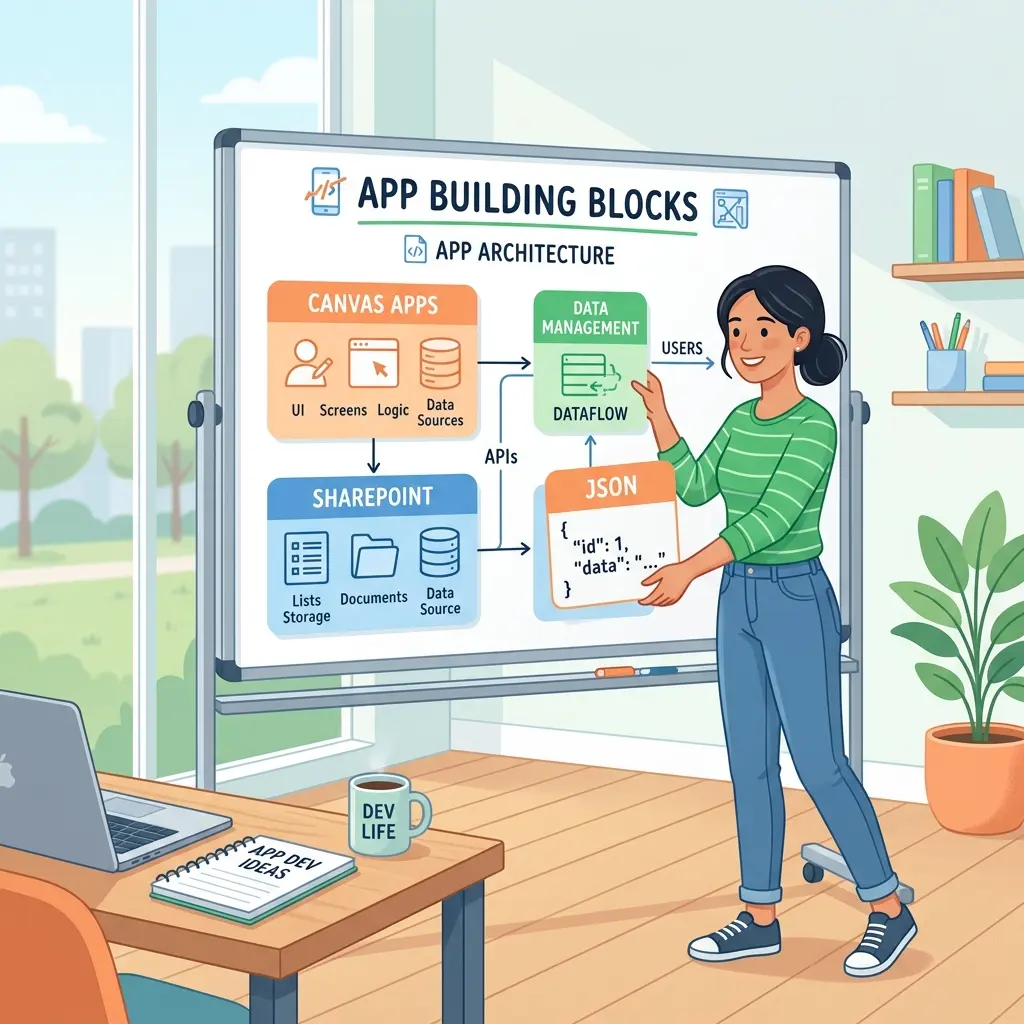
Consider a classic finance workflow: a vendor drops an invoice PDF into a SharePoint Online library. A human opens the document, reads off the key fields, opens Outlook Web, types a structured summary, and sends it to accounting. It’s repetitive, low-value, and—crucially—touches systems where a tidy API isn’t always within reach for a citizen developer.
With Computer Use, the agent does the whole thing by reading the screen.
Architect’s note: SharePoint and Outlook do have first-class Graph APIs and connectors. In production you’d usually reserve Computer Use for the genuinely legacy hop and use a connector for everything else. We drive both through the UI here purely to demonstrate the tool end to end on systems you already have.
1. Add the Computer Use tool
In Copilot Studio, on an agent with generative orchestration on:
- Open the Tools page and select Add tool → New tool → Computer use.
- Optionally start from one of the built-in instruction templates (there’s an invoice-processing sample).
- Select Add and configure, then fill the four required fields:
- Name — a clear display name (e.g.,
Legacy Invoice Scraper) so the orchestrator can tell it apart from other tools. - Description — when the agent should reach for this tool. This is what the orchestrator reads to decide routing, so make it intent-rich: “Use when asked to read an invoice from SharePoint and email a summary to finance.”
- Model — see the next section.
- Instructions — the natural-language script the tool follows.
- Name — a clear display name (e.g.,
- Save, then Test (covered later).
2. Write the natural-language instructions
Unlike traditional automation that breaks when an element ID changes, generative automation relies on clear, contextual instructions. Treat it like briefing a new colleague: be specific about URLs and apps, state actions explicitly, and tell it not to ask for confirmation. Below is the behavioral blueprint for the agent:
A few best-practice details baked in above: full URLs, one action per line, an explicit Send instruction, and a clear final output the orchestrator can act on.
3. Define inputs for reuse
To make the tool reusable across business units, define Inputs—dynamic values combined with your instructions at run time. Reference each one in the instructions using its name (the [Site URL], [Document Library], etc. placeholders above).
| Input | Type | What it holds |
|---|---|---|
| Site URL | String | The absolute URL of the target SharePoint site collection. |
| Document Library | String | The display name or relative path of the document library. |
| Invoice File Name | String | The exact file name, e.g., invoice-4821.pdf. |
| Recipient | String | The corporate email address of the financial validator. |
Choosing the Model
Computer Use lets you pick the model that drives the run, and the choice has both a capability and a cost dimension:
- The default is OpenAI’s Computer-Using Agent (CUA) model—generally available and billed at the standard rate of 5 credits per step.
- Premium frontier models are also available, billed at 15 credits per step. They can reason over trickier layouts but cost roughly 3× more.
- Some models are external and require your admin to enable external-model access for the environment before they appear in the dropdown.
Start on the standard model. Move to premium only if a specific UI consistently defeats it—and re-run your cost math first.
Infrastructure, Security, and Identity
Automated browser and desktop tasks demand a robust execution environment and tight controls. Here’s how Copilot Studio handles each, and where you need to make decisions.
Runtime: the machine
Computer Use renders and drives the UI on the machine you selected during configuration. Treat that machine as part of your security boundary. Microsoft’s own guidance is unambiguous here:
- Use a dedicated, isolated machine for Computer Use—no unrelated software, no shared use—to limit cross-contamination.
- Apply least privilege to the account the machine runs under.
- Lock down what the machine can reach (for example, Microsoft Edge policies via Intune, and application control to limit which apps can run).
Identity: two credential concepts (don’t confuse them)
There are two distinct credential settings, and mixing them up is a common source of “why won’t it sign in” confusion:
- Credentials to use — who the run acts as on the machine. Choose Maker-provided (the author’s credentials; best for autonomous agents) or End-user (each interacting user supplies their own). ⚠️ If you share an agent that uses maker-provided credentials, everyone who runs it acts with your access. Scope that account carefully.
- Stored credentials — how the agent signs in to a website or app when a login screen appears mid-run. Secrets are encrypted in Power Platform internal storage (zero config) or referenced from an Azure Key Vault you provide (recommended for enterprise rotation and audit).
When you add a stored credential, the Login domain field tells the agent
which site this credential applies to—it is not a security-trimming trick.
Enter the sign-in host, e.g., login.microsoftonline.com for Microsoft 365,
and use wildcards for subdomains such as *.sharepoint.com. Pair it with the
Username (the UPN) and Password (or Key Vault secret name). For Azure
Key Vault, you’ll first supply the subscription ID, resource group, and vault
name from the vault’s Overview page.
Plan for MFA and Conditional Access. Stored credentials handle username-and-password sign-in cleanly, but if your tenant enforces multifactor auth, passwordless, or Conditional Access on the target sign-in, an unattended run can stall on a challenge it can’t answer. Don’t disable those controls—work with your identity team to define a compliant approach (a scoped, policy-governed account for the automation) before going unattended.
Access control: constrain where it can act
By default, Computer Use can operate on any website or app. Turn on Access control to define an allow-list of websites (wildcards supported, e.g., *.contoso.com) and desktop apps (by process name, e.g., msedge). For our scenario, restrict it to your SharePoint tenant and the Outlook web domain.
One important nuance most guides miss: access control blocks actions, not navigation. The model can still open a non-allowed site—it just can’t interact with it once there. So treat the allow-list as a guardrail on what the agent can do, and lock down navigation itself at the machine layer (browser policy) if you need a hard boundary.
Human supervision: a safety net for prompt injection
Computer Use includes a Human supervision option: if the agent detects potentially harmful instructions that could alter its behavior (think prompt-injection content planted on a page), it can email a designated reviewer and pause. Two things to get right:
- Pick a reviewer who is actually positioned to verify the request—ideally the person who initiated the run, since activity is tied to the initiator.
- Set a sensible response time limit. If no one responds in that window, the request expires and the run stops.
Behavioral Observability: How the Agent Executes
When you select Test, you get a split view: the left panel streams the tool’s step-by-step reasoning and actions; the right panel shows a live preview of the machine. Watching it run reveals how LLM-driven automation differs from a script:
- Dynamic sign-in. The agent loads the Microsoft 365 sign-in page, recognizes the fields contextually, enters the UPN, selects Next, pulls the password from the secure store, and signs in—no field mapping required.
- Contextual navigation. It finds the document library, identifies the target PDF, reads the visual layout of the invoice, and records the fields into its working state.
- Human-mimetic composition. Drafting in Outlook, if its first attempt looks like an unformatted blob, its own feedback loop notices the poor presentation and re-types the content with clean line breaks and a tidy layout before selecting Send.
If the result isn’t what you expected, the fix is almost always the same: go back to the instructions and add detail. You can Stop testing at any time to halt all actions on the machine immediately.
From On-Demand to Unattended: Autonomous Runs
The invoice agent above works on request—a user (or another agent) asks for an invoice summary and the tool fires. The moment the requirement becomes “do this every night at midnight without anyone asking,” you shift the agent from conversational to autonomous.

To make the switch:
- Give the agent a trigger instead of relying on a user prompt. A scheduled/recurrence trigger handles the nightly-batch case; an event trigger (e.g., when a file is created in SharePoint) handles the run-on-arrival case.
- Make sure the run uses maker-provided credentials, since no end user is present to authenticate.
- Confirm your stored credentials and identity approach survive an unattended sign-in (revisit the MFA note above).
- Publish.
That turns a conversation-driven utility into a true background daemon—just remember that every autonomous trigger plus every step is metered, so an hourly job is a very different bill from a nightly one.
Performance Considerations and Engineering Trade-offs
Generative web automation is powerful, but it is not free of trade-offs. Weigh it honestly against native integration.
Limitations
- Latency overhead. Because the model evaluates the screen iteratively before each move, runs are slower than an optimized API call or deterministic headless RPA. Fine for a nightly batch; think twice for anything latency-sensitive.
- Cost scales with steps. More fields, more clicks, more pages = more credits. Long or high-frequency workflows add up fast.
- Not an API replacement. Where a Graph API, webhook, or native connector exists, use it. Computer Use is the tool of last resort for systems that have no programmatic door—not a default integration style.
- Sign-in friction. MFA, Conditional Access, and CAPTCHAs can interrupt unattended runs. Some virtualized/desktop environments (Citrix, Java, Electron, Unity, CLI apps) may not support credential injection at all.
Strategic Advantages
- Zero selector maintenance. Classic RPA breaks when an ID or layout changes. Computer Use relies on visual and semantic context, so it shrugs off most UI updates.
- Deep contextual understanding. It understands what it’s reading. If a vendor reshuffles an invoice layout, a hard-coded scraper fails; a generative agent still finds the right numbers because it reads the document the way a person does.
- Reaches what has no API. The whole point: it automates systems that were previously off-limits to citizen developers entirely.
Hands-On Tips Before You Ship
- Iterate on instructions, not infrastructure. 90% of “it didn’t work” is a vague instruction. Add the exact URL, name the button, and spell out multi-step menus (“select the More icon, then the last item in the dropdown”).
- Extract as structured data when handing off. If a downstream tool consumes the result, ask the tool to return values as JSON and add the email/connector tool to the same agent—let each tool do what it’s best at.
- Test on the standard model first, lock in the instructions, then decide whether premium is worth 3× the credits.
- Pilot in a non-production environment with a throwaway account and a tightly scoped allow-list before pointing it at live finance data.
- Estimate the bill. Count the steps in a single run, multiply by your model rate and daily volume, and sanity-check it against the Copilot Studio usage estimator.
By adding Computer Use to a generative Copilot Studio agent, enterprise teams can collapse integration friction, safely wrap a UI around systems that never had an API, and bring genuine cognitive automation to the corners of the estate that RPA could only ever bolt onto. Start with one well-scoped, well-instructed workflow, watch it run in the test pane, and grow from there.
Read next