Beyond Chat: How Microsoft 365 Copilot Orchestrates Work in 2026

Writer

Millions of people encounter Copilot through Microsoft 365, although the exact capabilities they receive depend on their subscription, assigned license, tenant configuration, and rollout status. Many still open it once, ask a generic question, receive a flat answer, and never return. That is also the easiest way to miss what the platform has become.
In 2026, Copilot is best understood not as one chatbot with one model, but as a work orchestration layer. It can ground responses in organizational context, remember user preferences, reason over a deliberately scoped project workspace, invoke specialized agents, and carry out multi-step work across Microsoft 365—with approval checkpoints before actions are applied.
That shift changes the central question. Instead of asking, “How do I write a cleverer prompt?”, ask:
What context, scope, capability, and level of execution does this task require?
This article develops that mental model and shows where Work IQ, personalization, Copilot Notebooks, agents, model choice, and Copilot Cowork fit.
The adoption trap: Generic results are not always a model problem. They often indicate that Copilot lacks a clear goal, relevant sources, sufficient work context, or an appropriately scoped tool. Grounding improves relevance, but critical outputs still require source review and human judgment.
A Layered Mental Model for Microsoft 365 Copilot
Think of Copilot as a stack rather than a single interface:
| Layer | Primary question | Best-fit capability |
|---|---|---|
| Intent | What outcome do I want? | A prompt with a goal and explicit expectations |
| Context | What information should inform the answer? | Work IQ and direct references |
| Preference | How should Copilot communicate with me? | Custom instructions and Copilot Memory |
| Scope | Which source collection defines the project? | Copilot Notebooks |
| Specialization | Should this behavior be repeatable? | Agent Builder or Copilot Studio |
| Execution | Should the system perform actions across apps? | Copilot Cowork |
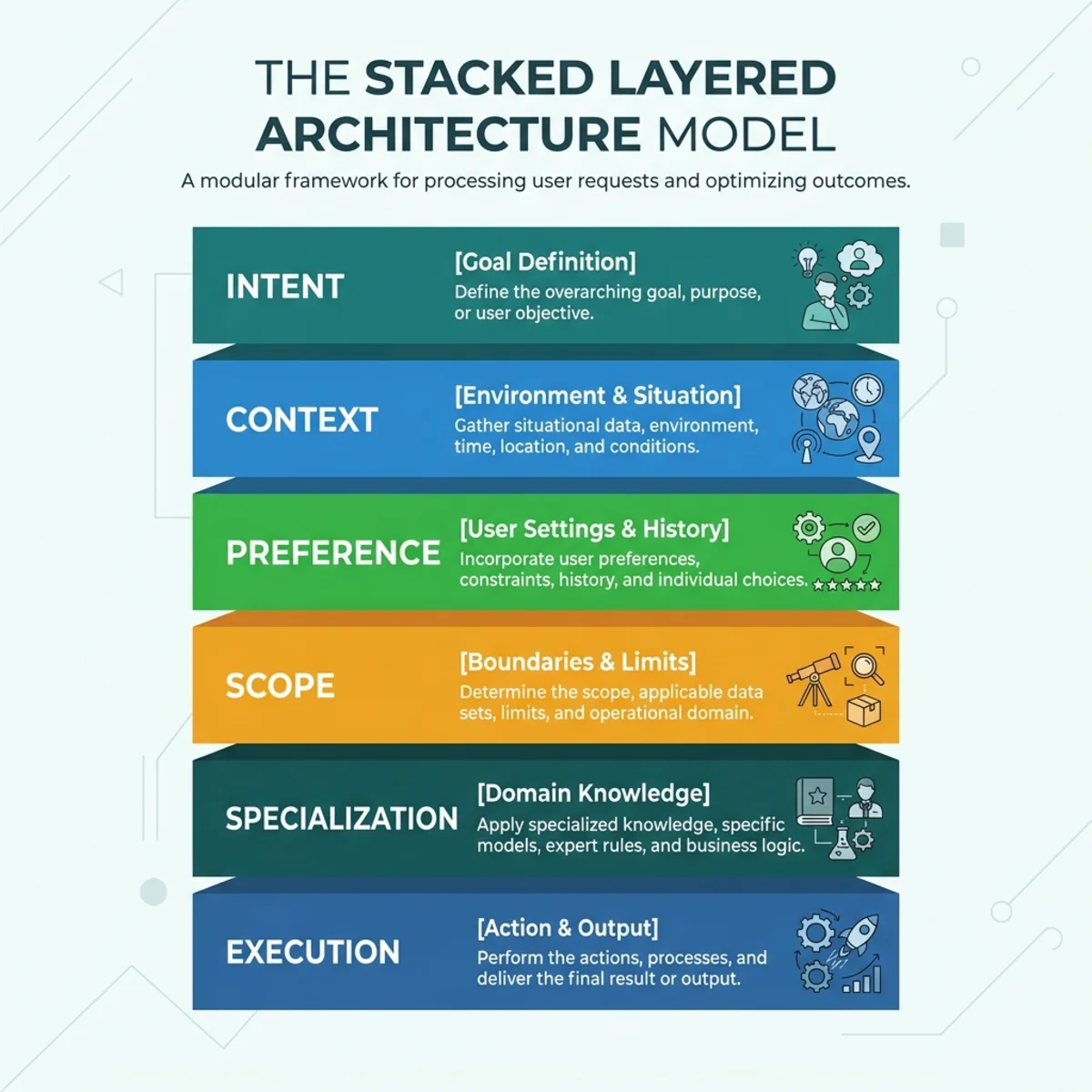
The layers are complementary. Work IQ can supply broad organizational context, while a notebook narrows the evidence set. An agent packages repeatable instructions and knowledge. Cowork goes further by planning and performing work across applications.
This is the architectural transition from answer generation to context-aware execution.
1. Work IQ: The Context Layer Behind Work
A general-purpose model knows language and patterns. It does not automatically know which “Q3 plan” you mean, what your team decided yesterday, or which customer issue is blocking a launch.
Work IQ is Microsoft’s workplace-intelligence layer. It builds semantic understanding from Microsoft 365 signals such as email, calendar, meetings, chats, files, people, and collaboration patterns. It is designed to retrieve and assemble relevant context while preserving the permissions and governance rules already attached to organizational data.
A useful analogy is an experienced chief of staff. A generic assistant understands the words in a request. A chief of staff also understands the surrounding work: which project is active, who owns it, what changed, and where the latest source of truth lives.
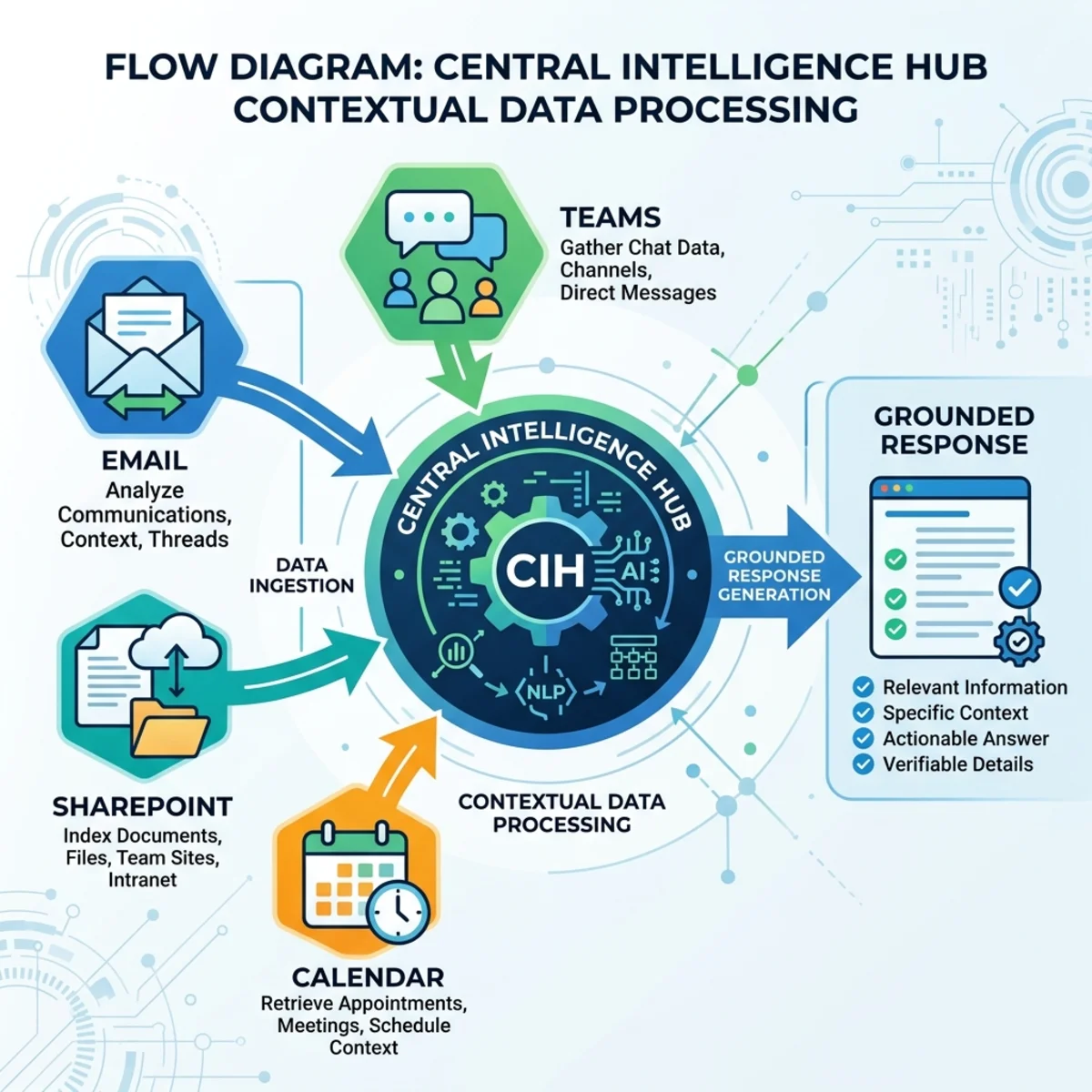
Work IQ does not bypass permissions
Turning on work grounding does not give Copilot unrestricted access to the tenant. Microsoft states that Copilot can reference only content the signed-in user is already authorized to access, with existing organizational security and governance controls applied. Availability still varies by license, subscription, tenant settings, and source type.
That distinction matters. Work IQ increases the quality of context assembly; it does not replace access control or repair poor information hygiene.
Explicit references beat hopeful prompting
Copilot can try to locate relevant work content automatically, but “find the right thing somewhere in the tenant” is an unnecessarily loose retrieval problem. When the source matters, name it.
In Copilot Chat, type / to reference supported people, files, meetings, or emails. The menu and available source types depend on whether Work IQ is enabled and whether the user has the relevant Microsoft 365 Copilot entitlement.
For example:
This prompt works because it specifies four things: sources, task, output structure, and evidence standard.
Rule of thumb: If a wrong source would materially distort the result, reference the source explicitly.
2. Personalization: Define the Interface Contract
Grounding tells Copilot what work to consider. Personalization tells it how to work with you.
Custom instructions
Custom instructions apply durable response preferences in Copilot Chat. In the current experience, users can manage them under Chat settings > Personalization, where they can specify communication and formatting preferences.
A useful instruction is stable, observable, and reusable:
Avoid turning custom instructions into a giant prompt library. Project-specific requirements belong in the prompt, a notebook’s instructions, or an agent—not in a global preference that contaminates unrelated tasks.
Copilot Memory
Copilot Memory can retain useful details and preferences from prior Copilot Chat interactions. Users can inspect and delete saved memories or turn memory off; disabling memory does not automatically delete memories that were already saved. Temporary chat provides a way to converse without using or updating personalized memory, although organizational retention policies may still apply to the underlying data.
The clean mental model is:
- Custom instructions are rules you deliberately set.
- Saved memories are retained facts or preferences you can manage.
- Chat-history personalization allows Copilot to infer what may matter from prior conversations.
- Temporary chat avoids using or adding personalized information for that conversation.
Personalization should reduce repetitive setup, not become an invisible source of assumptions. Review it periodically—especially when your role, project, or preferred output style changes.
3. Work in the Application That Owns the Artifact
Copilot Chat is useful for cross-work synthesis. But when the desired output is a presentation, email, document, spreadsheet, or calendar action, the host application contributes valuable local context and editing affordances.
Examples include:
- PowerPoint: draft or edit slides, use a referenced file for a slide, restructure content, and refine the presentation in place.
- Outlook: summarize mail, prioritize messages, draft responses, create rules, schedule meetings, and perform supported inbox actions.
- Word: create, rewrite, summarize, and ask questions about the open document.
The practical principle is simple:
Use broad chat for synthesis; use the native app when the artifact itself is the working context.
Do not assume every natural-language request is supported exactly as phrased. For example, Outlook documents inbox prioritization and triage actions, but that does not establish that Copilot can reliably identify and unsubscribe from every automated mailing received over an arbitrary 90-day period. Match prompts to documented capabilities, then verify the proposed action.
4. Model Choice Is Becoming a Platform Feature
Microsoft 365 Copilot is increasingly model-diverse. Microsoft announced expanded Anthropic support in 2025, and by March 2026 described Microsoft 365 Copilot as “model diverse by design.” Model availability, however, is experience-specific rather than one universal switch exposed identically everywhere.
As of July 24, 2026, Microsoft announced that Claude Opus 5 was rolling out to model selectors in Copilot Chat, Word, Excel, PowerPoint, Cowork, and Copilot Studio. Availability can vary by region and tenant configuration. Anthropic usage is also subject to administrator controls and data-processing considerations, including exclusions from the Microsoft EU Data Boundary for relevant Anthropic-backed experiences.
This makes model choice useful—but not the first troubleshooting step.
Before switching models, ask:
- Did I define the outcome clearly?
- Did I provide or reference the right evidence?
- Is the task scoped appropriately?
- Am I using the correct Copilot experience?
- Does this task genuinely benefit from a different reasoning or creation profile?
A stronger model cannot compensate for the wrong document, an ambiguous objective, or missing permissions.
5. Copilot Notebooks: A Deliberately Bounded Context
Work IQ is broad by design. Projects often need the opposite: a controlled evidence set.
Copilot Notebooks are scoped, AI-powered workspaces that bring selected references together so Copilot can answer and draft from that curated content. Microsoft describes notebook responses as grounded only in the references added to the notebook. References can stay current as their underlying content changes.
Think of Work IQ as the corporate library and a Copilot Notebook as the project reading room. The library is comprehensive; the reading room contains the material relevant to this investigation.
Reference limits and supported content
For Microsoft 365 Copilot users, a notebook can contain more than 300 references, but only the first 300 are used for grounding. Copilot Chat users can add up to 50 references, all of which are used for grounding. Supported reference types include common Microsoft 365 formats such as Word, PowerPoint, Excel, PDF, Loop, Copilot Pages, and OneNote pages, with details varying by plan and experience.
This is not a guarantee against hallucination. A bounded source set reduces retrieval ambiguity, but weak, contradictory, or outdated references can still produce weak conclusions.
Collaboration and privacy require nuance
Notebooks can be shared for real-time collaboration. Sharing can also grant recipients access to linked files, subject to the sharer’s permissions and the source type. Current documentation says notebook members receive editing access rather than a read-only role. Conversations with Copilot inside a shared notebook remain private.
That makes a notebook suitable for:
- a product launch evidence pack;
- a technical design review;
- a customer-account briefing;
- a research corpus;
- or a policy analysis with a defined source boundary.
Use notebook instructions to specify the expected analytical method—for example, “cite every conclusion,” “flag contradictions,” or “do not infer dates that are absent from the sources.” Notebook-specific instructions are shared and editable by notebook collaborators.
6. Agents: Package Repeatable Expertise
A prompt solves an immediate task. An agent packages reusable behavior.
Agent Builder in Microsoft 365 Copilot creates lightweight declarative agents through natural language or manual configuration. You can define instructions, suggested prompts, and knowledge sources, test the agent, and then use or share it within the supported Microsoft 365 Copilot experiences.
Good candidates have a stable purpose and repeatable standard, such as:
- coaching presentations against organizational guidance;
- answering onboarding questions from approved team content;
- producing a structured project-status summary;
- or reviewing drafts against an editorial checklist.
There is no technical law that says “build an agent after three repetitions per month.” A better decision test is:
Build an agent when the task has reusable instructions, repeatable knowledge boundaries, and a clear audience—and when inconsistent ad hoc prompting has become a quality problem.
Agent Builder or Copilot Studio?
The two tools occupy different points on the complexity curve:
| Use Agent Builder when… | Use Copilot Studio when… |
|---|---|
| The agent is for an individual or small team | The audience is departmental, organizational, or external |
| The main need is lightweight Q&A or content generation | The scenario needs multi-step workflows or custom integrations |
| Existing Microsoft 365 knowledge is sufficient | The agent must connect to business systems or custom actions |
| Fast, no-code creation is the priority | Lifecycle management, deployment, and granular control matter |
Microsoft explicitly positions Agent Builder for straightforward, in-context agents and Copilot Studio for advanced actions, broader deployment, integrations, and stronger application-lifecycle requirements.
Discover and invoke existing agents
You do not always need to build an agent. The Microsoft 365 Copilot app includes an Agents area and Agent Store where users can open preinstalled agents, add Microsoft-built agents, use agents provided by their organization, or create their own. If an agent has not been approved, the interface can present a request-for-approval option instead of installing it directly.
Once available, an agent can be opened from the Agents list and used with a suggested prompt or a new request. For a scenario such as email follow-up, the reusable agent supplies the tone, evidence rules, and output format; the user then supplies the specific message or work item to process. This separates stable behavior from task-specific context.
7. Copilot Cowork: From Conversation to Execution
The original product name is Copilot Cowork, not “Co-work.” It became generally available on March 9, 2026. Cowork is designed for multi-step work across Microsoft 365: it can create documents, send email, post in Teams, schedule meetings, manage files and calendars, conduct research, prepare briefings, and run scheduled prompts.
The key difference is not that Cowork writes longer answers. It operates a plan-to-action loop:
- You describe the desired outcome.
- Cowork grounds the task in available work context.
- It creates and executes a plan across supported tools.
- It exposes progress and checkpoints.
- You approve actions before they are applied.
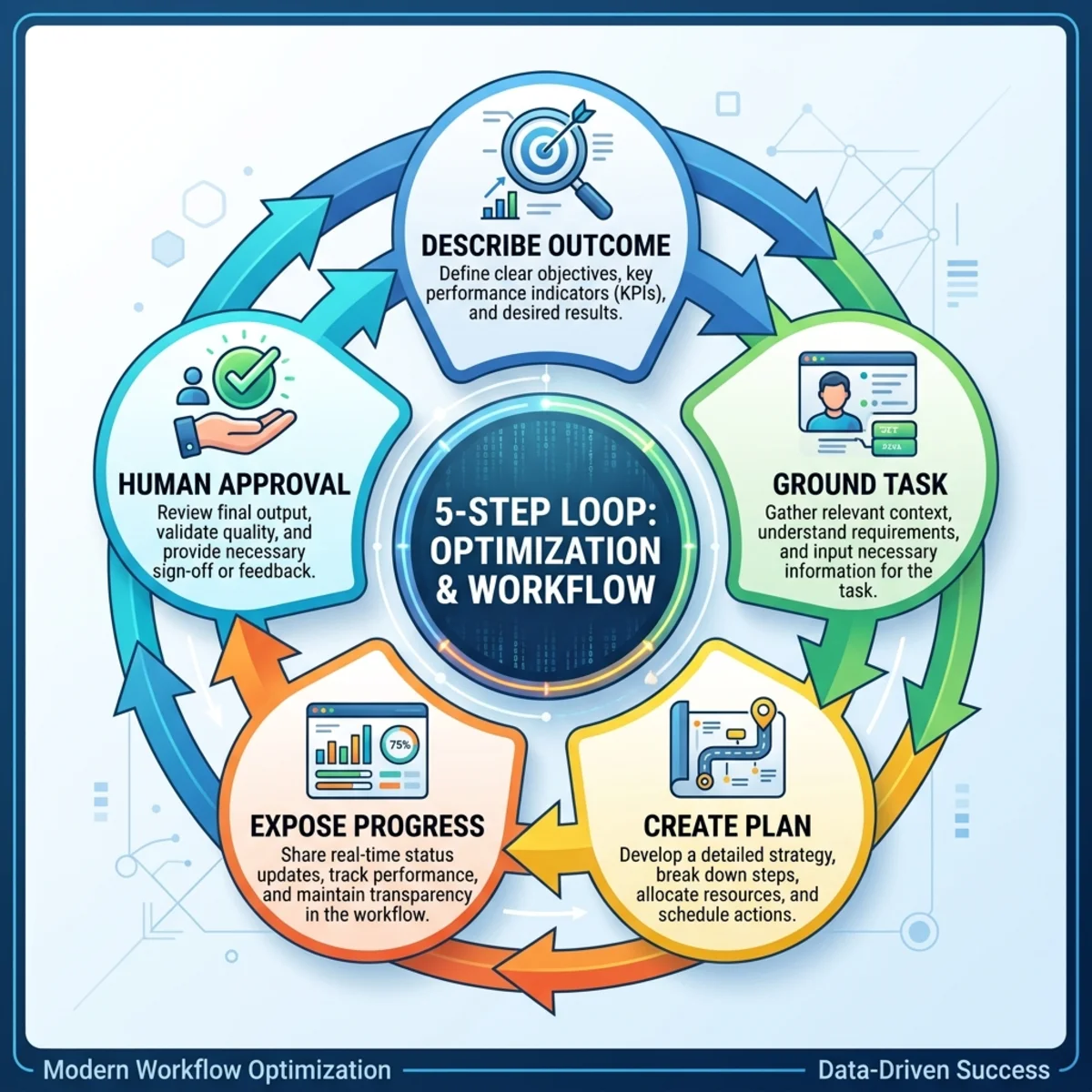
That last step is crucial. Cowork is agentic, but Microsoft’s current documentation presents the user as the final authority for actions.
Skills
Cowork uses built-in skills for areas including Word, Excel, PowerPoint, PDF, email, scheduling, calendar management, meetings, enterprise search, communications, deep research, and adaptive cards. Users can also create custom skills by placing a SKILL.md file in the documented OneDrive folder; Microsoft currently documents a limit of up to 50 custom skills.
A skill is best understood as an operational playbook: instructions Cowork can discover and apply when a task matches the skill’s purpose.
Scheduled work and integrations
Cowork can run prompts on a schedule, which supports recurring scenarios such as a Monday priorities list, a daily briefing, or a periodic inbox review. Its scheduled view lets users revisit and manage recurring work rather than recreating the request each time. Microsoft also describes plugins that extend Cowork to Dynamics 365, Fabric, partner tools, and custom systems. Treat these as tenant- and configuration-dependent capabilities rather than assuming every integration is active by default.
Availability and usage-based billing
The source correctly signals that an administrator may need to enable Cowork, but the reason is more specific than ordinary feature activation. Current Microsoft documentation says Cowork requires an active Microsoft 365 Copilot license and usage-based billing. Administrators enable access and spending policies through Microsoft 365 Copilot cost-management controls; they can also separately control whether the experience is discoverable to users. Cowork consumption is measured through Copilot Credits, so access should not be inferred from the presence of Copilot Chat alone.
A strong request defines the outcome, boundaries, and approval point:
Choosing the Right Copilot Surface
Use the smallest capability that can reliably complete the job:
| Need | Start here |
|---|---|
| A quick answer, summary, or draft | Copilot Chat |
| An answer grounded in named work items | Chat with explicit / references |
| Consistent tone and response structure | Custom instructions |
| Persistent personal preferences | Copilot Memory |
| Analysis limited to a curated project corpus | Copilot Notebooks |
| Reusable instructions and knowledge for a recurring scenario | Agent Builder |
| Complex integrations, workflows, or broader deployment | Copilot Studio |
| Multi-step execution across Microsoft 365 | Copilot Cowork |
This is not a maturity ladder where every task should end in automation. A one-off question should remain a chat. A sensitive decision may benefit from scoped sources but should stop before execution. The right architecture is the least autonomous design that meets the requirement safely and reliably.
What This Architecture Does Not Solve
The move from chat to orchestration is substantial, but it does not eliminate familiar information-system problems:
- Bad sources remain bad sources. Grounding can retrieve outdated or contradictory content.
- Permission boundaries shape results. Copilot cannot use content the user cannot access through the supported path.
- A bounded notebook is not a truth engine. It reasons over the selected corpus, including its omissions.
- Model availability is conditional. Region, license, rollout stage, and tenant configuration can change what users see.
- Execution needs review. Approval gates reduce risk, but users still need to inspect consequential actions and source-backed claims.
The architectural lesson is not “let the agent do everything.” It is design the context and control boundary around the task.
Final Takeaway
Microsoft 365 Copilot in 2026 spans several modes of work:
- Work IQ supplies permission-aware organizational context.
- Direct references make the evidence explicit.
- Custom instructions and memory reduce repetitive setup.
- Native app experiences work directly on the artifact.
- Copilot Notebooks constrain reasoning to a curated corpus.
- Agents package repeatable expertise.
- Copilot Cowork coordinates multi-step execution with approval checkpoints.
The biggest improvement rarely comes from a more elaborate prompt alone. It comes from choosing the correct layer: the right context, the right scope, the right reusable capability, and the right degree of action.
That is the practical meaning of agentic orchestration: not replacing human judgment, but giving it a better-designed system through which to operate.
A Practical Adoption Sequence
The capabilities in this article form a sensible progression, but not every user needs every layer:
- Begin with context. Enable the work-grounded experience when available and reference the exact files, meetings, messages, or people that matter.
- Set persistent preferences. Use custom instructions for communication rules and memory for useful personal context you are comfortable retaining.
- Work inside the destination app. Use Word, Excel, PowerPoint, or Outlook when the open artifact is central to the task.
- Reuse stable behavior. Find an existing agent or build one when instructions and knowledge boundaries repeat.
- Constrain complex projects. Create a Copilot Notebook when a curated source collection should define the evidence.
- Delegate coordinated execution. Use Cowork for multi-step work across applications, with explicit boundaries and review before consequential actions.
Up-front configuration can compound over time, but setup is not the goal. The goal is to give each task the minimum context and capability it needs—without adding unnecessary autonomy.
Read next