Beyond the Chat Pane: Seven Copilot Updates That Turn Intent into Work (November 2026)

Writer

A spreadsheet does not become useful because someone summarizes it. A presentation does not become persuasive because someone adds more slides. And a SharePoint list does not become a working process because someone describes its contents.
The interesting shift in Microsoft 365 Copilot is what happens after the conversation: correcting the workbook, challenging the story, arranging document objects, publishing a connected page, or creating an event-driven notification. Copilot is increasingly becoming an interface for doing work inside the application, rather than simply discussing it.
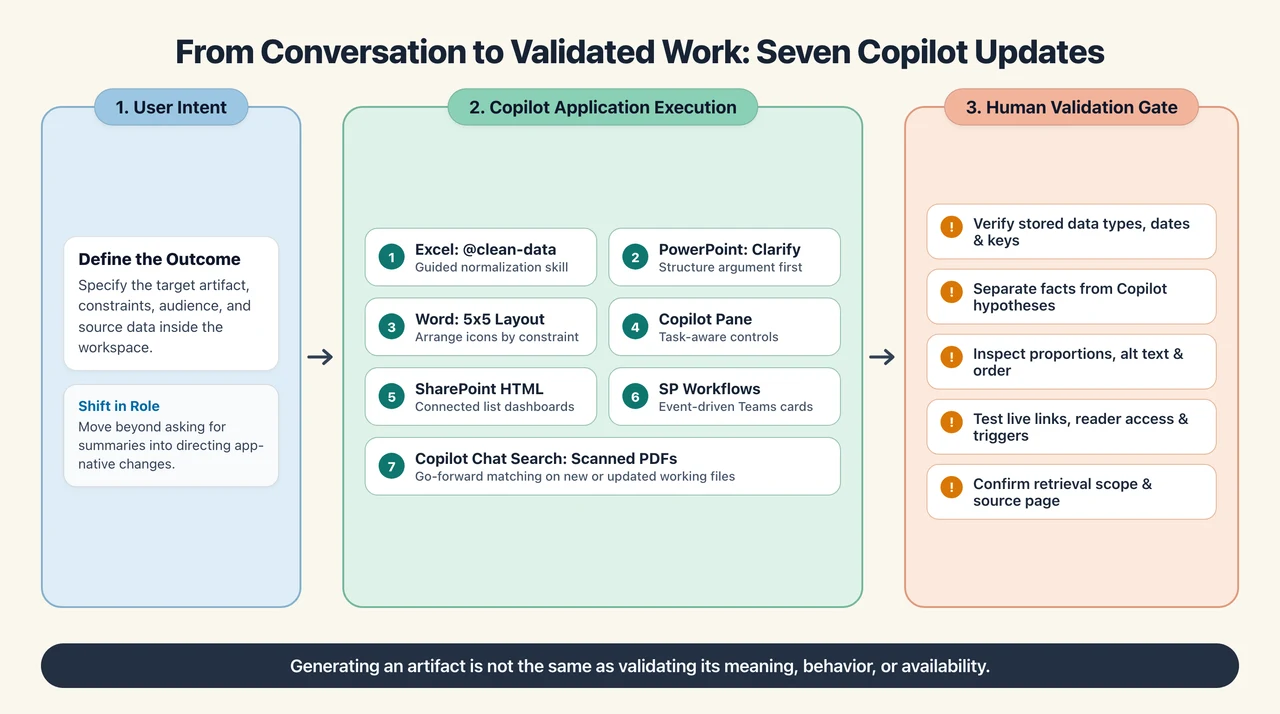
Seven updates across Excel, PowerPoint, Word, SharePoint, and search illustrate that shift. They also expose an important distinction: generating an artifact is not the same as validating its meaning, behavior, or availability.
The capabilities below are assessed against documentation available on November 10, 2026. Examples adapted from the supplied demonstration use a fictional paper company, not a measured customer deployment. Rollout status matters: a feature shown in one environment is not proof that every tenant, platform, or update channel already has it.
1. Excel: Data Cleaning Becomes a Guided Task
Messy spreadsheets rarely have just one problem. Dates use different conventions. Product identifiers have inconsistent capitalization. Categories vary by spelling. Numbers that look correct may actually be stored as text.
Microsoft documents a clean-data skill that checks for issues including extra spaces, inconsistent text and number formats, inconsistent dates, duplicate values, and incorrect data types. It explains the findings and proposes corrections for review. The skill is enabled by default but is still rolling out to production, so availability can vary. See Microsoft’s built-in Excel skills documentation.
A useful mental model is a reusable task playbook. A skill gives Copilot task-specific guidance for repeatable work; it is not a separate large language model, and repeatability does not mean deterministic results. Microsoft supports selecting skills through Add → Choose plugins and skills, or invoking one directly with an @mention. See using skills in Excel.
For example:
@clean-data Review this sheet for inconsistent dates, capitalization, categories, and number formats. Use uppercase SKU codes. Ask before interpreting ambiguous dates, and show proposed changes before applying them.
SKU means stock-keeping unit: an identifier for a product or inventory item.
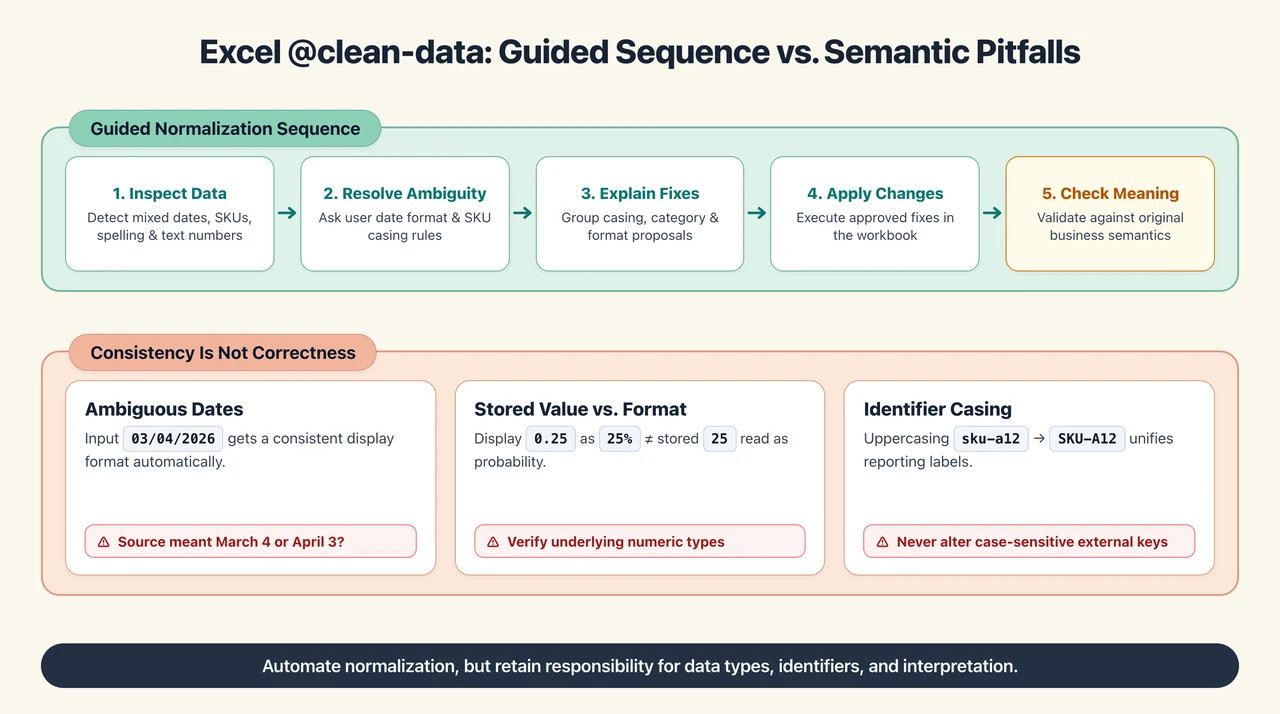
In the demonstration, Copilot first asks about date formats and SKU capitalization. It then presents categories of proposed fixes, including casing, categorical, and formatting inconsistencies. After approval, the sheet has consistent capitalization, dates, opportunity values, and percentage formatting.
That sequence matters more than the cosmetic result:
- Inspect the relevant data.
- Resolve preferences or ambiguity.
- Explain the proposed corrections.
- Apply the selected changes.
- Check the result against the original meaning.
Consistency Is Not Correctness
Consider an illustrative date such as 03/04/2026. Applying a consistent display format does not establish whether the source meant March 4 or April 3. Similarly, displaying 0.25 as 25% is different from interpreting a stored value of 25 as a probability.
Capitalization deserves the same caution. Uppercasing an identifier may be appropriate for a reporting convention, but it should not silently change a case-sensitive external key.
The practical rule: automate normalization, but retain responsibility for interpretation. Review data types, identifiers, and ambiguous values, not just whether the sheet looks cleaner.
2. PowerPoint: Clarify the Argument Before Decorating It
A slide can accurately show declining revenue and still fail to explain what the audience should do with that information.
The Clarify my thinking skill addresses that gap. A publicly accessible archive of Microsoft Message Center announcement MC1492161 describes its desktop rollout beginning October 8, 2026. The announcement says the skill helps users answer questions that sharpen ideas and improve presentation clarity. Because this is an independently hosted archive, it should be treated as a reproduction of the announcement rather than a primary support page. See the archived Message Center notice.
The broader ability to understand a presentation, perform multi-step tasks, add slides, and edit content directly is documented in Microsoft’s PowerPoint editing guidance.
In the fictional branch example, Buffalo has declining revenue and weak margins. Rather than immediately generating slides, Copilot asks questions that change the assignment:
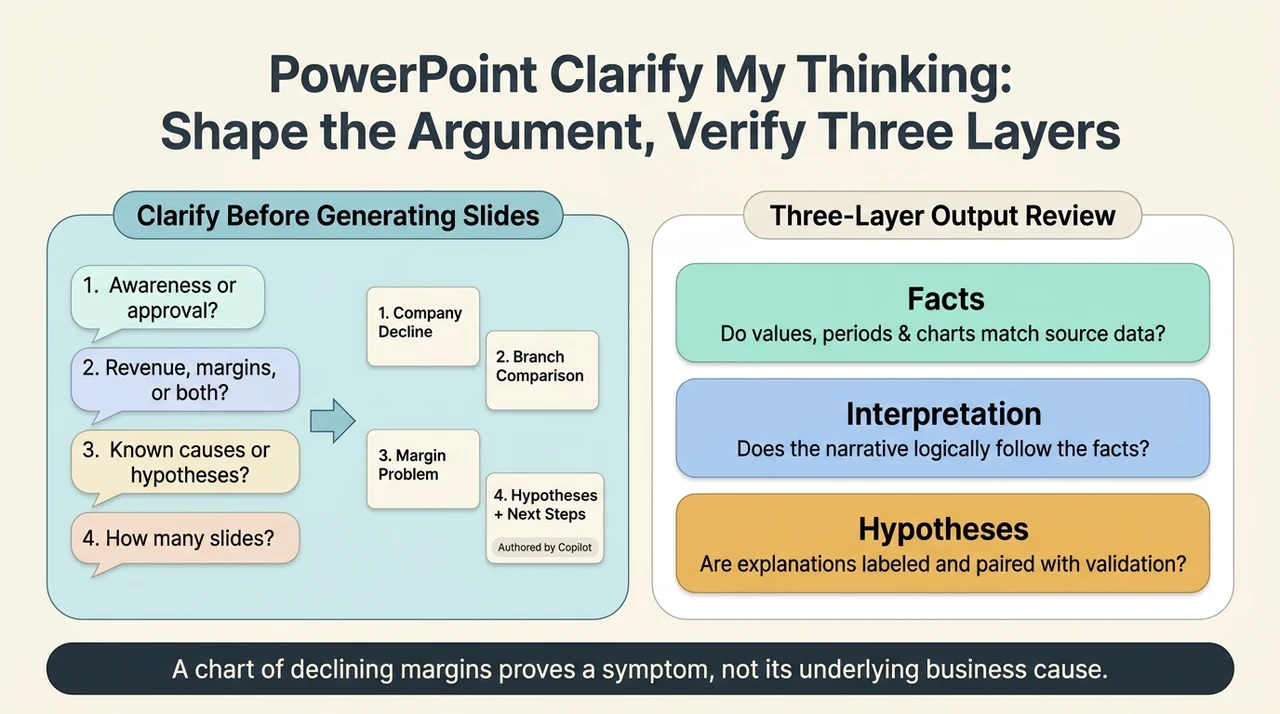
- Is the presentation for awareness or approval of a turnaround plan?
- Is the central issue revenue, margins, or both?
- Are the root causes known, or are they hypotheses?
- How many slides should tell the story?
Those are not merely formatting preferences. They define the argument.
An awareness presentation should explain the situation and uncertainty. A decision presentation must also make the requested decision, alternatives, and supporting evidence clear. The same source data can support different decks because the audience’s task is different.
Separate Symptoms from Explanations
The demonstration produces four draft slides: Buffalo’s decline relative to the company, its position against other branches, the margin problem, and hypotheses with next steps. Copilot explicitly indicates that it authored the hypotheses and next steps.
That disclosure is essential. A chart showing weaker margins is evidence of a symptom. It is not proof of pricing pressure, an unfavorable product mix, or rising operating costs.
A stronger prompt makes the distinction explicit:
Help me explain Buffalo’s revenue and margin decline to the executive team for awareness only. Use the existing data. Separate observed facts from hypotheses, identify missing evidence, and propose three to four draft slides.
Review the output in three layers:
- Facts: Do the values, periods, comparisons, and charts match the source?
- Interpretation: Does the narrative follow from those facts?
- Hypotheses: Are possible explanations clearly labeled and paired with validation steps?
Copilot can help improve the story without having established the cause. Iterative editing is useful precisely because the first draft is a starting point, not a conclusion. Microsoft also documents interactive slides, but interactivity does not remove the need to validate the underlying argument.
3. Word: Describe the Layout Instead of Manipulating Every Object
Some document work is neither writing nor analysis. It is repetitive object handling: resizing images, aligning icons, and arranging content into a usable structure.
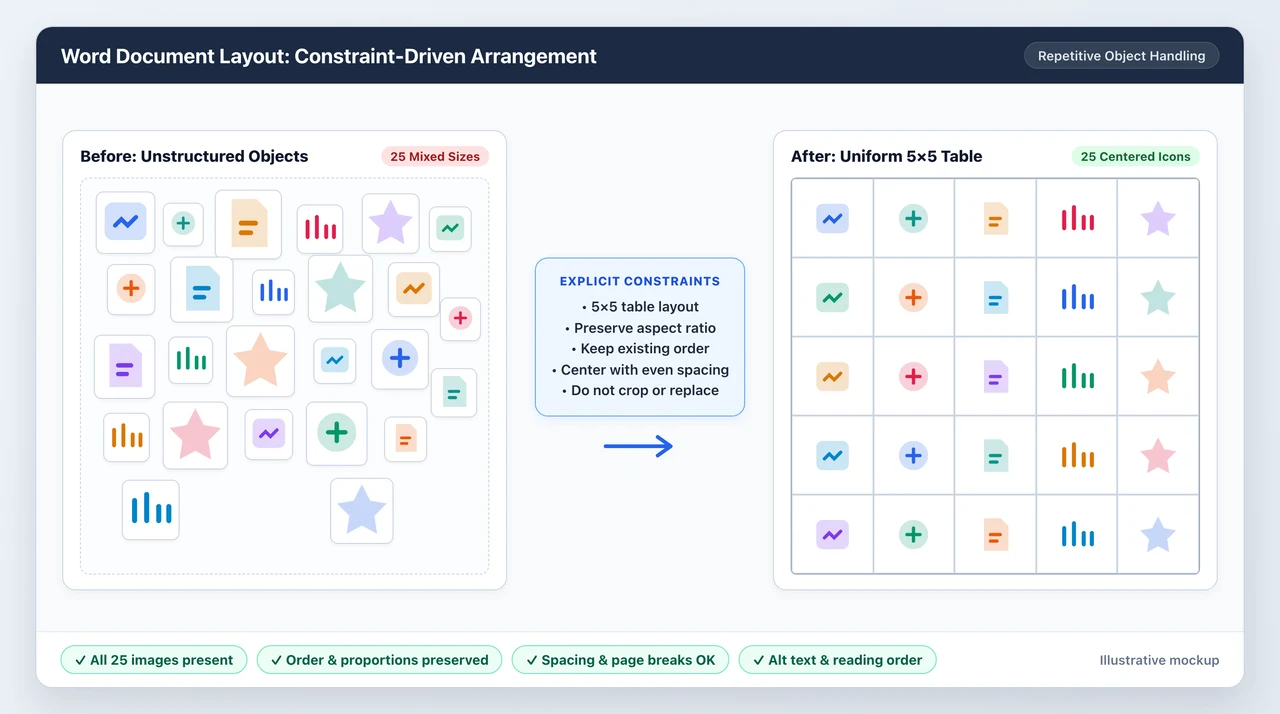
The demonstration shows 25 differently sized icons being arranged into a five-by-five table with a single request. This is a concrete example of describing the desired document state instead of manually repeating the same operation.
Microsoft documents direct formatting and restructuring through Copilot in Word, while independent reporting specifically describes the gradual rollout of image and shape arrangement. See Microsoft’s Word creation and editing guidance and Ideaseed’s analysis of image-layout behavior. The exact 25-image result is an observed demonstration, not a guaranteed outcome for every document or Word client.
A more precise version of the request would be:
Arrange these 25 images into a five-by-five table. Preserve each image’s aspect ratio, keep the existing order, center the images in their cells, and use consistent spacing. Do not crop or replace any images.
The additional constraints make “fit” less ambiguous. It could otherwise mean shrinking, cropping, stretching, or changing the layout.
Afterward, inspect:
- Whether all 25 images remain present.
- Whether their order and proportions are preserved.
- Whether cell spacing and page breaks are acceptable.
- Whether the document still has appropriate alternative text and reading order.
The time-saving opportunity is reducing repetitive manipulation, not outsourcing every design decision. A tidy grid can still contain distorted images or an unsuitable reading order.
4. The Copilot Pane: Small Interface Changes Support the Bigger Shift
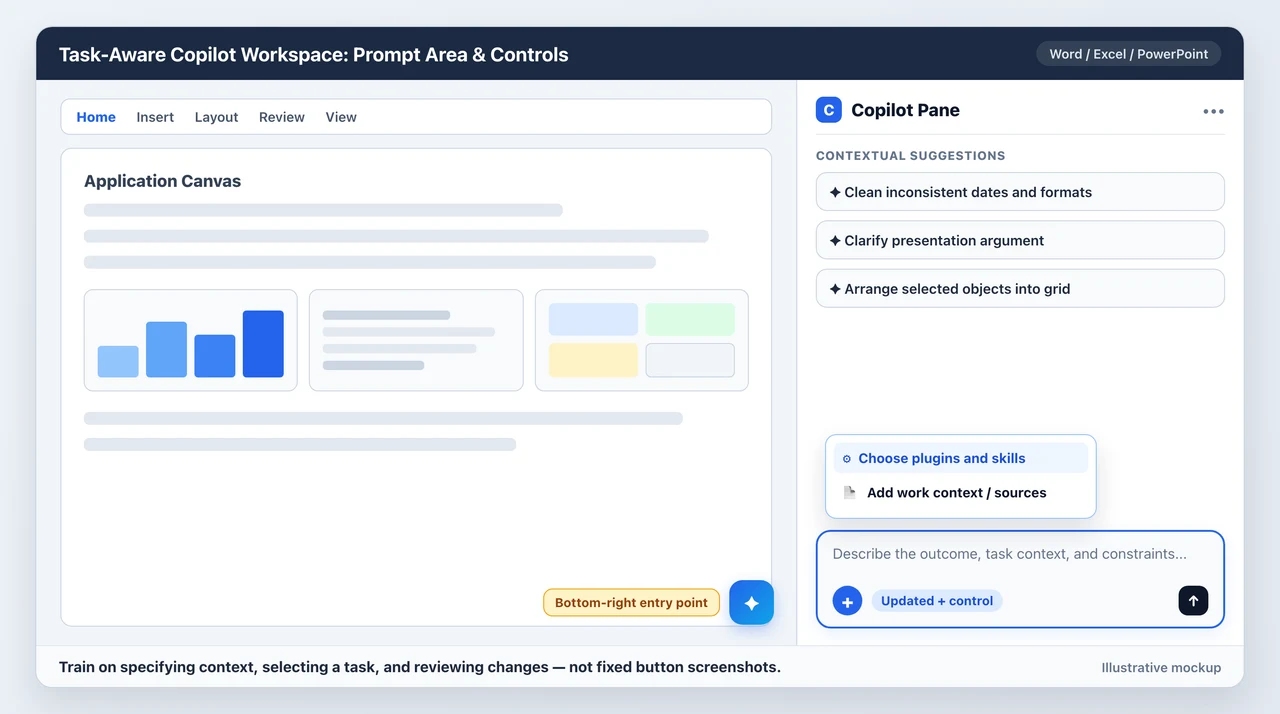
The demonstration also shows the prompt area at the bottom of the Copilot pane in Word, Excel, and PowerPoint, alongside an updated plus control.
That exact arrangement should be understood as the interface shown in the recording, not a universal version marker. Microsoft’s broader redesign emphasizes a task-aware prompt workspace, contextual controls, and more consistent access to Copilot. Its app guidance describes a bottom-right entry point and contextual suggestions. See Microsoft’s redesign announcement and the Microsoft 365 Insider interface update.
The practical implication is modest but useful: training should teach users how to specify context, select a task, and review changes, rather than relying entirely on screenshots of a particular button position.
A redesigned pane is not itself a new analytical capability. It makes the available capabilities easier to discover and use.
5. SharePoint: Turn a List into a Published, Connected HTML Page
A SharePoint list is a structured record of work. A page is how people understand that work at a glance.
In the demonstration, a request-for-proposal (RFP) list becomes an HTML pipeline dashboard with charts, estimated values, and item details. The generated page is stored in Site Pages, reviewed, and published.
This is more than exporting a summary into a document. Microsoft now documents creating HTML pages with Copilot, uploading existing HTML, storing it alongside modern pages, and editing it through natural-language prompts. See creating and publishing HTML pages in SharePoint.
A Live Page Is Not Just a Snapshot
Microsoft explicitly supports live data sharing from SharePoint lists and Excel in these pages. Its September update also describes live-linked lists for connected reports. See the September SharePoint update.
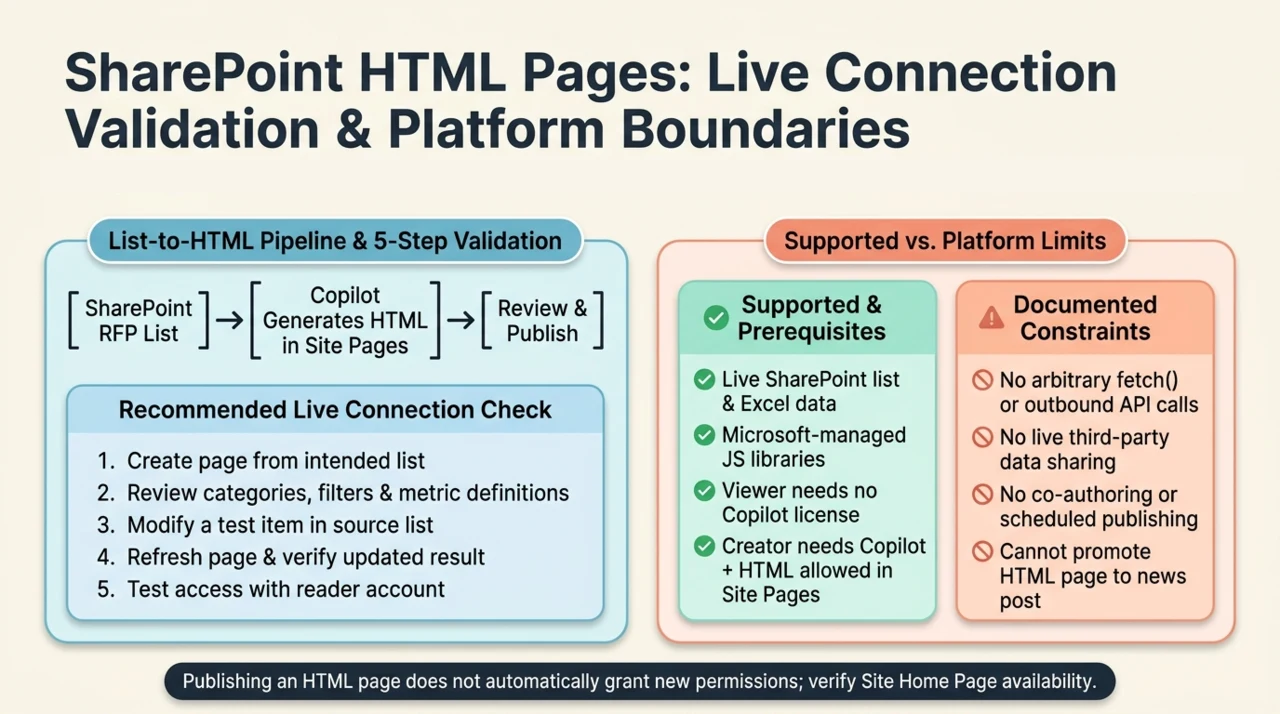
However, asking for a dashboard does not prove that every generated value is live. Validate the connection:
- Create the page from the intended list.
- Review chart categories, filters, and calculations.
- Change a test item in the source list.
- Reopen or refresh the page and check the affected result.
- Test access using an appropriate reader account.
These are recommended validation steps, not reported results from the demonstration.
Also define what “estimated value” means. Is it the sum of opportunity values, a probability-weighted pipeline, or only bids at selected stages? A polished dashboard can conceal an undefined metric just as easily as a spreadsheet can.
HTML Does Not Mean an Unrestricted Web Application
SharePoint HTML runs within platform constraints. Microsoft’s documentation supports live list and Excel data, but not arbitrary fetch requests, outbound API calls, or live third-party data sharing. It also restricts external libraries to supported Microsoft-managed versions. HTML pages do not have complete feature parity with modern pages: the documented limitations include co-authoring, scheduled publishing, and promotion to news posts.
The relevant prerequisites are equally concrete:
- Copilot-based page creation and editing require a Microsoft 365 Copilot license and appropriate page permissions.
- The Site Pages library must allow HTML files.
- Some functionality is introduced gradually through Frontier.
- Viewing a published page does not itself require a Copilot license.
- Publishing does not automatically grant new permissions.
All are covered in Microsoft’s HTML page requirements and limitations.
The demonstration also makes the dashboard the site home page through Site contents → Site Pages → the page menu → Make home page. That is a demonstrated follow-on action; verify that the option is available for the generated page in your environment rather than assuming it applies universally.
6. SharePoint Workflows: Translate an Event into a Teams Notification
The next step is not another page. It is behavior.
The demonstration asks Copilot to post a celebratory Teams Adaptive Card when an RFP status changes to a winning state. The card includes buttons for the individual RFP item and the full list.
An Adaptive Card is a structured interface card that can combine text, fields, and actions. Here, its value is not the festive styling. It is the combination of a meaningful event, useful context, and direct navigation back to the record.
Microsoft’s October SharePoint update documents natural-language workflow creation for file changes and metadata updates, including Adaptive Cards in Teams chats or channels. It states that these workflows are included with a Microsoft 365 Copilot license and require access to Power Automate. See the October SharePoint update.
Specify the Transition, Not Just the Current Value
The transcript repeatedly renders the status as “bid one.” In context, this appears to mean Bid Won, but the actual choice value must be checked in the list. A transcription artifact is not a valid configuration value.
A clearer illustrative request is:
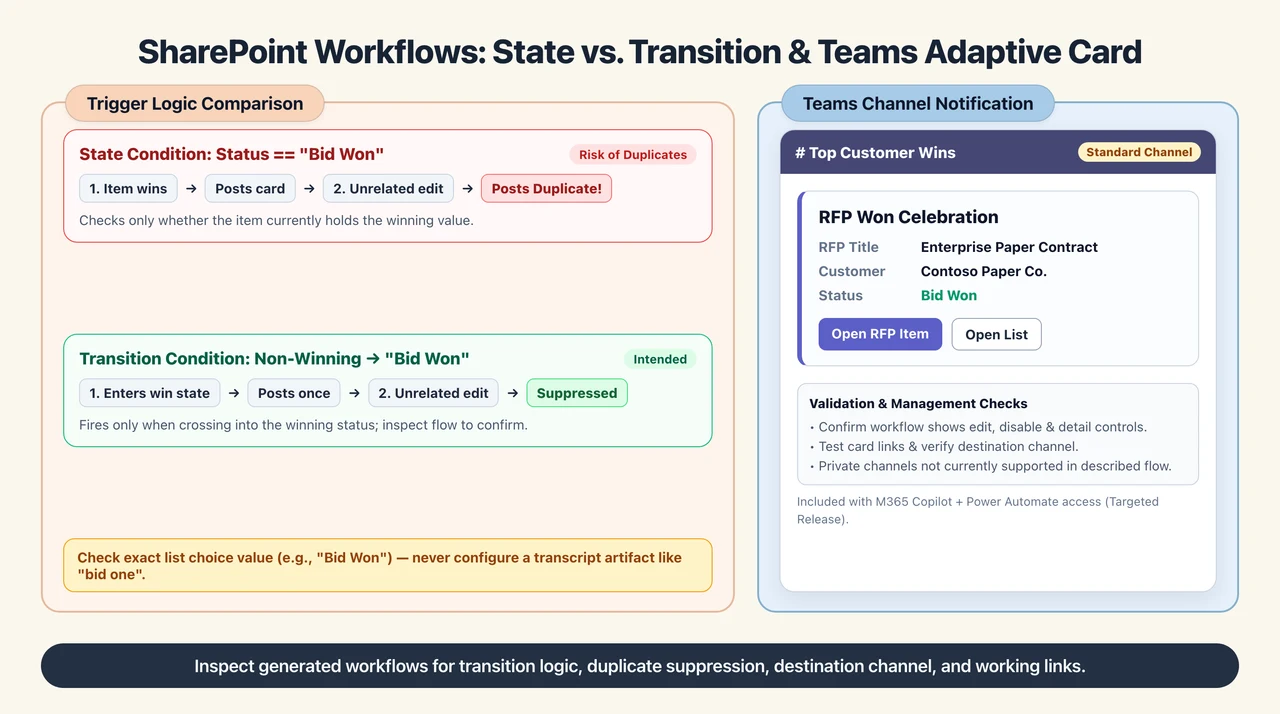
When the RFP Status changes from a non-winning value to the list’s winning status, post a celebratory Adaptive Card to the Top Customer Wins channel in the specified team. Include the RFP title, customer, a button to open the item, and a button to open the list. Do not post again for unrelated edits while the item remains won.
That last sentence exposes a common logical distinction:
- State condition: The item currently has a winning status.
- Transition condition: The item has just entered the winning status.
These are not interchangeable. Inspect the generated workflow to establish which behavior it implements; do not assume that natural-language intent guarantees transition detection or duplicate suppression.
The demonstration shows the workflow in a management interface with editing, disabling, and detail options, then tests it by changing one item and checking the resulting Teams card. A useful validation should also confirm the team and channel, both links, and behavior on a subsequent unrelated edit.
Microsoft’s Workflows getting-started guidance notes that the new SharePoint experience is rolling out through Targeted Release and that permissions can limit available actions. Its Teams guidance also warns that private channels are not currently supported in the described experience. Do not generalize a successful standard-channel demonstration to every destination.
7. Scanned PDFs: Better Retrieval, with a Narrower Promise Than “Search Everything”
A scanned PDF may contain visible words without containing a conventional searchable text layer. A person can read the page; a search system needs a way to recognize and index its contents.
The demonstration searches for a name inside a scanned organization chart stored in SharePoint and finds the PDF. The useful capability is retrieval of content that previously would have been difficult to discover.
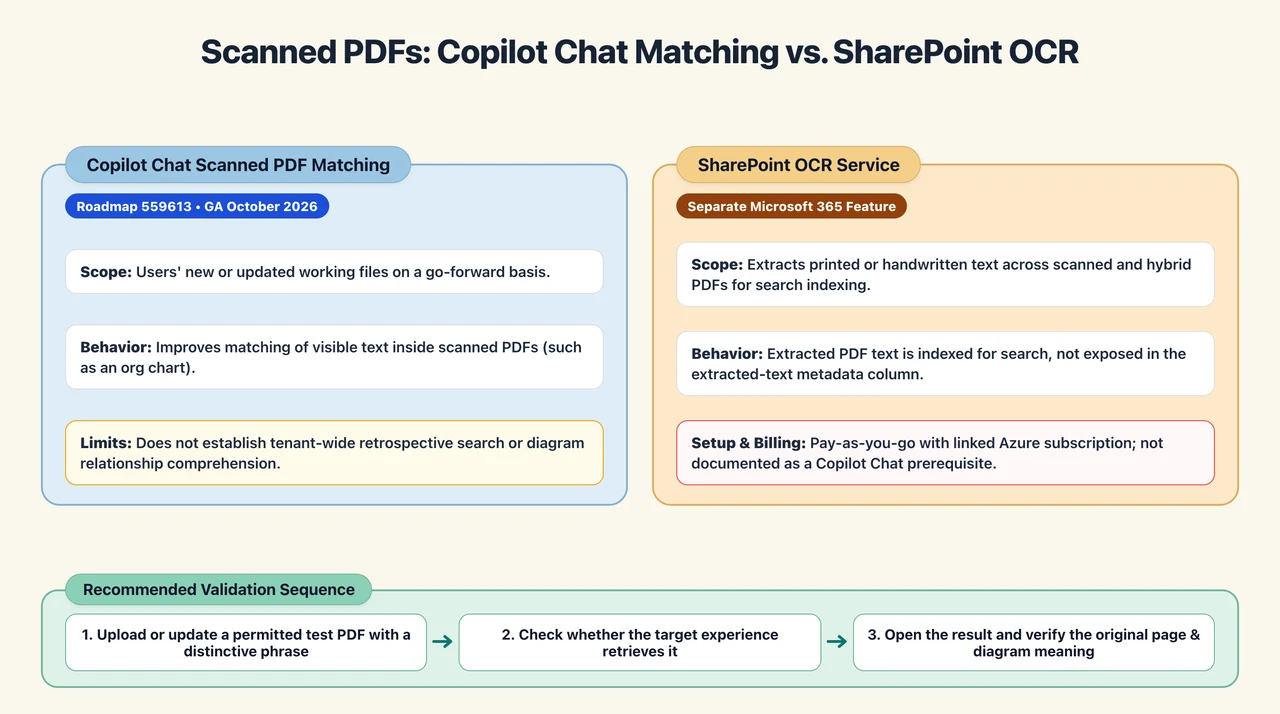
Microsoft’s roadmap entry 559613 describes improved matching of scanned PDFs in Copilot Chat, with general-availability rollout in October 2026. Crucially, it scopes the change to users’ working files that are new or updated, on a go-forward basis. See Microsoft’s official release record.
That is narrower than claiming that Copilot now searches every historical scanned PDF across an entire tenant. The recording uses the search interface, while the release record names Copilot Chat; the two should not be silently treated as identical guarantees.
Keep Search Improvements Separate from SharePoint OCR
Optical character recognition (OCR) converts visible text in images into machine-readable text. Microsoft separately documents a SharePoint OCR service that extracts printed or handwritten text and indexes it for search, including scanned and hybrid PDFs. For PDFs, extracted text is indexed but is not exposed in the extracted-text metadata column. See Microsoft’s OCR overview.
That service has its own setup and billing: it is pay-as-you-go and requires linking an Azure subscription. See OCR setup and management.
The documentation does not establish that enabling this separately billed service is a prerequisite for the new Copilot Chat improvement. Nor does the new improvement establish that every existing scan has been retrospectively processed.
For validation, use a permitted test PDF with a distinctive phrase, confirm that the phrase is present in the scan, and check whether the relevant experience retrieves it after upload or update. Then open the result and verify the original page. Finding a name in an organization chart does not, by itself, prove that Copilot correctly understands every reporting relationship shown in the diagram.
The Real Change: More Work Moves Behind a Natural-Language Interface
These seven updates do not represent one uniform feature package. They span reusable skills, document editing, presentation reasoning, interface design, connected publishing, workflow automation, and retrieval. Their prerequisites and rollout paths differ.
They nevertheless share a useful pattern: describe the outcome, let Copilot translate it into application work, and validate the part that matters.
In Excel, that means checking meaning as well as formatting. In PowerPoint, it means separating evidence from hypotheses. In Word, it means preserving objects and layout constraints. In SharePoint, it means testing data connections, publication permissions, and workflow behavior. In search, it means understanding what content the improvement actually covers.
The strongest use of Copilot is not trusting it to finish everything without inspection. It is moving effort away from repetitive mechanics and toward the decisions that determine whether the result is correct, useful, and ready to share.
Read next