Build Copilot Studio Agents with Claude Code, Copilot CLI, or VS Code Copilot: A File-First Workflow on the GitHub Copilot Harness

Writer
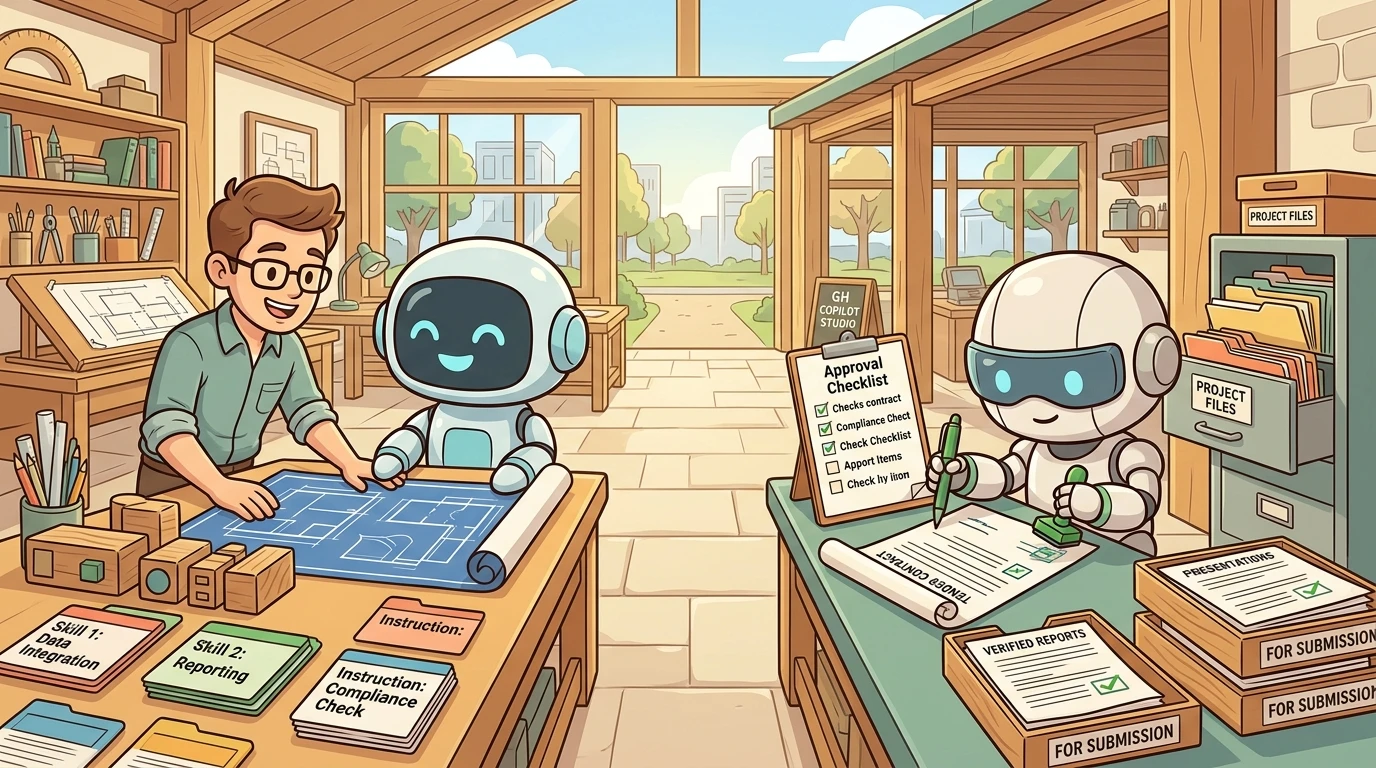
A tender-response assistant needs to do more than summarize a document. It must extract requirements, compare them with the bidder’s actual capabilities, identify missing evidence, and produce something a bid team can review. A convincing answer in chat is not enough. The useful outcome is a defensible analysis, backed by evidence and delivered in a workable format.
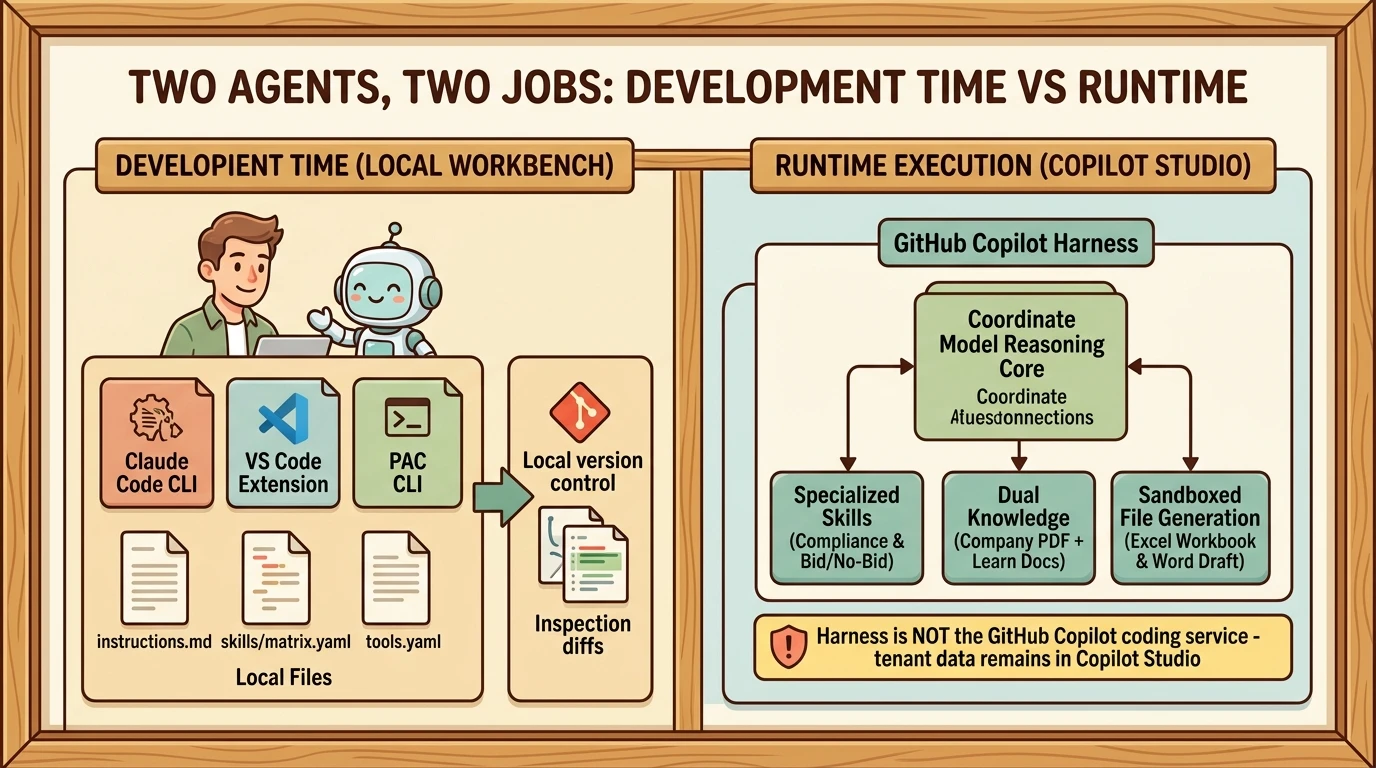
That makes tender analysis a revealing example of AI-assisted Copilot Studio development. A coding assistant can help author the agent’s configuration locally, while the deployed agent uses Copilot Studio’s runtime to analyze documents and generate deliverables. These are two different systems doing two different jobs.
This guide shows how to build a GitHub Copilot harness agent using Claude Code, GitHub Copilot CLI, or GitHub Copilot in Visual Studio Code (VS Code). Choose one authoring client, then follow the same local build, review, synchronization, and runtime-testing workflow.
The running example is BidAssist, a tender-analysis agent designed to evaluate incoming requests for proposals (RFPs) against company capability evidence and technical product documentation. We explore how to configure BidAssist locally using your choice of coding assistant before synchronizing, verifying, and testing the result in Copilot Studio.
Two agents, two jobs
The easiest way to misunderstand this workflow is to confuse the assistant that builds the agent with the agent that eventually serves users.
At development time, your chosen coding assistant works with local files and authoring tooling. Claude Code, Copilot CLI, and VS Code Copilot are alternative interfaces for that authoring work. They help produce and revise the configuration that defines BidAssist.
At runtime, BidAssist runs in Copilot Studio. Its selected model and harness interpret the user’s request, use available knowledge and capabilities, and produce the requested output.
The GitHub Copilot harness is the operating layer around the runtime model. It determines when to call the model, what context to provide, how to interpret results, and which tools to invoke. It is not simply another name for the model. Microsoft describes this architecture in its harness overview.
A useful analogy is a workshop: the model supplies problem-solving ability, while the harness provides the workbench, tools, working context, and coordination. The analogy stops short of implying deterministic behavior. The runtime still makes model-driven decisions, so its execution path and outputs need validation.
There is also an important naming boundary. The GitHub Copilot harness inside Copilot Studio is not the GitHub Copilot service. Microsoft states that Copilot Studio agent-run data is not sent to or processed by that service, and existing Copilot Studio privacy, security, compliance, and data-residency commitments continue to apply. That statement concerns the deployed runtime; it should not be read as a blanket assurance about sending local development files to a separate coding assistant. See the agent experience overview.
Why this scenario fits the GitHub Copilot harness
BidAssist’s intended task spans several related activities:
- Read an attached tender or request for proposal (RFP).
- Extract requirements, submission deadlines, and response constraints.
- Compare the requirements with the company’s capability evidence.
- Produce a compliance matrix and identify evidence gaps.
- Recommend whether to bid, with explicit assumptions and unresolved issues.
- Prepare clarification questions and a submission checklist.
- Draft a Word response when requested, following the tender’s sections and word limits.
This is an outcome-oriented task with multiple inputs and deliverables, rather than a single question-answer exchange. Microsoft documents the GitHub Copilot harness as supporting larger shared context, adaptive orchestration, and sandboxed file processing. It can natively create and edit Word, Excel, PowerPoint, and PDF files. See harness capabilities and harness selection guidance.
However, the distinction is not “the standard harness follows rules, while the new harness can reason.” Microsoft’s more detailed comparison explicitly says that both harnesses can plan, call tools, and combine AI with deterministic steps. Standard agents can use reasoning, retries, tool chaining, and agent flows. The difference lies in task scale, context handling, available execution capabilities, and how much adaptation the orchestrator manages.
Likewise, native document generation should not be confused with every possible document-producing integration. A standard-harness solution might invoke external actions to create a document. That is a different architecture from the GitHub Copilot harness’s built-in file-processing environment.
Choose the harness for the work, not for its novelty. A short, bounded process may not benefit from a more elaborate runtime.
Harness choice also matters early: Microsoft states that agents cannot be transferred directly between the standard and GitHub Copilot harnesses. A move should be treated as a rebuild or re-architecture, not a settings change. Plugin-assisted migration does not remove that platform boundary. See the agent experience overview.
Pick the authoring plugin that matches the runtime
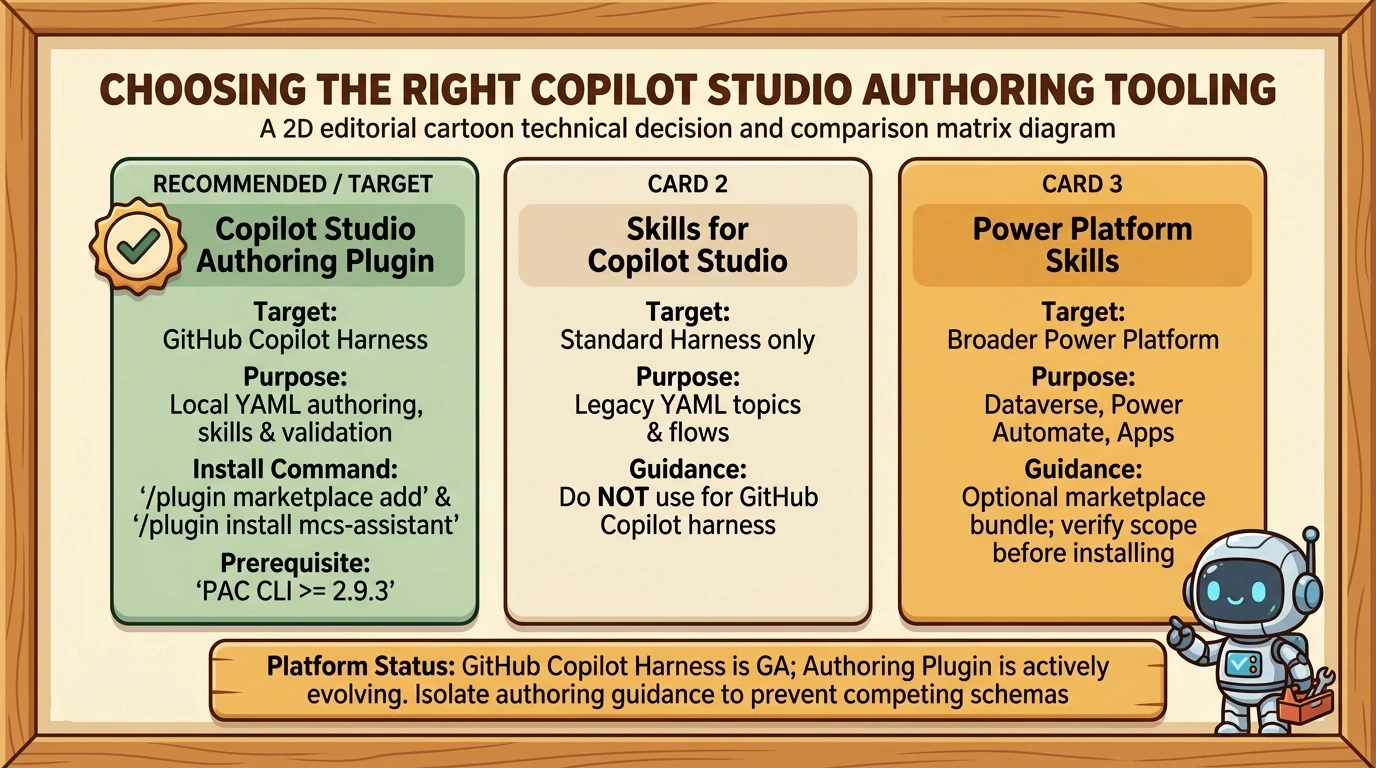
Several similarly named Microsoft repositories appear in this workflow. They are related, but not interchangeable. The authoring-plugin manifest identifies the Microsoft Copilot Studio CAT Team as its author; Claude-style packaging does not make it an Anthropic product.
| Repository | Role | Relevance to BidAssist |
|---|---|---|
| Copilot Studio authoring plugin | Authoring support for GitHub Copilot harness agents, including creation, editing, validation, and migration assistance | The relevant plugin for this workflow |
| Skills for Copilot Studio | YAML-based authoring, testing, and troubleshooting for standard-harness agents | Use for standard agents, not as the schema guide for this agent |
| Power Platform Skills | A broader marketplace of development plugins for Power Platform services | Optional when the solution extends into other Power Platform components |
The standard-agent repository explicitly directs GitHub Copilot harness users to the newer plugin. The newer repository describes itself as its successor, but that does not make the two authoring models interchangeable.
The broader Power Platform marketplace can be useful for related work, such as Power Automate, Dataverse, or app development. It is not evidence that installing a bundle supplies a fixed percentage of everything a project needs. Check each plugin’s scope and prerequisites. The current installer documentation also distinguishes default installation from optional Dataverse inclusion.
For a focused project, keep the relevant Copilot Studio plugin active and avoid giving the coding assistant competing harness-specific guidance. A practical recommendation is to disable or isolate irrelevant authoring guidance where your tooling allows it, preventing conflicting schema rules from confusing the model; permanent removal is not inherently required.
Product availability and plugin maturity are separate
Microsoft announced general availability of the GitHub Copilot harness on August 3, 2026. That does not mean every associated feature or development tool has the same status.
As checked on October 25, 2026:
- The authoring plugin describes itself as work in progress, with support through GitHub Issues. It warns that YAML schemas may change and generated output may contain unsupported patterns.
- Natural-language solution authoring is documented as a production-ready preview.
- The created-files documentation remains marked preview.
A generally available runtime and an evolving authoring plugin can coexist. Plan your validation accordingly.
Start with shared prerequisites
You do not need all three coding assistants. Choose the one your organization permits and that fits your preferred interface.
Before authoring, prepare:
- Copilot Studio access and maker permissions in the intended environment. Use a nonproduction target for this walkthrough as a recommended safety boundary.
- A base GitHub Copilot harness agent named BidAssist, created in the portal with basic instructions. This guide starts with an existing cloud agent; it does not assume that creating local YAML alone creates a deployed agent.
- Power Platform CLI (PAC CLI) 2.9.3 or later, installed through the official installation guidance. Microsoft’s authoring plugin specifies that minimum version. Also check that your installed build exposes the clone, pull, and push verbs used below.
- One authorized coding-assistant client, with access to the local agent folder and the terminal tools needed for PAC operations.
- A reviewed company capability PDF and a sample tender. Use synthetic or approved test material initially; do not upload confidential tender or company documents to a coding assistant without authorization.
The runtime model is separate from the development assistant’s model. Select a runtime model actually available and permitted in your Copilot Studio environment (such as GPT-4o or Claude 3.5 Sonnet, depending on tenant capacity and region).
Publishing is not required for interactive testing: Microsoft’s Preview documentation supports testing before publication.
Authenticate PAC separately from the coding assistant
Signing in to GitHub Copilot or Claude Code does not replace Power Platform authentication. PAC maintains its own authentication profiles. Microsoft documents environment-specific sign-in and profile inspection in the PAC authentication reference.
The following terminal commands inspect existing profiles and the active identity:
If you need a profile, use the following template, replacing YOUR_ENVIRONMENT_ID with the actual environment ID. Do not run it unchanged:
Complete the interactive sign-in yourself. Never paste credentials, access tokens, or authentication-cache contents into a chat prompt. Verify the active identity and environment before cloning or synchronizing.
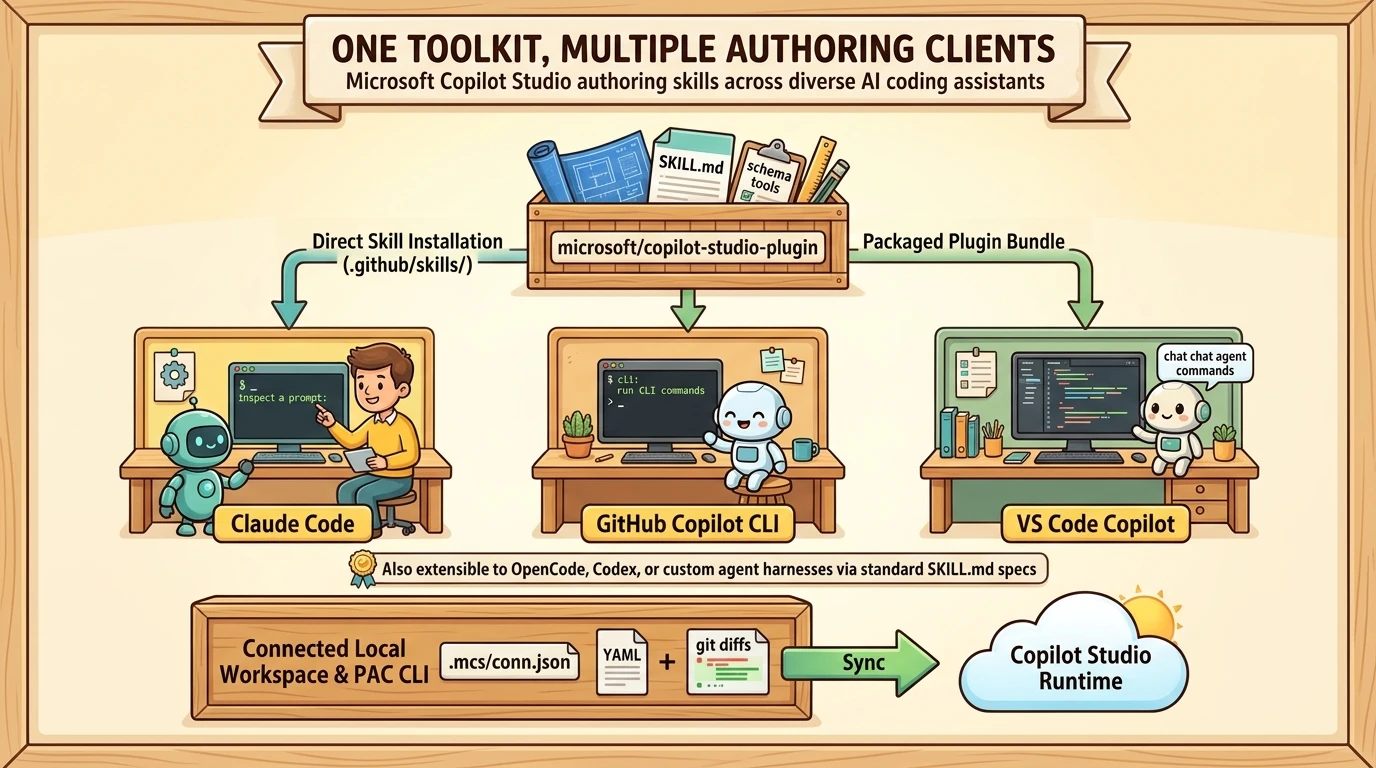
One Microsoft toolkit, three authoring clients
Claude Code is not required. You do not need to convert a Claude plugin to use the authoring skills with Copilot. Microsoft publishes the toolkit in microsoft/copilot-studio-plugin, and its manifest names the Microsoft Copilot Studio CAT Team as the author. It is not an Anthropic-authored toolkit.
The repository contains several different things: authoring skills, schema references, helper scripts, specialized agent guidance, and plugin packaging. The skills themselves use SKILL.md folders. Both VS Code Copilot and Copilot CLI support project skills in .github/skills/.
For Copilot readers, this guide uses direct skill installation as the primary path. The full plugin is an optional convenience for installing bundled components together. Neither route requires an Anthropic account when you use Copilot. The direct path below is a recommended assembly of documented skill support and the repository’s files, not a Microsoft-published one-command installer or an independently executed end-to-end test. See the CLI skill-installation instructions and repository structure.
Path A: Claude Code in VS Code
Install and authenticate the Claude Code extension using an approved account or provider, then open your working folder and its panel. Follow the Claude Code VS Code guide.
For this path, the repository’s packaged installation is convenient. Enter these commands in the Claude Code session, not an operating-system shell, following the Microsoft README:
Use the plugin manager to confirm activation. Review proposed file changes and terminal operations. Continue to the shared PAC cloning steps below. You do not need the direct Copilot skill-copy steps if you use the full plugin.
Path B: GitHub Copilot CLI
Install and sign in using the official CLI quickstart. The npm route requires Node.js 22 or later; organization-provided access also requires the organization’s Copilot CLI policy to be enabled.
After cloning BidAssist using the next section, navigate to its actual agent folder and start a session:
Inside the session, authenticate if needed and review the directory-trust prompt. These steps are documented in the quickstart.
Install the project skills using the direct-copy instructions below. You do not need to install a plugin marketplace for that route. GitHub explicitly documents downloading another author’s skill directory and moving it into .github/skills/. See adding existing skills.
Path C: GitHub Copilot in VS Code
Install VS Code and set up Copilot. After cloning BidAssist, open its actual agent folder, start a new Chat session, and use the configuration in Microsoft’s agent quickstart:
- Session Target: Copilot.
- Agent: Agent.
- Language model: Auto, or an available model permitted by your organization.
- Permissions: Manual permissions.
“Copilot” here selects the development session’s harness. It is separate from the GitHub Copilot harness selected for the deployed Copilot Studio agent. The quickstart describes this session control; the Copilot Studio harness overview describes the deployed runtime.
Install the project skills using the direct-copy instructions below. VS Code supports .github/skills/ natively; no Claude plugin conversion or marketplace installation is needed for this path. Inspect discovered skills through Chat: Open Customizations, then Skills, as documented in Use Agent Skills in VS Code.
Optional: install the full plugin instead
If you prefer the bundled skills and supporting components, both Copilot clients document plugin installation. This is an alternative to assembling project skills, not a prerequisite for it. See VS Code plugins and CLI plugin installation.
For Copilot CLI, run these terminal commands. They combine GitHub’s documented syntax with the identity in Microsoft’s README:
In a VS Code Copilot session, use the corresponding Chat commands documented in the VS Code plugin guide:
VS Code also offers Chat: Install Plugin From Source, where you can enter the Microsoft repository URL. Its graphical and slash-command inventories are currently separate; manage the installation through the interface you used. These details are documented in the plugin guide.
Choose one route initially to avoid duplicate skill copies. The .claude-plugin folder is packaging, not a requirement to use Claude Code. Full-plugin hooks and specialized agents can have client-specific behavior, but that does not make the underlying skills Claude-only. See the VS Code plugin reference and CLI plugin reference.
Clone BidAssist into a connected local workspace
You can use either of two routes. The PAC route makes this guide usable from Copilot CLI without requiring a graphical extension.
Route 1: PAC-backed cloning, usable from all three clients
Microsoft’s clone-agent skill documents cloning an existing cloud agent into a local, sync-connected workspace. It uses an explicit agent and environment, writes local files, and does not push or publish.
Check support first:
Some PAC builds show valid usage but return a nonzero result when required arguments are absent. The skill instructs readers to check that the output includes the clone verb and its expected options rather than treating that help result alone as failure.
The following is a command template. Replace all three uppercase values with your actual agent ID or schema name, environment ID or Dataverse URL, and local output root:
PAC creates a child folder beneath the output root, using the agent’s display name. Open the folder PAC reports. Verify that it contains settings.mcs.yml or agent.mcs.yml, plus PAC-managed .mcs/conn.json metadata. Check that the metadata file exists, but do not print, edit, or paste its contents. These workspace markers and boundaries are documented in the clone skill.
The default clone workflow does not include linked component collections. That matters for an existing agent with shared components; a successful clone is not proof that every linked collection was downloaded. Do not overwrite an existing nonempty destination to bypass a clone error. See the clone skill’s limitations.
Alternatively, ask your chosen assistant to use the installed clone skill, supplying the exact agent, environment, and output root. Review the resolved target and proposed command before execution. Do not rely on the display name alone if multiple agents match.
Route 2: the Copilot Studio VS Code extension
The Copilot Studio extension provides a visual route to sign in, select an environment and agent, and clone editable components locally.
Its synchronization commands have distinct meanings:
- Preview changes: inspect differences without modifying files.
- Get changes: download cloud-side changes into the local workspace.
- Apply changes: upload local edits to the agent’s environment.
There is a documentation caveat: Microsoft Learn’s clone-agent guide explicitly scopes itself to standard-harness features. While the extension can inspect and pull GitHub Copilot harness agents, its tooling support across component types continues to evolve. For a robust, scriptable workflow across all client assistants, prefer the PAC route above and verify its connected workspace markers.
Cloning through either route does not automatically create a Git repository or a separate cloud agent. Establish version control separately if you want reviewed diffs and known-good recovery points.
Install the authoring skills directly for Copilot
Perform this step after cloning, from the actual BidAssist agent folder. If you installed the full plugin, skip the copy step and use its installed resources instead.
1. Keep a complete local toolkit snapshot
Download or clone the Microsoft repository, retaining its skills/, reference/, scripts/, agents/, and license files. For this walkthrough, use .authoring/copilot-studio-plugin/ beneath the agent folder as an illustrative local source location. It is not a required PAC directory or an automatically discovered skill location.
With Git installed, this terminal command creates that local snapshot:
Record the downloaded revision for reproducibility:
Keep this snapshot read-only during agent authoring. Its purpose is to preserve the repository’s supporting resources and their relative layout, not to install plugin hooks or create runtime knowledge. Review the synchronization change set and do not intentionally add toolkit files as Copilot Studio components.
2. Copy complete skill folders into the supported location
Create .github/skills/ in the agent folder. Copy these directories, including any contents, from the toolkit’s skills/ directory:
clone-agentpush-agentadd-knowledgeadd-skill
The destination for the first skill is .github/skills/clone-agent/SKILL.md; use the same pattern for the others. Both clients document this project-skill layout. Do not put all four Markdown files directly in .github/skills/, rename them, or remove their metadata. See VS Code skills and CLI skill installation.
Use your file manager or editor to copy the directories. Do not overwrite existing same-name skills without reviewing them. The original toolkit remains available under .authoring/copilot-studio-plugin/, including its shared resources.
3. Preserve resource resolution, not just the Markdown
There is one important difference between installing a self-contained skill and extracting skills from this repository: some instructions locate resources through an installed plugin root. Direct copying does not create that plugin-root metadata or run its hooks. The add-knowledge skill requires reference/knowledge-schema.md; the add-skill skill references reference/skill-schema.md and scripts/add-skill.js.
For the direct path, explicitly tell the assistant that the local toolkit root is .authoring/copilot-studio-plugin/. Supply the concrete schema and script paths when needed. This is resource-path configuration, not conversion of a Claude plugin or a change to the skill’s business logic. It is a recommended adaptation based on those repository references, not a claim that the upstream skills automatically discover this folder.
Do not create or modify ~/.copilot-studio-cli/plugin-paths.json to simulate an installation. If a copied skill insists on an unavailable plugin-only lookup, stop that invocation and use the ordinary Agent session to read the explicitly supplied local reference and follow the documented procedure. Do not invent a schema or silently skip a required file.
For helper-script workflows, check that Node.js is available. add-skill documents node invocations; PAC alone does not run that script. Optional Graph access checks have separate authentication and consent requirements and are unnecessary for the public-website/PDF example here. See add-skill and add-knowledge.
4. Confirm discovery before authoring
In Copilot CLI, use the following interactive commands, documented in adding skills:
In VS Code, use Chat: Open Customizations, then Skills, to confirm the four skills appear. Discovery makes a skill available but does not guarantee automatic invocation for every prompt. See VS Code skills.
Use this illustrative readiness prompt:
The four skills cover specific operations. They are not a replacement for the repository’s general architectural guidance. The next build step explicitly reads that guidance as a document; it does not assume a copied agents/*.md file has become a registered Copilot custom agent. The architect document explains how to turn requirements into the agent’s component files.
Build locally with one shared brief
Open the cloned agent folder in your chosen client. Claude Code users use its panel; Copilot CLI users start the session in that folder; VS Code Copilot users open it as the active project and use the configured Agent session.
The following illustrative authoring prompt expresses the BidAssist requirements across any of the supported clients:
Inspect the changed files. Confirm that the assistant used the intended harness guidance, preserved the existing agent identity, and did not claim to have deployed local edits. A generated summary is useful, but it is not a substitute for the diff.
The important pattern is separate generation from deployment. First author and validate locally. Then add grounding. Only after review should you synchronize the draft and test it in Copilot Studio.
Design skills around work products, not vague intentions
There are two different uses of the word skill in this setup.
Authoring-plugin skills help the coding assistant manipulate Copilot Studio artifacts. Runtime agent skills tell BidAssist how to perform specialized tasks for its users.
Microsoft defines runtime skills as named, described capabilities with task-specific instructions. The orchestrator decides when to activate them based on the user’s request and the skill description. Skills can work alongside knowledge and tools; they are not simply another name for an API connection. See the skills overview.
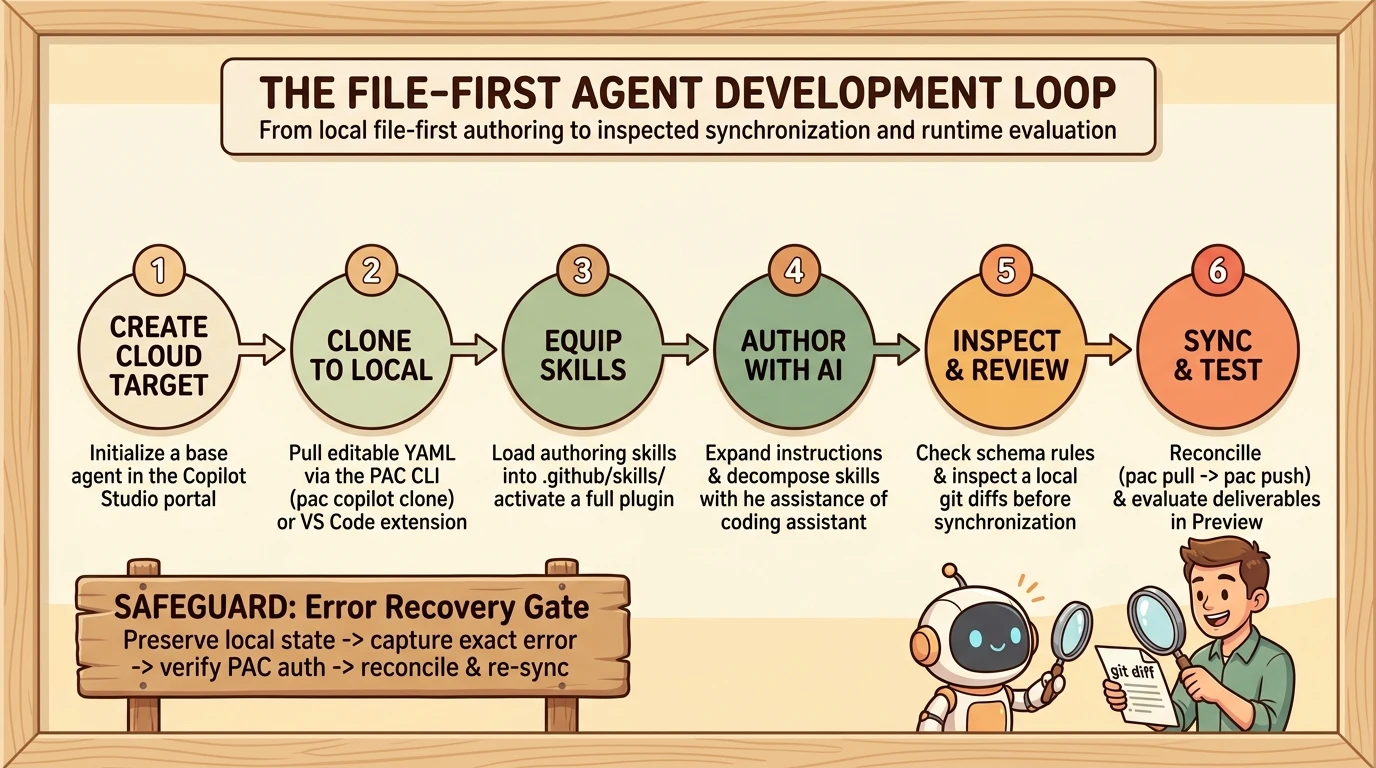
For BidAssist, the demonstrated decomposition is useful:
| Runtime skill | Intended outcome | Recommended quality boundary |
|---|---|---|
| Compliance matrix | A structured Excel assessment of tender requirements | Separate supported compliance from partial coverage and missing evidence |
| Bid/no-bid analysis | A recommendation with reasons and assumptions | Do not treat unknowns as proof of suitability |
| Response drafting | A Word draft aligned to tender sections and word limits | Do not invent credentials, case studies, or commitments |
The final column represents essential quality boundaries for production tender analysis.
For this walkthrough, the coding assistant authors these BidAssist behaviors using the architect guidance and skill schema. The repository’s add-skill helper is a separate acquire/import workflow for existing skill bundles, not a general agent generator. It requires a supported workspace with a versioned template: cliagent-... value and must stop if that check fails. Do not assume that every PAC clone satisfies this importer’s requirements, or alter the template to bypass them. See the add-skill workflow.
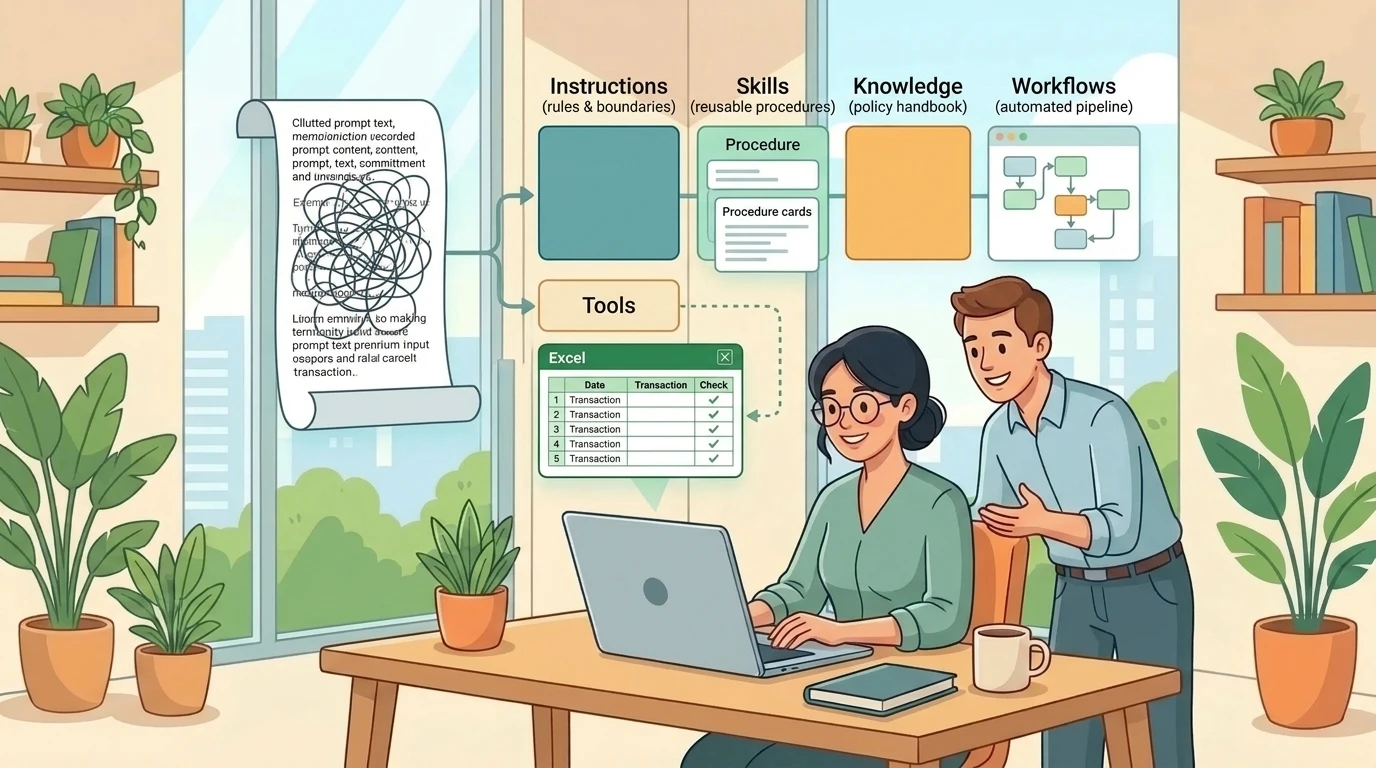
Keep general identity and scope in the agent’s core instructions. Put task-specific methods in focused skills. Supply company facts through knowledge sources, and use tools when the agent needs an external action. This follows Microsoft’s documented separation of instructions, knowledge, tools, and skills.
A skill description matters because it helps the runtime select the right behavior. A beautifully written procedure is less useful if its description does not make its purpose clear.
Ground tender analysis in the right evidence
BidAssist requires two distinct kinds of knowledge: a company capability PDF and Microsoft Learn documentation.
They answer different questions.
Company evidence supports claims about the bidder: services, selected case studies, and security or compliance information. Product documentation supports claims about Microsoft technology. A product’s documented capability does not prove that the bidder has delivered it, holds a required certification, or can meet a contractual obligation.
Consider an illustrative tender requiring both a supported platform feature and evidence of a comparable implementation. Microsoft Learn might establish the feature. Only appropriate company evidence can establish the implementation history. A strong matrix keeps those evidence tracks separate.
Alternatively, Microsoft Learn access can be integrated through Model Context Protocol (MCP) or standard web knowledge. Adding a documentation website as knowledge and connecting an MCP server are different architectural choices; choose based on indexing requirements and freshness needs.
Knowledge authoring can remain a hybrid process. Adding a large PDF through a coding assistant terminal can occasionally be slower than uploading it directly in the Copilot Studio portal. Using the portal for initial file uploads when simpler is not a failure of file-first development—it is a sensible division of labor.
After any portal-side edits, reconcile the local workspace before continuing. Otherwise, local and cloud versions can drift.
Add knowledge through your chosen client, or use the portal
Microsoft’s toolkit includes an add-knowledge skill. Use its instructions and required schema reference rather than inventing knowledge-source YAML. For direct installation, read .authoring/copilot-studio-plugin/reference/knowledge-schema.md explicitly; the upstream skill requires that reference before authoring.
For a reproducible local example, place an approved capability PDF at inputs/company-capabilities.pdf inside the working folder. The path is illustrative. Keeping a file in inputs alone does not register it as agent knowledge.
Use this illustrative prompt in Claude Code, Copilot CLI, or VS Code Copilot:
Then provide a specific Microsoft Learn page relevant to the products in your test tender and ask the assistant to add it using the supported website-knowledge workflow. Do not assume that adding a broad documentation homepage provides exhaustive product coverage.
If the skill workflow cannot complete knowledge registration in your client, use Copilot Studio’s knowledge interface. This is a legitimate hybrid path, not a reason to abandon the guide. After portal edits, pull remote changes before further local authoring or synchronization, and verify the source in the portal and in a runtime test.
Synchronize the reviewed draft from any client
The current push-agent skill provides a PAC-backed route independent of the coding-assistant interface. It requires an existing PAC-connected workspace, performs a pull before a push, and updates draft content only. It does not publish the agent.
Before synchronizing:
- Preserve local changes through a reviewed commit or another deliberate backup.
- Confirm the workspace is the clone you intended to edit.
- Check that PAC-managed
.mcs/conn.jsonexists; do not alter its contents. - Review local diffs and knowledge-source changes.
- Confirm the active PAC identity and inspect the relevant command help.
The workspace metadata determines the push target; the documented push command does not take a separate agent or environment argument. Do not redirect deployment by editing the connection file. See the push skill.
You can ask any of the three assistants to follow that skill using this illustrative synchronization prompt:
For direct terminal execution, the following templates are documented by the push skill. Replace YOUR_CLONED_AGENT_FOLDER with the actual connected agent folder. Run the pull first, inspect its result, and run the push only if the pull succeeds without unresolved conflicts. Do not execute the two commands blindly as an unconditional batch.
After successful reconciliation:
If remote changes arrive between pull and push, stop and reconcile again rather than entering an automatic retry loop. The skill forbids force or overwrite workarounds. It also warns that auxiliary cloud operations can occur before a final no-change result or failure, so neither result proves that nothing changed remotely. Preserve the exact output and verify the cloud draft. See the push skill’s error handling.
After a successful upload, open BidAssist in Copilot Studio and inspect its instructions, runtime skills, and knowledge sources. Local authoring success and successful synchronization are separate checkpoints. Runtime testing is the next one.
When a skill or client cannot complete a step
Use a bounded fallback, not an invented deployment route:
- Skill absent: check
.github/skills/<skill-name>/SKILL.md, its metadata, and the active project folder. Reload skills in CLI or inspect Skills in VS Code. See CLI skills and VS Code skills. - Schema or script absent: point the assistant to the complete toolkit snapshot and explicit resource paths. A copied Markdown file does not include shared repository files. See add-knowledge and add-skill.
- Optional full-plugin component unavailable: inspect its activation and client support, or use the direct skills and explicit references. Hook troubleshooting belongs to the bundled route, not the basic skill-copy workflow. See the VS Code plugin guide.
- PAC unavailable or a verb missing: install or update PAC and recheck help. The plugin’s clone and push instructions explicitly require those checks.
- Assistant cannot run a supported PAC command: run the documented command yourself in an authenticated terminal, after review. This keeps the same workspace and deployment route rather than asking the assistant to invent one.
- Knowledge registration blocked: use the portal, then reconcile the workspace.
- Schema or merge error: stop, preserve the error and local state, and resolve the specific cause before another push. Do not infer that changing clients fixes the underlying problem.
Synchronization failures are a debugging task, not permission to improvise
During local authoring and synchronization, extension-based pushes or schema mismatches can occasionally trigger errors. When an assistant attempts an automated fix, it may report success without actually resolving underlying configuration differences.
The plugin repository’s warning about evolving schemas makes structured troubleshooting essential. A sensible recovery checklist is:
- Preserve the current local state before troubleshooting.
- Capture the actual error rather than assuming its cause.
- Confirm the authenticated account, environment, and target agent.
- Check relevant tool versions and schema guidance.
- Inspect remote changes before accepting a pull or push.
- Review proposed commands, especially anything destructive or forceful.
- Verify the resulting agent in the portal after synchronization.
If a knowledge source (such as a website or uploaded file) does not immediately appear in the Copilot Studio portal interface after a push, refresh the portal session and inspect component settings to confirm registration before declaring the deployment complete.
An assistant finding another route around an error is useful. It is not evidence that the route preserved every intended component or respected every deployment boundary.
Test the workbook, not just the conversation
Interactive preview runs can generate an Excel workbook containing a summary, assumptions, a compliance matrix, evidence gaps, clarification questions, and a submission checklist. While generating a spreadsheet validates basic tool calling, reliable tender analysis requires deeper acceptance testing.
Microsoft’s Preview experience supports interactive testing, activity traces, feedback, and an end-user view without debugging information. Use Preview for initial exploration, and configure Copilot Studio’s Evaluate framework for repeatable regression testing across test sets.
After synchronizing, open Preview in Copilot Studio, attach your approved sample tender, and try this illustrative test prompt:
Then separately request the Word draft and check its structure and claims. A request to your development assistant to create an Excel file locally would test the wrong system: this acceptance test must exercise BidAssist in Copilot Studio.
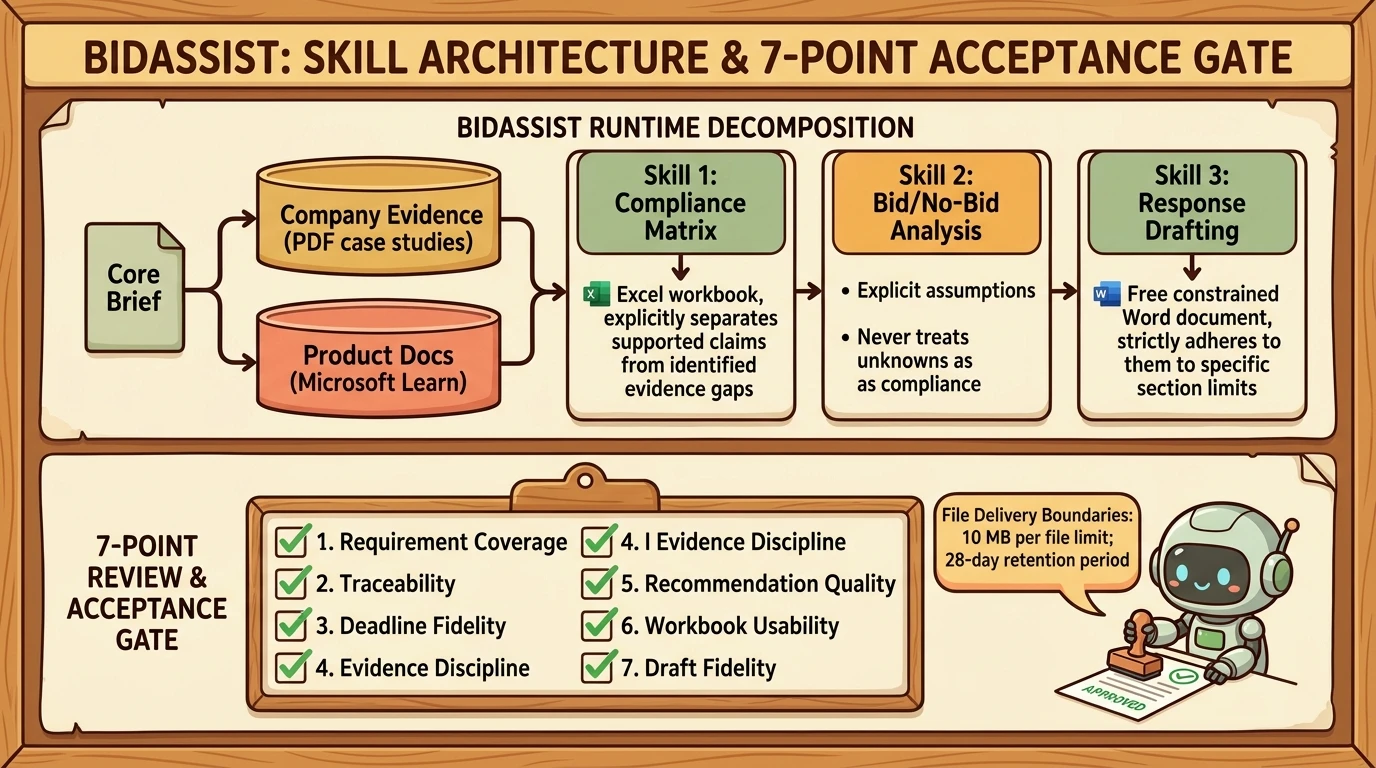
For this scenario, recommended acceptance checks include:
- Requirement coverage: Are substantive requirements represented, including mandatory conditions?
- Traceability: Can reviewers locate the tender requirement and supporting company evidence?
- Deadline fidelity: Are dates, times, and any stated time zone preserved without guessing?
- Evidence discipline: Does missing evidence remain missing rather than becoming a confident compliance claim?
- Recommendation quality: Does the bid recommendation distinguish eligibility, delivery fit, and unresolved issues?
- Workbook usability: Are labels, status categories, formatting, and summary counts internally consistent?
- Draft fidelity: Does a requested Word response follow the tender structure and word limits without unsupported claims?
A robust evaluation suite should test both Excel matrix extraction and Word response drafting under strict constraints.
A useful evaluation test set includes a clear-fit tender, a mandatory requirement the company cannot substantiate, contradictory requirements across sections, missing submission details, and a follow-up request to revise the analysis. These cases test whether the agent handles uncertainty with discipline, rather than just whether it can generate a polished file.
File delivery has limits
The current created-files documentation specifies a 10 MB limit per created file and retention of 28 days after the conversation’s last activity. Files exceeding the size limit are not surfaced in the response; splitting a large deliverable is the documented mitigation.
For a bid process, the practical recommendation is to save reviewed deliverables into the organization’s normal document-management process. A conversation attachment should not be assumed to be a permanent submission record.
Keep development consumption separate from runtime consumption
There are two distinct consumption contexts to keep separate: the coding assistant used for local development and the Copilot Studio agent running in the cloud.
Microsoft documents usage-based Copilot Credit consumption for GitHub Copilot harness experiences, including AI-based creation, preview, testing, and evaluation. Credits cover model tokens, tools, and the harness runtime itself. See the billing overview.
Do not assume that an unpublished preview in Copilot Studio is free, or that your coding assistant’s token display reflects cloud consumption. Claude Code, GitHub Copilot CLI, and VS Code Copilot have their own respective subscription or token quotas separate from Copilot Studio’s billing. See the Copilot CLI quickstart and VS Code quickstart.
The sound engineering approach is to measure representative runtime costs alongside deliverable quality. A cheaper model run that misses a mandatory RFP constraint is never a cost saving.
The real shift: faster authoring, visible artifacts, accountable review
The compelling part of this workflow is not that Copilot Studio disappears. It is that agent development becomes a collaboration between a coding assistant, inspectable local artifacts, and a managed runtime.
Whether you use Claude Code, GitHub Copilot CLI, VS Code Copilot, or another agentic coding harness, the common foundation is Microsoft’s authoring guidance, an inspectable connected workspace, and an explicit review boundary before cloud synchronization. Copilot Studio supplies the runtime execution environment and testing surfaces. The engineer remains responsible for evidence discipline, synchronization safety, and rigorous acceptance review.
For BidAssist, the next milestone is not another impressive spreadsheet. It is a repeatable demonstration that requirements are covered, unsupported claims stay unsupported, and every recommendation can be challenged against its evidence.
Automate the preparation. Keep the decision accountable.
Read next