Copilot Studio Analytics Viewer: No Maker Rights

Writer
Enterprise agent operations create a familiar access-control problem: the people responsible for measuring an agent are not always the people who should be allowed to change it.
Analysts and business stakeholders may need to review adoption, outcomes, effectiveness, and knowledge usage. Giving those users authoring access merely to see analytics widens the blast radius. A mistaken configuration change can affect a production agent; an analytics review should not carry that risk.
Copilot Studio addresses this separation of duties with the Analytics Viewer sharing role. The role provides read-only access to the Analytics page of a specific agent without exposing its authoring surfaces. However, analytics access and transcript access are intentionally separate. Understanding that boundary is the key to assigning the right permissions.
Mental model: Think of Analytics Viewer as a window into the control room, not a key to the machinery. It lets someone observe the agent’s performance, but not rewire how the agent behaves.

The permission model in one view
Copilot Studio uses different permission layers for different jobs. The two roles most relevant to an analyst are not interchangeable:
| Access requirement | Permission | Scope | What it enables |
|---|---|---|---|
| View an agent’s analytics | Analytics Viewer sharing role | Specific agent | Opens that agent directly on its Analytics page and exposes its metrics without authoring access |
| Inspect session-level data and conversation transcripts | Bot Transcript Viewer Dataverse security role | Environment | Enables transcript-backed drill-downs and transcript access, subject to environment settings and data availability |
| Coauthor an agent | Collaborative authoring access plus Environment Maker | Agent and environment | Enables editing, configuration, sharing, and publishing; it is not a read-only role |
This layered design matters because aggregated analytics and raw conversations carry different levels of sensitivity. A stakeholder may need to see whether an agent is effective without needing access to what individual users said.
What Analytics Viewer allows
When an agent owner shares an agent with the Analytics Viewer role, the recipient can:
- open the shared agent directly on its Analytics page;
- view the metrics available for that agent;
- review performance and usage insights exposed by the analytics experience; and
- use analytics features that do not require access to underlying transcript data.
The exact metrics depend on the agent, its orchestration mode, and the available data. Depending on the experience, viewers may be able to review active-user or session activity, conversation outcomes, agent performance, knowledge-source usage, and savings-related insights. Reporting-period options also vary by report; the source walkthrough demonstrates 14-day and 30-day views. Copilot Studio provides analytics experiences for conversational agents, autonomous agents with triggers, and agents that contain both kinds of activity. Microsoft currently documents analytics retention of up to 360 days, while session details and transcript information have shorter availability windows.
Analytics Viewer does not grant access to:
- topics;
- actions;
- knowledge or other agent configuration;
- settings;
- the test tools;
- publishing;
- editing or sharing the agent; or
- deleting the agent.
The result is a narrow operational role rather than a lighter version of a maker role.
An important limitation: assign it to individuals
As of July 2026, Microsoft documents Analytics Viewer assignment for individual users only. Do not assume that the group-based sharing options available for chatting with an agent also apply to analytics access.
This distinction is easy to miss because Copilot Studio supports security groups in other sharing scenarios. Group-based chat access, collaborative authoring, and analytics viewing are separate permission paths with different constraints.
For a large analyst population, individual assignment can create administrative overhead. That is a limitation to account for in the operating model rather than a reason to grant broader maker permissions.
How to grant read-only analytics access
You must be an agent owner to assign Analytics Viewer access.
- Open the target agent in Copilot Studio.
- Select the ellipsis (…) next to Test, and then select Share.
- Add or select the individual user.
- Select Analytics viewer.
- Select Share and verify that the sharing pane reports success; the current interface displays a green check mark when the change completes.
To change or remove the assignment later, reopen the share pane, select the user, adjust the role or remove the user, and save the sharing change.
The user should then be able to open that specific agent directly on its Analytics page without seeing the agent’s authoring areas. In practical testing, an analytics-only user can see multiple agents if each one was shared with that user, but the permission remains agent-specific: sharing Agent A does not automatically expose Agent B. The user may also be able to interact with the published agent as an end user when separate chat/use permission has been granted; that runtime permission should not be confused with Analytics Viewer.
Verification tip: Test with the recipient’s account rather than relying only on the sharing confirmation. Confirm that the user can reach Analytics and cannot reach Topics, Actions, Settings, testing, or publishing.
Microsoft also states that users with whom an agent is shared need the applicable Copilot Studio per-user licensing or trial entitlement. Treat licensing as a prerequisite to validate, not as a permission granted by Analytics Viewer itself.
Modern sharing, classic sharing, and identity pickers
The source walkthrough uses the modern Share agent pane and points out that Use Classic Sharing can still appear under the pane’s ellipsis menu. The identity picker may display users, groups, app identities, or mail-enabled objects because the same sharing surface supports several sharing scenarios.
That does not mean every identity type is valid for every role. Microsoft currently documents Analytics Viewer assignment to individual users only. Security groups and organization-wide assignments are supported for some chat/use scenarios, while collaborative authoring has its own restrictions. Always interpret the identity picker together with the permission being assigned.
The sharing pane can also warn that an agent uses tools configured with the author’s credentials. Treat this as a runtime connection warning, not as evidence that Analytics Viewer inherits the author’s credentials. Before sharing the agent for use, review whether each tool runs with the maker’s connection, a shared environment-level connection, a service principal where supported, or the invoking user’s OAuth identity.
What changes for a user with no prior environment access
The source demonstrates a user who initially receives a You need additional access message because the account has no applicable environment role or shared resources. After the agent owner grants Analytics Viewer access, that user can enter Copilot Studio and open the shared agent on its Analytics page.
This illustrates an important distinction: the user does not receive general visibility into everything in the environment. Access is created for the shared agent and role boundary. Other agents appear only when they were separately shared with the user or the user has another role that exposes them.
Why transcript access is separate
Aggregated metrics answer questions such as:
- How much is the agent being used?
- Are conversations reaching successful outcomes?
- Where is effectiveness improving or declining?
- Which components or knowledge sources appear in agent activity?
Transcripts answer a more sensitive question: What happened in a particular interaction?
Copilot Studio stores conversation transcripts and associated metadata in Dataverse when transcript recording is enabled. Because transcripts can contain user-entered text, retrieved content, operational details, or sensitive business information, access is governed separately.
An Analytics Viewer who needs transcript-backed drill-downs must also receive the Bot Transcript Viewer Dataverse security role. Analytics Viewer opens the dashboard; Bot Transcript Viewer unlocks the session-level evidence behind relevant metrics. In the source demonstration, assigning this role changes the previously unavailable Download Sessions control into an available action across agents the user can already access. The environment-level transcript role does not independently grant access to every agent; it complements the user’s existing agent access.
Granting Bot Transcript Viewer access
Only an administrator with the required permissions should grant the environment-level role.
In the Power Platform admin center:
- Open Manage > Environments.
- Select the environment that contains the agent.
- Open the environment’s user management experience.
- Select the target user and choose Manage security roles.
- Assign Bot Transcript Viewer.
- Save the change.
After the assignment, have the user reload Copilot Studio. The source walkthrough uses Refresh user in the Power Platform admin center to inspect the latest role assignment and then performs a hard browser refresh in Copilot Studio. Permissions can take time to propagate, so a sign-out and sign-in may also help if the experience does not update immediately.
Do not treat the role assignment as the only prerequisite. Transcript access also depends on all of the following:
- the agent has eligible conversational session data;
- transcript recording and download are enabled for the environment;
- the requested transcript is still within the available time window; and
- the agent and environment type support transcript creation.
Microsoft documents that transcripts are not written for Dataverse for Teams environments, Dataverse developer environments, or Microsoft 365 Copilot agents. Copilot Studio can download conversation transcripts from the previous 29 days, while the broader Analytics experience can retain aggregated analytics for longer.
Privacy boundary: Granting Bot Transcript Viewer is not merely an analytics enhancement. It gives access to raw or session-level conversational data across the environment according to the role’s privileges. Apply least privilege and involve the teams responsible for privacy, retention, and data handling where appropriate.
Environment controls can still block transcript access
Administrators can control transcript behavior in the Power Platform admin center. For an individual environment, the relevant controls are under:
Manage > Environments > [Environment] > Settings > Product > Features > Copilot Studio agents
The environment can control whether:
- agent owners and editors may see session transcripts from conversational interactions; and
- conversation transcripts and associated metadata are saved in Dataverse.
Environment-group rules can enforce the same controls across multiple environments and override settings configured on an individual environment.
This leads to a useful troubleshooting rule:
Effective access = user permission + environment policy + available data.
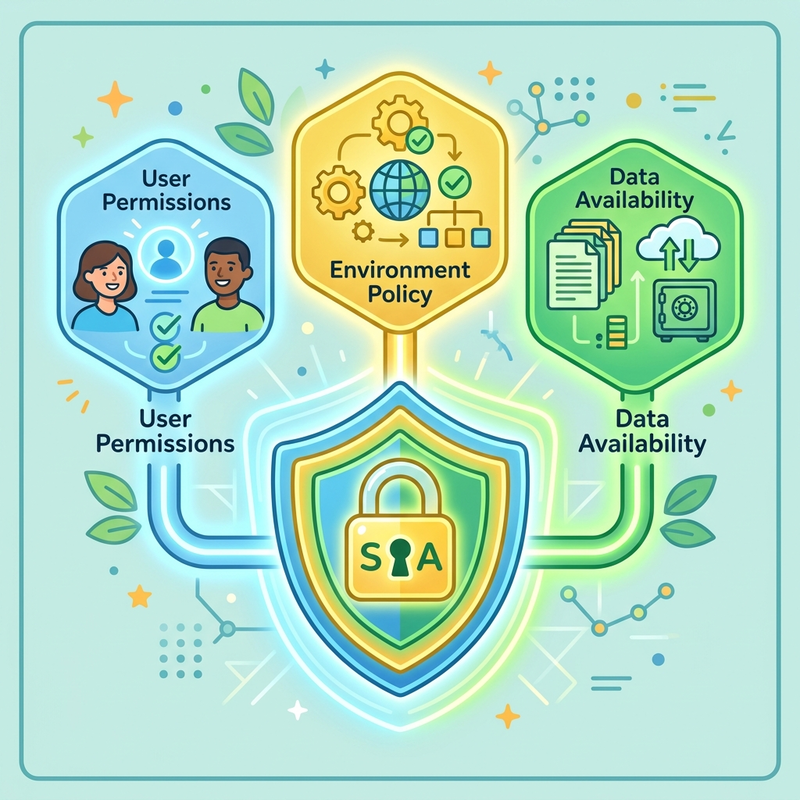
If the user has both viewer roles but still cannot inspect or download a transcript, check all three layers instead of repeatedly reassigning the same role.
Transcript downloads have practical limits
When downloaded from Copilot Studio, session data is provided as CSV and represents a subset of the information available through Power Apps. Microsoft documents several details worth knowing:
- downloads cover conversation transcripts from the past 29 days;
- each downloadable row can represent one day and contain up to 50,000 sessions;
- the
ChatTranscriptfield truncates each agent response to 512 characters in the Copilot Studio CSV export; and - when SharePoint is used as a knowledge source, the transcript includes the question and search-result content, but the generated answer is marked as
REDACTED.
These limits affect investigations. A downloaded CSV is useful for analysis, but it should not automatically be treated as a complete forensic record of every agent response.
Moving from analyst to coauthor
If a user’s responsibility changes from measuring the agent to improving it, do not try to stretch Analytics Viewer into an authoring role. Use the collaborative authoring sharing path.
Copilot Studio documents that coauthors can view, edit, configure, share, and publish an agent, but they cannot delete it. Collaborative authoring also requires the Environment Maker Dataverse security role. If the prospective coauthor does not already have that role, Copilot Studio can assign it during sharing only when the person performing the operation has the required Dataverse administrative authority; otherwise, an administrator must assist.
The source walkthrough shows the user’s interface expanding after an administrator assigns Environment Maker in the Power Platform admin center and refreshes Copilot Studio. That observation is useful, but it should not be generalized into a guarantee that Environment Maker alone grants unrestricted CRUD access to every agent. Environment Maker is an environment-level capability, while access to an existing agent is also governed by ownership, sharing, Dataverse records, and other platform controls. For a supported coauthoring path, share the specific agent for collaborative authoring and ensure the user has Environment Maker.
Environment Maker also does not automatically grant transcript access. A maker who needs conversation transcripts still requires Bot Transcript Viewer.
Connection identity is a separate design concern
Agent sharing can raise warnings or operational questions when tools connect to external services under a particular identity. That issue concerns how an agent’s actions authenticate when people use the agent; it is not a privilege granted by Analytics Viewer.
For shared agent use, Microsoft recommends choosing an authentication model that fits the connected service—for example, user-based OAuth, an environment-level connection, or a service principal where the connector supports it. Review connection ownership before broad deployment, but do not conflate runtime connection identity with read-only analytics authorization.
A practical access pattern
For most teams, the cleanest model is progressive access:
- Analytics only: Assign Analytics Viewer to the individual.
- Analytics plus session evidence: Add Bot Transcript Viewer after validating privacy and environment requirements.
- Authoring: Share the agent for collaborative authoring and ensure the user has Environment Maker.
- Administration: Reserve broader environment or system administration roles for people who genuinely operate the platform.
The principle is simple: start with the smallest permission set that supports the job, then add access only when the responsibility changes.
Final takeaway
The value of Analytics Viewer is not that it is a weaker maker role. It is that it creates a distinct operational persona for people who need to evaluate an agent without changing it.
The most important boundary to remember is this:
- Analytics Viewer grants read-only access to one agent’s Analytics page. In the current service, this sharing role can result in an Agent Viewer role appearing for the user in the Power Platform admin center, as demonstrated in the source. Because Microsoft does not describe that backend mapping as the administrative contract for this feature, assign Analytics Viewer through Copilot Studio rather than relying on direct Agent Viewer assignment.
- Bot Transcript Viewer grants access to transcript-backed, session-level data at the Dataverse environment layer, but only for agents and data the user is otherwise allowed to access.
- Collaborative authoring plus Environment Maker supports building and changing the agent; deletion can remain unavailable because coauthors are not granted delete permission by the collaborative-authoring role.
Keeping those permissions separate reduces configuration risk, limits exposure to conversational data, and gives analysts the visibility they need without turning every observer into a maker.
Sources
Read next