Mastering Copilot Studio Component Collections: Scalability, Testing, and Architecture

Writer
Quiz available
Take a quick quiz for this article.
When scaling generative AI across an enterprise, developers quickly run into a classic architectural headache: redundant logic.
Imagine you are tasked with building three separate Copilots—an HR agent, an IT agent, and a Finance agent. Each of these agents requires a standard “Follow-Up” or “Contact Us” topic to route users to a human. Without a centralized architecture, you are forced to build and maintain this exact same logic three separate times.
Enter Copilot Studio Component Collections. In this technical deep dive—based on insights from Microsoft MVP David Warner (Warner Digital)—we will explore what component collections are, how they differ from traditional component libraries, hidden testing features, and advanced scalability architectures.
What is a Component Collection?
Fundamentally, a Copilot Studio Component Collection is a reusable package of Copilot components that can be shared and distributed across multiple agents.
If you are a veteran of the Microsoft ecosystem, you might assume this works exactly like existing component frameworks. However, the architecture has a distinct twist:
- SPFX Library Components: You build the library component first, and then your web part or extension inherits it.
- Power Apps Component Libraries: You build the functionality in the library, and then import it into your Power App.
- Copilot Studio Collections: This operates on a “Chicken vs. Egg” paradigm. You must create your agent first, build your topic/tool, create the Component Collection, and then import the topic from the agent into the collection.
The “Chicken or the Egg” Workflow
Because you cannot build a topic natively in a vacuum, your workflow shifts slightly:
- Start with the Agent: Open your source agent (e.g., HR Agent) and build your baseline topic (e.g., a Trip Planner or Follow-Up topic).
- Create the Collection: Navigate to your environment’s Solutions and create a new Component Collection.
- Add the Agent & Topic: From within the collection, select Add Agent, choose your HR Agent, and then extract the desired topic into the collection.
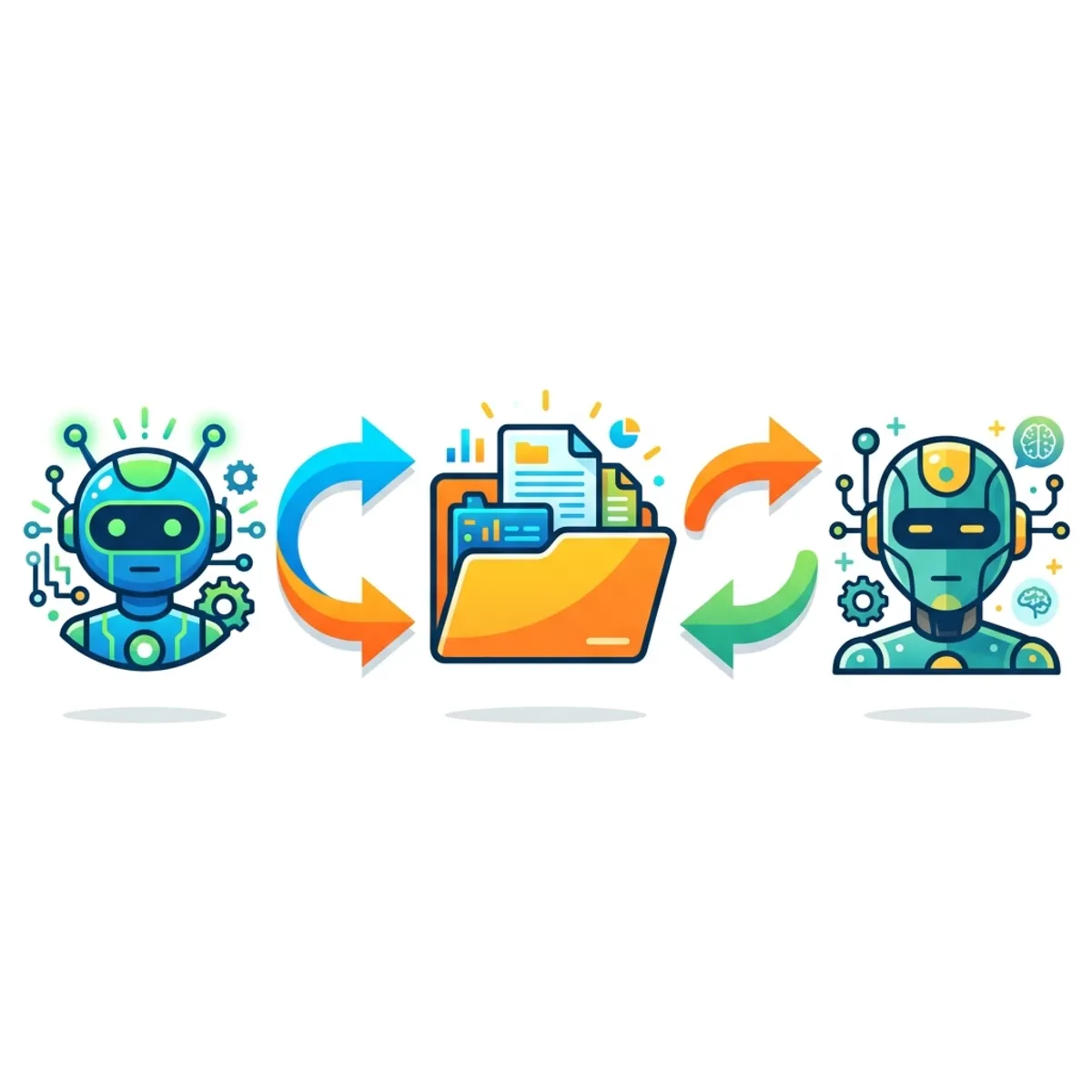
Once a topic is owned by the collection, extending it to a new agent is frictionless. Simply go to the collection, click Add Agent, select your IT Agent, and the shared topic will asynchronously appear in the IT Agent’s topic list.
UI Navigation & Developer Pro-Tips
Microsoft provides multiple paths to manage these links, but here are the most efficient ways to navigate your collections:
- Visual Indicators: Inside an agent’s topic list, look for a specific collection icon next to the topic name. This visually denotes that the topic’s logic is governed by a component collection, not the local agent.
- Quick Navigation: Clicking that icon routes you directly into the host Component Collection. Alternatively, you can navigate via Agent Settings > Component Collections.
- The Workspace Trick: Hold
Ctrl + Clickwhen selecting an agent or collection link. This opens the environment in a new tab, preventing you from losing your place when bouncing between multiple agents and libraries.
Context-Aware Testing Inside Collections
One of the most powerful, yet easily overlooked, features of Component Collections is the built-in testing harness. You do not need to navigate back to individual agents to test your shared components.
When you click Test inside a Component Collection, you will notice a dropdown menu at the top of the chat interface. This allows you to select which connected agent you want to simulate.
This testing is strictly context-aware. For example, if your HR Agent contributed a “Trip Planner” topic, and your IT agent contributed a “Follow-Up” topic:
- If you select the IT Agent from the dropdown and ask, “I need help planning a trip,” the bot will fallback to general knowledge. It respects the boundaries of the IT agent.
- If you toggle the dropdown to the HR Agent and ask the exact same prompt, the agent will successfully trigger the actual Trip Planner topic flow (e.g., “When do you need to travel?”).
Scalability: Architecting Independent “Starter Kits”
A common architectural question is: What happens to a collection if I remove all of the agents? Do the components get deleted?
The answer is no, and this opens up a fantastic scalability strategy: Independent Starter Kits.
Component Collections are stored at the Solution level. If you add an HR Agent to a collection, push the “Trip Planner” topic into the collection, and then disconnect the HR Agent, the topic disappears from the HR Agent—but it survives independently inside the collection.

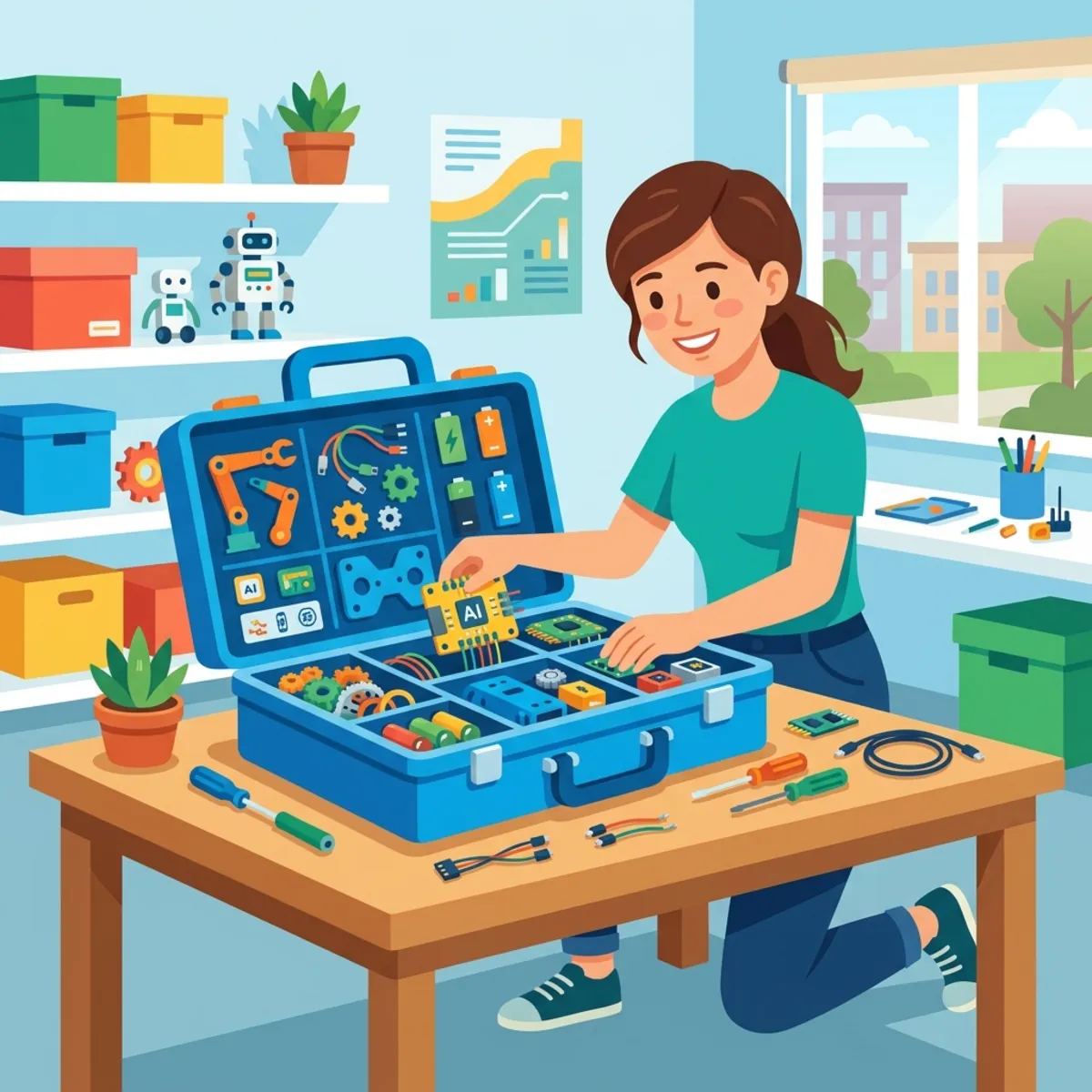
Why is this useful? This allows you to build a centralized “Components Toolkit” without forcing a permanent dependency on a “hub” agent. You can build out standard enterprise topics, detach the source agents, and distribute this collection as a Starter Kit. Whenever a developer spins up a brand new agent (e.g., a “Travel Agent”), they simply attach their new agent to the Toolkit collection, and all baseline enterprise topics are instantly inherited.
What’s Next & Resources
As you scale your bot architecture, it is vital to remember that while collections are shared, individual components are highly possessive of their associated agents. In future deep dives, we will explore Component Dependencies and the concept of Primary Agents.
To learn more and view Microsoft’s official documentation on this architecture, visit: aka.ms/cbscc.
Read next