Architecting Agentic Workflows: A Deep Dive into the Redesigned Copilot Studio Designer

Writer
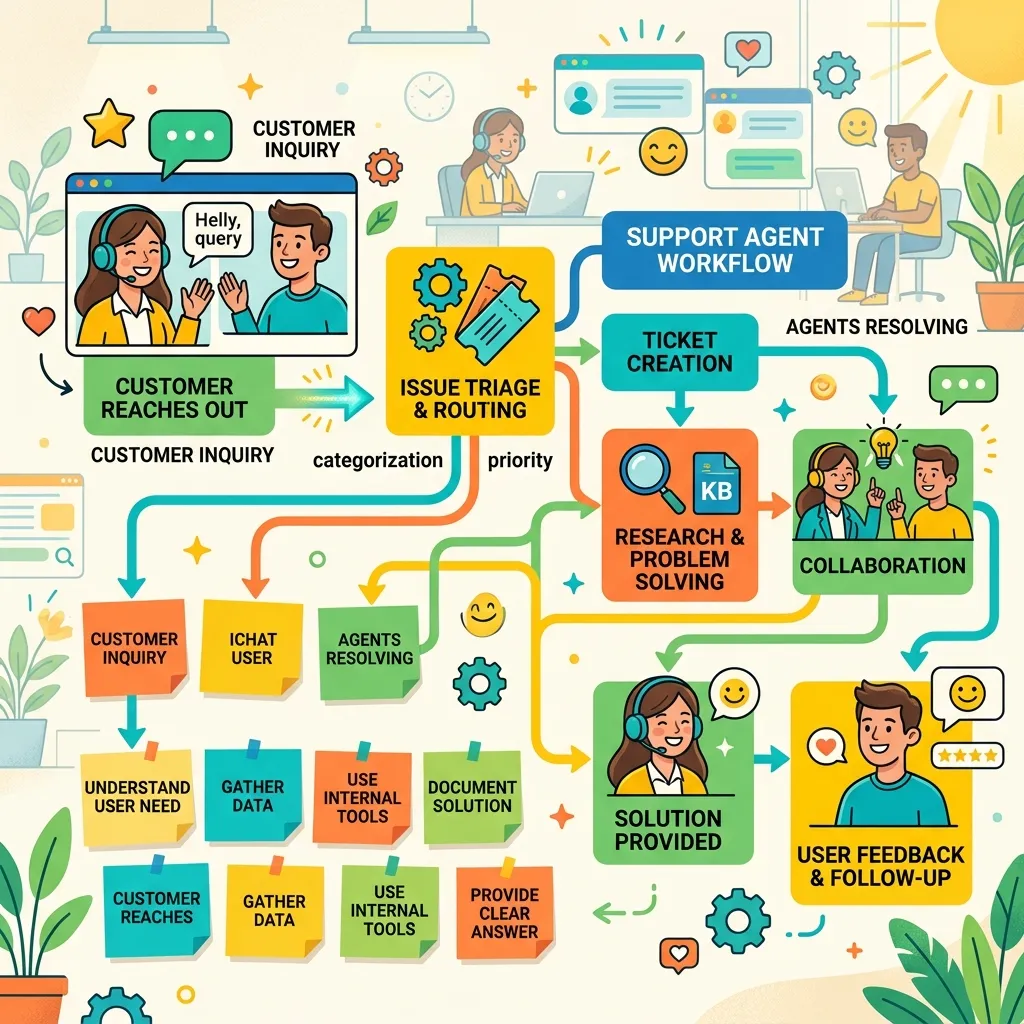
Microsoft has fundamentally shifted the orchestration paradigm with the latest update to Copilot Studio, introducing a completely redesigned workflow canvas. This isn’t just a UI refresh; it is a fundamental shift in how we build agentic orchestrations. By bringing AI-native actions—like specialized agents, targeted LLM prompts, and M365 data grounding—alongside traditional automation constructs (loops, variables, and Power Platform connectors), Microsoft has created a unified hub for enterprise AI engineering.
Here is a technical teardown of the new capabilities, alongside a practical architecture pattern for automating a high-volume shared mailbox.
The Unified Canvas Experience
If you are accustomed to the traditional Power Automate interface, the Copilot Studio Workflow Designer introduces several architectural and experiential shifts designed specifically for complex AI orchestration:
- Spatial Layout: Workflows default to a horizontal orientation, allowing for wider branching visualizations (though you can easily toggle back to vertical).
- Canvas Management: Zoom, fit-to-view, and automated “tidy up” functions keep massive workflows logically organized.
- In-Line Testing: You no longer need to run the entire flow to validate an LLM call. Prompt and Classification blocks feature full-screen configuration modes where you can inject sample data and test the output immediately, drastically reducing iteration time.
- Canvas Documentation: The introduction of “Sticky Notes” allows architects to pin contextual documentation and complex routing logic directly alongside the nodes.
- Resiliency & Native Versioning: The designer includes comprehensive version history, allowing you to seamlessly compare, preview, and restore previous iterations of your orchestration.
The Core Execution Nodes
To build our triage system, we will rely on a mix of deterministic and probabilistic nodes. The power of this new designer lies in its specialized AI-native execution blocks:
| Node Type | Architectural Function |
|---|---|
| Agent | Invokes an autonomous Copilot Studio agent. The agent brings its own configured tools and knowledge bases into the workflow execution. |
| Prompt | Executes a single, zero-shot or few-shot LLM call. Highly effective for extraction, summarization, and sentiment analysis with strict structured output schemas. |
| Classify | An AI-powered semantic routing engine. Instead of complex conditional regex strings, it categorizes unstructured text based on natural language descriptions and few-shot examples. |
| M365 Copilot | Grounds the workflow securely in your tenant’s Microsoft Graph data (SharePoint, Teams, OneDrive) or delegates tasks to specific agents like Researcher. |
| Human Review | A native “human-in-the-loop” pause-and-wait state. It surfaces the workflow context to a human via Outlook or Teams for validation, overriding, or approval before resuming. |
| Traditional Connectors | Variables, loops, conditional branches (If/Else), and the vast Power Platform ecosystem connectors. |
Architectural Walkthrough: Intelligent Mailbox Triage
To demonstrate the capability of this ecosystem, let’s architect a solution for a ubiquitous enterprise problem: a flooded “Customer Care” shared mailbox (customercare@yourdomain.com) that receives hundreds of emails daily ranging from technical support issues to billing disputes and sales inquiries. Traditionally, this requires heavy manual triage. Let’s automate it intelligently.
Phase 1: Ingestion and Semantic Understanding
1. The Trigger We begin by setting the workflow trigger to External Service, specifically utilizing the “When a new email arrives in a shared mailbox” connector from the Power Platform ecosystem. You can optimize this execution by applying pre-filters (e.g., trigger only on high-importance emails or those with attachments).
2. Structured Sentiment Prompt
Immediately following ingestion, we do not attempt to solve the user’s problem. First, we must understand the customer’s state of mind. We utilize a Prompt Node instructed to analyze the sentiment of the email based on the dynamic Subject and Body tokens from the trigger.
- Pro-Tip: Force structured outputs. Configure the output as an Enum (
Positive,Neutral,Negative,Urgent) and add a second string property for theSentiment Reason. This structured JSON will be passed downstream to our agents as vital context for the rest of the flow.
Phase 2: AI-Powered Routing
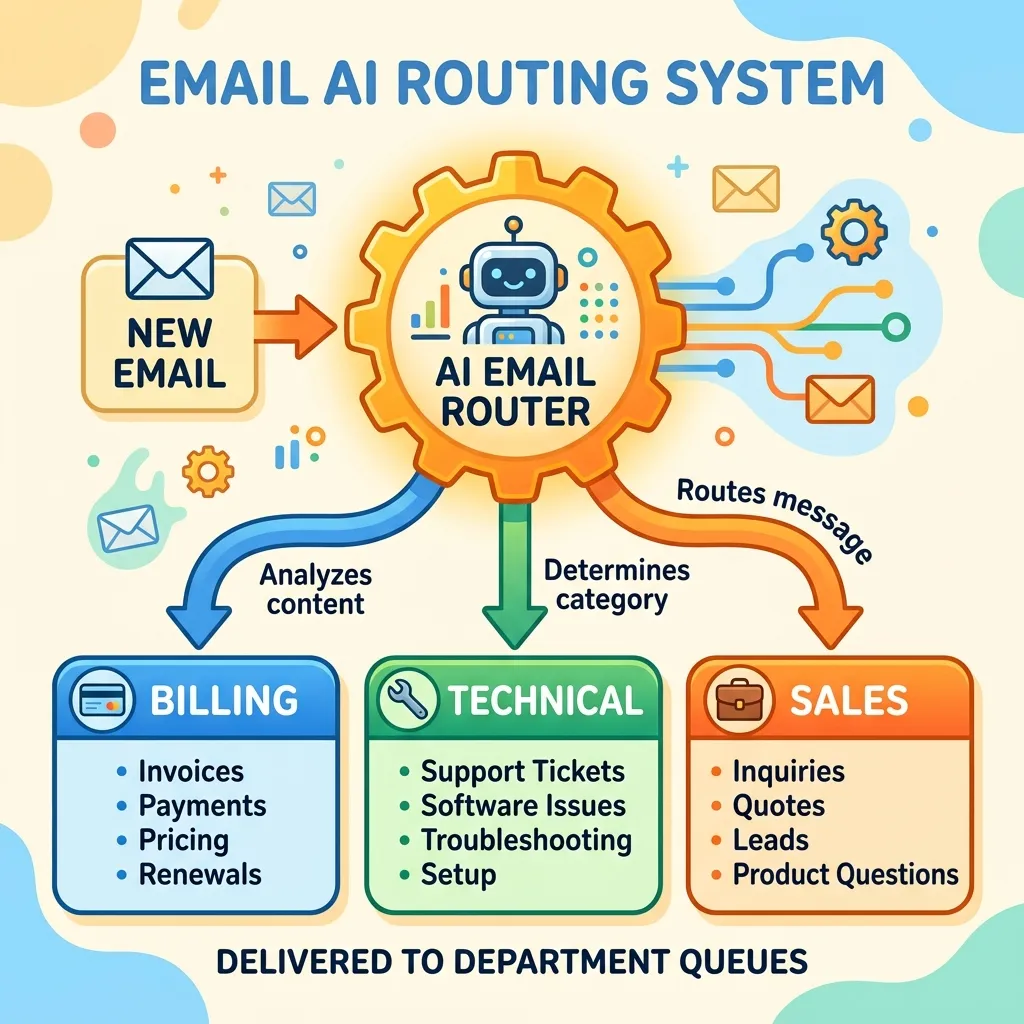
Next, we implement the Classify Node to handle the routing logic. Instead of complex regex or keyword matching, we define semantic categories: Billing, Technical, and Sales.
- Tuning the Classifier (Architectural Tip): Do not rely solely on category names. Provide a rich natural language description for each category (e.g., “Invoices, payment issues, refund requests”) and supply 2-3 sample phrases for each category within the node to ensure high accuracy.
- The Catch-All: The Classify block automatically generates an “Other” branch for graceful fallback if the LLM’s confidence threshold isn’t met.
Phase 3: Executing Domain-Specific Logic
Based on the classification, we branch out into three distinct execution paths, each leveraging a different automation strategy.
Branch A: Billing (Agent Delegation & Human-in-the-Loop)
Billing issues require strict adherence to company policy. Instead of prompting an LLM from scratch, we use the Agent Node to invoke a pre-existing Copilot Studio “Billing Agent” that is already grounded in our refund policies.
- We pass the agent the incoming
Subject,Body, and our previously calculatedSentimentandSentiment Reason. - The agent is instructed to process the request and return three parameters: a drafted reply, a refund amount, and a strict Boolean flag:
requires_approval. - We use an If/Else Node to evaluate this flag. Note: You may need to write an expression to typecast the agent’s output, such as checking if the JSON property equals
trueor evaluating business rules like refunds over $40. - Human Review: If approval is required, the workflow routes to a Human Review Node. We configure this to send an actionable card via Outlook to a designated approver with custom dropdowns (“Yes/No”) and allow the approver to leave notes.
- Once approved, the workflow resumes and fires the Shared Mailbox connector to email the customer the drafted response.
Branch B: Technical Support (M365 Grounding)
For technical bugs, we need internal documentation.
- We route this path to the M365 Copilot Node.
- We instruct it: “Search our internal knowledge base document for the issue mentioned in the body and draft a professional, helpful reply in HTML format.”
- Architectural Tip: Be explicit with output constraints here. Add to the prompt: “Your response must contain only the email reply body, no other details, and must be in HTML format.”
- Because this block is securely grounded via the Microsoft Graph, it retrieves accurate, proprietary troubleshooting steps and drafts the email, which is then sent directly back to the user via the Shared Mailbox connector.
Branch C: Sales Inquiries (Iterative Data Extraction)
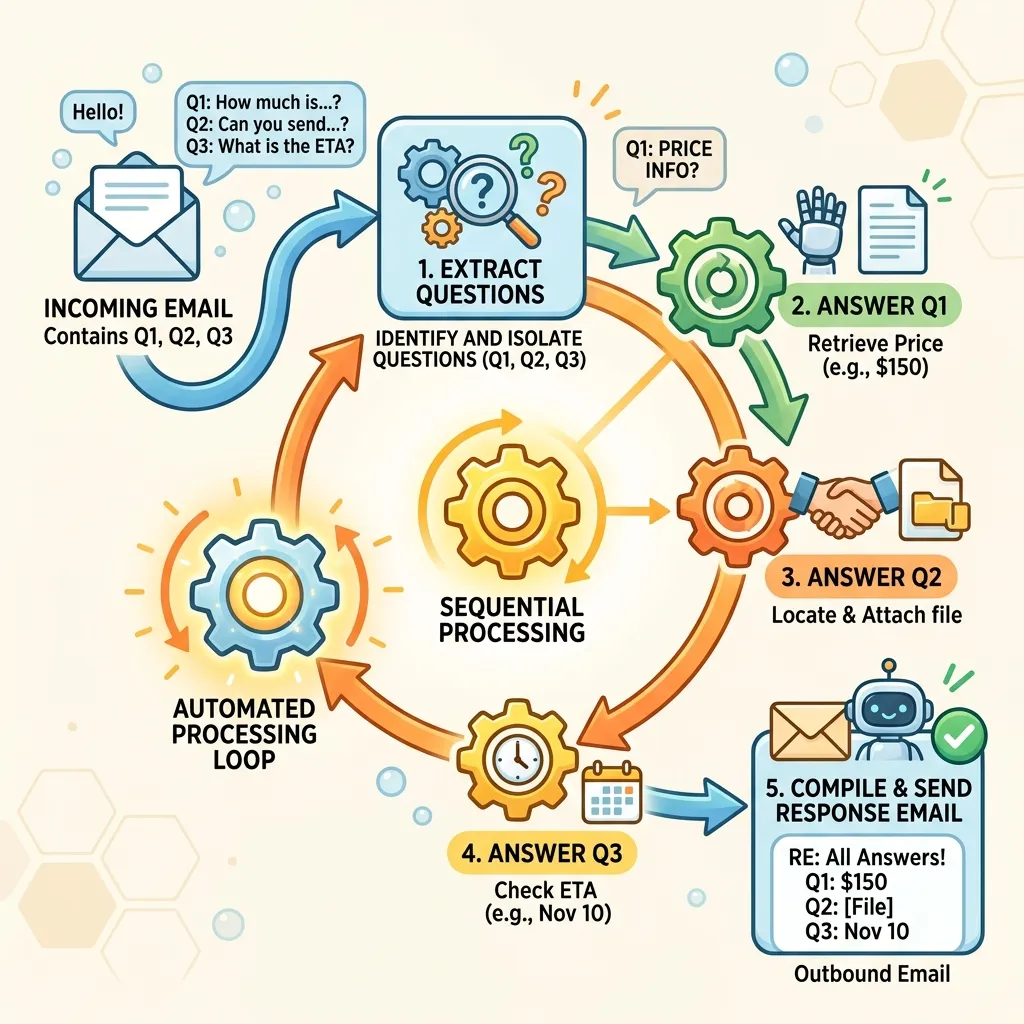
Sales emails often contain multiple disparate questions. We need to handle this programmatically using a hybrid approach of generation and loops:
- Extraction Array Generation: We use a Prompt Node instructed to extract every distinct question from the customer’s email and return only a raw JSON array of strings.
- State Management: We initialize an empty string variable (
answers_string). - Sequential Looping: We implement a For Each Loop running sequentially over the generated array.
- Expression Tip: If the designer doesn’t let you directly select the prompt’s array in rich text, use the inline Copilot to generate the expression for you to parse the array:
json(prompt_response). Set the loop to run sequentially.
- Expression Tip: If the designer doesn’t let you directly select the prompt’s array in rich text, use the inline Copilot to generate the expression for you to parse the array:
- Micro-Prompting: Inside the loop, we use another Prompt Node acting as a Sales Representative to answer the
current item(the specific single question) using injected product catalog data. - Compilation: Still inside the loop, we use a Compose Action to format the question and answer into HTML.
- Append to Variable: Inside the loop, we append the composed HTML to our initialized
answers_stringvariable. - Once the loop completes, the final compiled variable is dispatched as the email body to the prospective client.
Phase 4: Delivery via Connectors
Regardless of the branch taken (provided it passes human review where applicable), the final node utilizes the traditional Power Platform Shared Mailbox connector to send the generated response.
Architectural Tip: Currently, the rich text editor in the email body field does not natively support complex dynamic expressions. To inject your generated draft replies, use the “Ask Copilot to generate an expression” feature within the field to bind your specific payload variables seamlessly.
Conclusion
The new Copilot Studio Workflow Designer is a massive leap forward for developers and architects. By collapsing the boundaries between Graph-grounded generation, autonomous agents, semantic routing, and traditional API connectors, Microsoft has provided a single pane of glass for building highly sophisticated, resilient, and human-supervised AI automation systems entirely within a unified canvas.
Read next
Related articles

Mastering Copilot Studio Component Collections: Scalability, Testing, and Architecture
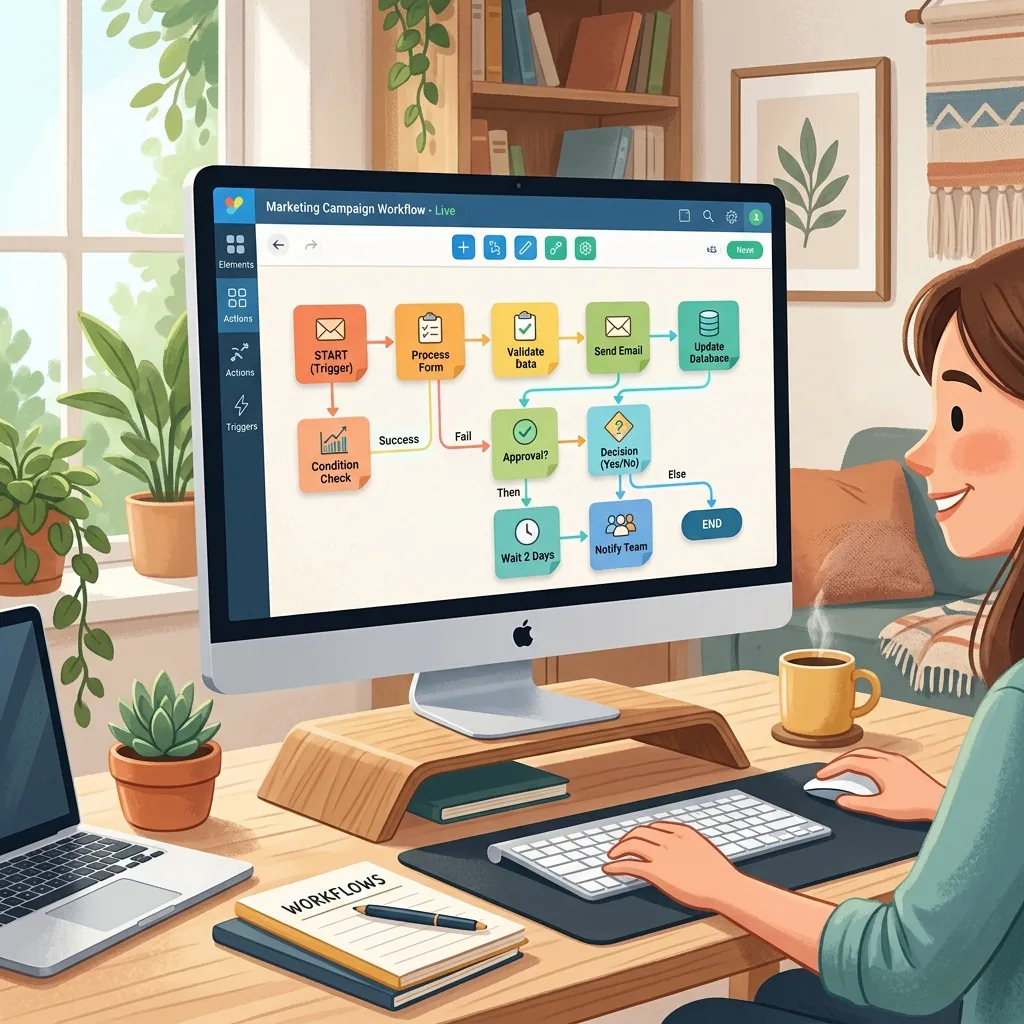
The Evolution of Automation: Mastering the New Copilot Studio Workflow Designer (May 2026 Preview)