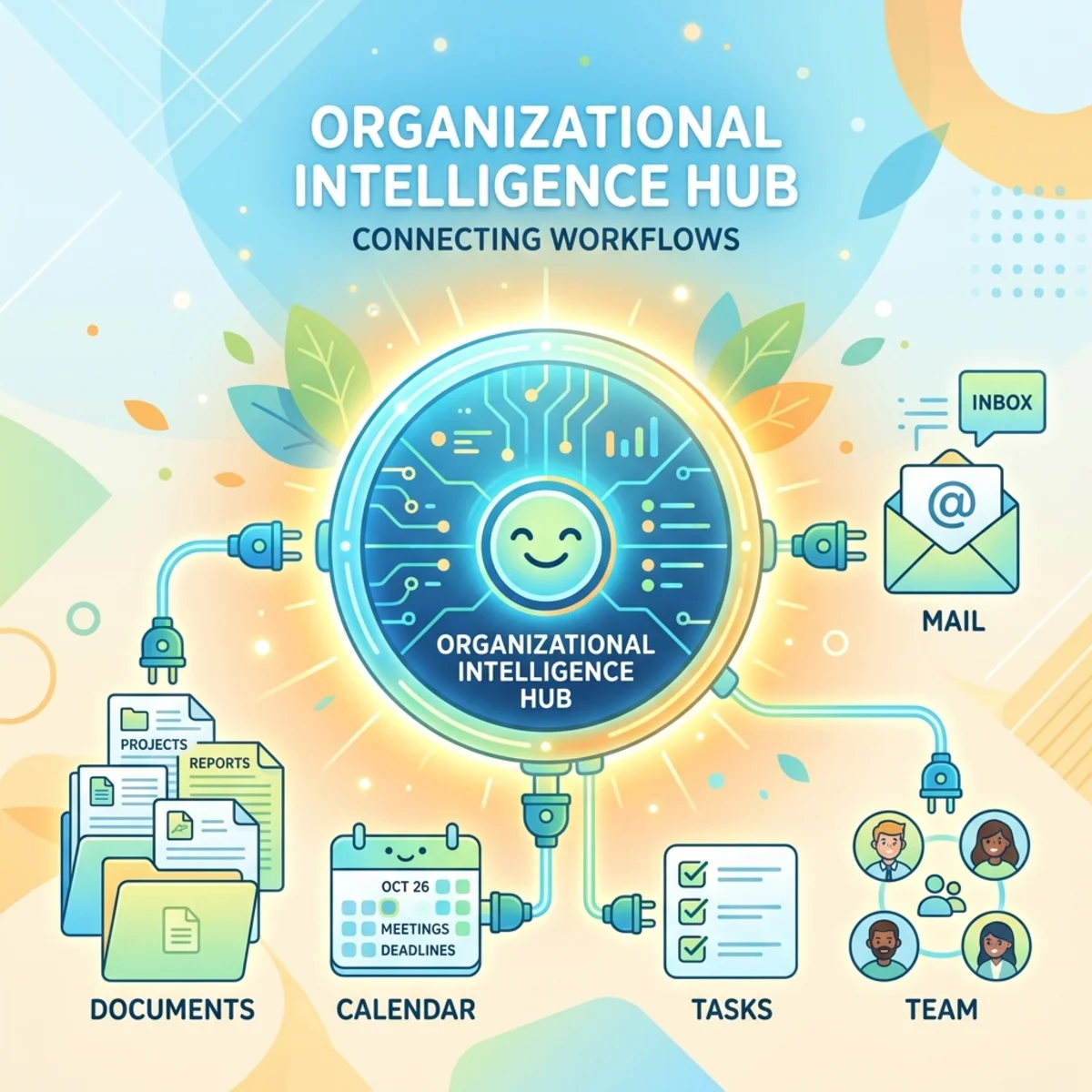
New Universal Work IQ MCP Server Integration Guide

Writer

Work IQ is a workplace intelligence layer that combines Microsoft 365 data with contextual understanding so AI agents can reason over work and take action. With the new unified Work IQ API, Microsoft has moved away from separate workload-specific endpoints (like Mail, Calendar, or Teams servers) in favor of a single, universal Model Context Protocol (MCP) server.
This article details the new architecture, how to enable Work IQ in your tenant, and how to use the universal Work IQ MCP server to build custom, 3rd-party agents that securely integrate with Microsoft 365 data.
The transition to a path-based entity model in Work IQ MCP is a game changer. Instead of managing thousands of tools for every M365 workload, developers now have 10 generic tools that do it all.
Prerequisites
- A usage-based billing plan set up in Copilot Studio with an Azure subscription and resource group assigned.
- Global Administrator role for the one-time Work IQ setup in your tenant.
- Node.js installed if you plan to use the Work IQ CLI locally.
Step 1: Enable Work IQ API in your organization
Before any applications or agents can query Work IQ, the Work IQ service principal must be provisioned in your tenant.
You can do this using the Graph Explorer or the Azure CLI.
Option A: Azure CLI (Fastest)
If you have the Azure CLI installed and are signed in as an administrator, you can run the following command to provision the Work IQ service principal:
Option B: Graph Explorer
- Go to Graph Explorer and sign in with an admin account.
- Set the method to POST and the URL to
https://graph.microsoft.com/v1.0/servicePrincipals. - Select Modify permissions and consent to
Application.ReadWrite.All. - Enter the following in the Request body:
- Select Run query. A
201 Createdresponse confirms success. (A conflict error means the service principal already exists).
Note: This is a one-time setup step per organization. It provisions the Work IQ resource so your applications can request tokens for it.
Step 2: Authentication & Scope Requirements
Work IQ relies on Microsoft Entra ID delegated authentication. Requests must run in the context of the signed-in user (On-behalf-of flows are supported), and application-only authentication is not supported.
While the API is governed by a unified endpoint, you must still grant the correct broad OAuth scopes to your application to access specific Microsoft 365 capabilities. Work IQ MCP clients automatically discover the required authentication configuration through the /.well-known/oauth-protected-resource endpoint, but if you need to manually configure your OAuth client, use the following configuration:
| Field | Value |
|---|---|
| Client ID | Application (client) ID from your app registration |
| Client secret | Client secret value from your app registration |
| Authorization URL | https://login.microsoftonline.com/{tenant-id}/oauth2/v2.0/authorize |
| Token URL | https://login.microsoftonline.com/{tenant-id}/oauth2/v2.0/token |
| Refresh URL | https://login.microsoftonline.com/{tenant-id}/oauth2/v2.0/token |
| Scopes | api://workiq.svc.cloud.microsoft/WorkIQAgent.Ask, offline_access |
Multi-tenant Notice: In multitenant (parent/child) organizations, you must
register the app as multitenant (AzureADMultipleOrgs). The access token’s
issuer (iss) must match the tenant the signed-in user belongs to, or
requests will fail with a 400 AuthenticationError.
Step 3: The New Entity Model
In previous versions, you had to connect to specific MCP servers like mcp_MailTools or mcp_TeamsTools. The new Work IQ MCP uses a path-based entity model accessed via a single, unified endpoint:
The Universal Endpoint: https://workiq.svc.cloud.microsoft/mcp All
3rd-party application and agent requests should be routed to this single URL.
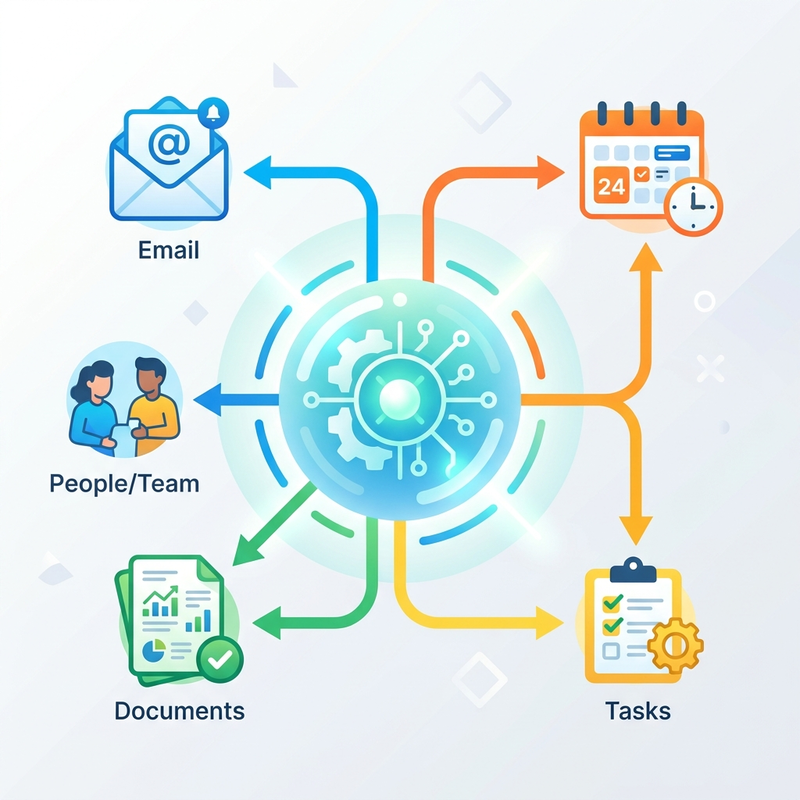
Work IQ MCP exposes a small set of generic tools (just 10 in total) that operate on relative resource paths mapping to Microsoft Graph endpoints (e.g., /me/messages).
Tool Categories
| Category | Tools | Description |
|---|---|---|
| Entity tools | fetch, create_entity, update_entity, delete_entity, do_action, call_function | CRUD operations and actions on Microsoft 365 resources. |
| Copilot tools | ask, list_agents | Invoke Microsoft 365 Copilot for natural-language intelligence. |
| Schema tools | get_schema, search_paths | Discover available API paths and retrieve OpenAPI schemas at runtime. |
Step 4: Using the Tools
Let’s look at how your custom agent can interact with these generic tools.
Fetching Data (fetch)
Instead of using a specialized mail tool, you use the generic fetch tool and provide the /me/messages path.
Asking Copilot (ask)
You can directly prompt Microsoft 365 Copilot to reason over the user’s data using the ask tool. This is great when the user asks an open-ended question and you want Copilot to do the heavy lifting.
Discovering Schemas (get_schema & search_paths)
To prevent your agent from being overwhelmed with massive Graph API schema definitions, Work IQ relies on runtime discovery. Your agent can use search_paths to find what’s available and get_schema to learn how to use it.
Step 5: The Work IQ CLI & Local MCP
If you are building an AI assistant in your IDE (like GitHub Copilot in VS Code) or CLI, you can run Work IQ as a Local MCP server.
You can install it globally via npm:
Or run it directly without installation:
VS Code MCP Configuration
Add the following to your VS Code MCP settings file to seamlessly connect your local AI coding assistant to your Microsoft 365 context:
Remember: You must accept the End User License Agreement before first use
by running workiq accept-eula in your terminal.
Policy Governance & Security

Work IQ MCP doesn’t just rely on Entra ID delegated authentication; it introduces a robust Rego-based policy layer using Open Policy Agent (OPA).
While Entra ID confirms who the user is, and OAuth scopes define what the app can do, the tenant policy layer evaluates every single MCP request at runtime. It looks at the tool being used, the path being requested, and the specific operation.
By default, mutation operations (like create_entity or delete_entity) are typically restricted for safety. If an agent tries to send an email or delete a file without policy clearance, the Work IQ server will reject the request with a policy-denied error (usually a 403 Forbidden).
Tenant administrators can manage these policies in the Microsoft 365 admin center under Agents > Tools.
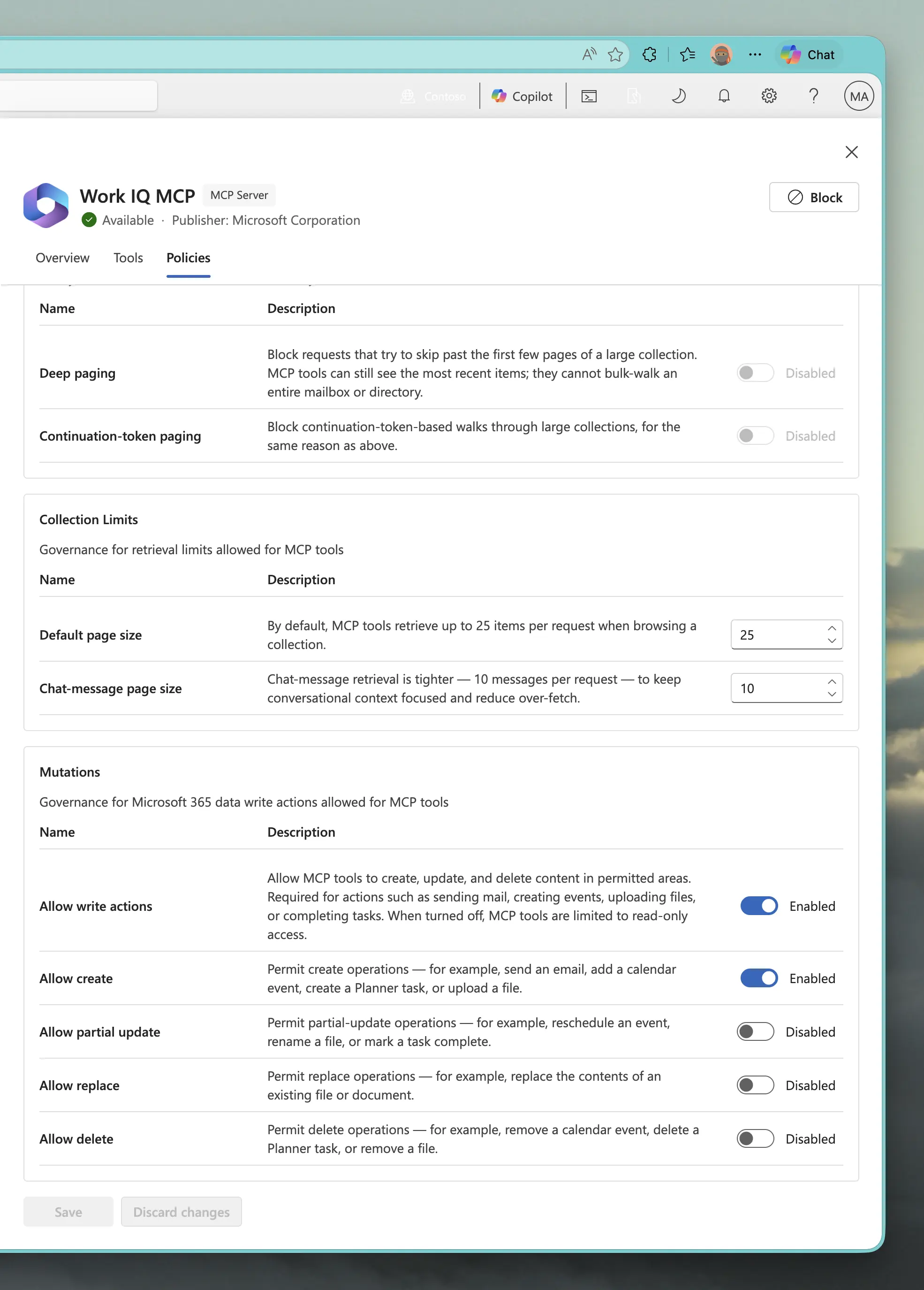
Work IQ Cannot Send Email? A common issue developers face is realizing that Work IQ cannot send emails by default—unlike previous capabilities that were turned on out of the box. By default, all mutations are disabled in the tenant policy. If your agent is failing to send emails and the error message from Work IQ is not descriptive, the key is to ensure both “Allow write actions” and “Allow create” are enabled in the admin center under the Mutations section. Enabling both will allow your MCP tools to send emails, add calendar events, and create tasks.
Enforcement Policies Overview
To provide more comprehensive information, here is the full list of enforcement policies available for the Work IQ MCP server.
Path Access
Governance for Microsoft 365 data entities accessible to MCP tools.
| Name | Description | Status |
|---|---|---|
| User's own data | Allow MCP tools to access the signed-in user's profile, mailbox, calendar, contacts, OneNote, tasks, chats, and files. | Enabled |
| Directory lookups | Allow MCP tools to look up users the signed-in user can view, including name, title, department, manager, and direct reports. | Enabled |
| SharePoint sites | Allow MCP tools to access SharePoint sites, lists, and pages the signed-in user can access. | Enabled |
| Planner plans & tasks | Allow MCP tools to read and update Planner plans, buckets, and tasks the signed-in user can access. | Enabled |
| OneDrive & document libraries | Allow MCP tools to read, write, delete and share files in OneDrive and SharePoint document libraries the signed-in user can access. | Enabled |
| Microsoft 365 Groups | Allow MCP tools to access Microsoft 365 Groups content the signed-in user can access, including conversations, files, calendars, and members. | Enabled |
| Microsoft Teams | Allow MCP tools to read Teams channels, members, and messages the signed-in user can access, and post where permitted. | Enabled |
| Chat conversations | Allow MCP tools to read and participate in 1:1 and group chats the signed-in user is part of, including messages, members, and attachments. | Enabled |
| Shared content | Allow MCP tools to access content shared with the signed-in user, including shared files, folders, and other shared resources. | Enabled |
| Rooms & places | Allow MCP tools to look up conference rooms and other bookable places available to the signed-in user. | Enabled |
| Microsoft Search | Allow MCP tools to search indexed Microsoft 365 content the signed-in user can access and return relevant results within those permissions. | Enabled |
Query Limits
Query execution limits for MCP tools (read-only).
| Name | Description | Status |
|---|---|---|
| Deep paging | Block requests that try to skip past the first few pages of a large collection. MCP tools can still see the most recent items; they cannot bulk-walk an entire mailbox or directory. | Disabled |
| Continuation-token paging | Block continuation-token-based walks through large collections, for the same reason as above. | Disabled |
Collection Limits
Governance for retrieval limits allowed for MCP tools.
| Name | Description | Limit |
|---|---|---|
| Default page size | By default, MCP tools retrieve up to 25 items per request when browsing a collection. | 25 |
| Chat-message page size | Chat-message retrieval is tighter — 10 messages per request — to keep conversational context focused and reduce over-fetch. | 10 |
Mutations
Governance for Microsoft 365 data write actions allowed for MCP tools. (Note: All mutations are disabled by default; the status below reflects a configuration that allows sending emails and creating tasks).
| Name | Description | Status |
|---|---|---|
| Allow write actions | Allow MCP tools to create, update, and delete content in permitted areas. Required for actions such as sending mail, creating events, uploading files, or completing tasks. When turned off, MCP tools are limited to read-only access. | Enabled |
| Allow create | Permit create operations — for example, send an email, add a calendar event, create a Planner task, or upload a file. | Enabled |
| Allow partial update | Permit partial-update operations — for example, reschedule an event, rename a file, or mark a task complete. | Disabled |
| Allow replace | Permit replace operations — for example, replace the contents of an existing file or document. | Disabled |
| Allow delete | Permit delete operations — for example, remove a calendar event, delete a Planner task, or remove a file. | Disabled |
Developer Takeaway: Do not assume that if an operation works in your dev tenant, it will work in a customer’s tenant. Your agent must gracefully handle policy-denied responses and surface them to the user, so they know governance blocked the action, not a bug.
Read next
![[DEPRECATED] Use Work IQ MCP servers in 3rd party agents outside Copilot Studio and Microsoft Foundry](https://candedeastropublic.blob.core.windows.net/images/articles/work-iq-mcp-custom-agents/hero_v2.webp)