Living off the Land in M365: Defending Cloud Admins

Writer
Cloud-Native Living off the Land: Hardening Microsoft 365 Against Native Administrative Exploitation
The modern corporate perimeter is defined not by firewalls, but by identity and cloud administrative boundaries. As enterprise defense has shifted toward monitoring for traditional malware, advanced adversaries and malicious insiders have adjusted accordingly. Instead of introducing external toolsets, attackers increasingly practice Living off the Land (LotL) inside the SaaS control plane — turning legitimate, highly trusted Microsoft 365 administrative capabilities into vectors for persistence, data exfiltration, and tenant-wide destruction.
Once an administrative or application-owning account is compromised, the primary threat is no longer what the attacker can bring in, but what they can execute natively through Microsoft Intune, Microsoft Graph, and Microsoft Defender for Endpoint.
This blueprint dissects five native Microsoft 365 administrative vectors used in control-plane LotL attacks. For each one you get the attack anatomy, a hands-on walk-through of how it actually works, a detection query to hunt for it, and the exact hardening steps to shut it down.
Read this first — authorization & lab safety. Everything below is for defenders, incident responders, and red teams operating with explicit written authorization. Do not run any of these techniques against production or any tenant you do not own. To practice safely, spin up a Microsoft 365 Developer tenant (a free, isolated sandbox with sample users and an E5 trial), enrol one or two throwaway VMs into Intune, and test there. Treat every command in this article as something to detect and block, not to deploy.
The Mental Model: Why LotL Beats Malware Here
Before the vectors, internalise the three properties that make control-plane LotL so effective — they explain why each defense below is shaped the way it is:
- The code is already trusted. A
permanentDeletecall or an Intune wipe is a signed, first-party Microsoft operation. There is no binary to flag, no hash to block, no AMSI hook to trip. - The blast radius is the tenant, not the host. A traditional foothold compromises one machine. An Application Owner or Intune Administrator compromises everything that role can touch — in one scripted loop.
- The control plane has its own identity model. Conditional Access, MFA, and device compliance protect interactive user sign-ins. They frequently do not protect a service principal authenticating with a client secret. That gap is the recurring theme of this entire article.
Keep property #3 in mind. It is the thread that connects Vector 1 to every vector after it — and it is the reason a single weak app registration can defeat controls you thought were airtight.
Vector 1: Persistence and Privilege Escalation via OAuth App Registrations
Application governance is frequently a blind spot. While Global Administrator and privileged role allocations are heavily audited, the Application Owner role is often distributed loosely to developers and automation engineers — and an owner can do almost everything to an app without holding any directory role at all.
The Attack Anatomy
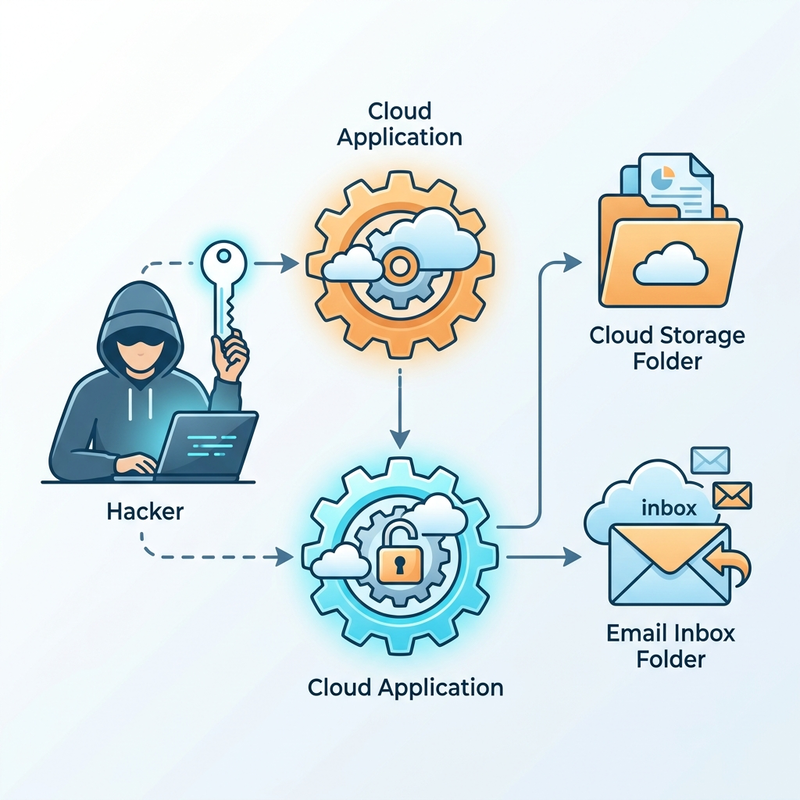
An attacker compromises a standard user account that owns an existing, highly privileged OAuth App Registration (a legacy migration tool, a backup utility, a reporting connector).
- Administrative bypass: Because the account is an owner of the App Registration, the attacker does not need an administrative directory role to manipulate it.
- Credential injection: Under App registrations → Certificates & secrets, the attacker adds a new client secret with an innocuous description like
backup_server_syncand the maximum validity period, so it blends into the noise and survives for years. - Unfettered API access: The app already holds tenant-wide Microsoft Graph application permissions that run 24/7 with no user present:
The critical point: a service principal authenticating with that secret is not an interactive user. Most Conditional Access policies — MFA, compliant-device, sign-in risk — simply do not apply to it. The attacker now has durable, MFA-immune, tenant-wide access.
Hands-On: How It Actually Works
The whole takeover is two Graph calls. First, the attacker (as owner) mints a secret on the target app:
Then they authenticate as the application (client-credentials flow) and inherit every application permission it holds — from anywhere, no MFA, no device:
That token is the master key for Vectors 2–4. This is why property #3 matters so much.
Detection: Hunt For It
Secret creation is logged in the Entra ID audit log (and surfaces in Sentinel as AuditLogs). Hunt for credential additions, especially to high-privilege apps or by accounts that don’t normally manage apps:
Two higher-signal enrichments:
- Microsoft Defender for Cloud Apps — App Governance flags newly-credentialed apps with sensitive Graph permissions and unusual data-access spikes. Turn it on; it is the closest thing to a purpose-built detector for this vector.
- Correlate the new secret against first use: a credential created and then immediately used from a new IP/ASN in
MicrosoftGraphActivityLogsis a strong indicator of compromise rather than routine rotation.
The Hardening Blueprint
- Block secrets, force certificates. Use app management policies (
policies/appManagementPoliciesin Graph, or the tenant default policy) to prohibit adding password credentials on privileged apps. This forces certificate-based (asymmetric) authentication or managed identities, eliminating the copy-paste secret entirely. - Bring service principals under Conditional Access. Use Conditional Access for workload identities to restrict where your service principals can authenticate from (trusted IP ranges / named locations). This closes the “MFA doesn’t apply to apps” gap directly.
- Tier app ownership like directory roles. Run recurring access reviews on application owners and on apps holding
*.ReadWrite.All,Mail.*, orDirectory.*permissions. Most tenants have a long tail of forgotten high-privilege apps — find and de-privilege them.
Defense check: Restrict application-owner assignments, enforce app management policies that block client secrets (forcing certificates), bring service principals under Conditional Access for workload identities, and let App Governance watch for anomalous credential use. Together these neutralise the most common form of durable, MFA-immune OAuth persistence.
Vector 2: Covert Data Destruction via Graph API permanentDelete
With the token from Vector 1, traditional ransomware on an endpoint is unnecessary. An attacker can destroy the organisation’s data directly at the cloud tier — below the layer where users and regional IT can recover it.
The Attack Anatomy
Using the compromised app’s token, the attacker doesn’t move files to the Recycle Bin (which alerts users and allows self-service restore). Instead they call the permanentDelete action, which bypasses both the first-stage (user) and second-stage (site collection) recycle bins:
Accuracy note: permanentDelete is a beta Graph action at time of writing. It requires Files.ReadWrite.All — exactly what the Vector 1 app already holds. The file is dropped from the active site structure immediately; standard end-user and regional-admin restore paths no longer see it.
Hands-On: How It Actually Works
The dangerous pattern is enumerate, then loop. The attacker first lists drive items, then issues permanent deletes. (Shown deliberately at low scale — the point is the shape of the attack, not a turnkey wiper.)
The same loop trivially extends across every site and OneDrive the token can reach. Velocity is the tell: thousands of deletes from one service principal in minutes.
Detection: Hunt For It
Hard deletes surface in the unified audit log / Defender XDR CloudAppEvents and in MicrosoftGraphActivityLogs. Alert on volume and velocity from a single principal:
Pair this with a MicrosoftGraphActivityLogs query filtering RequestUri contains "permanentDelete" to catch the explicit hard-delete action even when audit categories lag.
The Hardening Blueprint
- Deploy Microsoft Purview retention / litigation hold. Apply non-deletable retention policies (or litigation holds) across all Exchange mailboxes, SharePoint sites, and OneDrive. When
permanentDeletefires, Purview preserves a copy in the hidden Preservation Hold Library, neutralising the destructive intent — the attacker thinks the data is gone; you can still recover it. This is the single highest-value control for this vector. - Alert on deletion velocity. Wire the queries above into Sentinel or Defender XDR custom detections with a threshold tuned to your tenant’s normal churn. A finance team deleting 40 files/day is noise; one principal deleting 4,000 in five minutes is an incident.
Critical tip: Retention/litigation hold is your safety net — it makes permanentDelete recoverable even though it bypasses both recycle bins. Detection tells you it happened; the Preservation Hold Library is what lets you undo it. Deploy both.
Vector 3: Massive Endpoint Disruption via Intune Bulk Device Wipes
Intune is the centralised command platform for modern device management. An identity holding Intune wipe rights is an existential risk to physical fleet operations.
The Attack Anatomy
An attacker holding the Intune Administrator role (or a custom RBAC role with the Wipe remote task) can systematically disable the organisation’s hardware.

In intune.microsoft.com → Devices → All devices → Bulk Device Actions, the GUI caps a single batch at 100 devices. That cap is a client-side convenience, not a security boundary.
Hands-On: How It Actually Works
The Graph endpoint behind the button has no batch limit. A short loop over managedDevices wipes the entire fleet:
The caveat that breaks the article’s own defense — read this carefully. Multi-Admin Approval (the control below) is enforced only for actions performed under a user identity — interactive UI, delegated Graph, or PowerShell signed in as a user. Actions executed by an application using application permissions bypass MAA entirely and run immediately. That means the Vector 1 app token — if it carries the right device-management permission — can wipe the fleet without ever triggering the approval workflow. MAA is necessary but not sufficient on its own; it must be backed by tight control of which apps hold privileged device-management permissions.
Detection: Hunt For It
Wipe and retire actions are logged in Intune audit logs (Sentinel: IntuneAuditLogs). Alert on volume:
Cross-reference MicrosoftGraphActivityLogs for RequestUri contains "/wipe" to catch app-token wipes that may not generate the same admin-center audit signal.
The Hardening Blueprint
- Implement Multi-Admin Approval (MAA). Tenant admin → Multi Admin Approval → Access policies and create policies whose profile type is Device wipe (also create them for Device retire and Device delete — added in Intune service release 2508). Each protected action then requires a different admin from a designated approver group to approve before it executes. Note the licensing/role prerequisites: an Intune Plan 1 license and a security group (not a distribution list) directly assigned to an Intune role as the approver group.
- Starve the bypass. Because application-permission tokens skip MAA, audit which apps hold
DeviceManagementManagedDevices.PrivilegedOperations.Alland similar. Remove it from anything that doesn’t strictly need it, and put the survivors under Conditional Access for workload identities (Vector 1). - Isolate privileged identities. Intune admins should use separate, hardened accounts behind phishing-resistant MFA and managed-workstation enforcement.
MAA is mandatory — but not a silver bullet. Apply MAA to wipe, retire, and delete to stop a single user identity from invoking scalable destruction. Then close the loop: application-permission tokens bypass MAA, so you must also lock down which apps hold privileged device-management permissions. Defend both paths or you’ve defended neither.
Vector 4: Arbitrary System Execution via Intune Scripts & Remediations
Intune Platform Scripts and Remediations (formerly Proactive Remediations) are designed to detect configuration drift and fix it across endpoints. Because they run natively with elevated authorization, they double as a built-in cloud-to-endpoint command-and-control channel.
The Attack Anatomy
An adversary with write access to Intune script configuration can weaponise the automation engine to push code downstream:
- Deploy a new script object, or modify an existing, trusted one to stay quiet.
- Drop a malicious PowerShell payload into a Platform Script or into a Remediation’s Detection/Remediation slot.
- When the Intune Management Extension (IME) next syncs, the endpoint downloads and runs the payload under
NT AUTHORITY\SYSTEM.
At that authorization level the script can disable local security tooling, tamper with BitLocker key protectors, or wipe local directories — with no malware alert, because the execution is initiated by a signed, trusted Microsoft process (IME).
Hands-On: How It Actually Works
Two implementation details make this both potent and detectable. First, the correct Graph objects (a common point of confusion):
| What you see in the portal | Graph object (beta) | Runs as |
|---|---|---|
| Devices → Scripts and remediations → Platform scripts | deviceManagement/deviceManagementScripts | runAsAccount: system or user |
| Devices → Scripts and remediations → Remediations | deviceManagement/deviceHealthScripts | system or user |
| macOS shell scripts | deviceManagement/deviceShellScripts | system or user |
Scripts are stored as a Base64 scriptContent string and the run context is set by runAsAccount — system is the dangerous one. The portal has no download button, which is exactly why malicious edits hide so well. An attacker creating a SYSTEM-context platform script looks like this:
Note enforceSignatureCheck = $false and runAsAccount = "system" — those two fields are your highest-signal hunt targets.
Detection: Hunt For It
Stream Intune audit logs to your SIEM and alert on any create/modify of script objects — these are rare, high-privilege changes that should always be reviewed:
Treat a script created with runAsAccount = system and enforceSignatureCheck = false as high severity until proven benign. On the endpoint side, IME activity is visible in C:\ProgramData\Microsoft\IntuneManagementExtension\Logs — useful for IR confirmation.
The Hardening Blueprint
- Ingest Intune audit logs continuously (Tenant admin → Audit logs, forwarded to Sentinel/your SIEM) and alert on every Create/Patch of
deviceManagementScriptsanddeviceHealthScripts. - Put scripts under MAA. Extend Multi-Admin Approval to the Scripts profile type so no single user admin can unilaterally push code to the fleet. (Remember Vector 3’s caveat: application tokens bypass MAA, so also restrict which apps hold script-write permissions.)
- Review the run context. Periodically export all scripts and flag any with
runAsAccount: systemandenforceSignatureCheck: false— that combination is the riskiest and is rarely necessary for legitimate config tweaks.
Silent execution threat: A SYSTEM-context Intune script runs your payload via a signed Microsoft process — no malware alert. Centralise Intune audit logs in a SIEM, alert on every script create/modify (especially runAsAccount=system with enforceSignatureCheck=false), and gate script deployment behind MAA plus tight app-permission control.
Vector 5: Endpoint Compromise via Defender for Endpoint Live Response
Microsoft Defender for Endpoint (MDE) Live Response (Plan 2) gives responders a direct, interactive shell into any managed asset. In the wrong hands it is a cloud-console-to-SYSTEM pivot that bypasses your entire network perimeter.
The Attack Anatomy
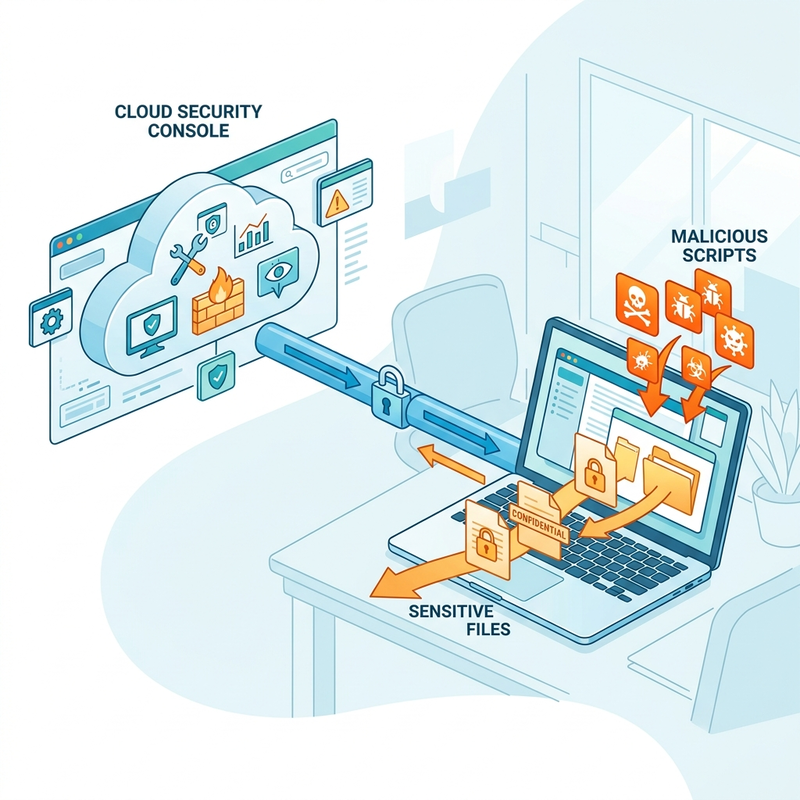
If an adversary compromises a security identity with the Security Administrator role or custom MDE permissions, they can use Live Response to pivot from the cloud console straight into deep endpoint exploitation.
Hands-On: How It Actually Works
The attacker opens the device inventory, picks a high-value asset (an executive’s laptop, an infra server), and clicks Initiate live response session. That session is a low-latency terminal running as SYSTEM. From there:
The getfile exfiltration path is the dangerous part: data leaves via the Defender service channel, bypassing network egress filtering and DLP agents entirely. There is no firewall rule to catch it because the traffic is your own EDR’s management plane.
Detection: Hunt For It
Live Response actions are logged. Hunt them in Advanced Hunting and watch for getfile/run against sensitive assets or by unusual operators:
Every Live Response session also appears in the Action center. Alert when a session targets a Tier 0 device or is started by an account outside your sanctioned IR team.
The Hardening Blueprint
- Split Basic from Advanced with Defender Unified RBAC. Move off broad tenant-wide security roles. In Unified RBAC, ensure that Advanced Live Response (script execution + getfile) is tightly scoped and separated from Basic Live Response (read-only forensic commands like process listing).
- Disable unsigned script execution. In the Microsoft Defender portal → Settings → Endpoints → Advanced features, turn off Live response unsigned script execution. Signature verification applies to PowerShell scripts, so this forces every Live Response script to be signed by your internal CA — defeating ad-hoc payload uploads.
- Tier your estate with device groups. Segment endpoints into device groups and restrict Live Response on Tier 0 assets (domain controllers, identity servers, certificate infrastructure) so only hardened break-glass accounts can ever start a session there.
Restrict Live Response: Running SYSTEM scripts and exfiltrating files via getfile is trivial if Live Response is unguarded — and getfile sidesteps DLP and egress filtering. Disable unsigned script execution, split Basic from Advanced via Unified RBAC, and lock Tier 0 device groups to break-glass accounts only.
Core Architectural Defense Summary
To defend a Microsoft 365 tenant against cloud-native LotL, move from reactive threat-hunting to proactive control-plane hardening.
| Attack Vector | Native Admin Feature | Primary Damage | Core Architectural Defense |
|---|---|---|---|
| 1. App Persistence | OAuth App Registrations | Undetected, MFA-immune 24/7 tenant access | App management policies (block secrets); certificate-only auth; CA for workload identities |
| 2. Cloud Data Wipe | Graph permanentDelete (beta) | Destruction bypassing both recycle bins | Purview retention / litigation hold (Preservation Hold Library); velocity alerts |
| 3. Fleet Disruption | Intune bulk wipe / Autopilot reset | Tenant-wide endpoint wiping | MAA on wipe/retire/delete + control of app device-mgmt permissions |
| 4. Administrative C2 | Intune scripts & remediations | Arbitrary code as NT AUTHORITY\SYSTEM | SIEM ingestion of Intune audit logs; MAA on Scripts; flag system/unsigned |
| 5. Host Takeover | MDE Live Response | Interactive SYSTEM shell + getfile exfil | Unified RBAC (Basic vs Advanced); signed-only scripts; Tier 0 device groups |
MITRE ATT&CK Mapping (for your detection backlog)
| Vector | Technique | ID |
|---|---|---|
| OAuth secret persistence | Account Manipulation: Additional Cloud Credentials | T1098.001 |
permanentDelete | Data Destruction (cloud) | T1485 |
| Intune bulk wipe | Disk Wipe / Account Access Removal | T1561 / T1531 |
| Intune script C2 | Serverless / Cloud Administration Command | T1651 |
| Live Response abuse | Remote Services / Native cloud tooling | T1021 |
Your First 7 Days: A Priority Hardening Checklist
Theory is only useful if it changes your configuration this week. In rough order of value-per-effort:
- Day 1 — Stop the bleeding on apps. Run an access review on apps holding
*.ReadWrite.All,Mail.*, orDirectory.*. Remove unused ones. (Vector 1) - Day 1 — Turn on retention. Apply a Purview retention policy to all SharePoint/OneDrive/Exchange. This alone makes Vector 2 recoverable. (Vector 2)
- Day 2 — Enable MAA for device wipe, retire, delete, and scripts. (Vectors 3 & 4)
- Day 3 — Block app secrets via app management policy and start migrating privileged apps to certificates. (Vector 1)
- Day 4 — Disable unsigned Live Response scripts and split Basic/Advanced in Unified RBAC. (Vector 5)
- Day 5 — Wire detections. Forward Entra, Graph activity, and Intune audit logs to your SIEM and deploy the five queries above. (All vectors)
- Day 6–7 — Close the bypass. Audit which applications hold privileged device-management and script permissions, and bring service principals under Conditional Access for workload identities. (The thread that ties it all together.)
Ultimately, the only durable strategy is to treat your administrative control plane as the crown-jewel asset it is: enforce phishing-resistant authentication everywhere, validate app-governance boundaries continuously, and mandate multi-administrative validation for high-blast-radius operations — while remembering that the application identity can quietly route around the very controls you build for human admins. Defend the user path and the app path, or you have defended neither — and your own security tools will be turned against you.
Read next