Mastering Agentic Automation: Calling Copilot Studio Agents Inside the New Workflow Designer

Writer

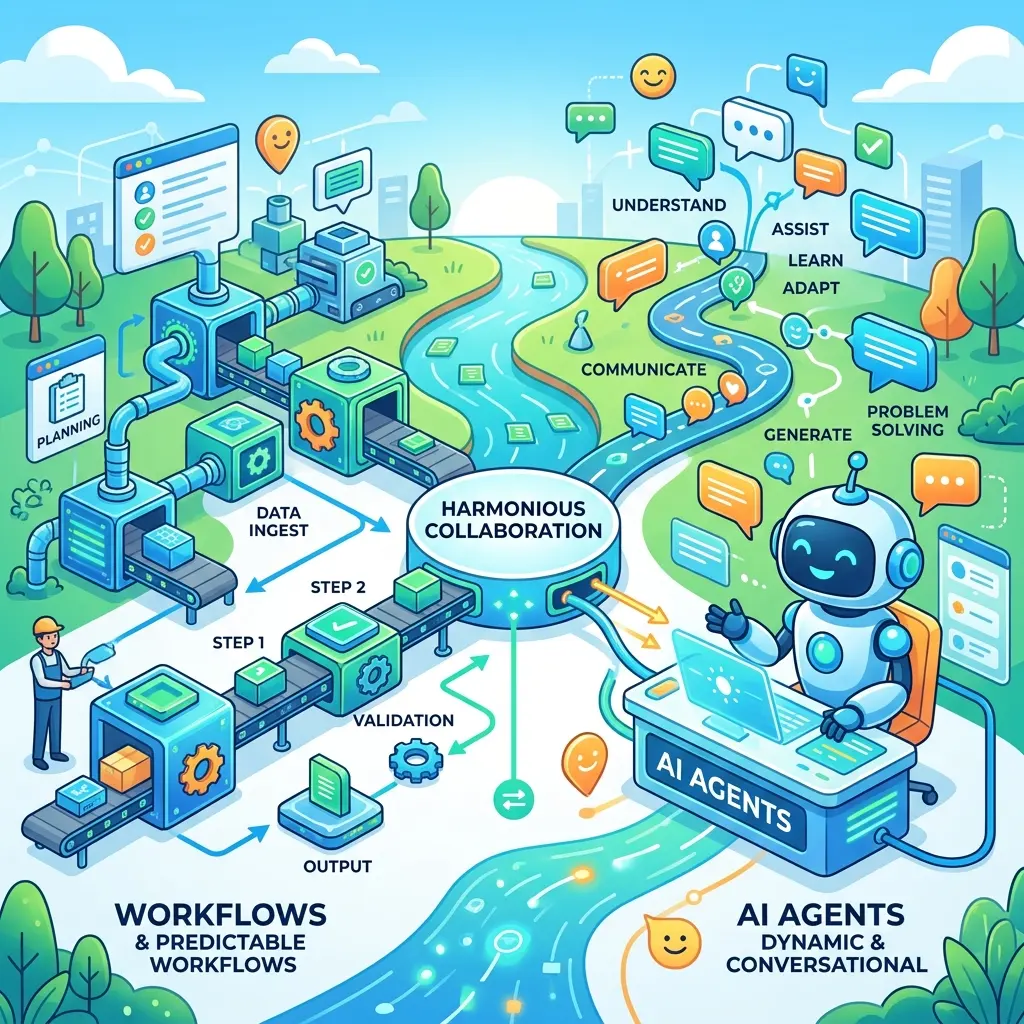
Microsoft Copilot Studio has introduced a reimagined, agentic approach to enterprise automation through its new Workflow Designer. By blurring the lines between traditional deterministic workflows and generative AI reasoning, developers can now seamlessly offload complex, unstructured tasks directly to AI agents mid-flight.
If you are looking to move beyond simple data-shuffling and build intelligent automations that can reason, extract knowledge, and utilize external tools, understanding the new workflow architecture is critical. Here is a deep dive into how to leverage Copilot Studio agents within the new workflow interface.
The Paradigm Shift: From Static Flows to Agentic Workflows
Historically, automation relied on strict, rules-based logic. While the new workflows in Copilot Studio remain deterministic—operating within the standard ecosystem and consuming regular Copilot Studio capacity—they introduce a fundamental shift in how tasks are processed.
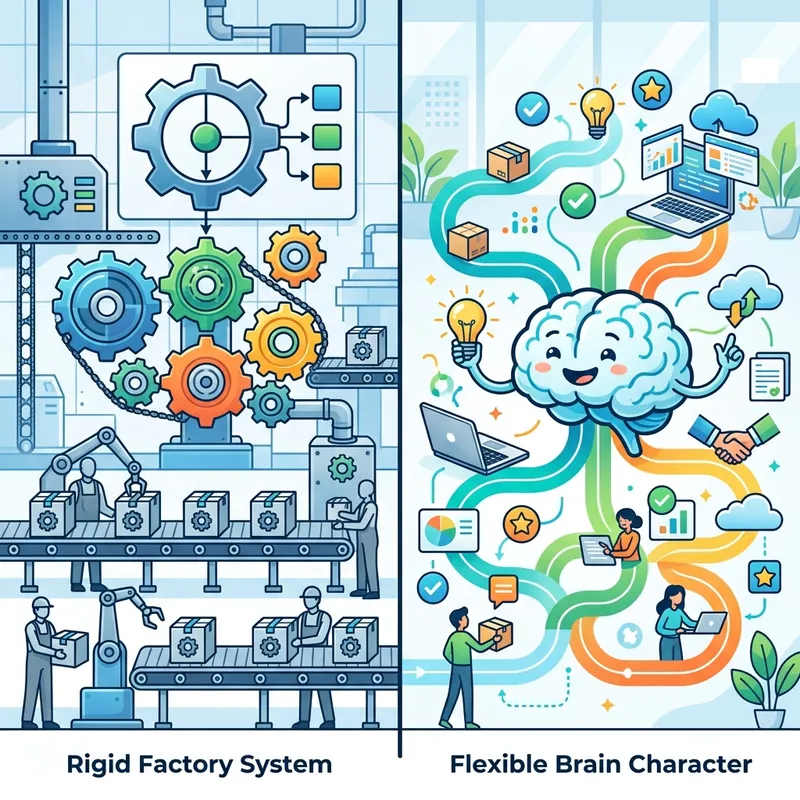
A workflow still relies on the traditional structure:
- Trigger: The event that starts the flow (e.g., a manual button press, a scheduled recurrence, an HTTP request, or a connector event).
- Action: The task performed.
However, the game-changer is the Agent Node. Instead of forcing a developer to map out complex conditional logic to parse a document or answer a question, the workflow can now hand the step over to an agent. The agent handles the cognitive load—reasoning over data, calling external tools, or extracting knowledge—and returns a clean, processed result back to the workflow.
Choosing Your Agent: M365 Copilot vs. Copilot Studio Agents
When adding an agent node to your workflow, you are presented with two primary categories, each serving a different architectural need:
- M365 Copilot Agents: These are typically created by power users using the Agent Builder or Copilot Studio Light (managed via m365.cloud.microsoft). They are excellent for standard productivity tasks but come with limited, sandboxed functionality.
- Copilot Studio Agents: These are the full-featured, robust agents built natively within the Copilot Studio environment. They support complex routing, custom instructions, and deeper integrations.

Implementation: Two Paths to Agentic Automation
When dragging an agent node onto the new designer canvas, you have the flexibility to either call an existing agent or spin up a new one dynamically.
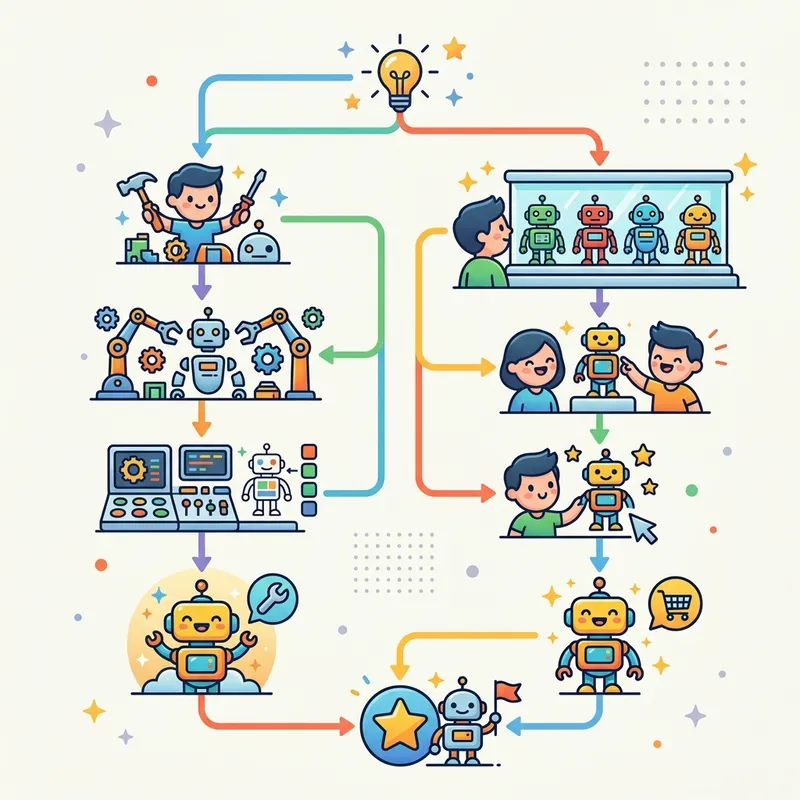
Path 1: Creating an Agent on the Fly
If an existing agent doesn’t fit your exact requirement, you can instantiate a localized agent strictly for the context of the running workflow.
- Model Selection: You can specify the underlying Large Language Model (LLM) powering the connection. While the Claude series is often selected by default, you have the flexibility to choose various GPT reasoning models (e.g., versions 5, 5.3, 5.4, 5.5).
- Intelligence Layers (Work IQ & Foundry IQ): This is where the agent becomes highly contextualized. By enabling Work IQ, the agent gains secure access to the running user’s personal context, including their Teams chats, Outlook mail, calendars, SharePoint sites, and OneDrive files.
- Tooling: You can equip this localized agent with featured tools, custom connectors, or Model Context Protocol (MCP) servers to allow it to interact with external databases or APIs before returning its answer. Web search can also be toggled on for real-time grounding.
Path 2: Calling an Existing Agent
For modularity, you can call an agent that has already been deployed in your environment (for example, a “World News Agent”).
To make the existing agent contextual to the current workflow run, you pass dynamic parameters into its prompt. If the workflow receives a payload containing a specific country, you can configure the agent’s instruction block to read: Get news for / {dynamic_country_variable}.
Processing the Output: Data Handling and Layouts
Once the agent completes its reasoning loop, it passes a structured payload back to the workflow. You have granular control over what type of output the agent returns—whether that is standard text, structured data, or a custom structured format defined by your schema.

To utilize this data downstream, standard Compose actions are highly effective. Using the dynamic content selector, you can extract three critical pieces of telemetry from the agent node:
- Result: The actual requested data (e.g., the summarized text or extracted lists) alongside any source citations.
- Status: The execution state of the node (e.g.,
completed), which is vital for error handling. - Conversation ID: The unique GUID associated with the agent’s internal reasoning session, useful for auditing and logging.
Navigation Tip: As workflows become complex, utilize the designer’s layout toggles to switch between vertical and horizontal views, or use “Fit to View” to maintain visibility over your architecture.
Execution Dynamics and Latency Expectations
Testing these agentic workflows requires a slight shift in expectations regarding execution speed. Because you are offloading tasks to an LLM, latency is inherently higher than a traditional deterministic data-lookup.
When you manually trigger the workflow and pass in a parameter (e.g., “USA”), the flow engine starts almost immediately. However, the handover to the agent, the LLM reasoning time, and the return trip will introduce a delay. In typical scenarios, an execution might take upwards of 30 to 35 seconds to complete.
Once finished, expanding the raw output of the Compose actions will reveal the cleanly formatted response from the agent, ready to be routed to a database, sent in an email, or posted to a Teams channel.
By integrating Copilot Studio agents directly into the new workflow designer, developers can build incredibly powerful, dynamic automations that blend the reliability of structured workflows with the cognitive flexibility of modern AI.
Read next