Faster Power Automate Aggregations with XPath

Writer

Faster Power Automate Aggregations with XPath
When a cloud flow needs to total prices, count matching records, or calculate an average, the obvious design is an Apply to each loop. It works—but for read-only aggregations, it can be the wrong abstraction.
A loop asks Power Automate to visit each record and execute one or more actions. XPath takes a set-based approach: convert the array into XML, then ask the document a question such as “What is the sum of every price element?”
- Looping is procedural: inspect item 1, then item 2, then item 3.
- XPath is declarative: describe the result and evaluate that expression against the complete document.
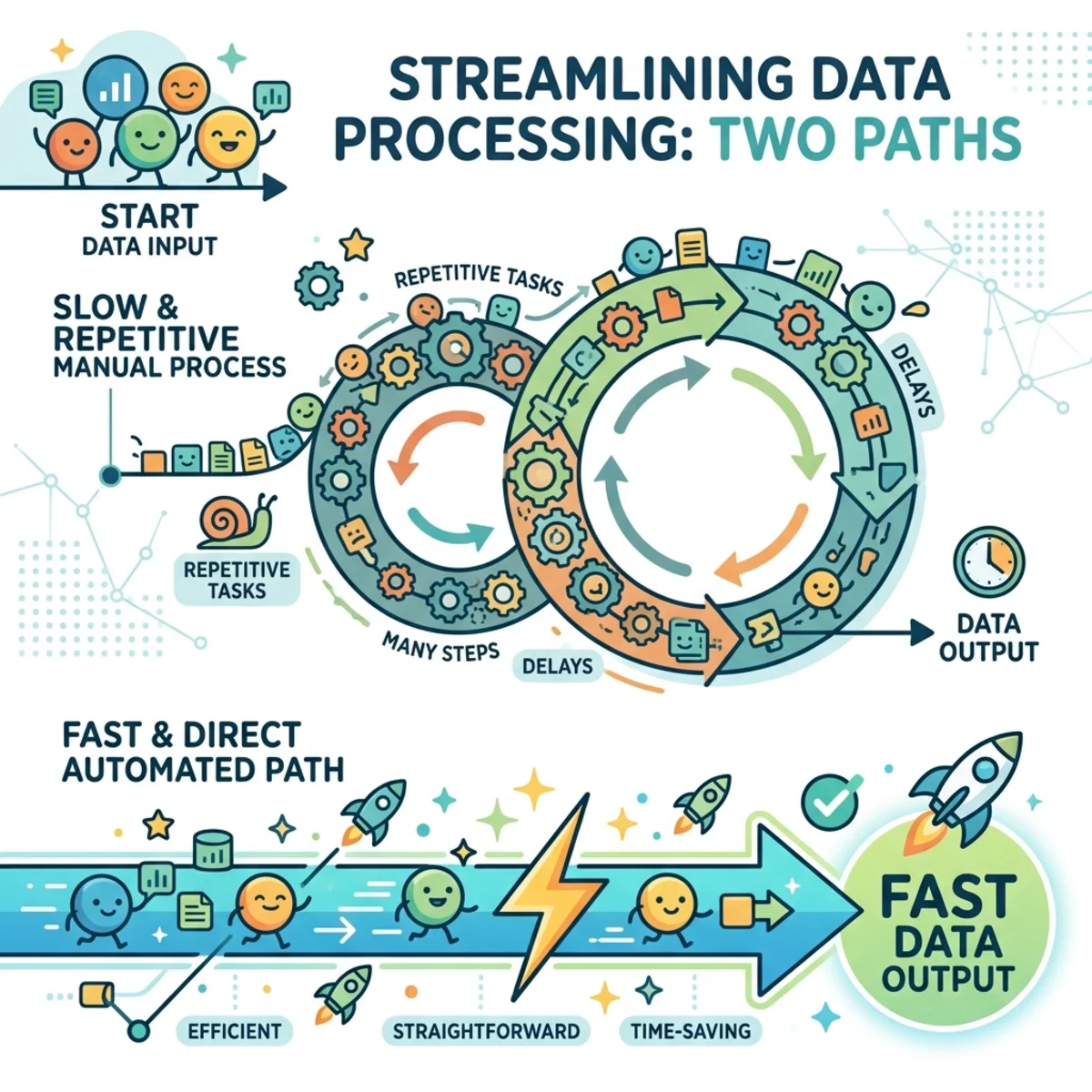
This does not make XPath universally faster, nor does it eliminate retrieval and conversion work. It can, however, remove hundreds or thousands of flow-action executions. Microsoft documents that an action inside Apply to each executes once per item and that built-in actions—including Compose and variable operations—count toward Power Platform requests.
Rule of thumb: Use XPath when data is already in memory and you need read-only aggregates or filters. Keep loops when every item requires a side effect such as updating a row, creating a file, calling a connector, or handling an item-specific failure.
Why replace an aggregation loop?
Consider an API that returns 194 products with fields such as price, stock, category, rating, and title.
A conventional total-price flow does this:
- Call the API.
- Initialize a numeric variable.
- Run Apply to each over the products.
- Increment the variable by the current product’s price.
- Output the final total.
In the source demonstration, that loop ran 194 times and took about 40 seconds. The XPath version reportedly completed in roughly half a second and produced the same result. These figures are a useful worked example, not a portable benchmark: connector latency, payload size, region, concurrency, retries, and the surrounding flow all affect runtime.
The more durable lesson is about action count. If an action inside a loop processes 10,000 records, it executes 10,000 times. The applicable request allocation depends on licensing and workload context, so “10,000 requests per day” should be treated as a hypothetical illustration rather than a universal entitlement.
The pattern in one view
The technique has four stages:
- Retrieve a JSON array.
- Wrap it in a JSON object with one root and a repeated item property.
- Convert that object with Power Automate’s
xml()function. - Run one or more
xpath()expressions against the XML.
Assume the source contains:
The desired XML shape is conceptually:
/root/item/price now means “select every price element under every item.”
Step 1: Convert the JSON array to XML
Add a Compose action named XML. If the product array is stored in an array variable named Data, use:
If a connector returns rows under body/value, use that array instead:
Each function has one job:
string()serializes the array.concat()adds therootanditemwrapper.json()parses the constructed string into a JSON value.xml()converts that value into an XML document.
The wrapper matters because XML requires one document element, while the repeated item property creates a predictable path for every array entry.
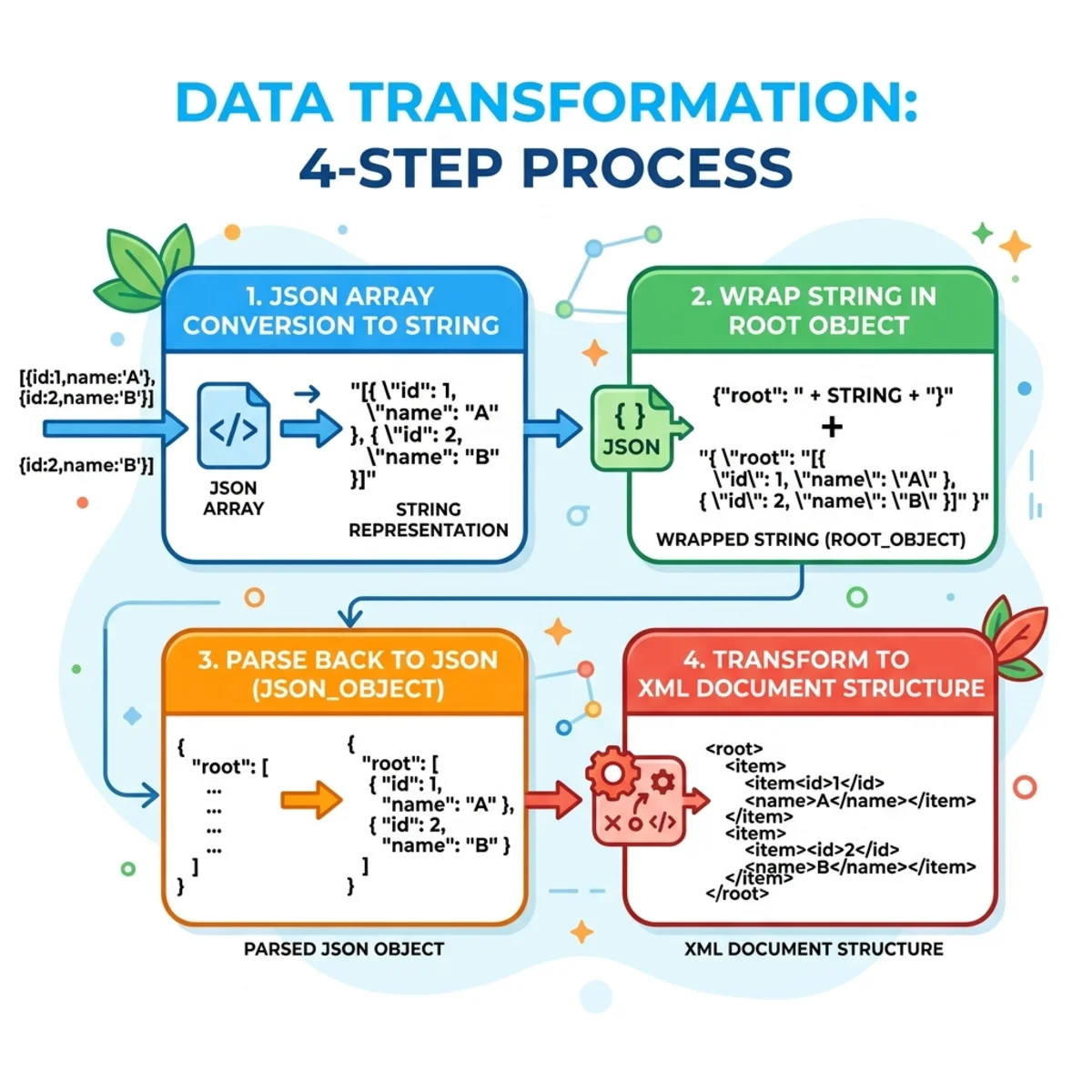
Run the flow with a small sample and inspect the XML output before writing complex queries. Connector payloads—especially SharePoint complex fields—may not have the shape you expect.
Step 2: Calculate totals, counts, and averages
The general expression is:
Total product price
Product count
Average product price
XPath 1.0 has no avg() function, so divide the sum by the count:
Count price elements rather than all items if some products may not contain a price. Check that the count is greater than zero before dividing and decide whether an empty input should produce null, 0, or an error.
Total units in stock
This demonstrates the main reuse advantage: convert the array once, then calculate total price, average price, product count, total stock, and filtered metrics from the same XML output.
Validate numeric data
XPath 1.0 converts selected text to numbers for sum(). A blank or nonnumeric value can result in NaN. Normalize the source or filter invalid values before trusting an aggregate. XPath is not a substitute for data-quality checks.
Step 3: Filter inside XPath
Predicates in square brackets filter the selected items before the aggregation runs.
Sum products in the beauty category
Count products rated above 4.5
Count out-of-stock products
Count premium products with good ratings
Return the names of out-of-stock products
Aggregates such as sum() and count() return scalar results. A location path that selects several text nodes returns several matches. Test the output shape before sending it to an action that expects one string; use a join or another array operation when appropriate.
Step 4: Group by category with a much smaller loop
Power Automate uses XPath 1.0, which does not offer the convenient distinct-values() and grouping features found in newer XPath/XQuery tooling. A practical compromise is to deduplicate category names first and loop only over those groups.
Build a category array
Add a Select data operation:
- From: the original products array
- Switch the mapping to text mode.
- Use:
Get distinct categories
Add a Compose action named Distinct_categories:
Using union() with the same array twice is a common Power Automate deduplication pattern.
Create one summary object per category
Initialize an array variable named Category_info. Run Apply to each over Distinct_categories. For the current category, calculate:
Use concat() in the flow expression to insert the current loop item into each XPath string. Append an object with this logical shape:
After the loop, Category_info contains one object per distinct category. It can feed a report, an HTML table, an email, or another downstream action.
The demonstration reduced 194 product iterations to 24 category iterations. This is not “no loops”; it is cardinality reduction. With 10,000 products in 24 categories, the grouped design iterates 24 times rather than 10,000 times.
Dynamic XPath deserves caution. A category containing quote characters can break the expression. If categories are controlled values, map or validate them. If arbitrary user text is allowed, escape XPath literals deliberately or use another grouping technique.
Apply the same pattern to SharePoint
The value property returned by SharePoint Get items is also an array, so it can use the same JSON-to-XML conversion.
However, XPath should not be the first tool used to shrink a large SharePoint dataset. Prefer this order:
- Use an OData Filter Query to retrieve only relevant items.
- Limit returned columns with an appropriate view.
- Configure Top Count and pagination when necessary.
- Convert the resulting
body/valuearray to XML. - Evaluate XPath over the smaller in-memory payload.
The source demonstrates a list with more than 10,000 rows, a Top Count of 5,000, and pagination configured with a threshold of up to 100,000. Treat that as a connector configuration example—not a universal guarantee that loading 100,000 items into one flow is efficient or safe. SharePoint’s 5,000-item list-view threshold, pagination requests, payload size, runtime, throttling, and XML conversion overhead still matter.
Query a nested SharePoint field
Suppose the generated XML contains a choice-like field in this shape:
Count completed tasks with:
Repeat the predicate for Blocked, Not started, and In progress if those are the actual stored values.
Do not assume every SharePoint Choice field becomes progress/value. Single-value choice fields may appear as simple values, while lookup, person, taxonomy, and multi-value fields can have other structures. Inspect the generated XML; its element path is the source of truth.
Where XPath fits
| Scenario | Recommended approach | Reason |
|---|---|---|
| Sum, count, or average an in-memory array | Consider XPath | One expression can replace many per-item actions. |
| Calculate several read-only metrics | Convert once and reuse the XML | The conversion is shared by all XPath expressions. |
| Reduce records before retrieval | Use server-side connector filters first | Moving less data is usually the larger optimization. |
| Update or call something for every record | Keep the item loop | Every record requires a side effect. |
| Group by a small set of values | Distinct array plus reduced loop | XPath 1.0 lacks modern grouping functions. |
| Handle arbitrary, deeply nested JSON | Consider data operations, a child flow, an API, or code | Dynamic XPath may become harder to maintain than the original loop. |
Measure performance instead of repeating a benchmark
The demonstration’s 194-item, 40-second loop and subsecond XPath result establish that the pattern can produce a large improvement in the tested flow. They do not establish a universal multiplier.
Compare both versions with the same production-like input and record:
- total flow duration;
- executed action count;
- connector calls, pagination, and retries;
- payload size and XML conversion time;
- behavior with missing or malformed values; and
- maintainability for the team supporting the flow.
The advantage is clearest when a loop contains built-in actions used only to accumulate data. If retrieval latency or connector throttling dominates the run, changing the local aggregation may improve only a small portion of the total duration.
Common failure modes
XPath returns zero or an empty array
Inspect the XML. The actual path, element name, capitalization, or nesting probably differs from the query.
sum() returns NaN
At least one selected value is nonnumeric. Clean the values or select only valid numeric elements.
The average fails for an empty array
Check the count before division and define the expected empty-state behavior.
A dynamic category breaks the XPath
Do not concatenate arbitrary text directly into XPath. Validate controlled values, escape literals correctly, or avoid the dynamic expression.
XML conversion becomes the bottleneck
Filter at the source, limit columns, or move the aggregation to the data platform. XPath is an in-flow optimization, not a database engine.
The flow still consumes many requests
Pagination, retries, connector actions, and other executed actions still count. XPath reduces the per-item action fan-out; it does not exempt a run from Power Platform or connector limits.
Optional: AI-assisted flow editing through MCP
AI-assisted editing is adjacent to the XPath technique, not part of it.
The source demonstrates a configured Power Automate MCP server used from Claude to add parallel Compose actions for Blocked, Not started, and In progress, then add a professionally formatted HTML email. This is a useful example of automating repetitive flow-definition work, but it is tool-specific.
Microsoft documents a built-in MCP server in the Power Platform CLI for invoking supported CLI operations from MCP-compatible clients. Independent MCP servers may advertise deeper flow-reading and flow-editing tools. Do not assume those servers have the same capabilities, support model, authentication path, or security posture.
Before allowing an AI agent to modify a flow:
- identify whether the MCP server is Microsoft-provided or third-party;
- inspect the exact tools it exposes;
- use least privilege and a nonproduction environment;
- preserve a recoverable version of the flow;
- review expressions, actions, connections, and recipients; and
- test before promotion.
Providing a flow URL alone is not a universal edit mechanism. The agent requires a configured MCP client, an installed server with suitable tools, authenticated access, and permission to modify the target environment.
Final guidance
XPath is valuable because it changes the unit of work. Instead of executing one or more actions for every record, the flow converts the records into a queryable document and evaluates set-based expressions.
Use the pattern deliberately:
- Filter and shape data at the source.
- Convert the resulting array once.
- Reuse the XML for totals, counts, averages, stock metrics, and filtered queries.
- Use distinct values to reduce grouping loops.
- Keep per-item loops for genuine side effects.
- Validate numeric fields, empty inputs, dynamic strings, nested paths, and payload size.
- Benchmark the complete flow.
The goal is not to ban Apply to each. It is to stop using an item-by-item control structure for work that is fundamentally a set-based calculation.
References
- Reference guide to workflow expression functions in Azure Logic Apps and Power Automate
- Understand platform limits and avoid throttling in Power Automate
- Power Platform request limits and allocations
- Use data operations in Power Automate
- Work with SharePoint Get items and Get files actions
- Use the Power Platform CLI built-in MCP server
Read next