Unlocking the Terminal: GitHub Copilot CLI Deep Dive

Writer

The terminal has long been the purist’s domain—a distraction-free zone for deep focus. But as coding agents evolve, the command line is undergoing a massive renaissance. In this article, we will go under-the-hood to look at how the GitHub Copilot CLI is turning the traditional terminal into a highly parallel, multi-model AI powerhouse.
Whether you are already running version 1.0.11 of the Copilot CLI or haven’t yet made the jump from your IDE, here is a comprehensive breakdown of the workflows, commands, and architectural philosophies that are redefining terminal-based development.
The Terminal Renaissance: Why Leave the IDE?
The immediate question for many developers is: Why execute AI workflows in the terminal instead of an editor like VS Code?
The answer lies in focus and multiplexing. Modern Terminal User Interfaces (TUIs) have evolved to feel as rich as standard web apps—down to supporting actual mouse clicks on interface tabs. By combining the Copilot CLI with multiplexers like tmux, developers can cascade multiple autonomous agent instances across their screens. It removes the visual noise of a heavy IDE while maintaining high-velocity output.
Focus and Multi-tasking: Using a rich TUI paired with tmux allows you to manage parallel agentic tasks without the overhead and distraction of a full IDE interface.
Core Workflows: From Issue to Autopilot
The CLI is designed to handle end-to-end task execution rather than just simple autocomplete.
Contextual Awareness
You can instantly poll your repository’s state. Using Tab and Shift+Tab, the CLI can scan and read all open issues and Pull Requests, allowing you to easily navigate the current context of your project without opening a browser.
Plan Mode & Autopilot
Instead of writing code line-by-line, you can feed an entire GitHub issue directly into Plan Mode. The agent generates a step-by-step execution plan and comprehensive architectural strategy. Once approved, you flip it into Autopilot, and the CLI autonomously writes, commits, and tests the implementation.
Cost-Effective Velocity
During a live demonstration, the Copilot CLI built a complete, feature-rich Electron app from scratch in roughly 20 to 25 minutes. It featured an Octocat that reacts to Git operations (e.g., a “goblin mode” that meows on a commit).
The total compute cost for this autonomous generation was surprisingly low—consuming roughly 1,300 credits, equating to an estimated $5 to $10.
ROI of Autopilot: Building a complete app in 25 minutes for under $10 demonstrates the incredible cost efficiency of letting the agent drive the implementation from a structured plan.
Advanced CLI Mechanics: Multi-Tasking and Multi-Model Routing
The Copilot CLI isn’t just a single-threaded chat window; it is a parallel processing environment.
1. Session Multiplexing (/new and /sessions)
Developers rarely work on one thing linearly. The CLI supports parallel execution natively.
If you are mid-implementation but need to research another issue, you can type /new. This immediately backgrounds your current session and starts a new parallel task.
Using /sessions, you can view a list of all concurrently running agent sessions and seamlessly toggle between active parallel tasks, just like switching tabs in a browser.
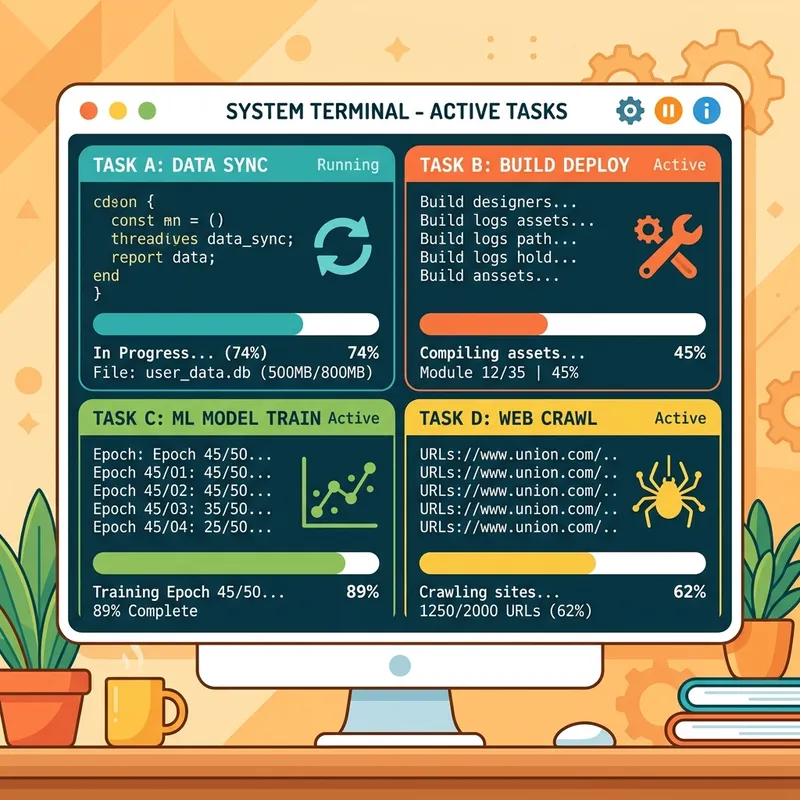
Parallel Tasks: Use /new to research an issue while another session continues writing code, and use /sessions to switch between them effortlessly.
2. Multi-Model Code Review (/review)
One of the most powerful features discussed is the ability to leverage multiple LLMs for a single task. By invoking the /review command, you can trigger an AI code review utilizing several flagship models simultaneously.
For instance, you can dictate specific models to cross-reference—prompting Claude Sonnet, GPT, and Gemini to analyze the same code.
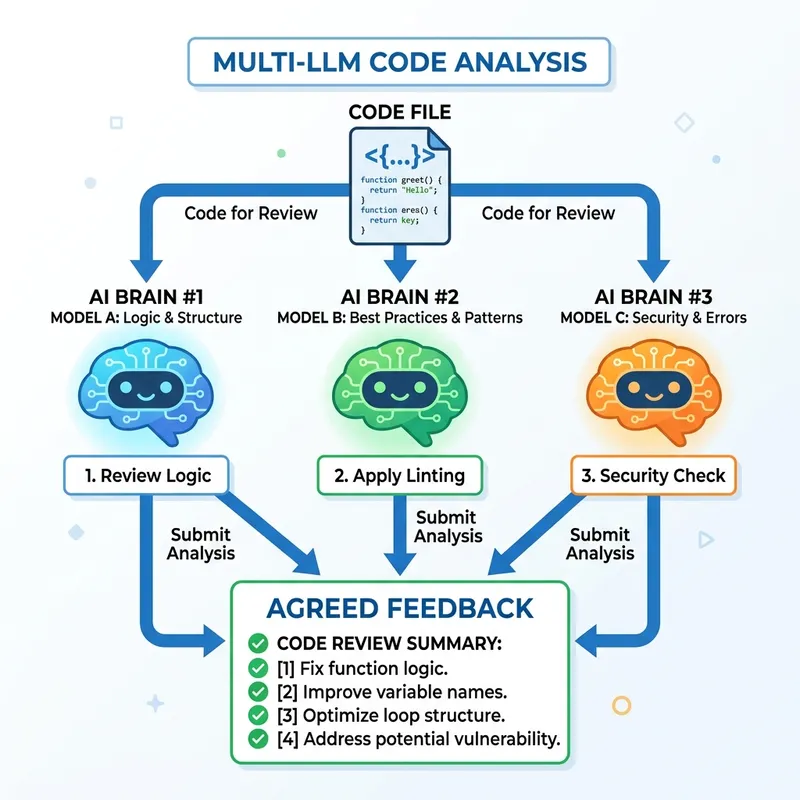
Pro-Tip: You can prompt the CLI to aggregate the reviews and only surface the feedback where all models are in strict agreement (overlapping, agreed-upon issues), drastically reducing AI hallucinations and nitpicking.
3. Native Elicitation
The CLI handles ambiguity natively. If you ask for a review but don’t specify the target, it invokes its Elicitation protocol. Instead of guessing, it pauses and provides a contextual prompt, asking if you want to evaluate the entire repository, a specific branch, or just the unstaged, uncommitted changes.
Tailoring the Agent: Custom Instructions & Voice Control
To get the most out of the CLI, you have to mold it to your specific development style.
Dynamic Custom Instructions
AI agents can generate massive walls of text. If you prefer concise updates, you can dynamically ask the CLI to update its behavior: “Update my custom instructions to be brief, keep it to one sentence.”
This command automatically updates your local copilot-instructions file. For enterprise environments, you can commit these rule sets to your team’s .github/copilot folder to ensure the agent behaves consistently across your entire engineering team.
Local Voice Dictation (/voice)
Typing complex architectural prompts can be tedious. The CLI includes a native /voice command to toggle dictation/voice commands, championed heavily by developers who prefer to pace and dictate their logic rather than type it.
The technical edge here is that the voice transcription doesn’t rely on round-trips to a cloud API. It is powered by local models (specifically NVIDIA’s Nemotron, English/Spanish, an approx. ~700MB initial download). Because the model sits entirely on your hardware, the transcription streams locally with zero latency without hitting cloud inference APIs.
Zero Latency Voice: By using the local NVIDIA Nemotron model, the /voice command avoids cloud inference delays and ensures your dictation is streamed natively on your machine.
The Takeaway: Unlocking High Velocity
The development velocity unlocked by these tools is staggering. Inside GitHub’s own AI tooling divisions, teams of 10 are merging roughly 2,000 PRs a month—a pace so aggressive that developers have to constantly rebuild their mental model of the repository every few weeks.
If you have been holding out on terminal-based AI agents, the barrier to entry has never been lower, and the feature set has never been deeper. Open your terminal, install the GitHub Copilot CLI, and experience the workflow for yourself.
Read next