10 Microsoft Copilot Features for Agentic Work

Writer

Microsoft is updating Microsoft 365 Copilot at a furious pace. Across Outlook, PowerPoint, Excel, Word, and Copilot Chat, the product is moving beyond a chatbot that recommends what to do and toward an application-aware agent that can plan work, modify content, and complete actions with the user still in control.
That shift is the thread connecting the ten features in this article. Some are major workflow changes, such as Plan mode in Excel and actionable assistance in Outlook. Others are smaller refinements, such as moving the Copilot button or linking a change summary directly to the affected spreadsheet cells. Together, they show what the next stage of Copilot looks like: more models, more specialization, more action, and more review before execution.
Microsoft deploys Copilot capabilities gradually. Availability can differ by application, platform, update channel, tenant configuration, licensing, geography, and whether an organization participates in the Frontier early-access program. Model options also depend on what an organization permits. Treat the interface and examples below as a view of the current rollout, not a guarantee that every tenant will show every option immediately.
The mental model: from adviser to application-aware collaborator
The first generation of Copilot behaved primarily like a knowledgeable adviser:
- You asked a question.
- Copilot produced an answer or draft.
- You transferred that output into the real work.
The newer experience compresses those steps. Copilot can understand the document, workbook, presentation, or mailbox in front of it; ask clarifying questions; propose a plan; and use native application capabilities to perform the work.
This does not mean Copilot should operate without supervision. In fact, several of the most important improvements are control mechanisms: previewing a plan, reviewing highlighted changes, jumping to an edited cell, and keeping generated slides aligned with an approved brand. The direction is not simply more automation. It is more capable automation with visible checkpoints.
1. Model choice comes to Copilot and the Microsoft 365 apps
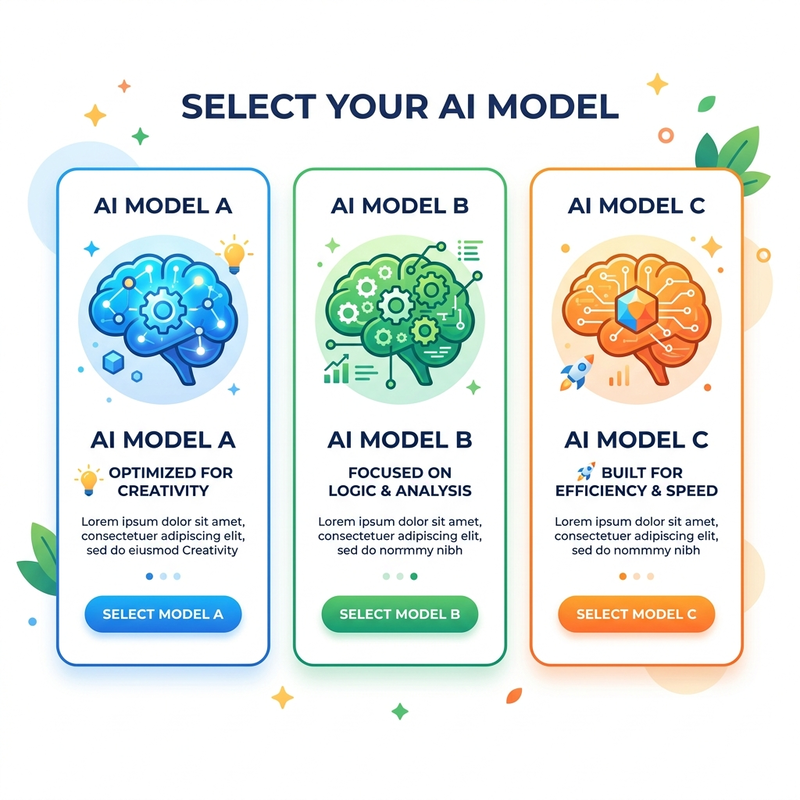
One of the biggest changes is a visible model picker across Copilot experiences. Instead of assuming one foundation model is ideal for every request, users can increasingly leave the choice on Auto or select a model that better fits the task.
The exact list is workload-dependent and changes as Microsoft updates the service. Current and recently demonstrated choices across Copilot Chat, Word, Excel, and PowerPoint include models from both OpenAI and Anthropic, such as GPT-5.5, GPT-5.6, Claude Sonnet, Claude 4.8, and Claude Opus 5. Microsoft announced GPT-5.6 for Copilot Chat, Word, Excel, PowerPoint, and Cowork in July 2026. Anthropic availability is subject to organizational settings and Microsoft’s data-processing configuration.
The practical mental model is straightforward:
| Mode or model type | When it may fit |
|---|---|
| Auto | Everyday work where Copilot can select an appropriate model |
| Faster general-purpose model | Drafting, quick analysis, lookups, and routine edits |
| Deeper reasoning model | Multi-step analysis, difficult synthesis, and complex planning |
| Image-generation model | Presentation visuals and creative image workflows |
PowerPoint adds another dimension: the text and reasoning model can be paired with a separate image-generation model. Demonstrated options include Microsoft’s MAI-Image-2.5 Flash as well as GPT Image 2 and GPT Image 1.5. That means a user may be able to select one model for reasoning about the deck and another for generating its visuals.
The important idea is not that one named model always wins. Model names and rankings change quickly. The durable change is that model selection is becoming part of the user experience, and the best choice depends on the work, required depth, response speed, and organizational policy.
Access to Anthropic models may depend on Microsoft 365 admin settings. Administrators should review the relevant subprocessor and AI-provider controls, especially where regional data-boundary requirements apply.
2. The Copilot button can move out of your way
In Word, Excel, and PowerPoint, the Copilot button can appear in the lower-right corner of the application. That placement makes Copilot easy to discover, but it can obscure content in a dense workbook, document, or slide.
Users can now reposition the entry point:
- Dock it so that it sits at the edge of the workspace.
- Undock it to restore the floating experience.
- Move it to the ribbon alongside other application commands.
- Move it out of the ribbon if the floating button is preferable.
The behavior has been demonstrated across web and desktop experiences, although the exact context menu can vary by platform and rollout.
This is a small feature with an important design lesson: mature AI should fit the workspace rather than demand permanent visual priority over the work itself.
3. Outlook moves from summarizing email to acting on it
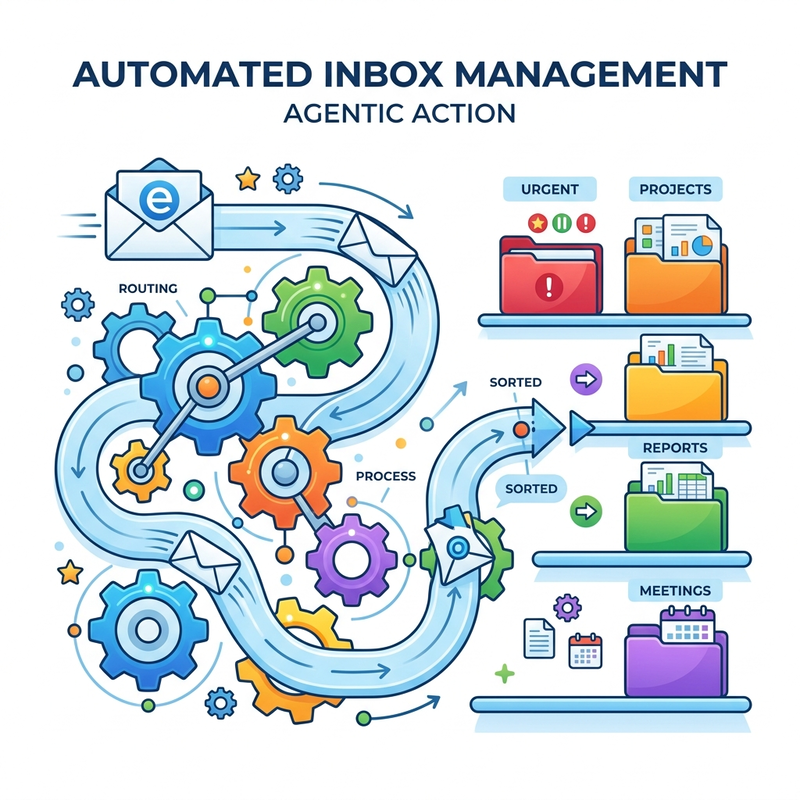
Copilot in Outlook began with tasks such as summarizing threads, drafting replies, and helping users catch up. The new agentic direction is more consequential: Copilot can take native Outlook actions instead of merely explaining what the user should do.
In supported Outlook experiences, an Allow actions mode enables a broader set of mailbox operations. Demonstrated categories include:
- email triage;
- flagging messages for follow-up;
- composing and refining messages;
- creating and managing folders;
- adding categories;
- searching the mailbox and surfacing insights;
- creating rules to organize future messages.
Consider a simple sequence:
- Ask Copilot to identify messages that require action and flag them for follow-up.
- Ask it to create a subfolder for a recurring topic.
- Let Copilot suggest a rule that sends future matching messages to that folder.
- Review the folder and rule through the normal Outlook interface.
The value is not just that Copilot can perform three commands. It can connect them into a coherent workflow. It understands that creating a folder often implies a follow-on need to route similar mail there.
These changes remain visible and reviewable in Outlook. That distinction matters. Copilot is acting through application-native objects such as flags, folders, categories, drafts, and rules, rather than behaving like an invisible automation service with no obvious audit trail.
At the time of the original demonstration, Allow actions was associated with Frontier and early-adopter access. Microsoft has separately described agentic Outlook experiences rolling out across modern Outlook surfaces, so organizations should verify the exact action set available in their own tenants.
4. PowerPoint Skills package repeatable expertise
PowerPoint Skills are reusable, instruction-based capabilities for completing a specific kind of presentation task. A skill is more structured than a clever prompt: it packages task guidance and, when necessary, gathers the context required to run a repeatable workflow.
Users can find skills from the Copilot pane, manage the skills available to them, and invoke a specific one with an @ mention. Built-in examples demonstrated in PowerPoint include:
| Skill | What it helps you do |
|---|---|
@prepare for questions | Anticipate objections, weaknesses, and audience questions |
@visualize this slide | Transform a text-heavy slide into a stronger visual composition |
@review this presentation | Critique an existing deck and identify areas to improve |
Prepare for questions
@prepare for questions works like a rehearsal partner. Before producing its analysis, it can ask for information such as:
- Who is the audience?
- Is the goal to inform, persuade, or pitch?
- Will the presentation be delivered in person, in a hybrid setting, or read asynchronously?
Copilot then analyzes the deck in that context. It can identify likely objections, call out weak claims, expose missing comparisons, and suggest how the presenter might acknowledge and answer each challenge. For example, it may notice that an argument relies on illustrative numbers, that a “modest” budget was never quantified, or that the deck considered only one solution.
That is more useful than a generic list of presentation tips because the critique is grounded in the presentation and the circumstances in which it will be delivered.
Visualize this slide
@visualize this slide addresses a different problem: slides that communicate through paragraphs and bullet lists when the idea would be clearer as a visual.
The skill can create a more polished slide while following the presentation’s existing palette and design language. The goal is not to generate a random infographic that looks imported from another deck. It is to improve the slide while keeping it visually coherent with the surrounding presentation.
Microsoft also documents support for custom PowerPoint skills. Users can add reusable instruction files, store them in the designated OneDrive Skills folder, and invoke them through the same skill picker or @-mention pattern. This turns Skills from a fixed catalog into an extensibility model for repeatable presentation work.
5. Brand Kits make generated decks organization-aware
AI can create an attractive presentation and still create the wrong presentation for the organization. A deck may use the wrong logo treatment, unapproved colors, generic imagery, or a visual style that clashes with corporate standards.
Brand Kits provide Copilot with an explicit source of brand truth. Depending on how the kit is configured, it can include:
- approved logos and logo usage;
- color palettes;
- typography;
- templates and layout patterns;
- icons and visualization styles;
- approved photography and image treatments;
- visual and verbal brand guidance;
- reusable branded assets, such as product imagery.
When creating a presentation from a prompt or a source document, the user can associate the generation request with an available Brand Kit. Copilot can then use the supplied content while applying the organization’s visual identity across the deck.
In practice, that can affect more than the cover slide. A generated presentation may reuse approved logos and imagery, preserve brand colors, apply consistent layouts, incorporate information from a source Word document, and maintain details such as slide numbering and date treatments.
Official Brand Kits are managed through the Microsoft 365 Copilot experience. Microsoft distinguishes brand-management permissions from ordinary usage: designated brand managers can create and maintain official kits, while employees can use published kits to generate on-brand material. Availability and management rights depend on licensing and administrative policy.
The strategic value is consistency at generation time. Instead of asking employees to repair the brand after Copilot produces the deck, the organization gives Copilot better constraints before it starts.
6. PowerPoint’s new creation flow combines research, questions, and generation
The PowerPoint creation experience is becoming less like a one-shot “make slides” command and more like a short creative brief.
From the File experience, users can describe what they want to create. They may also reference supporting files or ask Copilot to research a topic, depending on the available experience. Copilot can then ask clarifying questions before it assembles the presentation, including:
- Who is the primary audience?
- How many slides are required?
- What tone or purpose should the deck have?
- What visual style and image treatment should it use?
A request might ask Copilot to research the latest information about a Microsoft 365 capability, explain its value proposition, and turn the findings into a five- or six-slide presentation with a specified visual style. Copilot can gather context, confirm the audience and length, propose an outline, and then generate slides that can be refined conversationally.
The distinction is important. This is not just text-to-slides. It is a workflow that can combine:
- topic definition;
- source-file grounding or web research;
- requirements gathering;
- outline creation;
- slide generation;
- iterative editing.
Microsoft’s documented PowerPoint Agent Mode also asks clarifying questions and allows users to refine the outline before generating slides. Some controls for presentation length, tone, style, and image preferences have rolled out first to Frontier and Microsoft 365 Insiders, reinforcing the need to check tenant availability.
7. Excel Personalization teaches Copilot your conventions
Experienced Excel users rarely format every workbook from first principles. They develop conventions: how negatives appear, how dates are written, which currency to use, how values are rounded, and what should be highlighted.
Excel Personalization lets users express some of these preferences in natural language. Example instructions include:
- Always format negative numbers in red.
- Use whole numbers when rounding.
- Highlight cells containing a particular word, such as “movies,” in yellow.
- Use British pounds for currency values.
- Follow a specific date format.
The user saves these instructions from the Copilot pane and can then ask Copilot to update a sheet according to those personalization settings. Copilot analyzes the workbook, proposes or applies the relevant changes, and highlights updates for review before the user accepts them.
The mental model is a lightweight style guide for your spreadsheet work. Instead of repeating the same formatting requirements in every prompt, you teach Copilot the conventions once and reference them when needed.
Personalization does not eliminate review. A convention that works for a personal budget may not apply to every financial model. The useful pattern is persistent preference plus visible approval, not blind global formatting.
8. Excel links Copilot’s change summary to the workbook
After Copilot makes several changes to a large workbook, a textual summary is not enough. Users need to locate and inspect the affected cells.
Excel now makes change descriptions in the Copilot pane actionable. When an update references a cell, range, table, or sheet location, the response can include a hyperlink. Selecting it moves the active view directly to the relevant part of the workbook and highlights the location.
That improves three parts of the review process:
- Orientation: You immediately know where the change occurred.
- Validation: You can inspect the edited value, formula, or formatting in context.
- Navigation: You do not need to search a long workbook manually.
This sounds like a minor navigation improvement, but it solves a trust problem. An agent that edits a spreadsheet must also help the user understand what it changed. Hyperlinked references connect Copilot’s explanation to the actual workbook state.
9. Plan mode separates intention from execution in Excel
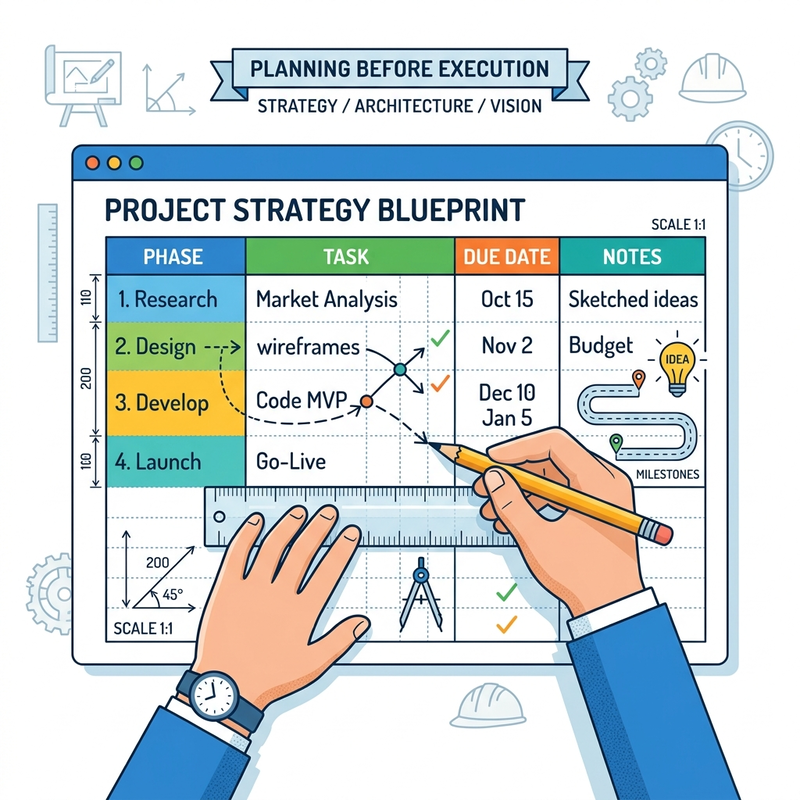
Agentic editing is most useful when Copilot can handle broad outcomes, not only isolated commands. But broad outcomes also create more risk. “Modernize this budget workbook” could mean changing its layout, formulas, sheets, charts, or underlying structure.
Excel’s Plan mode adds a deliberate checkpoint before those changes occur.
A typical workflow looks like this:
- Switch from an editing mode to Plan.
- Describe the desired outcome, such as modernizing a budget workbook.
- Ask Copilot to research relevant approaches if the task requires current external context.
- Answer follow-up questions about priorities and acceptable structural change.
- Review Copilot’s proposed step-by-step plan.
- Select Proceed only when the approach is acceptable.
For example, a user might ask for dashboards and charts while requesting minimal change to the original workbook. Copilot could respond with a plan to:
- create a new dashboard sheet;
- preserve the original budget table;
- reference existing data rather than duplicate it;
- add a spending-breakdown chart;
- add summary metrics and other visualizations;
- keep charts connected so that they update as the source data changes.
Only after approval does Copilot create or modify workbook content. The user can then inspect the result and make a follow-up request, such as adding demonstration data to populate an otherwise empty template.
Plan mode does not guarantee that every proposed formula, structure, or assumption will be correct. Its value is architectural visibility. The user gets to review how Copilot intends to solve the problem before the workbook becomes the execution surface.
For critical operational or financial models, that review boundary is far more valuable than another clever prompt.
10. Excel Skills bring domain workflows into the workbook
Excel is also adopting the Skills model. Users can invoke available skills through an @ mention, giving Copilot a structured set of instructions for a specialized spreadsheet task.
The early catalog demonstrated in Excel is heavily oriented toward finance. Examples include:
@three statements;@buyer list;@catalyst calendar;@check model;@comps analysis;@merger model;@model update;@portfolio monitoring.
These are not magic buttons that remove the need for financial judgment. They are packaged workflows that tell Copilot how to approach a defined class of task, including the expected structure and sequence of work.
At the time of the demonstration, the Manage skills experience exposed Finance as the primary category in Frontier. Microsoft indicated that more skills and functional categories were expected over time. That future expansion should be treated as roadmap direction rather than a promise that a particular domain is already available.
The broader lesson is more important than the initial finance list. Microsoft is moving from general prompting toward domain-shaped AI assistance. Instead of requiring every analyst to invent the perfect prompt for a merger model or model check, Copilot can expose a repeatable workflow designed for that task.
What these ten features reveal about Microsoft’s strategy
Taken separately, some of these updates appear incremental. Taken together, they describe a coherent product direction.
1. Agency
Copilot increasingly acts on native application objects: slides, cells, messages, folders, rules, categories, and workbook structures.
2. Specialization
Skills package repeatable expertise for a particular task rather than asking users to rebuild the workflow in every prompt.
3. Personalization and organizational context
Excel preferences adapt work to the individual. Brand Kits adapt generated content to the organization.
4. Model flexibility
Different reasoning and image models can serve different workloads. Auto mode can hide that complexity, while an explicit picker gives advanced users more control.
5. Reviewability
Plan mode, highlighted edits, linked cell references, visible Outlook objects, and editable slides make the result easier to inspect and refine.
This last point is critical. Enterprise AI is not successful merely because it can take action. It succeeds when users can understand the proposed action, inspect the result, and correct it without leaving the application where the work lives.
What to watch before relying on these capabilities
These features are promising, but three practical caveats remain.
Rollout status is part of the feature
A capability shown in Frontier, Microsoft 365 Insiders, or a staged rollout may not yet be in the standard production experience. Check Microsoft 365 release notes, the Message center, and the application itself before building training or operating procedures around a demonstration.
Model availability is an organizational decision
The visible model list can reflect tenant settings, licensing, region, and Microsoft’s current service configuration. Anthropic models may require administrative enablement and have data-processing considerations that administrators should evaluate.
Action still requires judgment
A generated dashboard can contain weak assumptions. A finance skill can structure a model incorrectly. A presentation can sound persuasive while relying on unsupported evidence. An Outlook rule can organize mail in an unintended way.
Agentic Copilot reduces mechanical effort. It does not transfer accountability away from the person reviewing the work.
Final thoughts
The most important story here is not GPT-5.6, a moveable button, or one particularly polished slide.
It is the convergence of reasoning, application context, packaged skills, native actions, personalization, and review controls inside Microsoft 365. Copilot is becoming less like a chat window beside the work and more like a collaborator operating within the work.
The strongest features are therefore not necessarily the ones that do the most autonomously. They are the ones that combine action with context and control: Outlook actions that create visible mailbox objects, PowerPoint generation constrained by a Brand Kit, Excel changes linked back to their cells, and Plan mode that lets users approve an approach before execution.
That is the practical shape of agentic productivity: not AI replacing the application, but AI learning how to work through it.
Sources and further reading
- Available today: OpenAI’s GPT-5.6 in Microsoft 365 Copilot
- Copilot in Microsoft 365 apps with Anthropic models
- What’s New in Microsoft 365 Copilot, June 2026
- Copilot in Outlook: New agentic experiences for email and calendar
- Edit with Copilot in PowerPoint
- Use custom skills with Copilot in PowerPoint
- Create a new presentation with Copilot in PowerPoint
- Create and manage official Brand Kits in the Microsoft 365 Copilot app
- Microsoft 365 Copilot release notes
Read next