Microsoft 365 Copilot Office Agents vs In-App Copilot: Where Should You Work?

Writer

Microsoft now offers two closely related ways to work with Copilot and Office files.
You can use the dedicated Word, Excel, and PowerPoint Agents from Microsoft 365 Copilot Chat, including the Microsoft 365 Copilot experience in Teams. Or you can open Word, Excel, PowerPoint, or Outlook and work with Copilot inside the application itself.
These experiences overlap. Both can create content, reason over context, and help produce Office artifacts. But they are not interchangeable. They begin from different places, expose different controls, and are optimized for different stages of the work.
The shortest useful distinction is this:
Office Agents in Microsoft 365 Copilot are chat-first creation experiences. Copilot inside the Office apps is an app-first creation, editing, understanding, and action experience.
That distinction becomes especially important when the file already exists, when formulas or layouts must remain intact, or when a PowerPoint presentation must follow a personal or corporate Brand Kit.
Availability note: Microsoft rolls out Copilot capabilities gradually. Availability can differ by application, platform, update channel, license, tenant configuration, geography, and Frontier or Insider participation. The Word, Excel, and PowerPoint Agents also require Anthropic models to be enabled for the tenant. Verify the experience available in your own environment before standardizing a workflow around it.
Two Copilot experiences, two starting points
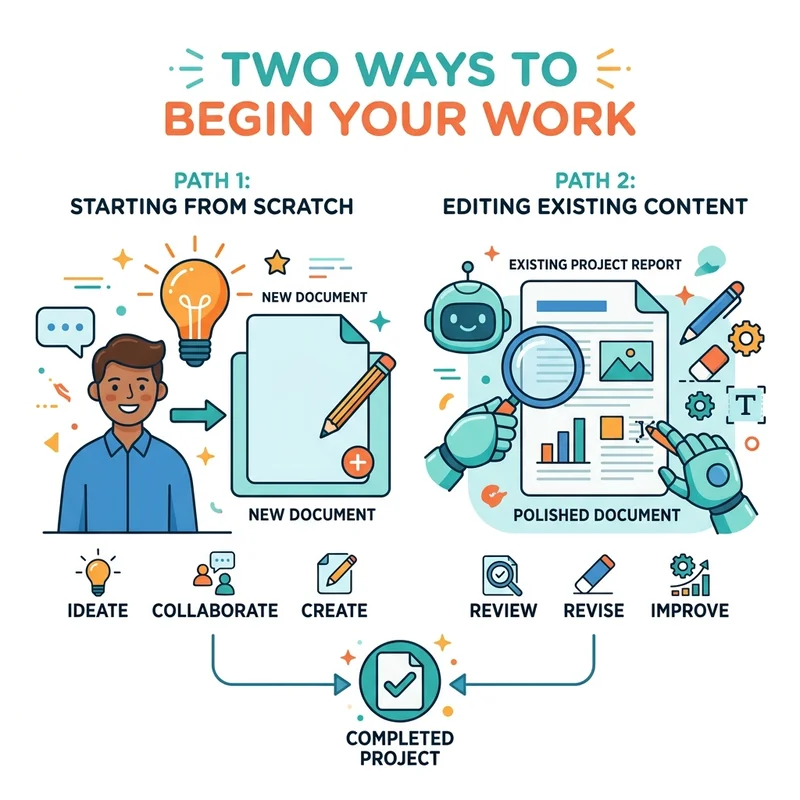
A useful mental model is to ask where Copilot is standing when the work begins.
The dedicated Office Agent in Microsoft 365 Copilot stands outside the file. It starts with your intent, gathers context, asks clarifying questions, and creates a new artifact.
Copilot inside an Office app stands inside the file or application workspace. It can see the active document, workbook, presentation, inbox, or calendar and operate on application-native objects.
Consider these two requests:
Create a six-slide executive presentation using the latest project documents, steering committee meeting, and relevant research.
That is a strong PowerPoint Agent scenario. The task starts as an outcome, its context is distributed, and no presentation may exist yet.
On slide 4, replace the bullets with a timeline, preserve the current design, and adapt slides 5 through 7 for a UK executive audience.
That is a strong Copilot-in-PowerPoint scenario. The deck exists, the request targets specific slides, and the result must fit the presentation already on the canvas.
Microsoft describes the intended flow as chat-first creation followed by app-first refinement. Users can start a project in Copilot Chat, generate the initial Office artifact, and then move into Word, Excel, or PowerPoint for more precise editing, formatting, validation, and collaboration.
Are they powered by the same capabilities?
They share important foundations, but they are not identical product surfaces.
Microsoft says the Word, Excel, and PowerPoint Agents can use the same Office skills used by agentic experiences inside the applications. This is what allows the chat-based Agents to generate real Word documents, Excel workbooks, and PowerPoint presentations rather than merely returning text for the user to copy.
However, shared skills do not guarantee identical controls, context, models, or feature exposure.
| Dimension | Office Agents in Microsoft 365 Copilot or Teams | Copilot inside an Office app |
|---|---|---|
| Primary orientation | Chat-first | App-first |
| Best starting point | No file yet, or the deliverable is loosely defined | A file or application workspace already exists |
| Core strength | Planning and generating an initial Office artifact | Understanding, editing, and acting on the active artifact |
| Context | Conversation, uploaded or referenced files, web content, and permitted enterprise data | The active file or Outlook workspace, plus permitted work context |
| Interaction | High-level feedback such as “make it shorter” or “add a slide” | Granular changes to slides, text, formulas, ranges, layouts, messages, and calendar objects |
| Output | A new file, normally saved to OneDrive | Changes to the currently open file or application state |
| Review model | Review the generated draft, then continue in chat or open the file | Inspect changes directly in the application canvas |
| Model behavior | Office creation Agents currently depend on Anthropic models | In-app experiences can expose Auto and multiple Anthropic or OpenAI models, depending on the app and tenant |
| Brand Kit parity | Direct selection is not currently documented for the chat-first PowerPoint Agent | Brand Kit selection and use are explicitly documented in PowerPoint |
The practical difference is not simply which Copilot button you select. It is whether the work is still being defined or whether a real Office artifact has become the system of work.
When the Office Agents make more sense
The Word, Excel, and PowerPoint Agents in Microsoft 365 Copilot are designed primarily for the initial creation flow. They are most useful when you know the business outcome but have not yet created the file.
Start from a deliverable, not an application
The Agent is a good choice when the request sounds like this:
- Create a board briefing from the latest project materials.
- Build a comparison workbook from these proposals and current web data.
- Draft a policy paper using recent meetings, email, and reference documents.
- Turn this research conversation into a presentation for executive leadership.
The user does not need to decide the document structure, workbook tabs, or slide sequence before starting. The Agent can interpret the objective, ask clarifying questions, and propose an artifact.
Synthesize context distributed across Microsoft 365
With the appropriate Microsoft 365 Copilot license, the creation Agents can incorporate information from permitted files, email, meetings, chats, SharePoint content, and the web. Users can also upload or reference source files directly.
This makes the Agent valuable when collecting and organizing the evidence is part of the assignment. The job is not merely “make slides.” It is “find the relevant context, shape the story, and then make slides.”
Users without the Microsoft 365 Copilot add-on can still access supported Agent experiences, but their grounding options differ. Microsoft documents web grounding and explicitly referenced files for those users, while licensed users can benefit from broader work context subject to permissions.
Work conversationally before committing to the file
The Agents can ask about audience, purpose, tone, format, and other requirements. The user can refine the result with high-level instructions before moving into the Office app.
This is useful for the blank-page stage, where the most important questions are strategic:
- What should this artifact accomplish?
- Which evidence matters?
- What structure best fits the audience?
- What should be emphasized or omitted?
Stay in Copilot Chat or Teams while the work is cross-application
Microsoft 365 Copilot in Teams is a host for the same Microsoft 365 Copilot experience. The PowerPoint Agent in Teams is not a separate PowerPoint engine. It is the chat-first PowerPoint creation Agent surfaced within Teams.
If the request emerges from a meeting, ongoing Copilot conversation, or multi-source research task, staying in that conversation long enough to produce the initial artifact can reduce unnecessary context switching.
When Copilot inside PowerPoint makes more sense
Use Copilot inside PowerPoint when the presentation itself is now the center of the task.
Make precise changes to a real deck
In-app Copilot can add or update slides, reorganize sections, rewrite content, change imagery, and reason about the presentation already open. It can work on selected slides and preserve more of the existing presentation context.
Examples include:
- Update slides 4 through 6 for a different audience.
- Replace the bullets on this slide with a SmartArt timeline.
- Rewrite this title without changing the slide’s meaning.
- Move the risks section before the implementation plan.
- Review the deck for weak claims and likely executive objections.
These are canvas-aware tasks. They depend on slide sequence, presentation hierarchy, current layouts, and the visual state of the deck.
Preserve the template, theme, and design language
If the presentation already uses an approved corporate template, PowerPoint is the safer working surface. Copilot can inspect sample slides, layouts, placeholders, design objects, and the current presentation’s visual patterns.
Microsoft recommends beginning with the organization’s template when brand consistency matters. The template provides the structural design grammar: layouts, masters, placeholder behavior, content density, visual hierarchy, and representative slide patterns.
Refine the deck visually
A presentation cannot be validated only through chat. Someone must inspect spacing, image quality, chart readability, density, balance, transitions, and narrative flow.
Once a first draft exists, in-app Copilot is the natural environment for:
- slide-level rewriting;
- visual restructuring;
- image generation or replacement;
- speaker-note preparation;
- section reordering;
- presentation review;
- collaborative editing;
- final human inspection.
PowerPoint Brand Kits: the two experiences do not currently have documented parity
Brand Kits expose the clearest difference between the chat-first PowerPoint Agent and Copilot inside PowerPoint.
Microsoft explicitly documents Brand Kit support for Copilot inside PowerPoint on Windows, Mac, and the web. PowerPoint can combine the active template with selected Brand Kit assets and guidance when creating or editing slides.
Microsoft does not currently document an equivalent Brand Kit picker or guaranteed Brand Kit consumption for the standalone PowerPoint Agent in Microsoft 365 Copilot or Teams.
That does not prove the chat-first Agent can never use any brand context. It means administrators, trainers, and authors should not promise direct Brand Kit parity until Microsoft documents that workflow.
What a Brand Kit contributes
A Brand Kit can include more than colors and a logo:
- approved logos and usage rules;
- color palettes;
- typography;
- templates and layout patterns;
- icons and data-visualization styles;
- approved photography and image treatments;
- brand voice, tone, terminology, and writing guidance;
- visual and verbal dos and don’ts.
This is different from a PowerPoint template.
| Branding layer | Primary role |
|---|---|
| PowerPoint template | Supplies masters, layouts, placeholders, sample slides, theme, and structural design patterns |
| Brand Kit | Supplies brand assets, imagery, fonts, voice, terminology, and usage guidance |
| Official Brand Kit | Provides centrally approved branding managed for organizational use |
| User-created Brand Kit | Provides branding assembled and managed by an individual unless officially published |
The most reliable results come from combining a well-built template with the correct Brand Kit. The template teaches Copilot how the organization structures slides. The Brand Kit supplies approved assets and broader brand rules.
Can in-app PowerPoint use personal and corporate Brand Kits?
Yes, when those kits are available to the user and the required licensing, rollout, and tenant conditions are met.
Microsoft distinguishes between user-created content and official organizational Brand Kits. Official kits are created and maintained by designated brand managers and published for employees to use. User-created kits can be managed by the individual. Microsoft’s related template experience also distinguishes Official content from Created by you content.
Inside PowerPoint, Microsoft documents a workflow where the user opens the Copilot prompt controls, chooses Select brand, and selects the desired Brand Kit. Copilot can then use assets from that kit while creating or editing the presentation.
Can the chat-first PowerPoint Agent select the same kits?
Microsoft’s current documentation for the chat-first PowerPoint Agent focuses on:
- initial presentation creation;
- clarifying questions;
- web and enterprise grounding;
- referenced or uploaded files;
- conversational refinement;
- handoff to PowerPoint.
It does not currently document the same Select brand control, nor does it guarantee access to personal and official Brand Kits merely because those kits exist in the Microsoft 365 Copilot Create experience.
Therefore, the defensible enterprise guidance is:
Use the PowerPoint Agent for research, synthesis, and first-draft creation. Use Copilot inside PowerPoint with an explicitly selected Brand Kit for brand-critical generation and refinement.
Do not confuse branded templates with Brand Kits
The Microsoft 365 Copilot Create experience can surface branded templates with filters such as All, Official, and Created by you. Selecting a PowerPoint template opens PowerPoint with that template applied.
That is useful, but it is not evidence that the standalone PowerPoint Agent automatically consumes a Brand Kit. A branded template is an approved starting file. A Brand Kit is a broader collection of assets and guidance that Copilot can use during artifact creation and review.
A reliable PowerPoint workflow
For brand-critical presentations, use one of these patterns.
Pattern 1: Start and finish inside PowerPoint
Use this when brand fidelity and slide precision matter more than broad cross-work synthesis.
- Open the approved corporate template in PowerPoint.
- Open Copilot inside PowerPoint.
- Select the relevant personal or official Brand Kit.
- Ask Copilot to create or edit the presentation.
- Review the generated slides against the template and brand guidance.
- Inspect all claims, visuals, layouts, and speaker notes before sharing.
Pattern 2: Create in the PowerPoint Agent, then brand in PowerPoint
Use this when the assignment begins with distributed evidence or a loosely defined story.
- Use the PowerPoint Agent in Microsoft 365 Copilot or Teams to research, synthesize, and create the first presentation.
- Open the generated file in PowerPoint.
- Confirm or apply the approved organizational template.
- Select the appropriate Brand Kit from in-app Copilot.
- Ask Copilot to bring the deck into alignment with the template and kit.
- Use presentation and brand-review capabilities where available.
- Validate the result manually before publication.
Pattern 3: Launch from a branded template in Microsoft 365 Copilot Create
Use this when the organization publishes approved starting templates.
- Open Microsoft 365 Copilot.
- Go to Create.
- Open Brand templates.
- Filter by Official or Created by you.
- Select the relevant PowerPoint template.
- Continue creation and refinement in PowerPoint.
This is best understood as a branded entry point into PowerPoint, not as proof that the chat-first PowerPoint Agent has full Brand Kit access.
When Copilot inside Word makes more sense
Use the Word Agent when you need a new report, proposal, brief, guide, or policy document and want Copilot to assemble an initial structure from distributed context.
Use Copilot inside Word when the active document is the work surface and you need to:
- rewrite selected passages;
- apply Word styles and formatting;
- insert material at the correct location;
- condense or expand a section;
- summarize or interrogate the current document;
- pressure-test an argument;
- work with reviewable changes in the original file;
- collaborate without creating unnecessary copies.
Copilot inside Word can create, edit, refine, and format content in place using Word’s built-in features. Where available, it can use Work IQ and referenced files, emails, or meetings to ground the update.
The practical rule is:
Use the Word Agent for “create the report.” Use Copilot inside Word for “improve this report.”
When Copilot inside Excel makes more sense
The difference is especially important in Excel. A workbook is not just displayed content. Its behavior depends on formulas, references, tables, PivotTables, validation, source-linked charts, and relationships across sheets.
Use the Excel Agent when you need a new workbook and can describe the desired outcome without knowing how to construct it. Strong scenarios include creating an initial tracker, comparison model, planning workbook, dashboard, or analytical structure.
Use Copilot inside Excel when:
- the source data already exists in the workbook;
- formulas and references must remain connected;
- sheets must be merged or reshaped;
- you need charts, PivotTables, formulas, validation, or conditional formatting;
- you want to inspect changes in context;
- you need Plan mode before modifying a critical workbook;
- you want to apply repeatable Excel Skills;
- you need to import data from another workbook.
Copilot in Excel can work through Edit, Plan, or Chat modes. It can directly modify worksheets, ranges, formulas, tables, charts, PivotTables, shapes, and workbook layout using native Excel features.
The practical rule is:
Use the Excel Agent for “build a workbook for this outcome.” Use Copilot inside Excel for “analyze or modify this workbook without losing its working logic.”
For production financial models or operational workbooks, the in-app surface is usually the safer place to complete the task because the user can inspect formulas, references, data lineage, and resulting behavior.
Outlook is a different category
The dedicated Office creation Agent family consists of Word, Excel, and PowerPoint Agents. Outlook is not another file-creation Agent in that group because its core objects are messages, meetings, folders, categories, flags, and rules rather than standalone Office files.
Copilot inside Outlook is the natural surface when the request involves:
- summarizing a thread;
- drafting or coaching an email;
- identifying important unread messages;
- flagging, archiving, deleting, or categorizing messages;
- creating or reviewing Outlook rules;
- scheduling a meeting;
- setting an automatic reply;
- understanding inbox and calendar context side by side with the live application.
Some Outlook-related actions can also be started from the general Microsoft 365 Copilot experience. Microsoft documents Calendar Instructions, for example, as accessible from new Outlook or the Microsoft 365 Copilot app.
The decision comes down to context. If the task should immediately affect mailbox or calendar objects and the user needs to inspect those objects, Outlook is the better surface. If the task begins as broader synthesis across meetings, files, email, and chats, start in Microsoft 365 Copilot and move into Outlook when communication or calendar action becomes the next step.
A practical routing framework
Use these questions to choose the right surface.
1. Does the artifact already exist?
- No: Start with the Word, Excel, or PowerPoint Agent.
- Yes: Open the file and use Copilot inside its native app.
2. Is the task primarily synthesis or manipulation?
- Synthesis across files, meetings, email, chats, or web sources: Start in Microsoft 365 Copilot.
- Manipulation of slides, paragraphs, cells, formulas, messages, or calendar objects: Use in-app Copilot.
3. Is exact application state important?
- A credible first draft is enough: The Office Agent is appropriate.
- Exact formatting, layout, formulas, styles, theme, or object placement matters: Use the Office app.
4. Does the user need to inspect changes as they happen?
- No: Chat-first generation is efficient.
- Yes: Use in-app Copilot so changes can be validated in context.
5. Is the presentation brand-critical?
- No, an initial story draft is enough: The PowerPoint Agent can be a good starting point.
- Yes: Use PowerPoint with the approved template and explicitly select the relevant Brand Kit.
6. Is the work cross-application?
For a request such as “review the latest project files, email, chats, and meetings, then create an executive presentation,” start in Microsoft 365 Copilot. After the PowerPoint Agent creates the deck, open it in PowerPoint to apply the correct template and Brand Kit, refine individual slides, validate evidence, and prepare the final delivery.
Administrative and data considerations
The choice is not only about user experience.
The Word, Excel, and PowerPoint Agents in Microsoft 365 Copilot currently use Anthropic models and require the provider to be enabled for the tenant. If an administrator disables Anthropic connectivity, Microsoft says those Agents are removed from the relevant Tools and Agent experiences.
Microsoft states that Anthropic operates as a Microsoft subprocessor for these capabilities under Microsoft contractual safeguards. However, administrators should review current data-boundary and in-country processing considerations before enabling the provider for regulated or location-sensitive workloads.
In-app Copilot experiences can expose a broader model picker. Microsoft documents Anthropic Claude and OpenAI GPT options in applications such as Excel and PowerPoint, subject to availability and organizational configuration.
Licensing also changes grounding. The creation Agents may appear for users with or without the Microsoft 365 Copilot add-on, but users with the add-on can receive broader grounding in work data such as files, email, chats, and meetings. Users without it generally work with the web and files they explicitly reference, subject to Microsoft’s current service behavior and organizational policy.
Brand Kit availability has its own requirements. Official kits require appropriate licensing and brand-management permissions for creation and maintenance. Employees can use official kits that have been published and made available to them, while user-created kits remain associated with their creator unless shared or elevated through supported organizational processes.
The best pattern is a handoff, not a rivalry
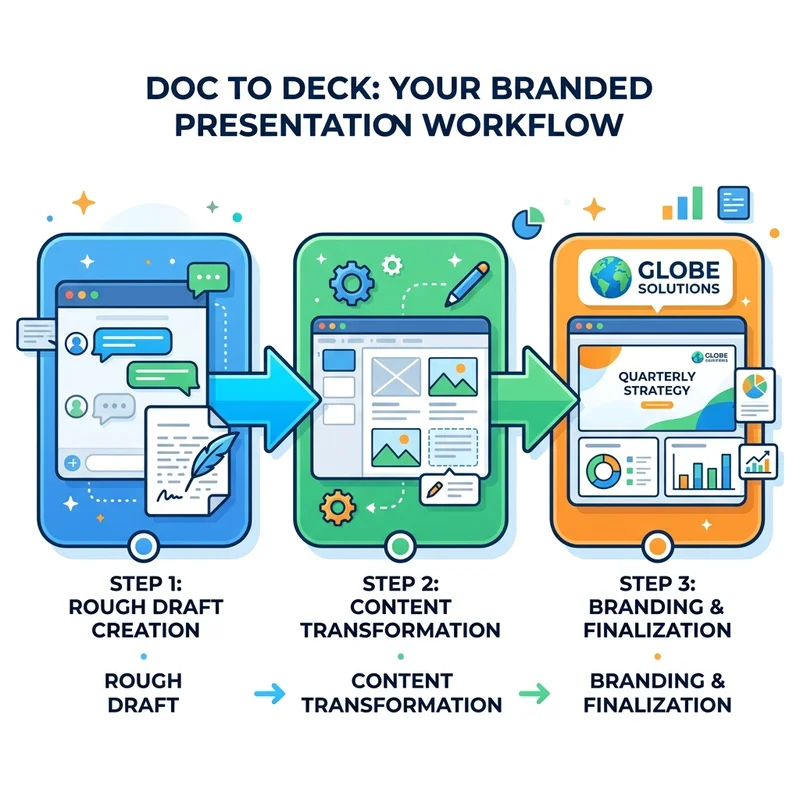
The Office Agents and in-app Copilot are complementary layers of one workflow.
- Start in Microsoft 365 Copilot when the task begins with an outcome, scattered context, or an undefined structure.
- Use the Office Agent to interpret the request, gather context, plan the artifact, and create the first version.
- Open the file in its native application when precise editing, validation, formatting, or collaboration becomes important.
- Use in-app Copilot to modify native application objects and preserve the actual artifact’s structure.
- Apply application-specific controls, such as Plan mode in Excel or a selected template and Brand Kit in PowerPoint.
- Review the result manually before sharing or using it for a consequential decision.
For PowerPoint, the cleanest recommendation is:
Use the PowerPoint Agent in Microsoft 365 Copilot or Teams when you are starting from a business objective and scattered context. Use Copilot inside PowerPoint when you are working on a real deck and need slide-aware editing, visual inspection, template fidelity, or documented Brand Kit support.
For Word:
Start with the Agent to create the document. Move into Word to shape and finish the writing in context.
For Excel:
Start with the Agent to create the workbook. Move into Excel to validate and refine its formulas, references, structure, and behavior.
For Outlook:
Work in Outlook when the task must understand or change live mailbox and calendar objects.
Final thoughts
The wrong question is, “Which Copilot is better?”
The better question is, “What stage is the work in?”
When the work is still an idea, a desired outcome, or a collection of scattered evidence, the Office Agents offer a fast path from conversation to artifact. When the artifact exists and its internal structure matters, the native Office application becomes the right place to continue.
Brand Kits make this boundary particularly visible. Microsoft has documented personal and official Brand Kit use inside PowerPoint, where the user can combine an approved template with selected brand assets and guidelines. It has not documented equivalent direct selection for the chat-first PowerPoint Agent. For brand-critical work, the responsible recommendation is therefore to complete the workflow in PowerPoint rather than assume capability parity.
This is the broader Microsoft 365 Copilot operating model: create from intent in chat, then finish with context and control inside the application.
Sources and further reading
- Get started with Word, Excel, and PowerPoint Agents in Microsoft 365 Copilot
- Create files with Word, Excel, and PowerPoint Agents in Microsoft 365 Copilot
- Word, Excel, and PowerPoint Agents: Responsible AI FAQ
- Introducing Word, Excel, and PowerPoint Agents in Microsoft 365 Copilot
- Edit with Copilot in PowerPoint
- Create a new presentation with Copilot in PowerPoint
- Keep your presentation on-brand with Copilot
- Create and manage official Brand Kits in the Microsoft 365 Copilot app
- Use guidelines to manage Brand Kits in the Microsoft 365 Copilot app
- Use branded templates in the Microsoft 365 Copilot app
- Enable enterprise brand images with PowerPoint Copilot
- Edit with Copilot in Word
- Welcome to Copilot in Word
- Get started with Copilot in Excel
- Chat with Copilot in Outlook
- Frequently asked questions about Copilot in Outlook
Read next