Architecting Automation: Inside Codex Role-Specific Plugins

Writer

On June 2, 2026, OpenAI shipped one of its biggest Codex updates yet — and it was not aimed at developers. Historically a developer-centric coding tool, Codex is now being positioned as a company-wide automation engine. OpenAI says more than 5 million people use Codex every week, and that non-developers — analysts, marketers, operators, designers, investors, and bankers — are now roughly 20% of users and growing more than 3x faster than developers.
The headline of the release: six role-based plugins that together bundle 110 skills and 62 enterprise apps, plus two supporting features (Sites and expanded Annotations). The most important promise for most teams is simple: no coding required.
This breakdown explains the architecture, walks through each plugin, and — new in this version — gives you a concrete, click-by-click path to your first automation, plus the limits you should know before you rely on it.
One caveat up front: as of the June 2026 launch, Codex and ChatGPT are still separate apps, and deeper ChatGPT integration was framed as “coming in the following weeks.” Plugins are rolling out by region; Sites is in preview for Business and Enterprise workspaces. If you don’t see a feature yet, availability — not your setup — is usually the reason.
Before You Start: What You Actually Need
Skip this and you’ll spend your first session confused about why a panel is empty. Here’s the real checklist:
- Where Codex lives: the Codex desktop app (macOS/Windows), the CLI, and IDE extensions (VS Code, JetBrains). Plugins and skills work across all three.
- Plan + region: plugins roll out in supported regions. Sites (the shareable-app feature) is preview-gated to Business and Enterprise — an admin may need to enable it in workspace settings.
- App connections: plugins connect to tools like Snowflake or Salesforce over OAuth. You’ll need permission to authorize those apps, and Codex only sees the data your account can already see — connecting a tool does not grant new access.
- You don’t install everything. Each plugin is scoped to a role. Deploy the one or two that match your stack; ignore the rest.
Core Architecture: Plugins vs. Skills
Two building blocks run the whole system. Get these straight and everything else clicks.

1. The Plugin — the connected toolkit
A plugin is a role-shaped bundle you install once. Instead of wiring up APIs and writing system prompts by hand, installing a plugin equips Codex with everything a function needs. Each plugin packages four things:
- Apps — the tools you connect via OAuth (Slack, Salesforce, Snowflake, Figma…).
- Skills — the repeatable workflows (covered below).
- Instructions — role context so outputs match how that job is actually done.
- Workflows — the end-to-end sequences that tie skills and apps together.
That last point is what separates a plugin from a generic connector: it doesn’t just reach your data, it encodes what a good output looks like — a pre-call brief, a quarterly dashboard, a campaign board.
2. The Skill — the repeatable playbook
A skill is the execution layer. Technically, it’s a folder with a SKILL.md file (a required name and description, plus instructions) and optional scripts, references, and assets.
Codex uses progressive disclosure to stay fast: it keeps only each skill’s name and description in context, then loads the full SKILL.md instructions only when it decides to use that skill. This is why a good skill description matters so much — front-load the trigger words, because that short description is all Codex sees when deciding whether to reach for it.
There are two ways to fire a skill:
- Implicit — you describe a task and Codex matches it to a skill automatically.
- Explicit — you call it directly. In the thread, press
$to open the skill picker (or run/skillsin the CLI/IDE), then name it:$metric-diagnostics analyze why signups dropped last week.
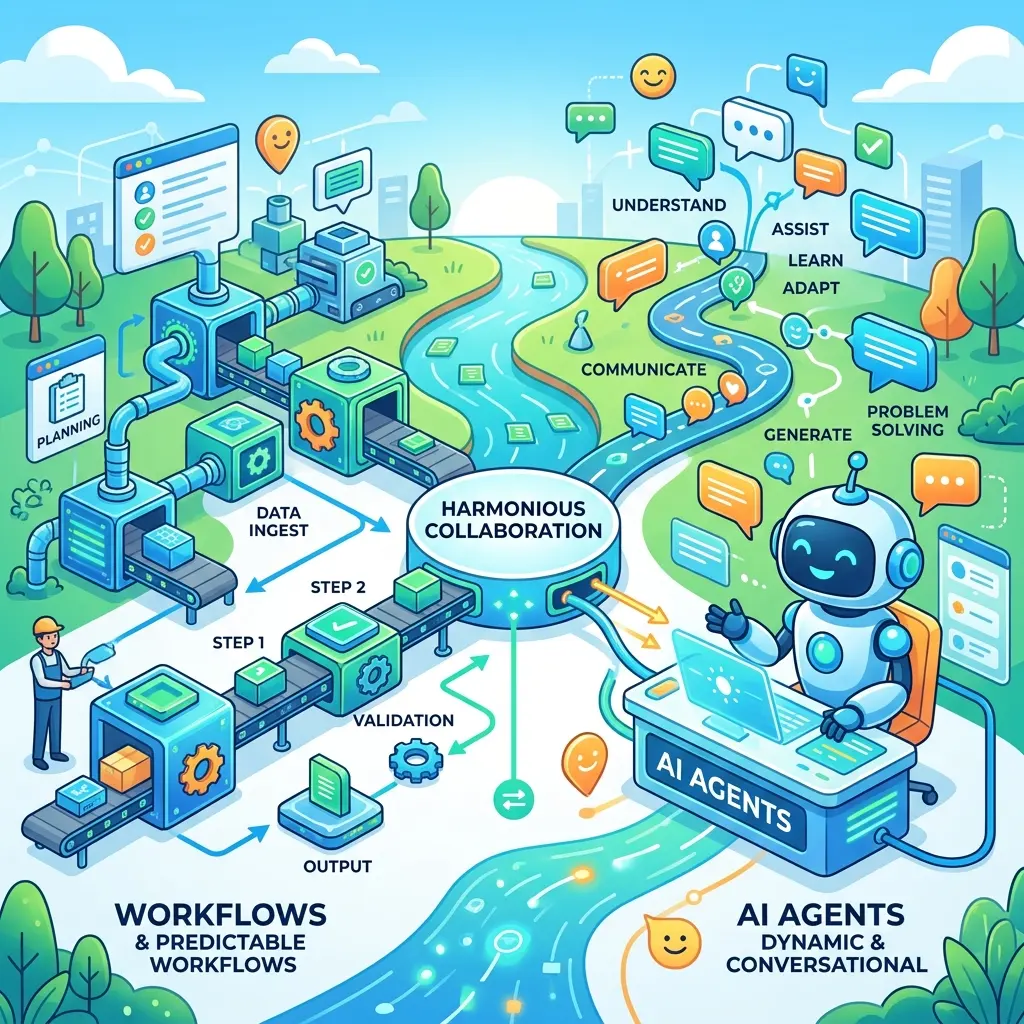
The clearest mental model (straight from OpenAI’s own guidance): use a plugin when Codex needs information from another tool; use a skill when Codex needs to follow your process; use both when it needs to run your process using your connected tools.
Heads-up on the invocation key: it’s $, not @. A lot of early write-ups (including an earlier draft of this one) used @ — that’s wrong and won’t trigger anything.
The 6 Role-Specific Plugins at a Glance
Before the detail, here’s the whole lineup in one view so you can spot your row fast:
| Plugin | Built for | What it automates | Key integrations |
|---|---|---|---|
| Data Analytics | Analysts, ops, founders | Metric diagnostics, KPI reports, dashboards | Snowflake, Databricks Genie, Hex, Tableau |
| Creative Production | Marketing, design | Campaign boards, ad variations, lifestyle shots | Figma, Canva, Shutterstock, Picsart, Fal |
| Sales | Sales reps & managers | Call prep, follow-ups, account prioritization, deal review | Salesforce, HubSpot, Slack, Outreach, Clay, Rox, Actively |
| Product Design | PMs, designers | Screenshot/URL to prototype, user-flow audits | Figma, Canva |
| Public Equity Investing | Public-market investors | Earnings breakdowns, comps, thesis testing | Moody’s, Daloopa, Datasite, FactSet, LSEG, S&P, PitchBook, Hebbia |
| Investment Banking | Finance analysts | Pitch materials, comps, tear sheets, DCF first pass | Trusted financial datasets |
More roles are on the roadmap, including Corporate Finance, Private Equity Investing, Marketing Strategy, Strategy Consulting, and Legal.
The 6 Plugins, Unpacked
1. Data Analytics
Built for: analysts, ops, and founders. It acts as an on-demand data scientist — you query in plain English instead of building pivot tables by hand.
- Key skills: Metric Diagnostics (explaining why a number moved), KPI Reporting, Automated Data Visualization.
- Integrations: Snowflake, Databricks Genie, Hex, Tableau (more coming).
- Hands-on workflow: Drop in a CSV (say, 425 rows). Ask Codex to write a quick internal script to validate the numbers, then produce a dashboard showing monthly trends, the revenue dip, and the channel shift. Invoke it explicitly with
$metric-diagnosticsif Codex doesn’t pick it up on its own.
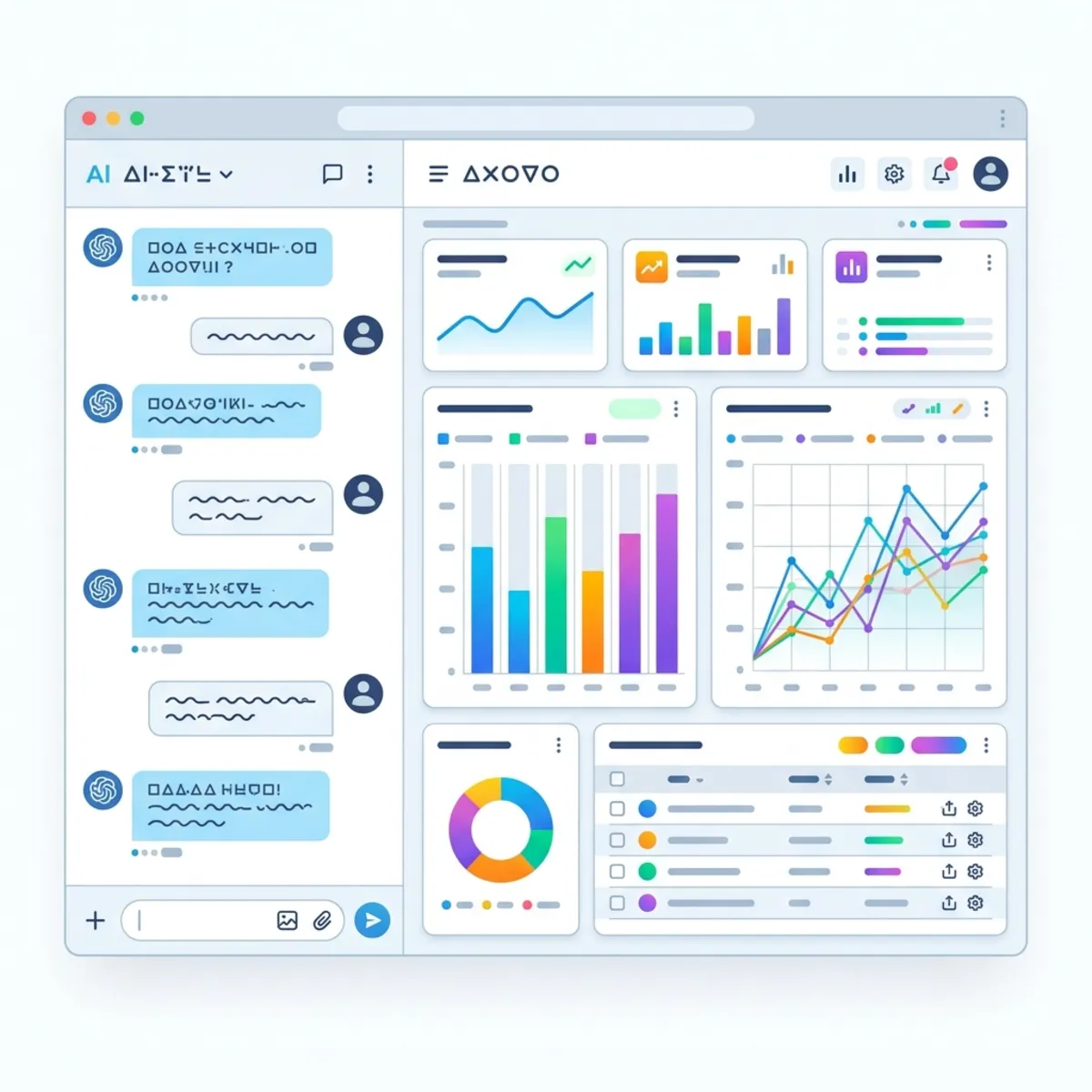
Deployment trick: once a dashboard exists, ask Codex to turn it into a Site and deploy it — you get a live, shareable URL inside your workspace. It’s a two-step save → deploy flow, and it’s free while Sites is in preview (Business/Enterprise).
2. Creative Production
Built for: marketing and design teams. Instead of a blank page, you hand over a brief and get back reviewable options.
- Key skills: Mood Board / Campaign Board generation, Ad Variations, Lifestyle Shots, Campaign Concepts, Logo Drafting.
- Integrations: Figma, Canva, Shutterstock, Picsart, Fal.
- Hands-on workflow: Upload a flat product photo with a one-sentence brief. Codex first outlines a plan (mood images, layouts, lifestyle shots), then renders the assets — typically a few minutes of work, not instant.
Pro prompting: the tighter your brief on color guidelines, format, and target audience, the higher the yield of usable assets. A vague brief produces vague output — spend the extra sentence.
3. Sales
Built for: sales reps and managers. It consolidates the deal workflow into one interface.
- Key skills: Call Prep (one-page briefs), Follow-up Drafting, Account Prioritization (pipeline reading), Close/Deal Planning, Deals-at-Risk review, CRM updates.
- Integrations: Salesforce, HubSpot, Slack, Outreach, Clay, Rox, Actively.
- Hands-on workflow: Run
$prioritize-accountsto have Codex read your CRM pipeline and return a ranked, signal-backed list of which deals need attention now — then have it draft the follow-ups for the top three.
4. Product Design
Built for: product managers and designers. A rapid-prototyping engine.
- Key skills: Image to Code (screenshot to clickable prototype), URL to Code (rebuild from a live link), User-Flow Audits (spotting friction), Live Publishing.
- Integrations: Figma, Canva.
- Hands-on workflow: Upload a flat screenshot or paste a live URL, and Codex rebuilds it into a clickable prototype. It can also audit an existing flow to flag the steps where users are most likely to drop off.

5. Public Equity Investing
Built for: public-market investors processing heavy volume during earnings season.
- Key skills: Earnings Breakdowns, Competitor Comparisons, Thesis Pressure-Testing (is the case strengthening or weakening?), Equity Research Summarization.
- Integrations: Moody’s, Daloopa, Datasite, FactSet, LSEG, S&P, PitchBook, Hebbia.
- Hands-on workflow: Point Codex at a company’s latest earnings, then ask it to compare the result against two named peers and stress-test your thesis — surfacing the data points that argue against your position, not just for it.
6. Investment Banking
Built for: finance analysts. The most skill-dense plugin in the launch.
- Key skills: Pitch Material Creation, Comparable Companies and Precedent Transactions, Diligence-to-Recommendations, Company Tear Sheets, Comps Valuation, DCF Model Builder (first pass).
- Integrations: draws on the same trusted financial datasets as the equity plugin.
- Hands-on workflow: The DCF Model Builder constructs a first-pass discounted-cash-flow model directly in a spreadsheet — a task that normally eats hours. Treat it as a starting scaffold to validate, not a finished model (see Limits, below).
Hands-On: Your First 15 Minutes
A concrete path from zero to a working automation:
- Open the Plugins panel. In Codex, select Plugins in the top-left corner. You’ll see recommended and installed plugins, the full library, and a Create option.
- Install the plugin that matches your role. Pick one — e.g., Data Analytics. Don’t install all six.
- Connect an app. Authorize one tool via OAuth (Snowflake, Salesforce, etc.). Start with the single source that holds the data you care about most.
- Run a skill. Either describe the task in plain English and let Codex match it, or press
$and pick the skill explicitly. Example:$metric-diagnostics why did weekly active users drop in May? - Review, then share. Check the output (always — see below). If it’s a dashboard or doc worth sharing, ask Codex to turn it into a Site and deploy it for a workspace URL.
Annotations shipped in the same release: instead of regenerating from scratch, you can select a specific part of a doc, spreadsheet, slide, or site and ask Codex to change just that piece. Use it to refine rather than restart.
Building Your Own Custom Automations
If none of the 110 built-in skills match your internal SOP, build your own. Two paths:
- Guided: run the built-in
$skill-creator. It interviews you — what the skill does, when it should trigger, and whether it stays instruction-only (the default) or includes scripts — then writes theSKILL.mdfor you. - Manual: create a folder with a
SKILL.mdfile. The frontmatter needs a name and a description that spells out exactly when the skill should (and should not) trigger; the body holds the instructions Codex follows.
A plain-English description is usually enough to start. For example: “Take a spreadsheet, analyze the data, and format it for Canva.” Codex templatizes the instructions, defines the app connections, and packages it into a repeatable skill you can share with your team.
Skill vs. plugin, when you build: a single workflow is a skill and is genuinely easy to author. Bundling several skills (optionally with an app integration) for distribution is a plugin — that step is more technical. Start with a skill; graduate to a plugin only when you need to share a set.
The Limits Worth Knowing
No-code does not mean no-oversight. Before you wire these into anything that matters:
- Verify financial and quantitative output. A first-pass DCF, a comps table, a metric diagnosis — these are drafts to check, not numbers to forward. Confirm the inputs and the math before they leave your hands.
- Mind the data scope. Connecting an app over OAuth lets Codex use what you can already access. Review what each connection exposes, especially with CRM and financial sources.
- Preview means unfinished. Sites is free in preview, but pricing will follow, and it ships without published usage caps or a built-in approval workflow — set your own guardrails before rolling it out broadly.
- Keep a human in the loop for anything customer-facing. Drafted follow-ups, pitch materials, and dashboards still need a review step. The plugins remove the busywork, not the accountability.
Keep Learning
For grounded, hands-on practice, start with the official sources rather than secondhand summaries:
- OpenAI Academy — “Plugins and skills”: the clearest beginner walkthrough of when to use a plugin vs. a skill.
- Codex developer docs (Agent Skills): the authoritative spec for
SKILL.md, progressive disclosure, and where skills are stored. - The
openai/skillscatalog on GitHub: real, installable example skills you can read and adapt — the fastest way to learn the format is to study working ones.
Beyond the official docs, practitioner communities (such as dedicated Skool groups focused on Codex automation) are useful for sharing workflows and deployment patterns — just treat any standalone numbers or claims you find there as starting points to verify, not facts.
The Bottom Line
The June 2026 update is a real shift in what Codex is for: from a coding assistant to a role-aware work layer that connects to your tools, follows your process, and produces shareable output. The architecture is worth internalizing — plugins bring the data, skills bring the process — because once it clicks, building your own automation is a 15-minute exercise, not an engineering project. Just keep the verification step in place: the speed is the point, but the judgment is still yours.
Read next