Architecting Headless LLM Calls: Migrating from Prompts to Agents

Writer

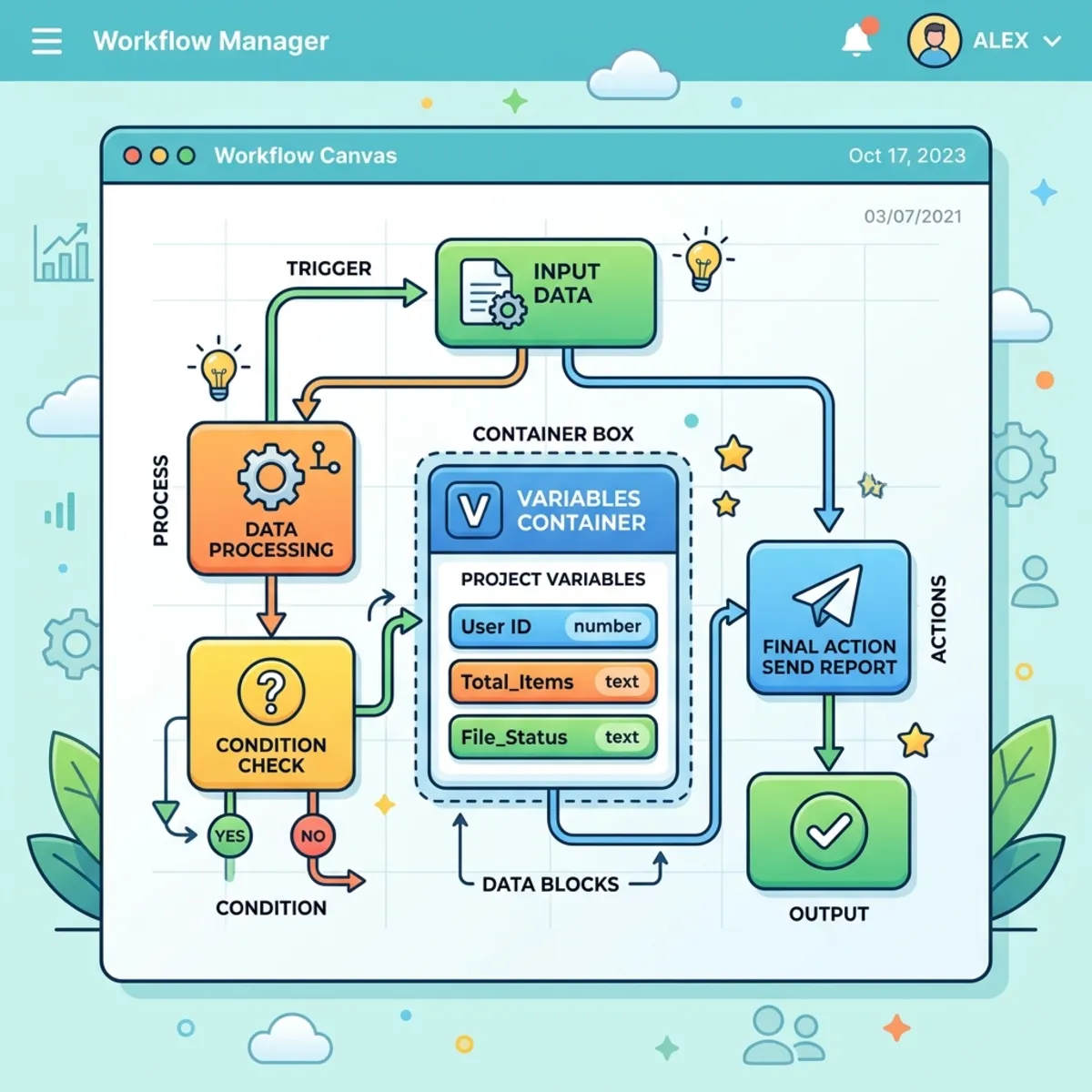
The new Microsoft Copilot Studio workflow interface introduces a significant paradigm shift for automation architects. The legacy Prompt Node—historically used for isolated, single-turn LLM instructions—has been deprecated and removed. In its place, the unified Agent action now serves as the engine for both complex tool orchestration and focused, headless AI calls.
This post is a hands-on guide: by the end you’ll have built a real headless Agent call that extracts structured JSON, learned the three output shapes and when to use each, and know how to dodge the single most common failure—the “Display” trap.
What You’ll Need
Before you start, make sure you have:
- A Copilot Studio environment with the new Workflows experience enabled (currently in preview—if you don’t see it, check with your environment admin).
- Permission to create and publish workflows in that environment.
- (Optional but recommended) Model selection turned on for your tenant. The list of available models—OpenAI GPT and Anthropic Claude families—is controlled by your admin, so what you see may differ from a colleague in another tenant.
We’ll build one concrete example throughout: a workflow that takes a {country} input and returns a clean JSON list of its five largest cities. No tools, no knowledge sources—just a single, deterministic AI call.
The Architectural Shift: From Prompts to Agents
Previously, orchestrating a one-off AI call within a Copilot Studio workflow meant reaching for the dedicated Prompt module. It was highly effective for stateless transformations where external knowledge retrieval wasn’t required.
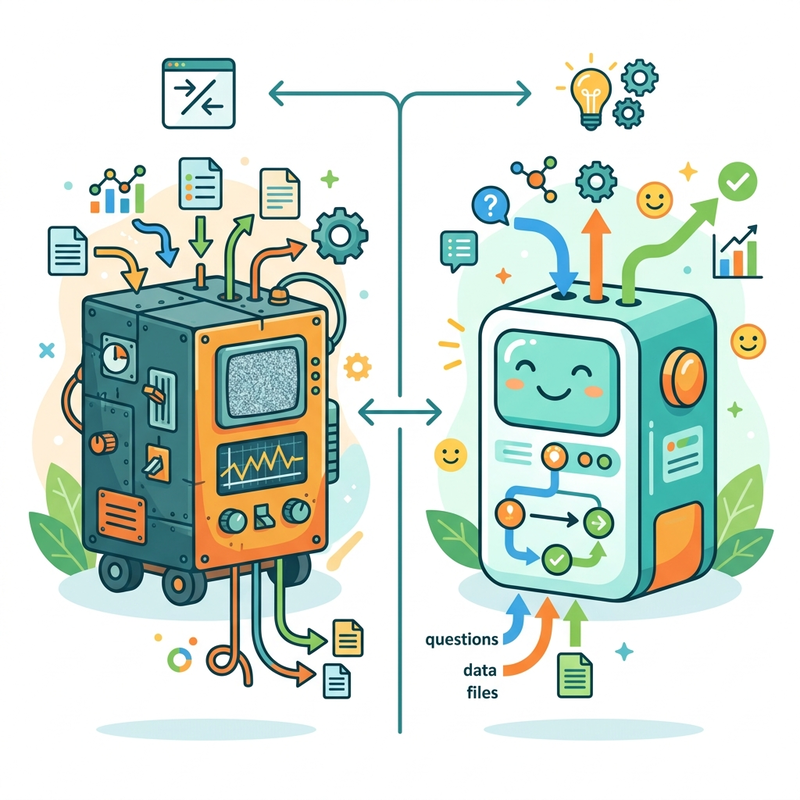
In the updated preview interface, this capability is absorbed entirely by the Agent action. The trick is what you don’t configure: by deploying an inline Agent block and deliberately leaving its Tools and Knowledge empty, you get the exact same lightweight behavior the old Prompt Node gave you—a single-turn AI call with no external orchestration or retrieval.
Conceptually, the mapping is one-to-one:
| Legacy Prompt Node | New Agent Action (headless) |
|---|---|
| Single instruction, no tools | Agent action with Tools/Knowledge left empty |
| Fixed model | Model is selectable per action |
| Text or basic structured output | Simple Text, Structured, or Custom Structured Output |
This consolidation streamlines the canvas: one primitive now covers everything from a full multi-tool agent down to a stateless string transformer.
Hands-On: Building a Headless Agent Call
Here is the end-to-end flow for our {country} → cities example.
- Add the action. In your workflow, add a new node and choose the Agent action. (If your canvas previously had a Prompt node, this is its replacement.)
- Keep it headless. Do not attach any Tools or Knowledge sources. This single decision is what turns a full agent into a lightweight, single-turn call.
- Pick your model. Open the model selector and route the instruction to a specific underlying model rather than always inheriting the default. Match the model to the job—a fast, lower-cost model for simple extraction; a stronger reasoning model for nuanced transformation. Availability depends on what your admin has enabled (this is where the OpenAI GPT and Anthropic Claude families show up).
- Write the instruction. Type your prompt in the instructions box. To inject a runtime variable, type
/and pick the upstream variable (e.g.{country})—this maps it straight into the prompt context without manual binding. - Choose an output shape. Decide between Simple Text, Structured Output, or Custom Structured Output (covered next).
- Publish, then test. Publish the workflow, then use the Play button to run it. Supply a value for
{country}and inspect the result. - Map the output downstream. Wire the Agent’s output into the nodes that follow—an email, a Dataverse write, a SharePoint list, or a loop.
Dynamic Variable Injection: Typing / inside the prompt is the quickest way to pull upstream variables like {country} into your Agent action’s context—no manual mapping required.
Mastering the Three Output Shapes
When configuring the Agent action for a prompt-based task, controlling the shape of the response is critical for downstream enterprise integration. Copilot Studio offers three distinct output mechanisms:
| Output Shape | Configuration Method | Best Use Case |
|---|---|---|
| Simple Text | Unstructured string output | Summarization, translation, and open-ended, conversational text generation. |
| Structured Output | Visual property builder | Quick schema mapping for simple data extraction (strings, numbers, a handful of fields). |
| Custom Structured Output | Raw JSON schema injection | Enterprise integrations requiring strict, programmatic responses that align with an existing payload contract. |
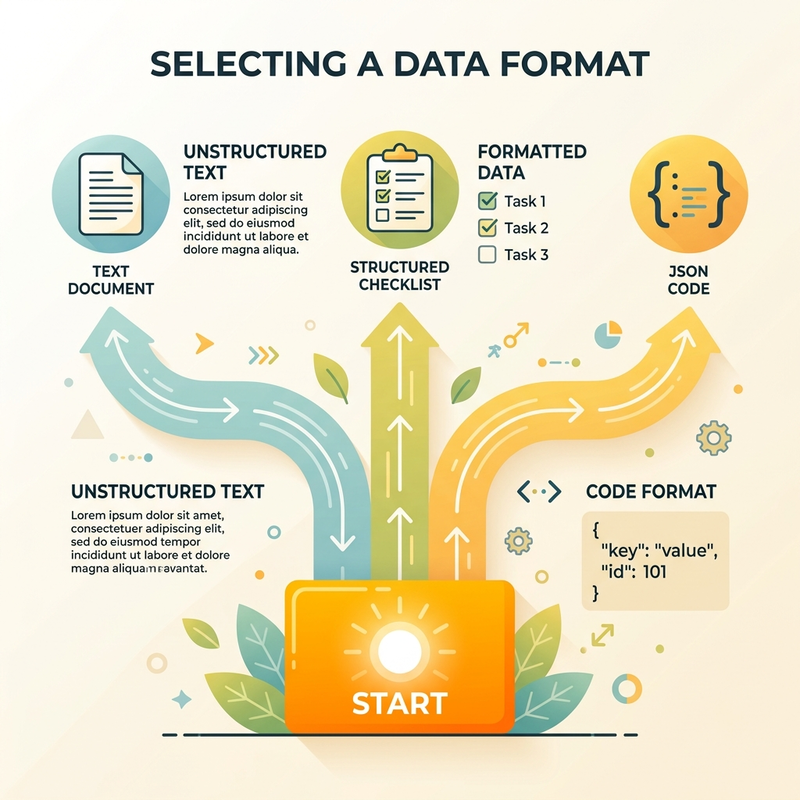
When to reach for each
- Simple Text when a human will read the result, or the next step just needs a blob of text.
- Structured Output when you need a few typed fields and want to click them together quickly without writing schema.
- Custom Structured Output when the downstream system already expects a specific JSON contract (nested objects, arrays, required fields). This is the most robust choice for automation.
A concrete Custom Structured Output schema
For our cities example, the JSON schema you’d paste into Custom Structured Output looks like this:
This contract guarantees that every run returns a cities array where each entry has a name, a state, and an integer population—exactly what a downstream loop or database write expects.
Schema Rigidity in the Visual Builder: When using the Structured Output visual builder, property order is fixed at creation and can’t be easily rearranged. Map out your field hierarchy before you start clicking so you don’t have to rebuild the node from scratch. (The raw-JSON Custom path doesn’t have this limitation—you just edit the text.)
The “Display” Trap: A Crucial Prompt Engineering Lesson
When transitioning to the Agent node, the most common execution failure happens with Custom Structured Output. You run the flow and hit an error like:
“A respond tool is not available in my current tool set… There is no respond tool information.”
This Headless Execution Error is conversational prompt engineering leaking into a headless environment. If your instruction includes verbs like “display the state and population,” the model interprets that as a command to render something to a user—it reaches for a “respond” or UI tool. But a workflow Agent runs as a background service with no attached UI, so it halts.
The fix is to change your verbs, not your schema. Shift from conversational language to deterministic data-extraction language:
- ❌ Don’t: “List five cities and display the state and population.”
- ✅ Do: “Extract the five largest cities in
{country}. For each, return its name, the state or region it belongs to, and its population as an integer. Return the result strictly according to the provided JSON schema. Do not include any conversational text, explanations, or formatting outside the schema.”
Notice what changed: display → extract / return, and we explicitly forbid conversational filler. Paired with the schema above, this produces clean, parseable output on every run.
Rule of thumb: In a headless Agent, write instructions for a parser, not a person. Verbs like extract, return, output, map are safe; verbs like display, show, tell me, respond invite the trap.
Consuming the Output Downstream
Producing structured output is only half the job—the value is in using it.
- With Simple Text, the Agent returns a single string you can drop into an email body, a message, or another prompt.
- With Structured / Custom Structured Output, the Agent returns a typed object you can reference field-by-field in later nodes. In our example you’d loop over the
citiesarray and, for each item, readname,state, andpopulation—writing each one to a SharePoint list, a Dataverse table, or a formatted summary.
Because the shape is contractually fixed by the schema, downstream nodes can rely on those fields existing, which is exactly what makes headless Agent calls suitable for production automation rather than just experimentation.
Developer Tips and Interface Quirks
A few operational nuances worth knowing in the new workflow designer:
Connection Management
On the first run the flow prompts you to create a connection, or it pulls from your existing connection library automatically. If a run fails immediately, check that the expected connection is selected before debugging anything else.
The Double-Publish Trick
Occasionally the test Play button disappears after the initial publish—a known UI refresh bug. The fix: click Publish a second time to force the UI to refresh and bring the execution controls back.
Execution Management
The engine supports parallel test runs. You can monitor concurrent runs and manually cancel an active execution from the execution history panel—useful for stopping a stuck run before it locks resources.
Conclusion
Replacing the Prompt node with the Agent action is more than a UI update—it’s a consolidation of AI orchestration primitives into a single, flexible block. Treat that block as a strict data processor, leave its tools empty for headless work, use deterministic verbs, and enforce an explicit JSON schema, and you’ll build resilient AI integration patterns that behave the same way on every run.
Headless Agent checklist:
- Tools and Knowledge left empty (truly headless)
- Model deliberately selected for the task
- Output shape chosen (Simple Text / Structured / Custom)
- Instruction uses extract/return, never display/show
- Conversational text explicitly forbidden
- Output mapped and validated in a downstream node
Read next