Architecting Microsoft 365 Backup: A Deep Dive Guide

Writer
Modern enterprise business continuity demands short Recovery Point Objectives (RPOs) without compromising data residency or introducing complex third-party infrastructure. Microsoft 365 Backup delivers an in-place, ultra-fast backup and recovery service managed directly from the Microsoft 365 Admin Center — with a 10-minute RPO, restores measured in TB per hour, and zero data egress.
This guide is a hands-on technical breakdown: the architecture, what it actually costs, how to stand it up, how to automate it with the correct PowerShell module, and how to run a restore without burning down your live tenant.
Why this exists (the 30-second version): Microsoft’s shared-responsibility model makes you — not Microsoft — the owner of your data’s recoverability. Native retention (Exchange ~30-day purge, SharePoint/OneDrive ~93-day recycle bin) is not backup. It won’t save you from large-scale ransomware, a rogue admin, or a retention policy that wiped a site. Microsoft 365 Backup closes that gap natively.
1. Architectural Foundation & Trust Boundaries
Traditional third-party backup utilities extract data via external APIs, exposing organizations to data egress costs, external security vectors, and potential geographic compliance violations.
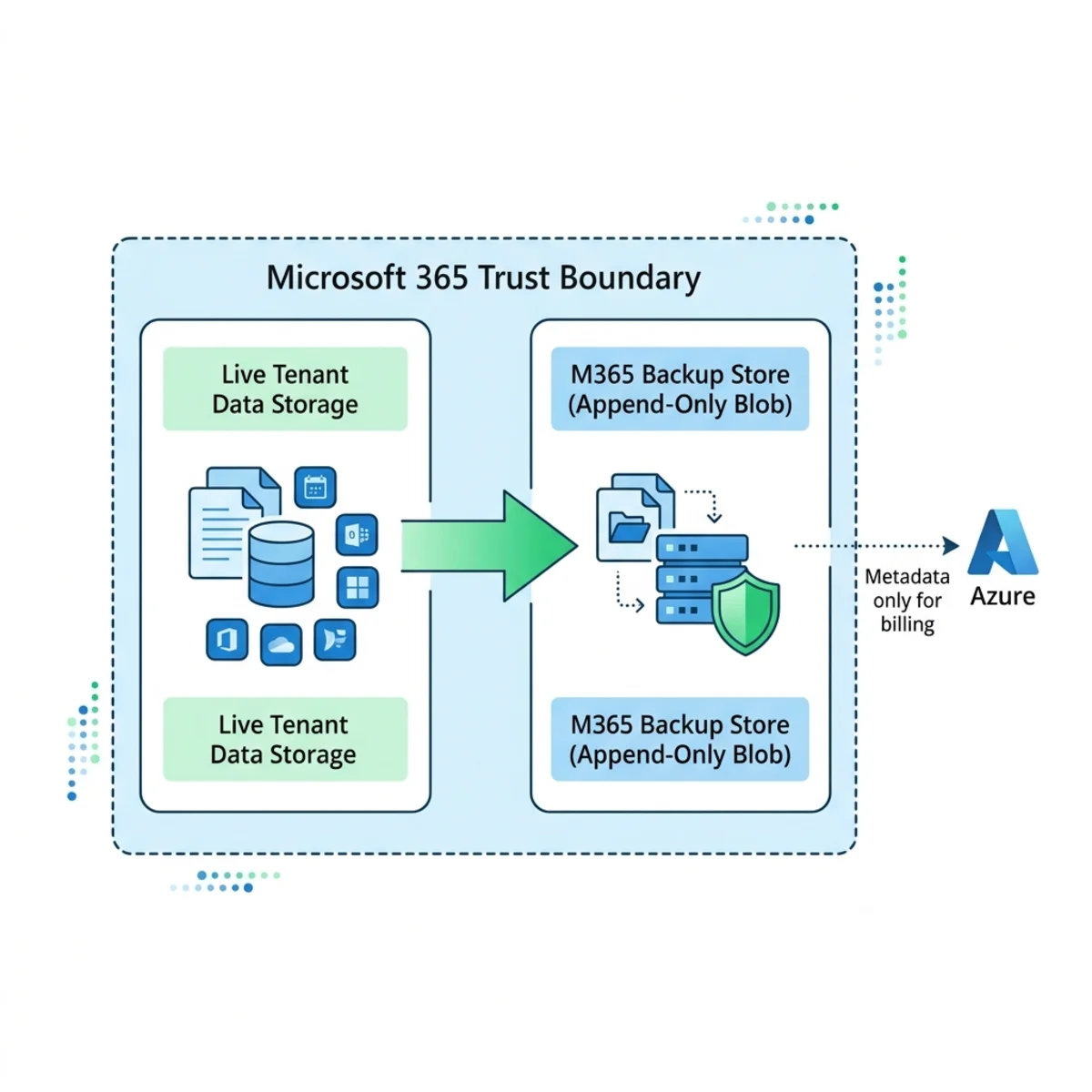
Microsoft 365 Backup functions in-place. Data never leaves the native Microsoft 365 trust boundary or its assigned tenant geographic residency. Only limited metadata (such as tenantID and siteIDs) is sent to Azure — and that is purely for billing.
The Ransomware Story: Append-Only Immutability
This is the architectural detail the marketing rarely leads with, and it is the most important one. Backups are written to append-only storage: SharePoint and OneDrive content lands on append-only Azure blobs, and Exchange items are stored so they cannot be touched by any client process (Outlook, OWA, MFCMAPI).
The service can only ever add a new restore point — it can never modify or overwrite an existing one. That means an attacker who compromises the tenant cannot corrupt your backup history. Deletion is the only exception (so you can offboard), and even that has guardrails:
- A 90-day grace period lets you recover backups for up to 90 days after offboarding the tool.
- Purview retention/deletion policies do not affect backup retention — the backup store is fully isolated.
- Multi-admin email alerts fire automatically when a potentially destructive action is taken on the Backup tool.
Supported Workloads
The service supports granular and full-scale recovery for:
- SharePoint Online: Full site rollback (content + metadata) to a prior point in time.
- OneDrive for Business: Full user drive rollback.
- Exchange Online: User and shared mailboxes — full mailbox or granular item (mail / contacts / calendar / tasks) restore.
Don’t get caught by unsupported SharePoint templates. A handful of legacy
site templates cannot be protected, and you won’t always get a loud warning.
Validate before you promise coverage. Known unsupported templates include:
CSPCONTAINER#0 (SharePoint Embedded), REVIEWCTR#0 (Review Center),
POLICYCTR#0 (Policy Center), TENANTADMIN#0 (Tenant admin site), and
SPSMSITEHOST#0 (MySite Host).
Teams reality check: Microsoft Teams is not a natively selectable workload today. Don’t promise it. Note the nuance, though — Teams files live in SharePoint and OneDrive, and Teams channel/chat compliance data lives in backing mailboxes, so portions are covered indirectly when you protect those workloads. There is no first-class “back up this Team” toggle. Government Community Cloud (GCC) tenants are now supported.
2. Prerequisite: Cost Model & Azure Pay-As-You-Go Billing
Before activating any policy you must wire up an Azure billing pipeline. The service runs on a consumption model via Azure Pay-As-You-Go.
What It Actually Costs
| Item | Detail |
|---|---|
| List price | $0.15 per GB / month of protected content |
| Restores | Free — no egress, no per-restore charge |
| Billing basis | Volume of protected data, not per user |
| Azure overhead | None beyond the per-GB charge (Azure is only the payment processor) |
The trap is the definition of “protected content.” You are billed on two things added together:
- Live, user-facing size — OneDrive/SharePoint size as shown in usage reports (including the first-stage recycle bin), plus live + archive mailbox size.
- Deleted & versioned data held for recovery — second-stage (site collection) recycle bin content, and deleted/versioned mailbox items retained in the backup.
Worked example — model this before you flip the switch. Protect a 1 GB site that has 0.5 GB in its second-stage recycle bin, plus a 1 GB mailbox with a 1 GB online archive. You are billed on 3.5 GB, not 2 GB → roughly 3.5 × $0.15 = $0.53/month for that slice. Scale it: a 5 TB protected estate ≈ 5,120 GB × $0.15 ≈ $768/month. Restore-point frequency does not change the bill — so don’t try to “save money” by reducing it.
Estimate Before You Buy
Don’t ask “how much for 500 users?” — ask “how many GB will we protect?” Two ways to gather that number:
- Admin center usage reports — fastest for a high-level estimate.
- PowerShell — when you need precise per-site / per-mailbox sizes including archives and recycle bins.
- Microsoft also publishes a Backup pricing calculator (an Excel workbook) where you enter total storage and the percentage you intend to protect.
Step-by-Step Billing Linkage
- Go to M365 Admin Center → Settings → Org Settings → Pay-as-you-go services.
- Select Backup and Archive.
- Create a Billing Policy by mapping:
- Policy Name: A distinct identifier for governance tracking.
- Azure Subscription: The target subscription where consumption is billed (you need at least Contributor on it).
- Resource Group: An existing or newly created container.
- Region: Closest to your tenant’s data residency (e.g.,
Australia East,UAE North).
- Governance: Set a consumption budget and assign email notification alerts on spend thresholds.
Roles you’ll need before you start (gather these first to avoid a mid-setup stall): - Global Administrator — to enable the Microsoft 365 Backup service the first time. - Owner/Contributor on the target Azure subscription — to create the pay-as-you-go billing policy. - A backup-capable admin role (e.g., Global Admin or a delegated backup admin) — to create and manage protection policies.
Architecture Tip — Multi-Service Policy Mapping. Resource groups let you isolate or consolidate workloads for chargeback. Map Microsoft 365 Backup and Microsoft 365 Copilot to separate billing pipelines when departments fund them differently.
Service Status Example:
| Policy Association | Resource Group |
|---|---|
| M365 Backup | RG-Prod-Operations |
| M365 Copilot | RG-Innovation-AI |
3. Backup Cadence, RPO, and Retention Dynamics
The engine runs on a fixed, non-configurable performance tier optimized for rapid recovery during events like ransomware.
Clear up the #1 misconception: this is not “a snapshot every 10 minutes.” Microsoft is explicit — it does not snapshot the whole tenant on a 10-minute timer. The 10-minute RPO means that when an item changes, a new recoverable version is captured at most once per 10-minute window, no matter how many times it changed inside that window. If ransomware re-encrypts a mailbox item every minute, you get ~6 recovery copies per hour, not 60.
Retention differs by workload — don’t apply one rule to all three:
| Workload | Granular window (10-min RPO) | Coarse window | Total retention |
|---|---|---|---|
| SharePoint Online | Trailing 2 weeks | Weekly snapshots, 2–52 weeks | 1 year |
| OneDrive for Business | Trailing 2 weeks | Weekly snapshots, 2–52 weeks | 1 year |
| Exchange Online | Full 52 weeks at 10-min granularity | — | 1 year |
The practical takeaway: for SharePoint/OneDrive you have minute-level precision only for the last 14 days, then weekly resolution out to a year. Exchange keeps 10-minute granularity for the entire year — a meaningful difference when you’re hunting a specific mailbox change from three months ago.
4. Workload Configuration & Ingestion Strategies
Policies are configured via the Settings → Microsoft 365 Backup dashboard. Each workload scopes differently.
A. SharePoint Online Policies
Keep policy names concise and descriptive (e.g., SPO-Finance-Prod) — long names get truncated in the UI and downstream reports. Two ways to add sites:
- Individual selection: Search and check specific site collections (e.g., Brisbane, Gold Coast).
- CSV bulk upload: For 100+ sites, manual selection is a non-starter. Upload a CSV of site URLs.
CSV format that actually works. One site URL per row, full path, no trailing slash. Header optional but recommended:
Validate URLs against Get-SPOSite output first — a single mistyped URL silently drops that site from coverage.
B. OneDrive for Business Policies
OneDrive targets user identities, not site URLs. Three ingestion modes:
- Manual per-account curation.
- Metadata-driven inclusion filters.
- Dynamic rules tied to Microsoft Entra ID attributes (e.g.,
departmentorlocation) — the rule re-evaluates as people join/move, so new hires in a covered department are protected automatically.
C. Exchange Online Policies
Exchange scopes to mailbox instances (user and shared).
Overlap guardrail. A mailbox, drive, or site can belong to exactly one protection policy at a time. If a unit would match two active policies (e.g., a manual policy and a dynamic-rule policy), the engine blocks the duplicate to preserve retention-state integrity. Design dynamic rules so they don’t collide with your manual policies — overlaps are a common cause of “why isn’t this user protected?” tickets.
Monitoring Policy Lifecycle States
After deployment, watch the state on the Backup homepage:
- Active: Healthy, capturing changes on the 10-minute cadence.
- In Progress: Initial seeding or a mass scope change is processing. Expect ~60 min to process a new policy and another ~60 min before restore points appear; initial backups run ~15 min per 1,000 protection units.
- Paused: Intentionally halted by an admin.
- Error / Failed: Internal error (deleted site, credential issue). Open View Details to audit the specific failing sites/accounts.
5. Advanced Administration: PowerShell Automation
For mass administration and repeatable deployments, use the Microsoft Graph PowerShell SDK. The relevant module is Microsoft.Graph.BackupRestore, and every cmdlet follows the *-MgSolutionBackupRestore* naming pattern.
Setup
Key Functional Cmdlets
| Cmdlet | Purpose |
|---|---|
Enable-MgSolutionBackupRestore | Enable the Microsoft 365 Backup Storage service for the tenant (one-time). |
Get-MgSolutionBackupRestore | Read the high-level service status / health. |
New-MgSolutionBackupRestoreExchangeProtectionPolicy | Create an Exchange mailbox protection policy. |
New-MgSolutionBackupRestoreSharePointProtectionPolicy | Create a SharePoint site protection policy. |
New-MgSolutionBackupRestoreOneDriveForBusinessProtectionPolicy | Create a OneDrive protection policy. |
Get-MgSolutionBackupRestoreDriveProtectionUnit | Enumerate protected OneDrive drives (audit coverage). |
Get-MgSolutionBackupRestoreExchangeProtectionPolicyMailboxInclusionRule | Inspect dynamic/manual inclusion rules on a policy. |
Reality check on the old guidance. If you’ve seen cmdlets like
New-MgBackupRestoreProtectionPolicy or Get-MgBackupRestoreManager, ignore
them — they don’t exist. The Solution segment is mandatory: the service
hangs off the Graph /solutions/backupRestore endpoint. Tab-completion after
*-MgSolutionBackupRestore is the fastest way to discover the exact verb/noun
you need. Exact parameters live in the Microsoft 365 Backup Storage Graph API
reference.
Example: Audit, Then Protect a Department
This is the pattern that scales: drive policy creation off your HR joiner/mover/leaver feed so coverage tracks reality instead of a stale spreadsheet.
6. Disaster Recovery: The Restoration Workflow (RTO)
When an incident hits, Microsoft 365 Backup supports granular item search and full-scale rollback. You can search recovery points by site name, file/mailbox owner, specific items, and modification event types.
Know Your Restore Speeds (RTO)
Restore time depends on the number of sites/mailboxes and the restore-point type — not raw data size.
| Scenario | Approach | Expected time |
|---|---|---|
| Single file / subsite | Granular file/folder restore (public preview, Dec 2025) | A couple of minutes |
| Small site (< ~1 TB) | A recommended express restore point | Under ~20 minutes |
| Large, many-site recovery | Express or standard points, in-place | 1–3 TB/hour; up to ~250 protection units/hour |
Pick the fast path on purpose. Two choices materially speed recovery: (1) restore in-place / same URL rather than to a new URL, and (2) choose one of the express restore points the wizard recommends. For a tenant-wide ransomware recovery, in-place + express is the difference between hours and a very long day.
Executing a Restoration Task
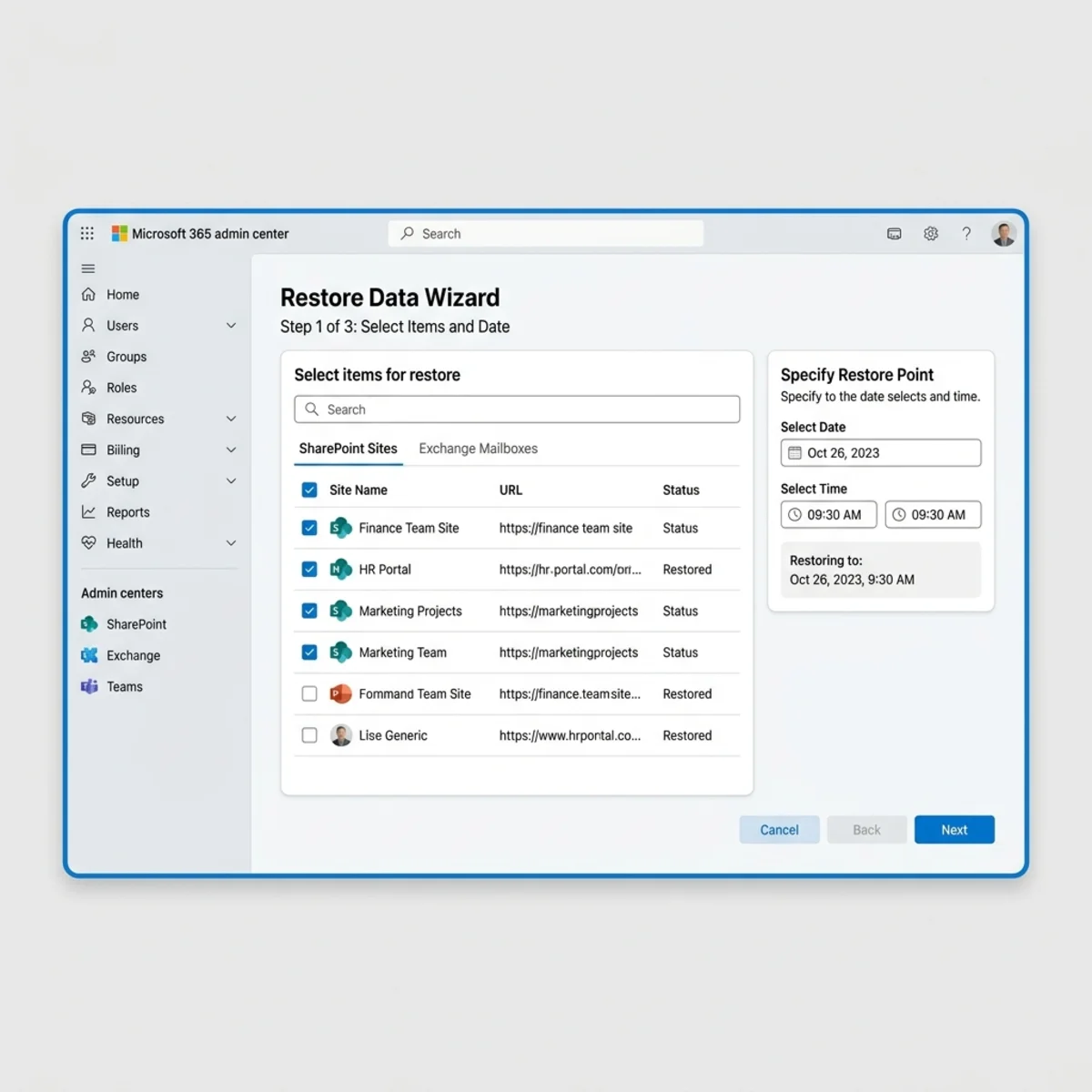
- Open the Restore tab and select the workload (e.g., SharePoint).
- Select target sites or mailboxes. Only items under an active policy appear here — if it’s missing, it was never protected.
- Set the Time Zone and Timestamp / Restore Point.
- Choose the destination:
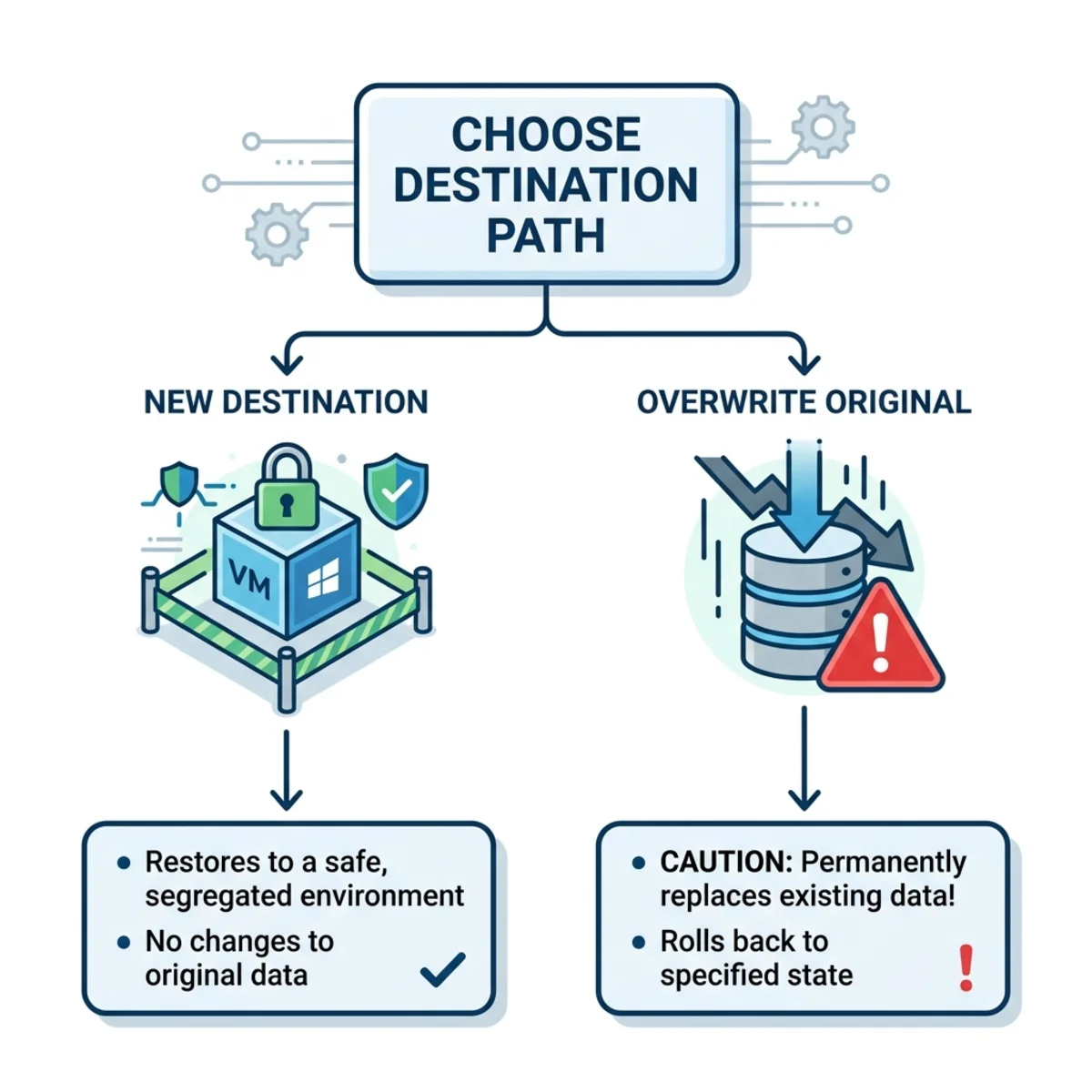
- Option A — New Site (Sandboxed Verification): Restores to a brand-new, isolated URL. Ideal for validating data integrity or extracting individual files without touching current user work.
- Option B — Overwrite Original (Destructive Rollback): Replaces the live site/mailbox entirely with the historical snapshot. Fastest, and the right call for confirmed mass-corruption events.
Pre-restore checklist — run this before any overwrite: 1. Confirm the exact restore timestamp in the user’s time zone (off-by-one-hour errors restore the wrong state). 2. Note that an overwrite reverts permissions to that point in time — re-grant any access added since. 3. Get affected users offline so in-flight edits aren’t silently lost. 4. When unsure, restore to a new URL first, validate, then promote — sandbox-first is almost always the safer sequence.
Operational hazard. Overwriting an original site or mailbox is highly destructive: it replaces the active content state and reverts all asset permissions to exactly how they were at that historical timestamp. Verify the timestamp and permissions, and ensure users are offline, before executing a native overwrite.
TL;DR — The Deployment Path
- Estimate cost at $0.15/GB/month on protected data (live + deleted/versioned). Model it first.
- Gather roles: Global Admin + Azure subscription Owner/Contributor.
- Link billing: Org Settings → Pay-as-you-go → Backup and Archive → set budget + alerts.
- Scope policies: CSV for SharePoint at scale; dynamic Entra rules for OneDrive; mind the one-policy-per-unit guardrail.
- Automate with
Microsoft.Graph.BackupRestore(*-MgSolutionBackupRestore*cmdlets). - Rehearse a restore to a new URL before you ever need an in-place rollback.
Microsoft 365 Backup won’t replace a mature DR strategy on its own — but as a native, immutable, fast-restore layer with no egress, it removes the most painful failure modes from your business-continuity plan.
Read next