Zero Trust for AI Agents: Security in Microsoft Entra

Writer
The integration of AI agent orchestration into enterprise environments is forcing a massive architectural shift in how we approach identity and security. We have officially moved past the era where multi-factor authentication (MFA) was the finish line. Today, MFA is just the starting block.
When you deploy intelligent agents capable of spinning up sub-agents, iterating through terminal commands, and executing complex code-centric workflows in milliseconds, traditional human-speed security controls simply cannot keep up. This post breaks down the evolving threat landscape of agentic automation and—just as importantly—shows you the exact Microsoft Entra, Defender, and Purview controls you can turn on today, with the portal click-paths, Microsoft Graph calls, and licensing facts you need to actually ship them.
Who this is for: Identity, security, and platform architects running Microsoft Entra ID who are already piloting (or about to inherit) AI agents in their tenant. You’ll get the concepts and a copy-paste playbook.
The Threat Landscape: Why Agentic Workflows Break Traditional Security

AI agents act as highly privileged proxy users. While this unlocks incredible enterprise automation, it introduces unique attack vectors that bypass traditional endpoint defenses. Here are the four that matter most—and the first lever you reach for against each.
-
The Latency Gap & “Goal Mode”: When an agent is given an objective in “goal mode,” it iterates rapidly. If an agent hits a blocker while executing a script, it might autonomously decide to downgrade a PowerShell SDK to bypass a recent security patch—all before a human operator can press Cancel.
Lever: Continuous Access Evaluation (CAE) to revoke tokens mid-session, not just at sign-in.
-
Supply Chain & Sub-Agent Sprawl: You can write a perfectly clean, secure prompt, but if your agent is authorized to fetch dependencies, it might pull a compromised npm package or Python library. Suddenly, your Entra ID tokens or local environment variables are exposed.
Lever: Eliminate stored secrets entirely (managed identities / workload identity federation) and route egress through Global Secure Access.
-
Hallucinated Architecture & Insecure Defaults: LLMs are trained on broad internet data. Ask an LLM for an authentication script and it will often default to the Device Code Flow. While great for headless IoT devices, Device Code Flow is highly phishable and insecure for devices with graphical interfaces. Relying on default LLM output for integration patterns is a severe risk.
Lever: A Conditional Access policy that blocks device code flow outright (covered below).
-
Indirect Prompt Injection: An agent executing a benign task (e.g., summarizing a marketing template) might scrape a compromised website containing hidden malicious instructions, hijacking the agent’s session payload.
Lever: Purview DLP + Azure AI Content Safety Prompt Shields to inspect what flows into and out of the agent.
This is not theoretical. As of early 2026, phishing-as-a-service kits such as EvilTokens are abusing the OAuth 2.0 device authorization grant in the wild—getting victims to complete a legitimate Microsoft login (MFA included) so the attacker walks away with valid tokens and never touches a password. The “insecure default” your agent might suggest is the same one criminals are actively monetizing.
Security Warning: Never rely on default LLM output for authentication patterns. The AI will often suggest outdated or insecure flows (like Device Code Flow) because they are common on the internet, not because they are secure. For interactive apps, the secure default is the authorization code flow with PKCE.
Meet the “Agentic User”: Microsoft Entra Agent ID

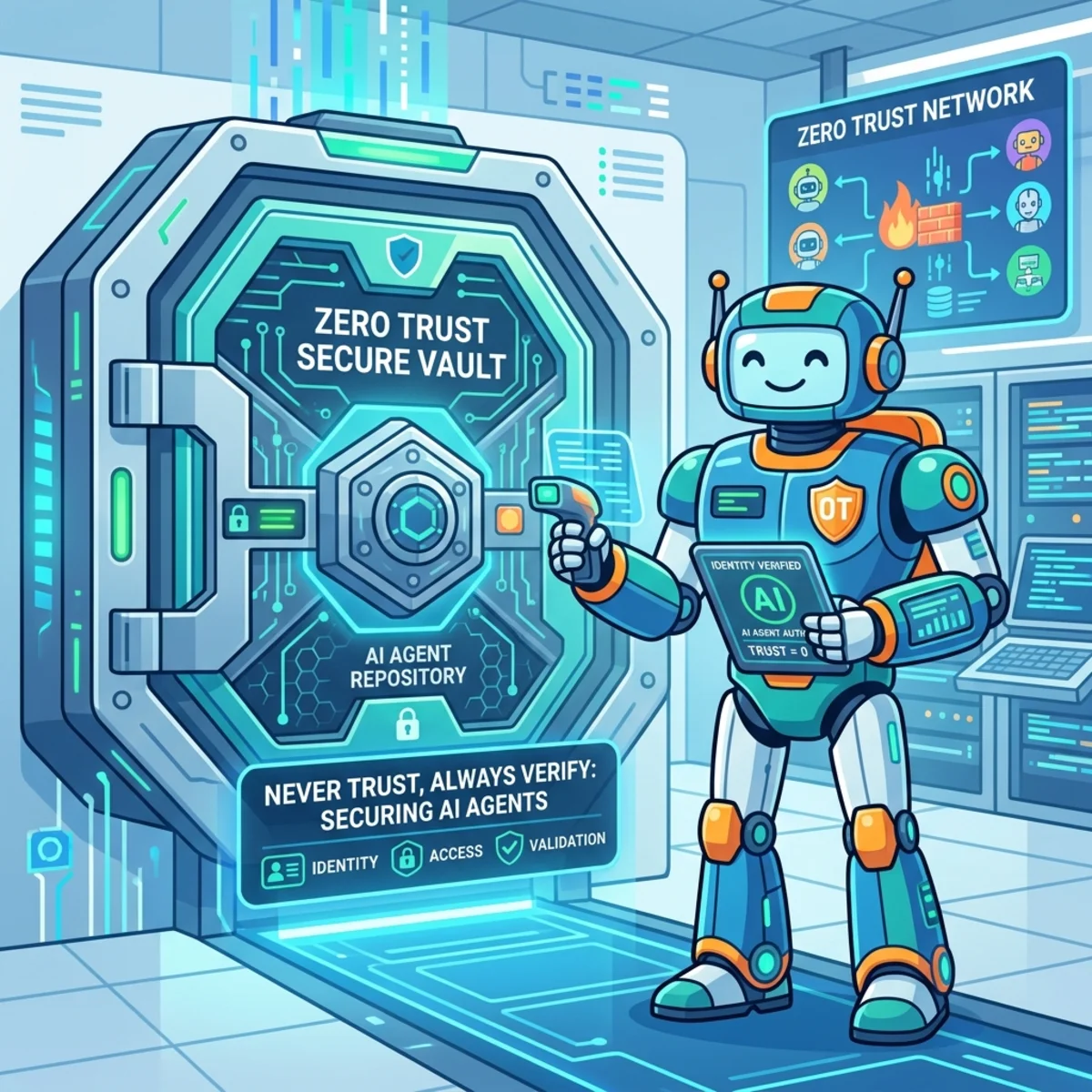
We must stop treating agents as mere scripts and start treating them as Agentic Users—the modern evolution of the service account. This is no longer a thought experiment: Microsoft Entra now ships a dedicated identity surface for exactly this called Microsoft Entra Agent ID.
Agent ID extends the Entra identity control plane to non-human identities so you can apply the same authentication, authorization, and governance controls to agents that you apply to people. In practice, an agent shows up as a first-class identity you can target with Conditional Access, review with access reviews, and monitor in sign-in logs—rather than an anonymous token floating through your APIs.
The key mental model: an agent is a workload identity (a service principal), and workload identities are riskier than user accounts because they:
- Can’t perform MFA (there’s no human to approve a prompt).
- Often have no formal lifecycle process (nobody offboards a bot).
- Have to store their credentials somewhere—which is exactly what an attacker wants to find.
That risk profile is why agents need their own targeted policies, not a copy of your human user policies.
Redefining Risk-Based Conditional Access
Traditional user risk is calculated from anomalous login locations or unfamiliar devices. For an automated agent, this is irrelevant—agents operate on programmatic schedules from datacenter IPs. Instead, Entra ID Protection evaluates the intent and entry point of the risk through service principal risk.
If an agent is authorized to access SharePoint for data retrieval but suddenly attempts to list secrets in an Azure Key Vault, the deviation in API access patterns is what triggers a risk flag—not the location it came from.
Hands-On: Ship Your First Agent Conditional Access Policy
Enough theory. Here is how you actually scope a Conditional Access (CA) policy to an agent’s identity. There are two patterns worth deploying first: location-based (block the agent from acting outside known IP ranges) and risk-based (block when ID Protection flags the service principal).
Before you start — prerequisites:
- Workload Identities Premium license is required to create or modify CA policies scoped to service principals.
- Risk-based policies additionally require Microsoft Entra ID P2 (ID Protection).
- You need at least the Conditional Access Administrator role.
- Policies apply only to single-tenant service principals registered in your own tenant. Microsoft first-party apps, third-party/multi-tenant SaaS apps, and managed identities are not covered—put managed identities in an access review instead.
Step 1 — Find the right object ID
This is the #1 place people get it wrong. You need the service principal’s Object ID from Enterprise applications, not the Object ID shown under App registrations (that one belongs to the app registration and CA will silently fail to match it).
- Browse to Entra ID → Enterprise apps and open your agent’s application.
- On the Overview tab, copy the Object ID. That’s your service principal ID.
Step 2 — Create the policy in the portal
- Sign in to the Microsoft Entra admin center as at least a Conditional Access Administrator.
- Go to Entra ID → Conditional Access → Policies → New policy and give it a meaningful name (adopt a naming standard, e.g.
CA-Agents-BlockUntrustedLocations). - Under Assignments → Users or workload identities, choose Workload identities, then under Include select Select service principals and pick your agent.
- Under Target resources → Resources, select All resources. (The policy evaluates whenever the service principal requests a token.)
- Choose your condition:
- Location-based: Conditions → Locations → Include = Any location, Exclude = the trusted named locations where the agent is allowed to run.
- Risk-based: Conditions → Service principal risk → Configure = Yes, then select the risk levels (e.g. High) that should trip the policy.
- Under Grant, the only available control is Block access. (More on why that’s actually the right answer below.)
- Set Enable policy = Report-only first. Click Create.
Step 3 — The same policy as Microsoft Graph (for your IaC pipeline)
If you manage Entra as code, here’s the equivalent location-based policy body. Note state starts as enabledForReportingButNotEnforced so you ship it safely:
Deploy it with the Microsoft Graph PowerShell SDK:
Step 4 — Verify before you enforce
Don’t flip to On until you’ve confirmed the policy doesn’t break a legitimate automated workflow.
- Go to Entra ID → Monitoring & health → Sign-in logs → Service principal sign-ins.
- Open a relevant entry and select the Conditional Access tab to see exactly which policies evaluated and what they would have done.
- For a tenant-wide view, use the Conditional Access Insights and Reporting workbook.
Once report-only shows only the sign-ins you intend to block, switch the policy to On. If anything goes wrong, rollback is simply disabling or deleting the policy.
Enforcing Control: Why “Block” Is the Whole Point
When building CA policies for agents, Block isn’t just the recommended action—today it’s the only grant control available for workload identities. And that’s by design.
Why Block? Blocking an agent terminates the compromised session and revokes the token without locking out the human operator. The human retains the authority to review the logs, flush the context, and spin up a new agent session.
The emerging “Challenge” state: Microsoft is actively building toward a “human-in-the-loop” model. Similar to how local development tools prompt you to approve a terminal command, this lets you pause an agent’s higher-risk action (e.g. uploading internal data to an external API) until a human clicks Approve. You can already approximate this today with approval steps in agent orchestration frameworks (such as human-in-the-loop checkpoints in Copilot Studio / agent runtimes)—Entra-native challenge for workload identities is the direction of travel.
Continuous Access Evaluation (CAE)
Security checks can no longer happen only at the moment of token acquisition. An agent’s token might be valid for an hour—an eternity at machine speed. CAE lets Entra interrupt active, in-motion sessions: when ID Protection or Defender raises a risk signal, the token is invalidated in near real time rather than waiting for it to expire.
The catch worth knowing: CAE near-real-time revocation is honored by CAE-capable resources—Microsoft Graph, Exchange Online, SharePoint Online, and Teams. When you design which APIs your agent touches, prefer CAE-aware resources so a “stop now” signal can actually land.
Hardening the Agent Itself: Identity Hygiene That Closes the Loop
Conditional Access decides whether the agent can act. These four practices decide how dangerous it is if compromised—and most are free.
- Kill stored secrets. A client secret or certificate sitting on disk is the prize in the supply-chain attack described earlier. Use a managed identity (for agents running on Azure) or workload identity federation (for agents running in GitHub Actions, Kubernetes, or other clouds) so there is no long-lived credential to steal. Where a secret is genuinely unavoidable, store it in Azure Key Vault, never in environment variables or
.envfiles the agent can read. - Block device code flow tenant-wide. Add a CA policy with the authentication flows condition set to block Device code flow (and legacy authentication). This single policy neutralizes the EvilTokens-style attack and stops a hallucinating LLM from quietly choosing a phishable flow.
- Enforce least-privilege Graph permissions. Agents accrete scopes over time. Review the Microsoft Graph application permissions on each agent’s service principal and strip anything unused—replace broad scopes (e.g.
Mail.ReadWrite) with the narrowest one that works (e.g.Mail.Read). The Conditional Access Optimization Agent’s least-privileged access for agent identities feature (preview) can flag over-provisioned agents for you. - Give every agent an owner and an expiry. Workload identities famously have “no formal lifecycle.” Assign an owner, add the service principal to a recurring access review, and treat an unowned agent as a finding.
Auth-flow cheat sheet: Interactive agent with a UI → authorization code flow + PKCE. Headless daemon/service → client credentials with a managed identity (no secret). True headless IoT with no browser → device code flow only, scoped tightly and blocked everywhere else.
Breaking Silos: The Unified Microsoft Security Stack
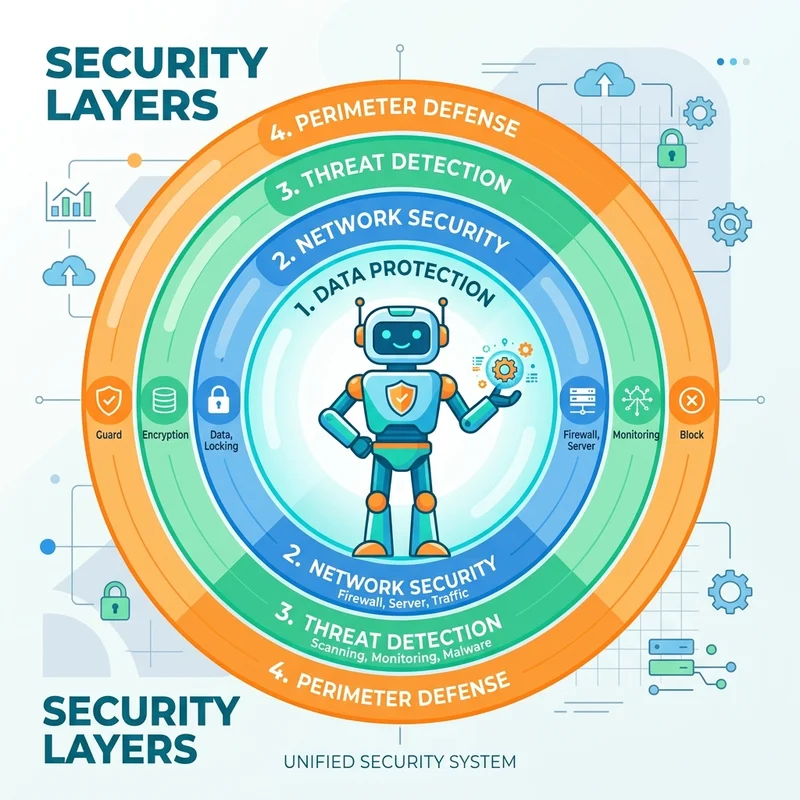
Securing complex cloud solutions requires moving away from isolated tooling. Conditional Access policies become exponentially more powerful when fed rich telemetry from across the Microsoft ecosystem.
- Purview (Data Layer): Monitors what sensitive enterprise data the agent is attempting to interact with—and DLP policies can stop an agent from exfiltrating a labeled document. Pair it with Azure AI Content Safety Prompt Shields to catch the indirect prompt-injection payloads hidden in content the agent reads.
- Global Secure Access (Network Layer): Inspects the routing and destination of the agent’s web traffic, so a sub-agent reaching out to an unknown C2 endpoint is visible and blockable at the network edge.
- Defender (Endpoint & Threat Graph): Tracks the local processes the agent spins up—so the “downgrade the PowerShell SDK” move surfaces as a process-level anomaly.
By unifying these signals, security teams can pivot through comprehensive Attack Graphs in Defender. Even if a specific CA policy hasn’t been built yet, you can trace exactly which process, on which machine, used which token to trigger an anomaly—then turn that pattern into a policy.
Feeding Custom Risk Signals Back into Entra
Entra’s risk engine is open. If your organization relies on external threat intelligence or a regional fraud-detection database, you can mark an agent identity as compromised through the Microsoft Graph Identity Protection risk APIs, which immediately raises the identity’s risk state and triggers any risk-based CA policy you built in Step 2.
For example, confirming a service principal as compromised:
The moment that risk state flips to High, your risk-based block policy does the rest—no human in the critical path.
Pro Tip for Architects: Wire your SIEM/SOAR (Microsoft Sentinel works natively) to call the Identity Protection risk APIs on a high-fidelity detection. That turns “an analyst noticed something” into “the agent was blocked in seconds,” which is the only speed that matters against agentic workflows.
The Enterprise Playbook: Actionable Steps for Admins
If you are managing Entra ID in a tenant utilizing AI agents, here is your immediate deployment playbook:
- Deploy the Conditional Access Optimization Agent. Microsoft’s CA Optimization Agent (built on Security Copilot) scans your tenant every 24 hours for new users, applications, and agent identities that no policy covers, then drafts fixes. Reality check on licensing: it needs Microsoft Entra ID P1 at minimum (P2 for the risk-based and agent-risk suggestions) plus at least one Security Compute Unit (SCU) provisioned for Security Copilot—an SCU is billed monthly whether or not you run it. To turn it on: Entra admin center → Security Copilot agents → Conditional Access Optimization Agent → Start agent (a Security Administrator activates it the first time). Every policy it proposes is created in report-only mode.
- Use Report-Only mode heavily. Never push agent restriction policies straight to enforcement. Run them in report-only, review Service principal sign-ins, and confirm you’re only catching what you intend before flipping to On.
- Stop the bleeding before achieving “Green.” Do not wait until every legacy app in your tenant is perfectly compliant before turning on Zero Trust policies. Implement them now and use group-based exclusions for the specific applications that still need remediation. (One gotcha: a CA policy assigned to a group containing a service principal is not enforced on that service principal—you must assign the service principal directly to the policy.)
- Embrace AI to secure AI. The sheer volume of telemetry from agentic workflows makes manual auditing impossible—retire the Excel spreadsheets. Lean on AI-driven posture management (the CA Optimization Agent, ID Protection, Defender’s attack graphs) to dynamically evaluate configurations and track drift.
Deployment Advice: Do not wait for a perfect “green” state across your entire tenant. Implement Zero Trust policies immediately in report-only mode, and use group-based exclusions to handle legacy applications while stopping immediate active threats.
Quick-Start Checklist
Copy this into your sprint board. Each item is a control you can stand up this week:
- Confirm licensing: Workload Identities Premium (+ Entra ID P2 for risk-based).
- Inventory agent service principals and grab each Enterprise app Object ID.
- Ship a location-based block policy in report-only; review Service principal sign-ins.
- Ship a risk-based block policy on High service principal risk in report-only.
- Add a tenant-wide policy that blocks device code flow + legacy auth.
- Replace stored secrets with managed identity / workload identity federation; move anything left into Key Vault.
- Strip unused Microsoft Graph permissions from every agent.
- Assign each agent an owner and an access review.
- Turn on the Conditional Access Optimization Agent and triage its suggestions.
- Wire a Sentinel detection to the Identity Protection risk API for automated blocking.
- Promote validated report-only policies to On.
Closing Thought
We cannot fight the integration of AI agents into the enterprise—nor should we want to. Instead, we architect robust Zero Trust perimeters around them: give every agent a real identity in Entra Agent ID, gate it with Conditional Access, revoke it in motion with CAE, and starve it of standing credentials. Do that, and your systems operate at the speed of AI with the governance of a strictly controlled enterprise environment—while you stay unbothered and keep sipping your coffee.
Read next