Mastering the Dataverse Upsert Action in Power Automate

Writer

Data integration and legacy migrations constantly run into the same wall: synchronization. When you push transactional data from an external system like SAP into Microsoft Dataverse, the source system has no idea which records already exist on the Dataverse side. The naive fix — look up each record, evaluate whether it exists, then branch to either an insert or an update — adds an extra API call per row, more failure points, and real latency once you are processing thousands of records a night.
The Dataverse Upsert action collapses that “check-then-decide” logic into a single operation. You hand Dataverse a record, and it figures out whether to create or update it for you.
This guide is deliberately practical. We will cover what an Upsert actually does under the hood, but the bulk of it is hands-on: how to configure an alternate key, the exact syntax to put in the Row ID field (the step most tutorials skip), how to force insert-only or update-only behavior, and the handful of gotchas that quietly create duplicate records if you miss them.
The running example used throughout We are syncing a Vehicle table in
Dataverse from an external SAP system. SAP is the system of record. Each
vehicle has a SAP material number (e.g. MAT-1001), a model (CX-5, CX-7),
and a region (EMEA). The Dataverse columns are cr123_sapid, cr123_model,
and cr123_region. We will use cr123_sapid as our alternate key. Swap these
names for your own table and you have a working blueprint.
1. What an Upsert Actually Does
An Upsert (Update + Insert) is a conditional write. Instead of you building the branching logic, Dataverse evaluates whether the record exists and routes the operation accordingly — at the database layer, in one transaction.
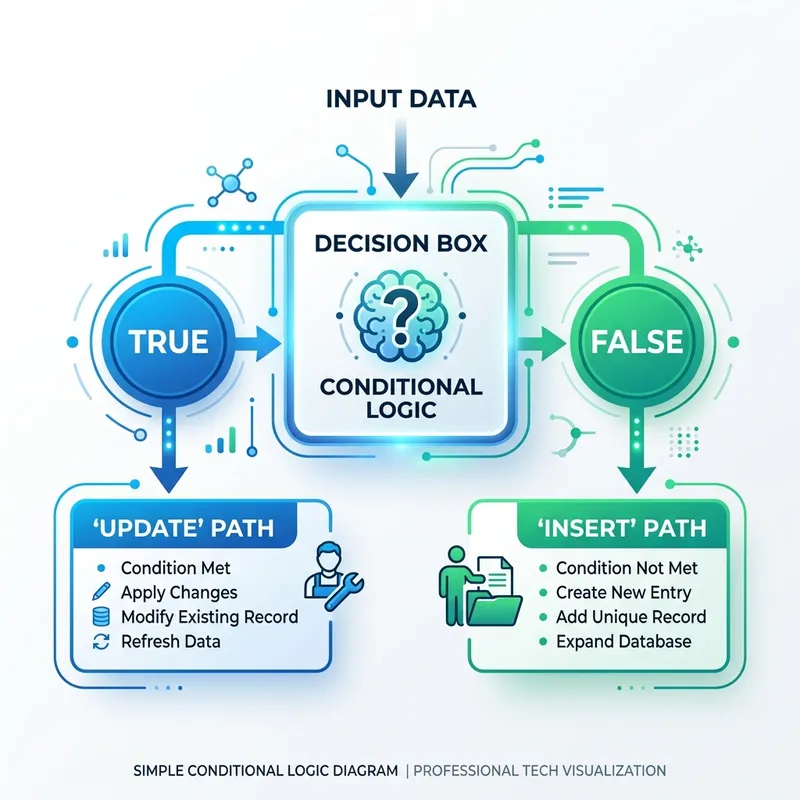
- If the record exists: Dataverse updates the columns you mapped. Columns you did not map are left untouched — Upsert does not blank them out.
- If the record does not exist: Dataverse creates a brand-new row. Columns you did not map fall back to their default values (or null).
Architecturally, this mirrors an HTTP PATCH to a record addressed by key. The Web API equivalent of our example is literally:
PATCH-by-key is “update this record, or create it if it isn’t there” — exactly the Upsert contract. The Power Automate action is a friendly wrapper over this call.
There is a cost to Upsert Upsert is slightly slower than a plain Create, because Dataverse has to attempt a lookup before deciding what to do. If you already know with certainty that a record is new (for example, a first-time bulk load into an empty table), use Add a new row instead. Reach for Upsert when you genuinely don’t know whether the record exists — which is the normal case for ongoing syncs.
2. The Mechanics of Keys: Primary vs. Alternate
To understand how Dataverse matches incoming data to existing rows, you need to separate the system’s default behavior from what you configure for integration.
System Primary Keys (GUIDs)
Every Dataverse table is provisioned with a primary key column that holds a Globally Unique Identifier (GUID).
- Auto-generated: Dataverse mints the GUID during row creation.
- Effectively immutable: Once assigned, you treat it as fixed for the life of the record.
- Meaningless externally: The GUID has no relationship to anything in SAP, your ERP, or a spreadsheet.
The Integration Dilemma
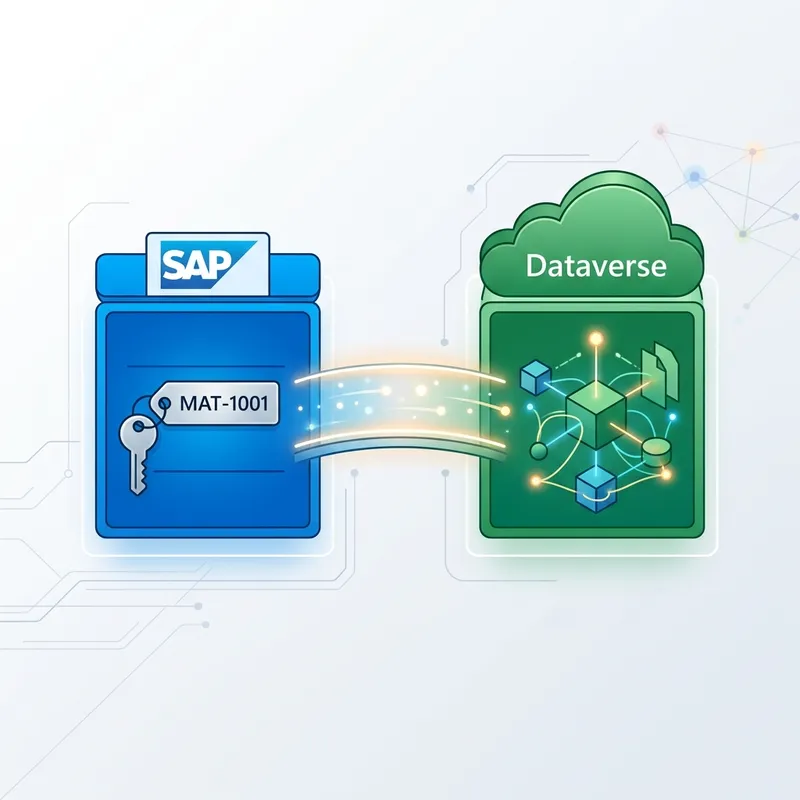
Here is the core problem. SAP knows its vehicle as MAT-1001. Dataverse knows the same vehicle as a1b2c3d4-0000-0000-0000-…. SAP never sees that GUID, and Dataverse generates it unpredictably. So when the next nightly file arrives with MAT-1001, you have no GUID to target — and matching on the primary key alone is impossible.
Alternate Keys: the bridge
An alternate key is a user-defined unique identifier built from one or more business columns. It lets Dataverse find a row by a value the external system does know — MAT-1001 — instead of a GUID.
- Single or composite: A key can be one column (
cr123_sapid) or several columns that are unique only in combination (e.g.cr123_sapid+cr123_region, when the same material number can appear once per region). - Backed by a real index: Alternate keys are enforced by a database unique index, which makes key-based lookups fast and guarantees no two rows share the same key value.
- The thing that makes Upsert work for migrations: Because the key is stable and externally meaningful, re-running your sync targets the same row every time — the foundation of a safe, repeatable load.
3. Configuring an Alternate Key in Dataverse
Define the key in your table schema before you build the flow. Through the maker portal:
- Go to make.powerapps.com and confirm you are in the correct environment (top-right environment picker).
- Open Tables, select your target table (
Vehicle), and open it. - In the table designer, find Keys (under the Schema area / left pane).
- Choose New key (also labeled + New alternate key).
- Give it a clear display name — e.g. SAP Material Key — and note the logical (schema) name; you will need it in the flow.
- Select the column(s) that make a row unique. For us, that is
cr123_sapid. For a composite key, addcr123_regionas well. - Save.
The step everyone forgets: the key is not ready immediately
Saving the key does not make it usable right away. Dataverse kicks off an asynchronous system job to build the supporting database index, and the key moves through these states:
| Status | Meaning |
|---|---|
| Pending | The index job is queued. |
| In Progress | The index is being built. |
| Active | ✅ The key is live and usable. Only now will Upsert work against it. |
| Failed | The index could not be created (almost always because of existing duplicate data). |
On a small table this takes seconds. On a table with millions of rows it can take minutes to hours. The job’s name follows the pattern Create index for {key display name} for table {table}, so you can find it under Settings → System Jobs to check progress.
The silent-failure trap If you build the flow and run an Upsert before the key reaches Active, Dataverse can’t match on the key — so every row is treated as new and you end up with duplicate records, not an error you’d notice. Always confirm the key shows Active before pointing a flow at it. In ALM pipelines this bites teams who promote a solution and immediately run a sync against fresh data.
Key creation fails on existing duplicates Because the key is a unique index, creation fails if the column(s) already contain duplicate values. If your key sits at Failed, run an Advanced Find / view on the column, clean up or merge the duplicates, then delete and recreate the key.
Constraints to design around
| Constraint | Detail |
|---|---|
| Allowed column types | Single line of text, Whole Number, Decimal Number, Date and Time, Lookup, and Choice (Option Set) only. |
| Max keys per table | Up to 10 alternate keys per table. |
| Key size | Must fit SQL index limits — 900 bytes total and a maximum of 16 columns per key. |
| Column security | A column with field-level (column) security enabled cannot be used in an alternate key. |
| Virtual tables | Not supported — Dataverse can’t enforce uniqueness on data that lives in another system. |
| Null values | Allowed, but not indexed and not unique. Nulls don’t participate in uniqueness, so rows with a null key column can slip past de-duplication. Keep key columns populated (ideally make them required). |
| Reserved characters | If key values contain any of / \ < > * % & : ? + #, key-based GET / PATCH / Upsert calls break. Avoid these characters in columns you intend to key on. |
4. The Two Upsert Actions in Power Automate
The Dataverse connector ships two Upsert actions. Pick based on where the data lands. (The Dataverse connector is premium — make sure your flow’s users are licensed for it.)
| Action | Environment targeting | Use it for |
|---|---|---|
| Upsert a row | Automatically targets the current environment the flow runs in. | Solution-aware flows that move through Dev → Test → Prod (standard ALM). The recommended default. |
| Upsert a row in selected environment | You hard-pick the target environment from a dropdown. | Cross-environment data movement, admin/utility flows, or one-off sync tools that must write to a specific environment regardless of where they run. |
For most integration work, use Upsert a row so the target follows your environment as the solution is promoted.
5. Building the Upsert — Hands-On
This is the part the architecture diagrams leave out. Here is how to wire it up.
Prerequisites
- The target table exists, and your alternate key is Active (Section 3).
- A connection to Dataverse using an account with create/write privileges on the table.
- Your source data available in the flow (a trigger, an Excel/CSV list, an HTTP payload from SAP, etc.).
Steps
-
Add the Upsert a row action to your flow.
-
Table name: select your table (
Vehicles). -
Row ID: this is the decisive field. It accepts either a GUID or an alternate-key reference. To upsert by alternate key, enter the column logical name = value:
CodeIn a real flow, the value is dynamic content from your source — for example:
cr123_sapid='@{items('Apply_to_each')?['SapId']}'. For a composite key, comma-separate the pairs:Code -
Map your columns: fill in the remaining fields (
Model,Region, etc.) from your source data. These are the values Dataverse writes on either insert or update.
Row ID syntax — the rules that save you a 404 The single most common
reason “upsert by alternate key” fails with 404 — record not found or
resource not found is a small syntax mistake. Get these right: - Use the
column logical/schema name (cr123_sapid), not the display name (“SAP
ID”). - No surrounding parentheses in the Row ID field — just
cr123_sapid='MAT-1001'. (The parentheses you see in Web API examples are
part of the URL, not the field value.) - Wrap text values in single
quotes; leave numbers unquoted (cr123_ordernum=1001). - The key must be
Active. - If a value contains a reserved character (see Section 3), the
call will fail — that’s a data problem, not a syntax one.
Don’t map the key column into the body twice When you identify the record via the alternate key in Row ID, you do not need to also map that same key column in the field list below. Microsoft’s guidance is explicit: when you use an alternate key to identify a record, don’t repeat that key’s data in the portion of the request that represents the data to save.
Fallback when the connector won’t cooperate. A few connector versions and edge cases mishandle alternate keys in the Row ID field. If you’ve checked every rule above and still get a 404, you have two reliable escape hatches: (a) List rows filtered on the key column to fetch the GUID, then Upsert by that GUID; or (b) call the Web API directly via Perform an unbound action / an HTTP action issuing PATCH .../cr123_vehicles(cr123_sapid='MAT-1001'). Both work, at the cost of the extra call you were trying to avoid.
6. Controlling the Outcome: Upsert, Insert-Only, Update-Only
What you pass to Row ID dictates the behavior.
Pattern A — True Upsert (recommended for syncs)
Pass the alternate key. Dataverse looks up the key; if it finds a match it updates, otherwise it creates. This is the idiomatic data-integration pattern and the reason alternate keys exist.
The big win is idempotency: run the same file twice and the second run updates the existing rows instead of duplicating them. That is what makes a migration safe to re-run after a partial failure.
Pattern B — Force an Update
If you already hold the exact Dataverse GUID (for instance, you fetched it earlier in the flow), pass it directly. Dataverse resolves the record instantly and updates it.
Pattern C — Force an Insert (use with care)
Putting a freshly generated GUID in Row ID guarantees no match, so Dataverse always creates a new row:
guid() breaks idempotency guid() produces a new value on every run, so
every run inserts. Re-run the same source file and you get duplicate rows.
Worse, if the table also has an alternate key, force-inserting a record
whose key value already exists throws a uniqueness violation — “A record with
the same value already exists. A duplicate record cannot be created.” That
error is actually a useful signal: it means you should be upserting by the
alternate key (Pattern A), not forcing an insert. Reserve guid() for the
rare case where you truly want a new row every single time.
| Goal | Put in Row ID | Result |
|---|---|---|
| Create or update, re-runnable | Alternate key (cr123_sapid='MAT-1001') | Idempotent upsert ✅ |
| Update a known record | Its Dataverse GUID | Update |
| Always create a new row | guid() | Insert (not idempotent ⚠️) |
7. Validating and Debugging Your Upserts
During prototyping, confirm the action is doing what you think:
- Read the raw outputs. In the flow run history, open the Upsert action and choose Show raw outputs. A response containing a newly generated GUID means an insert; a response echoing the GUID you already had means an update. This is the fastest way to prove insert-vs-update behavior.
- Watch
Created OnvsModified On. Add both system columns to a table view sorted newest-first. On a correct re-run,Modified Onshould advance whileCreated Onstays put — proof you’re updating in place rather than creating duplicates. IfCreated Onkeeps changing, you’re inserting when you meant to update (check the key is Active and the Row ID syntax is right). - Confirm the values landed. When a downstream value changes (say, a model goes from
CX-5toCX-7), verify the target column reflects the exact input and that the row count did not grow. - Test the round-trip twice. Run your flow against the same source data two times. Run one creates; run two should update the very same rows. If row count doubles, your key isn’t matching.
8. Common Pitfalls (and How to Avoid Them)
A quick-reference of the traps that cost real teams real hours:
- Key not Active yet. The most dangerous one — Upsert against a non-Active key silently creates duplicates. Verify Active before go-live, and re-verify after every solution import.
- Display name in Row ID. Use the logical name (
cr123_sapid), never the friendly display name. - Parentheses in the field. The field value is
cr123_sapid='MAT-1001'— no wrapping(). - Null key values. Nulls aren’t indexed and don’t enforce uniqueness, so they sneak past de-duplication. Keep key columns required and populated.
- Reserved characters in key values (
/ \ < > * % & : ? + #) break key-based calls. Don’t key on columns whose data contains them. - Case sensitivity surprises. Behavior can differ from the case-insensitive comparisons you see elsewhere in Dataverse. Normalize case (e.g. always uppercase) on the source side and document the rule per key.
- Re-mapping the key in the body. Identify by key in Row ID or in the data — not both.
- Using Upsert when Create would do. For a one-time load into an empty table, Create is faster.
- Duplicate data blocking key creation. If the key won’t activate, clean duplicates first, then recreate it.
9. When to Use Upsert — and When Not To
Alternate-key Upsert is the right tool when all of these hold:
- The external system owns the identifier (SAP assigns
MAT-1001; Dataverse never renames it). - The identifier is stable — not reused after deletion, not renumbered during migrations.
- The integration is higher-volume or recurring — a nightly batch of thousands benefits; a five-record weekly sync barely does.
- You want platform-enforced uniqueness as a data-quality guarantee, not just a “should be unique” convention.
Lean away from it when you’re doing a single, one-time bulk load into an empty table (use Create — it’s faster and there’s nothing to match), or when no column is genuinely a stable unique business identifier (in which case fix the data model first, rather than keying on something volatile).
Advanced note: elastic tables behave differently On standard tables, Upsert routes to a real Create or Update event (so your plug-ins and business rules on those events still fire). On elastic tables, Upsert applies changes directly and does not raise a separate Create or Update event. If you rely on event-based logic, account for this difference.
Key Takeaways
- Upsert = create-or-update in one call, decided by Dataverse — no manual “check first” branching.
- Alternate keys are the point. They let an external identifier like
MAT-1001target the right row, and they make your sync idempotent and safe to re-run. - The Row ID field is where it happens.
cr123_sapid='MAT-1001'(logical name, no parentheses, quote text values) turns a generic action into a true upsert. - The key must be Active, or you’ll silently breed duplicates. This single check prevents most production incidents.
guid()always inserts — handy occasionally, dangerous as a default.
Get the key configured and Active, get the Row ID syntax right, and the Dataverse Upsert action quietly does what used to take a lookup, a condition, and two branches — across every run, without duplicates.
Further Reading
Read next