Mastering the Copilot SharePoint List Agent

Writer

As enterprise automation evolves from rigid workflows into flexible, agentic orchestration, the way we handle data intake and structural provisioning has to evolve with it. Microsoft 365 Copilot now ships a capability built for exactly this: the SharePoint List Agent.
Instead of clicking through the traditional SharePoint UI, you describe what you want in plain language and the agent designs the schema, infers the column types, populates the rows, and deploys a ready-to-use list. This article is a practical walkthrough: how it works, how to drive it well, what it gets impressively right, and — just as importantly — where it falls short today so you can plan around it.
Quick note on scope: This article covers the List Agent that creates and populates new lists from natural language. It’s a different capability from the in-list Copilot pane that answers questions about an existing list’s data — same family, different job.
1. The Shift to Agentic Provisioning
Traditionally, building a SharePoint list meant navigating to a site, manually defining the schema, choosing each column’s data type, and then importing or typing the data row by row. The SharePoint List Agent condenses that entire lifecycle into a conversation.
Its real strength is bridging unstructured input and structured enterprise storage. Ask it for a tracker of, say, the top 50 IMDb movies, and it will draft the dataset — title, director, year, budget, synopsis — and map that into a typed, ready-to-use SharePoint list. You describe the outcome; the agent handles the schema design and the provisioning.
Always verify generated data. When the agent drafts content from general or web knowledge (movie budgets, country populations, product specs), treat it as a first draft. Spot-check numbers and dates before the list becomes a source of truth — the agent is optimizing for structure, not citation-grade accuracy.
2. Prerequisites, Licensing, and Access
Before you can drive the agent, a few things need to be in place.
- Licensing: The agent requires a Microsoft 365 Copilot license. The free Copilot Chat experience cannot create lists — if you don’t have the paid Copilot license, the capability simply won’t be available to you.
- From Frontier to GA: The agent debuted through Microsoft’s Frontier program — the early-access track that puts experimental Copilot features into customer tenants ahead of broad release. It has since reached general availability (worldwide rollout completed in early 2026). At GA it installs on by default for Copilot-licensed tenants, where during preview admins had to opt in.
- Admin control: Because it’s on by default, admins should know where the switch lives. The toggle is in the Microsoft 365 admin center → Org settings → Copilot Agents → SharePoint list agent. Access still respects every existing SharePoint permission — the agent can only write where the user already has rights.
- Where to find it: The agent surfaces across Copilot experiences — the Microsoft 365 Copilot app (m365.cloud.microsoft), plus Copilot in Teams, Outlook, and Word. You can launch it two ways:
@mentionit directly in a Copilot chat (@SharePoint List Agent ...), or- Open the Agent Store / All agents panel, filter by Built by Microsoft, find the SharePoint List Agent, and click Add to pin it to your workspace.
Admin context: The agent is enabled by default at GA but isn’t always pinned for end users. If your users say they “don’t see it,” point them to All agents → Built by Microsoft → Add — they likely just need to pin it once.
3. Hands-On: Building Your First List
The agent handles both boilerplate enterprise structures and fully custom data models. Here’s how to drive each.
Start from a Template
Out of the box, the agent offers one-click prompt buttons that scaffold common structures instantly:
- Support requests
- Employee onboarding
- Event planners
- Knowledge bases
- Recruitment trackers
- Project milestones
Click one and you get a sensible starter schema in seconds — then refine it conversationally (more on that below). This is the fastest path when your need maps to a well-known pattern.
Build a Custom Schema
For anything custom, the workflow is deliberately iterative, and this is the part worth understanding: the agent drafts the dataset in the chat first, before writing anything to SharePoint. That gives you a cheap, fast loop to shape the data before the heavier provisioning step runs.
A realistic first prompt:
“Create a list of the top 10 Asian countries with columns for country, capital, region, and population.”
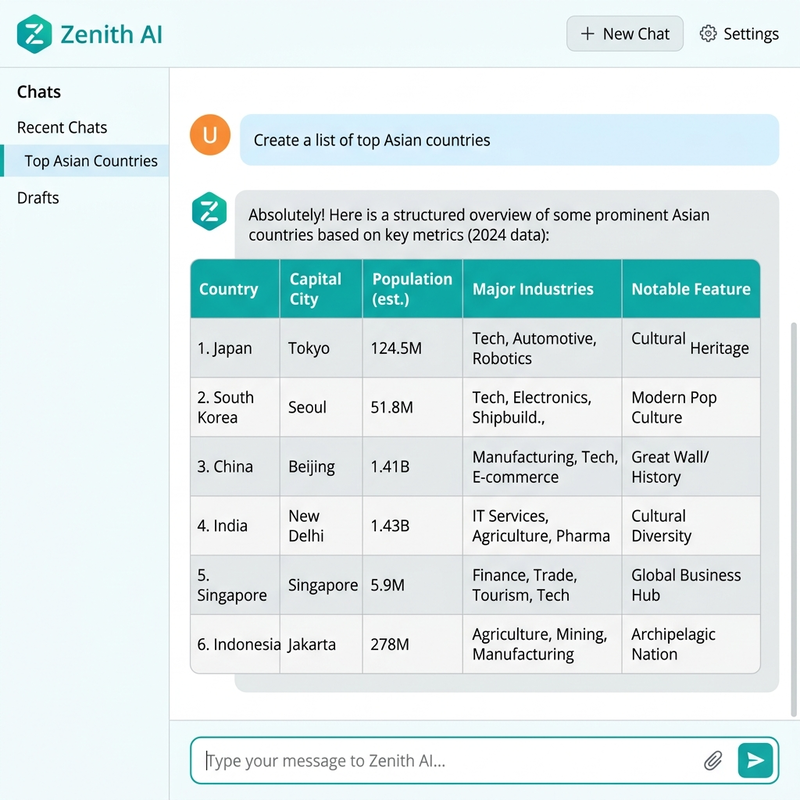
The agent returns a draft table in the chat and then suggests logical next steps — add a column, add more rows, change a type, or group the data. You refine by simply replying in natural language. For the example above, useful follow-ups look like:
- “Add a column for the official language.”
- “Add 10 more countries.”
- “Make population a Number column with thousands separators.”
- “Group the list by region.”
Each turn updates the in-chat draft. Only when you’re satisfied do you commit it — so the data is validated in a lightweight chat environment before the database actually gets built.
Be explicit about column types in your first prompt. Saying “population as a number, founded date as a date, capital as single line of text” up front dramatically reduces re-prompting. The agent infers types well, but stating them removes the guesswork — and the occasional wrong guess.
4. The Intelligence Factor: Semantic Schema Design
The agent’s standout quality is that it reasons about the meaning of your data, not just its syntax. The clearest demonstration is a two-turn car example:
- Turn 1: “Create a list of 10 budget-friendly cars under $25,000 with make, model, price, and fuel type.”
- Turn 2: “Now add 10 popular electric vehicles to the same list.”
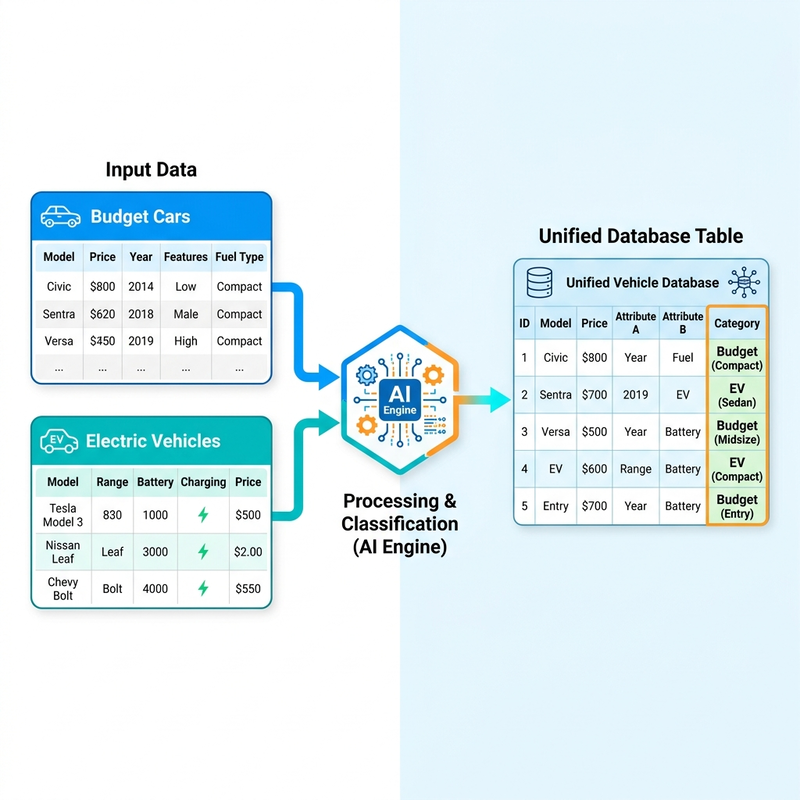
A naive tool would create two disjointed lists. Instead, the Copilot engine recognizes that both turns describe the same kind of entity — a car — and merges them into a single, normalized table. To preserve the distinction, it autonomously generates a new Category column, labeling each row as budget/affordable or EV. You never asked for that column; the agent inferred that you’d need it to keep the combined data coherent.
Agentic intelligence: That automatic normalization — recognizing related entities and adding a discriminating column — is the difference between parsing syntax and inferring intent. It’s also the single biggest time-saver, because designing clean, normalized columns by hand is exactly the tedious part of list creation.
5. Deployment and Backend Automation
Once the draft is finalized in chat, deployment kicks in:
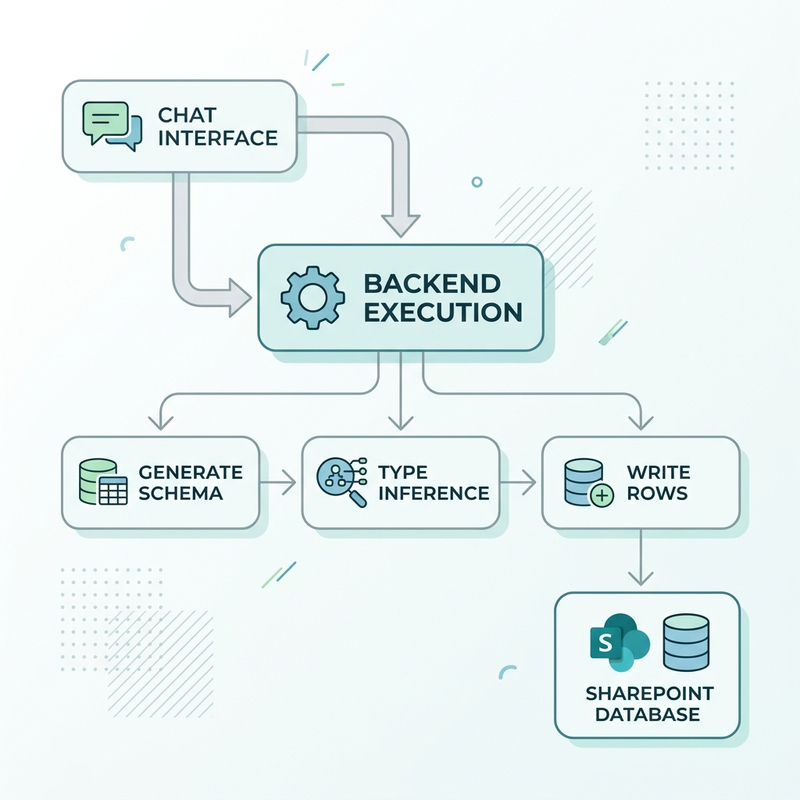
- Choose the destination: The agent asks where the list should live. You pick a target SharePoint site — or save it to your OneDrive — from a dropdown. It provisions only within your existing permission boundaries.
- Backend execution: On confirmation, the agent passes the context, data, and permissions to the backend, generates the list schema, sets each column type, and writes the rows.
- Verification: You get a direct URL to the finished list, and the agent adds a link to it in the SharePoint site’s left-hand navigation — fully populated, categorized, and ready to use.
After creation, the list is a normal SharePoint list: you can add validation rules, tune views, set retention, or wire up a Power Automate flow for alerts. The agent gets you to a strong starting structure; standard SharePoint governance takes it the rest of the way.
6. Limitations and Gotchas (Read Before You Rely On It)
The agent is genuinely impressive, but it’s still maturing. Early adopters have hit consistent rough edges — knowing them up front saves you a frustrating afternoon.
- New lists only: As of mid-2026, the agent creates new lists but can’t append to or edit an existing one. Plan to build fresh, then maintain manually.
- Scale ceiling: It’s reliable for small datasets, but populated content gets inconsistent as volume grows — testers report missing values and partially filled columns on sets around 60 rows × 8 columns. For larger imports, draft in Excel first.
- No multi-file ingestion: It can’t merge several source files into one structured list. One conversation, one logical dataset.
- Source caching: After uploading a file, the agent may keep referencing an older cached version even hours after you’ve updated the source. If results look stale, start a fresh chat and re-upload.
- Structure drift: Occasionally the created list won’t match exactly what you asked. The pragmatic fix is to delete and re-prompt with more explicit column definitions rather than fighting the existing output.
- Verify the data: Auto-generated values — especially numbers, dates, and anything sourced from general knowledge — should be spot-checked before the list is trusted.
Big dataset? Use Excel as the on-ramp. For anything beyond a few dozen rows, build and clean your data with Edit with Copilot in Excel, then bring it into SharePoint. It’s far more reliable today than asking the List Agent to populate a large list directly.
7. Practical Prompt Patterns
A few habits that consistently produce better results:
- Lead with the entity and the count: “Create a list of 15 onboarding tasks…” gives the agent a clear target size.
- Name the columns and their types: “…with columns: Task (text), Owner (person), Due Date (date), Status (choice: Not Started / In Progress / Done).”
- Refine in small steps: one change per turn keeps the draft predictable and easy to review.
- Ask for grouping and views explicitly: “Group by Status and sort by Due Date.”
- Keep datasets focused: if you need two distinct entity types, consider two lists rather than one overloaded one — unless they genuinely belong together (the cars example).
Conclusion
The SharePoint List Agent is a real step forward in how we interact with Microsoft 365 data structures. By replacing manual configuration with conversational, agentic orchestration — and by reasoning about your data rather than just copying it — it can take you from an idea to a populated, deployed tracking list in seconds.
It isn’t a silver bullet yet: new-lists-only, a modest scale ceiling, and occasional data drift mean you should pair it with Excel for heavy lifting and verify what it produces. But for the everyday work of standing up clean, well-typed lists fast, it removes a genuine bottleneck — and it’s a clear preview of where agentic provisioning is heading.
Read next