Demystifying Microsoft 365 Copilot Cowork at GA: Architecture, Economics, and Extensibility

Writer

Microsoft has officially transitioned Copilot Cowork out of the “Frontier” preview and into General Availability (GA). The era of flat-fee enterprise AI is evolving. As organizations move past the initial justification of the baseline Microsoft 365 Copilot licenses, a new, more powerful—and more costly—capability has entered the chat.
For enterprise users who have integrated Cowork into their daily operational tempo—from inbox triage to complex content generation—this update brings massive UI improvements, deep extensibility, and crucial administrative changes. Unlike standard Copilot, which relies on a fixed $30 per user/month model, Cowork operates on a variable, consumption-based pricing structure. It is designed to handle advanced agentic delegation, deep reasoning, and complex output generation.
Crucially, the shift to production grade brings a completely new consumption-based licensing model that administrators must architect and implement before the July 1st grace period expires.
TL;DR — what actually changed at GA
- Usage is now metered. Your base $30 license unlocks the door; running tasks burns Copilot credits (~$0.01 each) on top of it.
- Admins have a deadline. Configure your billing model, org spending cap, and per-user quotas in the M365 Admin Center before July 1st, or the grace period lapses with no guardrails in place.
- Extensibility went mainstream. Plugins, MCP servers, and a redesigned skill manager turn Cowork into a “Super App” that can read and write to systems far beyond Microsoft 365.
- You can see the bill before you pay it. The
/costcommand and the new admin analytics give both users and IT real numbers instead of surprises.
Here is a deep dive into the mechanics of Cowork, real-world cost analyses, and—new in this version—the hands-on steps to actually configure and optimize your AI spend.
The “Super App” Vision and Architectural Foundation
Copilot Cowork has a new home. Microsoft is consolidating the experience at m365.cloud.microsoft, shifting away from isolated agents toward a unified “Super App” interface. Today you will see dedicated tabs for Chat and Cowork, with high probability that more surfaces join the navigation array soon:
- A Code surface that brings app-building and lightweight automation to non-developers through natural-language “vibe coding” (the same muscle behind GitHub Copilot, but aimed at business users rather than engineers).
- Autonomous agents like Scout for long-running, hands-off work.
Try it now: Browse to m365.cloud.microsoft, sign in with your work account, and look for the Cowork tab in the left rail. If you only see Chat, your tenant hasn’t been enabled for Cowork yet—an admin needs to assign access first (covered below).
Under the hood, it is important to remember that Copilot Cowork operates as a fully managed service running in Linux containers. Because it is not a customizable local environment, administrators and architects do not need to manage the underlying compute infrastructure. Every document, email, and Graph API data point you feed into the prompt must be ingested, serialized, and processed by this managed cloud runtime. Therefore, administration is entirely focused on managing access, extensibility, and the new consumption economics—not patching servers or sizing VMs.
The Currency: Copilot Credits and the New Economy
During the Frontier phase, compute was essentially an all-you-can-eat buffet. At GA, the financial architecture changes drastically. A baseline M365 Copilot license ($30/user/month) only grants access to the UI. To actually execute a task, you must spend Copilot credits, pegged at a flat rate of roughly $0.01 USD per credit.
That penny-per-credit rate makes mental math easy. Keep this quick-reference handy:
| Credits | Approx. cost | What that buys you |
|---|---|---|
| ~100 | ~$1.00 | A short email drafted from a single note |
| ~224 | ~$2.24 | One presentation slide generated from basic notes |
| ~600 | ~$6.00 | A 10-slide deck with a gap analysis |
| ~1,000 | ~$10.00 | A multi-output workshop kit (deck + framework + brief) |
Every prompt you execute consumes a highly variable number of credits based on what you are asking the AI to ingest, process, and output. Administrators must decide between utilizing bulk Capacity Packs (prepaid blocks of credits) or enabling Pay-as-you-go billing (metered against an Azure subscription).
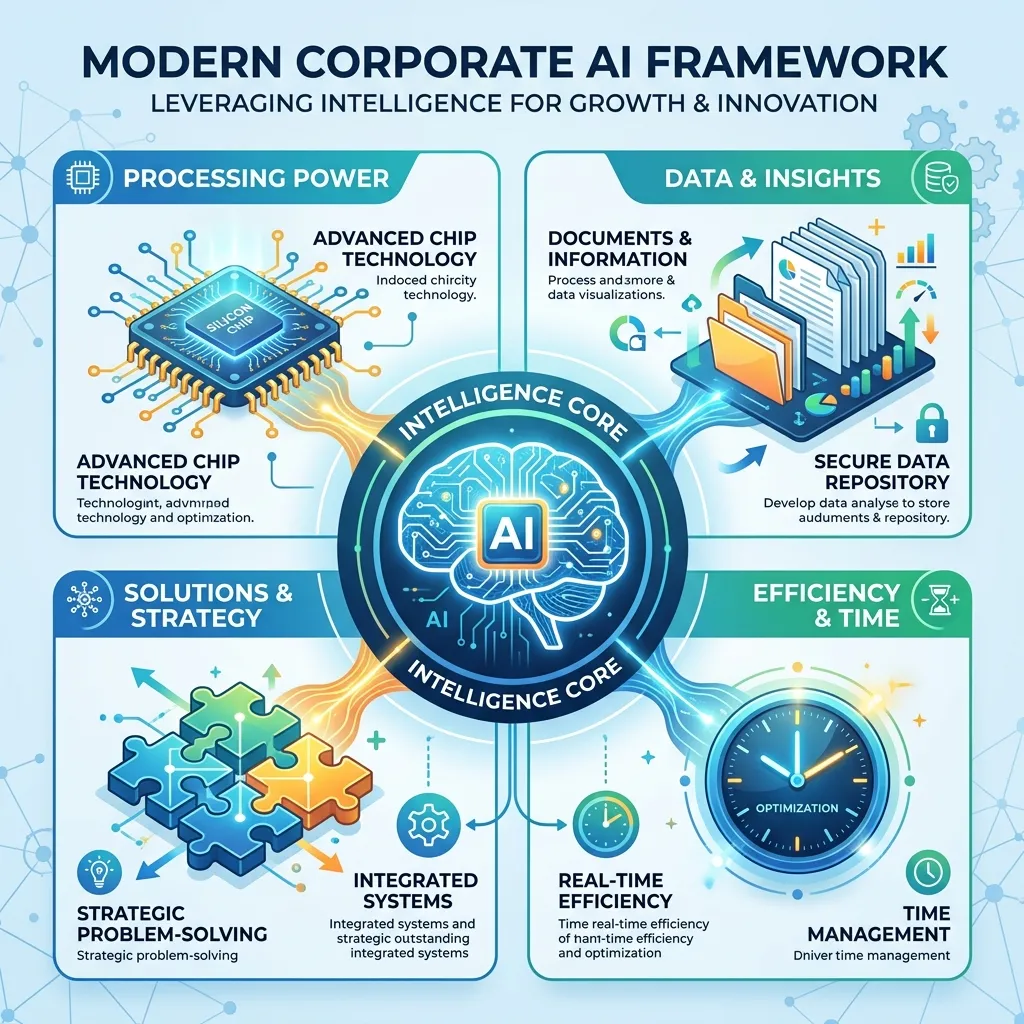
Microsoft determines the cost of a single run based on four primary pillars:
- Model Selection: Premium models (e.g., Opus 4.8) cost significantly more per token for their deep intelligence than lighter, faster models. Practical effect: leaving the picker on Auto lets the system down-shift to a cheaper model when the task doesn’t need a frontier brain.
- Context Size (Retrieval): Cowork sits on top of Work IQ, giving it access to your Microsoft Graph data. Massive “megaprompts” and large document attachments require the LLM to reason over more tokens, driving up costs. Practical effect: trim attachments to the pages that matter instead of dumping the whole 60-slide deck.
- Tool Usage: Calling out to plugins, MCP servers, or generating discrete files (like a Word doc) adds execution overhead and complexity. Practical effect: a chat answer is cheaper than the same answer rendered as a formatted
.docx. - Runtime Harness: The actual cognitive load and baseline compute required by the orchestration engine to facilitate the task. Practical effect: collating facts is cheap; performing gap analysis against an external framework is expensive—because the engine is reasoning, not just retrieving.
Where do I see my balance? After any run, the task header shows the credits that run consumed, and your remaining allocation is visible in the Cowork side panel. Admins see the tenant-wide view in the Admin Center (with a ~48-hour reporting delay—more on that below).
Cowork vs. Standard Copilot: Choosing the Right Tool
The single biggest way to control spend isn’t a clever prompt—it’s not reaching for Cowork when standard Copilot will do. Standard M365 Copilot (the $30 license) already handles a huge share of daily work at no incremental credit cost. Reserve metered Cowork for genuinely agentic jobs.
| If you need to… | Use | Why |
|---|---|---|
| Summarize an email thread or document | Standard Copilot | Included, fast, no credit burn |
| Draft a routine reply or short message | Standard Copilot | Single-shot generation, no agentic loop |
| Pull facts together with Researcher/Analyst | Standard Copilot | Built-in agents do the gathering for free |
| Chain multiple sources → reason → produce files | Cowork | Multi-step delegation is what credits pay for |
| Generate a styled deck/doc with subsections | Cowork | File generation + structural reasoning |
| Run a scheduled, recurring workflow | Cowork | Automation surface is Cowork-only |
The rule of thumb: if a smart intern with your documents could do it in one pass, it’s a standard-Copilot job. If it needs delegation, iteration, or multiple distinct outputs, it’s a Cowork job.
Evaluating Workloads: The Complexity Spectrum

Because Cowork charges for actual execution, task costs are highly variable. Microsoft provides a rough spectrum to help estimate consumption, dividing tasks into Light, Medium, and Heavy workloads. Here’s the whole spectrum at a glance before we dig into each tier:
| Tier | Credits | Cost | Tell-tale signals | Example |
|---|---|---|---|---|
| Light | 100–300 | $1–$3 | One source, thin reasoning, one output | Draft an email from a one-page agenda |
| Medium | 400–700 | $4–$7 | Multiple sources, structured formatting, some analysis | Gap-analysis + 10-slide deck |
| Heavy | 700+ | $7+ | Deep reasoning, broad aggregation, several outputs | Workshop kit: brief + framework + guide |
1. Light Use Cases (100–300 credits / $1–$3)
Light workloads involve minimal sources, thin reasoning, and a single output.
- Example: “Read this one-page agenda and draft a pre-workshop email.”
- Real-world cost: Generating a single presentation slide from basic notes costs around 224 credits ($2.24).
Strategic Tip: Many tasks in this tier do not require Cowork at all. Train users to default to standard M365 Copilot for basic text generation and summarization, and to keep metered Cowork for jobs that genuinely need delegation. The cheapest credit is the one you never spend.
2. Medium Use Cases (400–700 credits / $4–$7)
Tasks move into the Medium tier when you introduce multiple data sources, request specific structural formatting, or require the AI to iterate and analyze.
- Example: “Review our product offerings, compare them to this Excel project plan, perform a gap analysis, and generate a 10-slide deck with specific framework subsections.”
- Real-world cost: Roughly 600 credits ($6.00).
The Iteration Trap: Every time you iterate on a prompt (“Now add this,” “Change the persona to an expert advisor”), you are executing a net-new run that re-ingests the full context. Iterative refinement is the fastest way to accidentally push a Light task into a Medium or Heavy cost bracket.
3. Heavy Use Cases (700+ credits / $7+)
Heavy workloads demand deep reasoning, broad data aggregation, and multifaceted outputs.
- Example: “Analyze these supplier decks, create a thought leadership piece, design a decision framework, and build a prioritization guide for next steps.”
- Real-world cost: 997 credits ($9.97).
Hidden Multipliers: You might think you are asking for one output (a workshop document), but if that document requires six distinct types of reasoning (framework generation, thought leadership, summarization, and so on), the engine processes it as multiple outputs—heavily spiking the cost.
Hands-on: estimating a task before you run it
Before committing a Heavy prompt, sanity-check the cost yourself in three steps:
- Count your sources. Each attached document or Graph pull is context the model must read. Three supplier decks ≈ a lot of input tokens.
- Count your distinct outputs. “Brief + framework + prioritization guide” is three reasoning products, not one.
- Append
/cost. Add the/costcommand to the end of your prompt and Cowork returns an exact estimate (e.g., “391.6 credits”) before generating the artifact. If the number shocks you, this is the moment to trim sources or split the work—not after the bill lands.
Expanding the Agentic Surface: Plugins and Skills
The most significant functional upgrade in GA is the aggressive push toward modular extensibility, surfaced via the new Customize menu (accessible via the left menu or the ’+’ button).
Plugin Ecosystem and MCPs
Cowork is no longer constrained to native Microsoft 365 data. The plugin library now supports first-party endpoints like Fabric IQ and Dynamics, alongside third-party integrations such as monday.com and Harvey. Furthermore, the environment embraces the Model Context Protocol (MCP) ecosystem. Whether you are utilizing community-driven tools like Flow Studio or implementing the Microsoft management MCP server to orchestrate administrative tasks, plugins allow the agent to read and write directly to external systems.
Hands-on — adding an MCP server: Open Customize → Plugins, choose Add MCP server, and supply the server endpoint (and, where required, an auth token). Once connected, the agent can call that server’s tools mid-task—e.g., “create the ticket in our tracker”—without you leaving the chat. Treat every write-capable plugin as a security boundary: it can change data in the connected system, so scope its access the same way you would a service account.
Redesigned Skill Management (.md Lifecycle)
Previously, creating and sharing custom skills required mechanical manipulation of .md files hidden deep within specific OneDrive folder hierarchies. The new GA interface completely abstracts this file system management:
- Visual Interface: Clicking a skill now natively renders the front matter and instructional prompt directly in the browser.
- Seamless Sharing: You can securely Download a skill (which exports the
.mdfile) to share with colleagues. When they hit Upload, Cowork programmatically generates the correct folder structures and places the file without any manual intervention. - Iterative Editing: Clicking Edit on a skill spins up a new Cowork chat loaded with the skill’s parameters, allowing you to update the underlying instructions using natural language.
Under the hood, a skill is still just a Markdown file with YAML front matter—now living under your Documents/Cowork folder in OneDrive. If you ever open one directly, it looks like this:
The name and description are what the system uses to decide when to trigger the skill, so make the description specific. The body is the instruction set the agent follows every time.
Pro Tip for Skill Creation: Do not start by trying to write a skill from
scratch. Execute the task manually with Cowork first. Once the agent outputs
the exact desired result, simply prompt: “Turn this into a skill.” Cowork
reverse-engineers the working run into a reusable .md—front matter and all—
which you can then refine.
Workspace Navigation & UI Enhancements
To manage this new power, Microsoft has rolled out several UI and navigation updates:
- Title-Based Search: The search engine currently indexes task titles exclusively, ignoring the underlying conversational body. Best practice: rename your tasks immediately after creation with a descriptive, keyword-rich title (e.g., “Q3 Supplier Gap Analysis — workshop deck”) so you can actually find them later. A task left as “Untitled chat” is effectively lost.
- Task Scheduling: Cowork workflows can now be automated. Finalize a task and instruct the agent to run it on a recurring schedule (e.g., “run this every Friday at 8 AM”), then monitor it from the dedicated scheduling interface. Cost note: every scheduled run spends credits just like a manual one—so a daily Heavy task quietly becomes a recurring line item. Schedule deliberately, and keep recurring jobs in the Light/Medium range where you can.
Prompting and Model Management
Users are no longer locked into a single background model, empowering them to balance intelligence against compute costs.
- Built-in Prompt Examples: A repository of examples is now included natively to aid user upskilling—a good first stop if you’re not sure how to phrase an agentic request.
- Model Options: A new Model Selector dropdown lets users choose between Auto, GPT-55, Sonnet 4.6, or Opus 4.8.
- Auto Mode: This is the recommended baseline, as it dynamically selects the most cost-effective model capable of completing the prompt successfully. Override it only when you have a specific reason—e.g., forcing Opus for a high-stakes reasoning task, or a lighter model for bulk, low-complexity runs.
Cost Estimation, Governance, and Administration
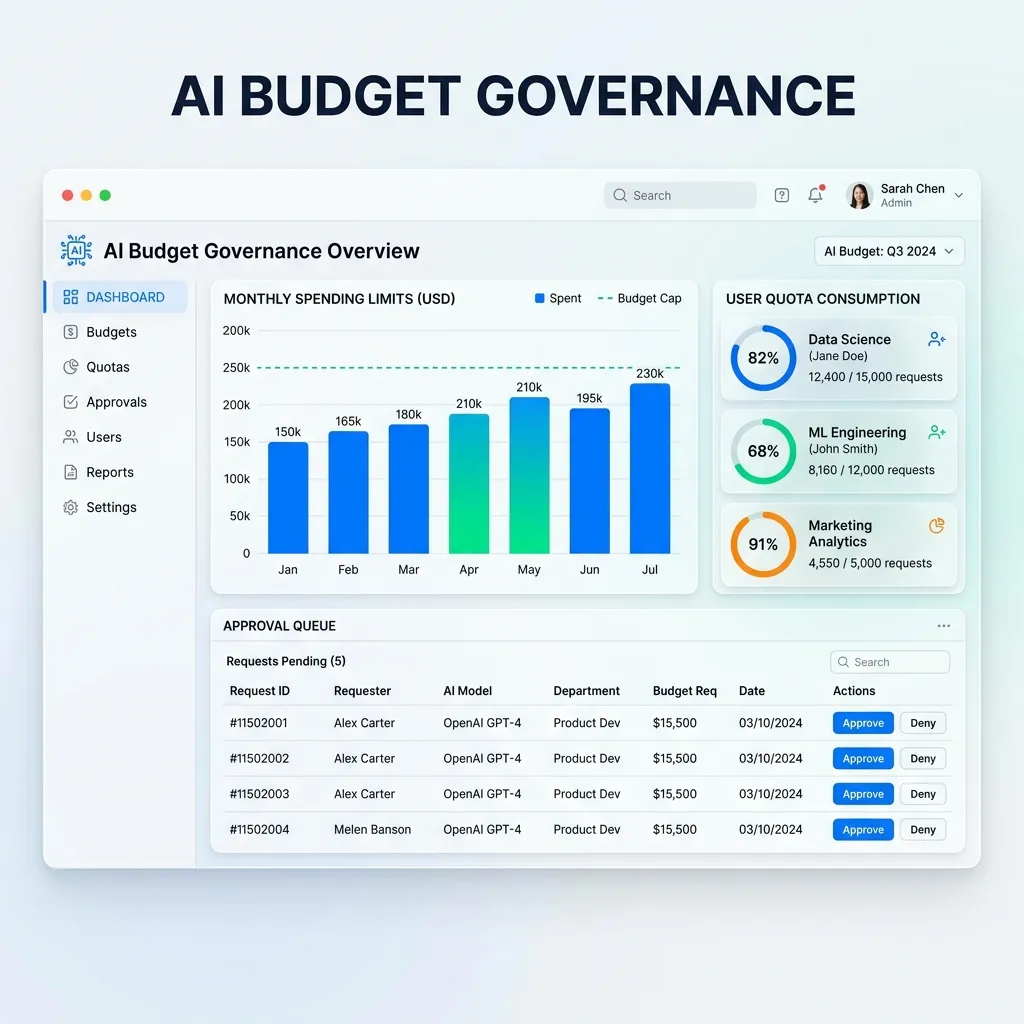
Left unmonitored, Cowork can significantly impact IT budgets. Using Microsoft’s Customer Cowork Estimator spreadsheet, a standard corporate knowledge worker executing 22 Light, 11 Medium, and 5 Heavy tasks a month will accrue roughly $142 per month in usage costs—completely independent of their base M365 license.
That headline number is easier to trust when you see the math. Using blended averages within each band (lower than the worst-case examples above, because not every Light task is a $3 task):
| Tier | Tasks/mo | Avg cost | Subtotal |
|---|---|---|---|
| Light | 22 | ~$2.00 | ~$44 |
| Medium | 11 | ~$5.30 | ~$58 |
| Heavy | 5 | ~$8.00 | ~$40 |
| Total | 38 | — | ~$142 |
Multiply that by a few hundred knowledge workers and you can see why governance is not optional. The good news: both end-users and administrators have concrete tools to keep it in check.
User-Level Tools
- The
/costcommand: Append/costto the end of any prompt. Before generating the final artifact, the AI evaluates the context and runtime requirements and returns an exact credit estimate (e.g., “391.6 credits”). Use it as a habit on anything that looks Medium or heavier—it costs nothing to check.
Administrator Action Items — step by step
If you are a global admin, configure your billing strategy in the M365 Admin Center → Copilot → Cowork tab before the July 1st deadline. Concretely:
- Open the Cowork tab. Go to
admin.microsoft.com, then Copilot → Cowork. - Pick a billing model. Choose Capacity Packs (prepaid, predictable) or Pay-as-you-go (metered to an Azure subscription—link the subscription here).
- Set an org-wide Monthly Spending Limit. This is your circuit breaker against runaway compute. Set it even if it’s generous; a cap you raise later beats an uncapped July.
- Set a default per-user quota. Establish a baseline for everyone (e.g., 500 credits/month, ~$5).
- Create power-user policies. Add a secondary policy/group for heavy agentic users with a higher threshold (e.g., 10,000 credits/month).
- Enable the credit-request workflow. When a user exhausts their quota, the system routes their request for more credits into an administrator approval queue—so people aren’t blocked, but you stay in control.
- Verify before July 1st. Confirm the limit, quotas, and billing source are all active. After the grace period, unconfigured tenants lose their guardrails.
Monitoring
- Usage Analytics: View active users, scheduled tasks, and average task volumes. Important caveat: reporting currently operates with a ~48-hour delay, so today’s spike won’t show until the day after tomorrow. Don’t treat the dashboard as real-time—set conservative caps precisely because you’re flying with delayed instruments.
Technical Best Practices & Optimization Tricks
To extract maximum value without inflating your credit burn rate, build these habits:
- Leverage standard Copilot first. Use standard Copilot’s built-in Researcher or Analyst agents to do the heavy data-gathering and initial reasoning for free. Once you have a refined, concise dataset, pass that into Cowork for the final high-quality generation.
- Consolidate your prompts. Because every iteration is a net-new run, invest the time to write one comprehensive, zero-shot prompt instead of treating the AI like a conversational chatbot. (See the before/after below.)
- Avoid uploading heavy templates. A large, design-heavy corporate PowerPoint template forces the AI to consume massive context tokens just to parse the styling. Instead, use built-in Copilot branding skills or text-based style guidelines.
- Trim your sources to what’s relevant. Attaching a 60-page report when 4 pages hold the answer pays for 56 pages of reading. Extract first, then attach.
- Right-size the model. Trust Auto; reach for Opus only when the reasoning genuinely warrants it.
Before / after: the same job, one-third the runs
A Heavy task often hides three or four runs that could have been one. Watch what consolidation does:
❌ Before — three metered runs, context re-ingested each time:
- “Summarize these three supplier decks.”
- “Now turn that into a thought-leadership piece.”
- “Add a decision framework and a next-steps guide.”
✅ After — one run:
“Using the three attached supplier decks, produce a single thought-leadership brief that (1) summarizes each supplier’s positioning, (2) synthesizes a clear point of view on market direction, (3) includes a decision-framework table, and (4) ends with a prioritized next-steps list. Audience: VP of Strategy. Tone: confident and concise. If a fact is missing, mark it [verify] rather than inventing it.”
Same deliverable, but you paid for the context once instead of three times—and you got a more coherent result because the model reasoned about all four parts together.
Frequently Asked Questions
Does my standard $30 Copilot license still work the same? Yes. Cowork is additive. Everything you do in standard Copilot is unchanged and not metered—credits only apply to Cowork runs.
How do I avoid a surprise bill? Three layers: per-user quotas (admin), an org-wide spending limit (admin), and the /cost command (user). Use all three.
Do my existing custom skills still work after GA? Yes. Skills are still .md files under Documents/Cowork; GA simply gives you a visual layer over them so you no longer edit the file system by hand.
Which model should most people use? Auto. It picks the cheapest model that can complete the task. Override only for a specific, deliberate reason.
Can I see what a task will cost before I run it? Yes—append /cost to your prompt and Cowork returns an estimate before generating anything.
Why doesn’t my usage dashboard show today’s activity? Reporting runs on a ~48-hour delay. Set caps conservatively to compensate for the lag.
The Road Ahead
The AI landscape is highly volatile, and Cowork’s backend will shift rapidly. While current processing leans heavily on the Anthropic Opus 4.8 model, Microsoft is preparing to introduce GPT-55 alongside a proprietary model dubbed Cowork 1—specifically engineered to balance enterprise-grade quality with more efficient cost scaling.
Additionally, Microsoft has announced that Cowork will soon be able to autonomously navigate web browsers to fetch and interact with external web data, similar to the proposed capabilities of Scout. As these models and capabilities go live, expect the credit economy to shift—which means prompt efficiency and ROI are not a one-time tuning exercise but an ongoing discipline.
Next steps: Get into the M365 Admin Center this week. Map out a generous but capped all-user limit for July 1st, set per-user quotas with a power-user tier, monitor actual consumption through the new reporting tools (remembering the 48-hour lag), and start identifying which users will need premium credit allocations for heavy agentic workloads. Then train your users on the one habit that saves the most money: knowing when not to use Cowork at all.
Read next