Mastering Microsoft 365 Copilot Cowork Delegation

Writer

We are officially crossing the threshold from conversational AI to autonomous enterprise execution. Microsoft 365 Copilot Cowork went generally available on June 16, 2026, after graduating from the Frontier preview program — and the paradigm has shifted. We are no longer just chatting with a large language model (LLM) to brainstorm; we are delegating complex, multi-step jobs to a background agent that keeps working even when our laptops are closed.
For solution architects, team leads, IT professionals, and curious professionals looking to level up, adopting Cowork is less about learning a new menu and more about changing how you hand off work. This guide is a practical deep dive: the architecture, the admin setup, the prompt engineering, and the custom-skill workflow — with copy-paste examples you can use today.
The 7 Capabilities You Will Actually Use
Before the deep dive, here is the whole product in one glance. Everything below maps back to these seven capabilities:
- Autonomous, asynchronous execution — submit a job, walk away, review the artifacts later.
- Work IQ context grounding — Cowork reads across your Microsoft 365 graph instead of relying on what you paste in.
- Multimodal model routing — the right model is picked per step to balance cost and capability.
- Built-in skills — native Word, Excel, PowerPoint, email, scheduling, research, and more.
- Custom skills and extensibility — bake your team’s conventions into reusable Markdown skills, connectors, and plugins.
- Scheduled tasks — recurring automations that run headless on a cadence you define.
- Enterprise governance and cost control — admin enablement, per-user access, spending limits, and usage-based billing.
The Core Paradigm: Chat vs. Cowork
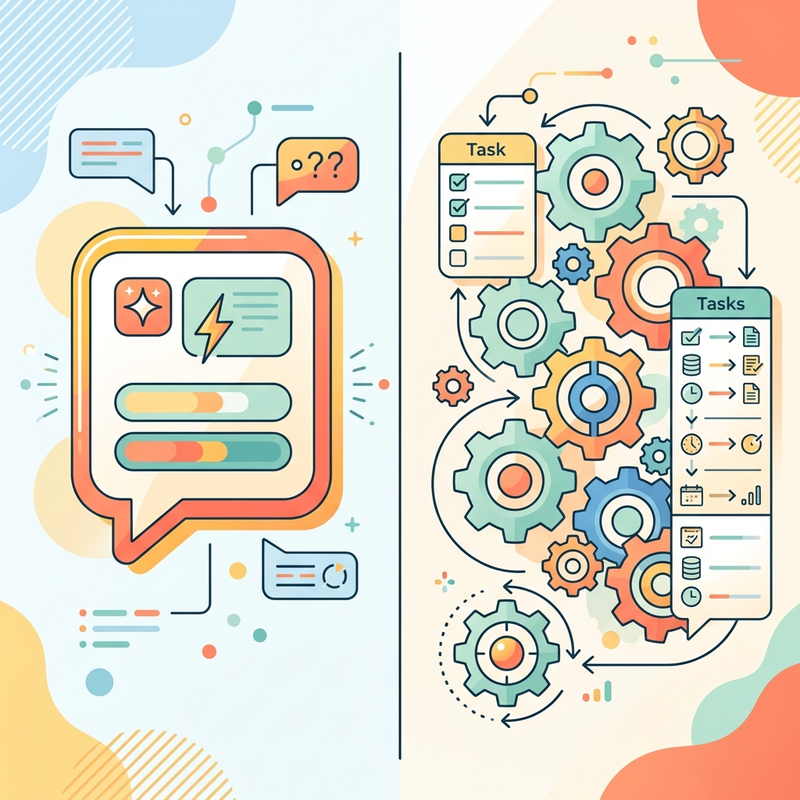
The mindset shift is simple: if you have a quick question, use Chat. If you have a discrete job with a defined deliverable, trigger Cowork.
Unlike standard Copilot interactions that run synchronously in a chat thread, Cowork operates as a managed service running in Linux containers in Microsoft’s cloud. Execution is fully decoupled from your local environment. You can submit a heavy task, close your laptop, commute home, and review the finished artifacts on your phone.
A critical practical detail that trips people up: Cowork only acts on files in OneDrive and SharePoint — never on your local machine. It is built on the same underlying technology as Anthropic’s Claude Cowork, but where Claude Cowork touches files on your computer, Microsoft’s version operates entirely on documents held in your Microsoft 365 tenant. If you want Cowork to use a template or a source file, put it in OneDrive or SharePoint first.
Outcome over steps is the core principle of delegation. You hand over the whole job and stay reachable for approvals — you do not hover over the execution.
Use this quick test to decide where a request belongs:
| Signal | Use Chat | Use Cowork |
|---|---|---|
| Time horizon | Seconds to a minute | Minutes to hours, possibly while you’re away |
| Output | An answer or idea | A finished artifact (deck, doc, model, digest) |
| Steps | One | Many, across tools and sources |
| Example | ”Summarize this email" | "Draft a 15-slide launch deck from these three files” |
| Cost | Included in your license | Consumes usage-based Copilot Credits |
Quick tip: When delegating to Cowork, define the outcome and constraints rather than micro-managing the steps. A solid brief is the difference between an expensive hallucination and a perfect deliverable.
The Engine: Work IQ and Multimodal Routing

Two technical pillars separate Cowork from a standard generative endpoint:
1. Work IQ. Microsoft’s context engine dynamically maps your organizational graph. It aggregates unstructured data across Outlook, Teams, SharePoint, and OneDrive to understand reporting lines, communication habits, and project specifics. In practice this means you can reference people and artifacts in a brief and let Work IQ resolve the details, instead of pasting in everything by hand.
2. Multimodal routing. Cowork picks the most efficient model for each step of the job rather than running everything on one expensive engine. Microsoft credits this design with making the cost per prompt roughly 30–40% cheaper than running the equivalent on a single frontier model. You can override the choice, but Auto (recommended) lets the system balance compute cost against capability.
The model line-up at general availability:
| Model | Best for | Availability |
|---|---|---|
| Auto | Letting Cowork balance cost vs. capability | Default — recommended |
| Claude Opus 4.8 (Anthropic) | Heavy, multi-step reasoning | All M365 Copilot customers |
| Claude Sonnet 4.6 (Anthropic) | Fast, lower-cost tasks | All M365 Copilot customers |
| GPT 5.5 (OpenAI) | Alternative frontier reasoning | Frontier program |
| Cowork 1 (Microsoft) | Secure, fine-tuned, substantially lower cost | Rolling out post-GA |
Pro tip: Leave routing on Auto for most work. Only force Opus when a task genuinely needs deep reasoning across many sources — forcing a heavy model on a light task is the most common way to overspend credits.
Infrastructure and Setup Prerequisites
Cowork is governed and off by default. An administrator must deliberately turn it on. Here is the realistic setup path through the Microsoft 365 admin experience:
- Assign a Microsoft 365 Copilot license. Cowork sits on top of the base Copilot license — roughly $30 per user per month for large enterprises (before discounts) and $20 for Microsoft 365 Copilot for Business. There is no separate “Premium” SKU; usage-based billing is layered on top of this license.
- Enable Cowork and choose who gets it. Cowork ships disabled. Admins decide when to make it available and which users or groups get access. Once enabled, it appears in the Microsoft 365 Copilot app under the Agents pane in the left navigation.
- Turn on usage-based billing. Cowork consumes Copilot Credits, so an Azure consumption / pay-as-you-go model must be active for the agent to run.
- Accept the model-provider data terms. Because Cowork routes work to third-party models (Anthropic, OpenAI) in addition to Microsoft’s own, your tenant must agree to the relevant data-processing terms for those providers before those routes are used.
- Set spending guardrails. Admins can impose spending limits at the tenant, group, and user level and receive notifications when spend crosses a threshold — do this before a wide rollout, not after the first invoice.
Heads-up: If your tenant ran Cowork during the Frontier preview (March 30 – June 16, 2026), Microsoft applied a grace period — those tenants were not billed for Cowork usage until July 1, 2026, to ease the transition to paid billing.
Licensing, Pricing, and Cost Mechanics
Because Cowork executes autonomous, multi-step tasks, it bills on usage measured in Copilot Credits, on top of the base Copilot license. There are two ways to pay:
- Pay-as-you-go — priced at 1 cent per credit. No commitment; you pay for what you use.
- P3 (committed/pre-purchase) — commit to a volume of usage in advance in exchange for a discount. This suits high-volume, predictable enterprise deployments.
Your credit consumption is calculated from four vectors:
- Model use — Opus is expensive; Sonnet and Cowork 1 are economical.
- Context retrieval — how much Work IQ data the task parses.
- Tool/skill calls — invoking Excel, PowerPoint, custom plugins, etc.
- Runtime — total execution duration.
In practice, a task that draws on many sources, uses deep reasoning, and produces two or more outputs costs more than a focused, single-output task. As a working mental model, think of jobs as falling into broad effort bands — light, medium, and heavy — driven by those four vectors. Each band roughly tracks how much model time, retrieval, and tool work the job demands.
Two things make this manageable in real life:
- Per-task cost visibility. Users can see how many credits each task consumed, so you can learn the cost shape of your common jobs and tune them.
- Spending limits. Combined with the admin guardrails above, these keep a runaway job from becoming a runaway bill.
Pro tip: A sharper, more constrained prompt stops the model from endlessly crawling irrelevant SharePoint sites — which directly lowers context-retrieval and runtime costs. Constraining a brief is a cost-control technique, not just a quality one.
When NOT to Use Cowork
Knowing when to avoid Cowork is as important as knowing when to use it. Do not trigger Cowork for:
- Quick Q&A or simple fact retrieval (that’s Chat).
- Brainstorming sessions.
- Trivial, single-step tasks.
- Vague briefs where the desired outcome is unclear — you’ll pay for a guess.
- Highly sensitive, ungoverned data that shouldn’t be exposed to extended reasoning loops.
- Anything that depends on files only stored locally — Cowork can’t reach your hard drive. Move the file to OneDrive/SharePoint first, or it’s a non-starter.
Navigating the Interface
For the full experience, use the dedicated Desktop app. The key components:
- Model Selector — force a specific model or stay on the recommended Auto routing.
- Task Manager — your control center for autonomous jobs, with tasks grouped into Needs Input, In Progress, and Scheduled. This is where you respond to approval prompts.
- Skills side panel — updates in real time to show which skills (built-in and custom) Cowork has loaded for the current job. Glance here to confirm your custom skill activated before work starts.
- Customize pane — where you create, evaluate, and deploy custom skills and connectors.
Cowork narrates what it’s doing at each stage and pauses for your approval before irreversible actions — sending an email, posting to Teams, or anything that leaves the tenant. Approvals live in the Task Manager’s Needs Input bucket.
The Anatomy of an Enterprise-Grade Brief

Because you’re paying for compute time and handing over a complete job, prompting evolves into formal briefing. A poorly constrained prompt produces an expensive hallucination. A strong Cowork brief contains six discrete elements:
- Outcome — the exact definition of “done.”
- Sources — explicit Work IQ references. Use the
@menu to link specific OneDrive files, calendar events, or contacts as direct context, rather than relying on text search. - Operation — what the agent is actively doing (comparing, drafting, extracting).
- Format — the precise output (a 15-slide deck, a formatted Word doc, a
.csv). - Judgment — business logic injected into the prompt (“Flag anything high-priority for the Q3 roadmap”).
- Constraints — what the agent must not do (“Exclude any data prior to 2024”).
See the difference
A vague brief — the kind that burns credits and returns something nobody asked for:
The same request, written as a six-part brief:
The second version tells Cowork exactly where to look, what to make, how to reason, and where the guardrails are — and it costs less because the model isn’t guessing.
Quick tip: Keep a few of these briefs in a note. Your best briefs are reusable templates — and the ones you run repeatedly are prime candidates to graduate into a custom skill (see below).
Practical Orchestration: End-to-End Workflows
Imagine launching a new product — call it Northwind Pulse. Instead of drafting each asset by hand, you orchestrate Cowork as a parallel workforce.
- Document generation (Word). Upload a raw product brief to OneDrive and ask Cowork to research the competitive landscape and synthesize a 3-page Word document comparing Northwind Pulse against the current market.
- Financial modeling (Excel). Request a “detailed business case.” Cowork invokes the Excel skill natively, projecting a 36-month revenue model across pricing tiers from your text parameters, formatted inside a real
.xlsxfile (with formulas, not pasted numbers). - Contextual prep (meeting briefing). Type
@and select an upcoming calendar meeting. Cowork uses Work IQ to identify the attendees (say, the Head of Product), cross-references past email threads with that person, and flags potential friction points before your presentation. - Presentation drafting (PowerPoint). Delegate a full deck built from the Word and Excel assets you just generated — Cowork chains its own outputs as inputs.
A first-run checklist
If this is your first delegation, run it like this:
- Stage your inputs in OneDrive/SharePoint — Cowork can’t see anything else.
- Write a six-part brief and use
@to attach the exact sources. - Watch the skills panel to confirm the right skills loaded.
- Stay reachable for approvals — irreversible steps wait in Needs Input.
- Review the output before you trust it. Autonomy does not remove the review step. Spot-check figures, confirm sources, and look for anything Cowork marked
[VERIFY]. Treat the first run of any new brief as a draft you validate, not a finished product you forward blind.
Scheduled Tasks
You can also deploy Scheduled Tasks for recurring automations — for example, scraping your inbox every three days, filtering out automated dev alerts, and sending you a digest of high-priority client email.
A scheduled brief must be self-contained, because there’s no one to answer follow-up questions when it runs headless. Spell out the people, channels, and topics explicitly:
Heads-up: Grant persistent permissions (“Always Allow”) in the workspace so headless scheduled automations can run without waiting for manual approval — otherwise the task will stall in Needs Input until you return.
Extensibility: Connectors, Skills, and Plugins
Out of the box, Cowork ships with 13 built-in skills: Word, Excel, PowerPoint, PDF, Email, Scheduling, Calendar Management, Meetings, Daily Briefing, Enterprise Search, Communications, Deep Research, and Adaptive Cards. Its enterprise value, though, comes from extending it. Three expansion types, each doing a distinct job:
- Connectors (reach). The data bridge — how Cowork securely retrieves from or pushes to external systems. Connectors use the Model Context Protocol (MCP) to standardize external tool calling. IT admins can use the Microsoft management MCP server (in preview) to bind Cowork into enterprise infrastructure and management planes.
- Skills (behavior). The repeatable process. Rather than rewriting a brief every time, you encode a methodology once as a Markdown skill.
- Plugins. A packaged bundle of a connector + a skill, distributed together.
Building a Custom Skill
Custom skills are where teams get the most leverage: the 13 built-in skills are powerful but generic — they don’t know your templates, your naming conventions, or your recurring workflows. A custom skill bakes that institutional knowledge directly into Cowork’s context. You can create up to 20 of them.
Where skills live
Each custom skill is a single SKILL.md file in its own subfolder in your OneDrive:
The folder name typically matches the skill’s name. Save the file and you’re done — Cowork discovers custom skills automatically at the start of each conversation. No registration, no restart; the next conversation picks it up.
The anatomy of a SKILL.md
A skill is YAML frontmatter followed by plain-Markdown instructions. The format is the same shape as agent skills you may know from GitHub Copilot:
The fields that matter:
name— a unique identifier; keep it lowercase with hyphens.description— the single most important field. This is what Cowork reads to decide whether to load the skill for a given conversation. A vague description (“helps with documents”) rarely fires; a specific one (“generates branded Word reports and handover notes from the company template”) fires reliably. Spend your effort here.- Body — the actual instructions, in plain Markdown. Be as detailed as the process needs.
A few limits and capabilities worth knowing:
- Each
SKILL.mdcan be up to 1 MB — far more than enough for detailed instructions. - A skill can reference supplementary files (templates, examples). Those files must also live in OneDrive or SharePoint, since Cowork can’t read local files.
- Custom skills are not validated by Microsoft. You’re extending the model’s behavior, so test across a range of inputs and review early outputs carefully before relying on a skill — or rolling it out to a team.
Building one without writing Markdown by hand
You don’t have to author the file manually. In the Customize tab you can describe the skill in natural language and have Cowork generate the SKILL.md for you, saved to the OneDrive path above. On creation, Cowork can evaluate the skill and produce a detailed quality report that grades it (for example, 93/100) on dimensions like risk, grounding, and dependability — a useful gate before you deploy it more broadly.
Quick tip: Your best six-part briefs are skill candidates. If you’ve
written essentially the same brief three times, the convention inside it
belongs in a SKILL.md — then a one-line request triggers the whole process.
Troubleshooting and Common Pitfalls
The issues you’ll actually hit, and how to fix them:
| Symptom | Likely cause | Fix |
|---|---|---|
| Custom skill never activates | Description too vague, or wrong folder | Rewrite the description to be specific about when to use it; confirm the path is Documents/Cowork/Skills/<name>/SKILL.md. Check the skills side panel. |
| Cowork “can’t find” my file | File is local, not in the cloud | Move it to OneDrive or SharePoint and reference it with @. |
| A task costs more than expected | Heavy model + broad retrieval + long runtime | Constrain the brief, scope the sources with @, and prefer Auto routing. Review per-task credit cost. |
| Output is off-target or invented | Vague brief, missing constraints | Use all six brief elements; add [VERIFY] and “don’t invent” guardrails. |
| Scheduled task stalls and never delivers | Waiting on a manual approval | Grant “Always Allow” for the workspace so headless runs don’t block. |
| Wide rollout, runaway spend | No guardrails set | Set tenant/group/user spending limits and alerts before rollout. |
| Result looks plausible but unsourced | Autonomy ≠ accuracy | Always review: spot-check numbers, confirm sources, never forward a first run blind. |
Conclusion
Adopting Microsoft 365 Copilot Cowork is less about learning a new interface and more about refining your delegation protocols. Master the six-part brief, stage your inputs in OneDrive/SharePoint, govern your Work IQ context, set spending guardrails before you scale, and architect reusable SKILL.md skills — and you shift from manual execution to high-level orchestration.
Two habits keep you out of trouble: constrain every brief (it improves quality and lowers cost), and review every output (autonomy speeds the work; it doesn’t remove your judgment). Respect the usage-based billing, and make sure the return on each automated task outweighs the credits it spends.
Read next