Testing and Debugging Declarative Agents in M365 Copilot

Writer

As we step into the Microsoft AI Skills Fest this week, the sheer volume of declarative agents, custom API plugins, and MCP servers being built is staggering. But shipping the agent is only half the battle. What do you actually do when your agent hallucinates, silently ignores a vital API, or drops an authentication token halfway through a call?
For those of us orchestrating enterprise-grade solutions and wiring up tools like the Playwright MCP server, a tight inner dev loop is non-negotiable. This is a practical, command-by-command guide to testing, debugging, and managing the lifecycle of your M365 declarative agents. By the end you’ll be able to stand up an isolated test environment, read the orchestrator’s mind with the debug card, bust stale caches on demand, and diagnose the single most common failure: a tool that never gets invoked.
Every section gives you the exact command, file, or click — not just the theory.
0. The Toolchain You Need First
Before anything else, install the three things every step below assumes:
- Visual Studio Code (or Visual Studio if you’re on .NET).
- Microsoft 365 Agents Toolkit — the VS Code extension formerly known as Teams Toolkit. Install it from the Extensions marketplace.
- Node.js LTS + the Agents Toolkit CLI, which gives you the
atkcommand used throughout this guide:
Throughout this article, atk refers to the Agents Toolkit CLI. Every CLI
action also has an equivalent button in the VS Code Lifecycle pane if you
prefer clicking.
1. Setting the Foundation: The Dev Tenant
Do not test experimental agents in your production tenant. Production environments lack the admin keys for rapid sideloading and deep tracing — and a misbehaving agent grounded on real corporate data is a risk you don’t need.
The classic answer is the Microsoft 365 Developer Program, which grants an E5 sandbox with 25 user licenses (24 test users + 1 admin) that auto-renews for 90 days as long as you keep developing in it.
The eligibility catch (changed in late 2025): The Developer Program is no longer open self-serve to everyone. You now qualify only if you have a Visual Studio Professional/Enterprise subscription, are part of the ISV Success Program or an eligible MAICPP partner tier, or have a Premier/Unified Support contract. Check your status at developer.microsoft.com/microsoft-365.
The Copilot license catch: The E5 sandbox does not include Microsoft 365 Copilot by default — and you can’t build or test a declarative agent without it. Newer sandboxes (rolling out since Ignite 2025) support purchasing Copilot add-on licenses directly in the tenant; assign 1–2 to your developer accounts. If your sandbox predates this, you may need to provision a fresh one to get the add-on option.
Configuration: In the Teams admin center, turn on custom app upload / sideloading for your dev accounts (Teams apps → Setup policies). Without this, atk provision has nowhere to push your package. Once enabled, you’re free to ground agents on mock SharePoint data, test Outlook integrations, and iterate without organizational guardrails getting in the way.
2. Illuminating the Black Box: Developer Mode
When an agent fails to return the data you expect, guessing is expensive. Copilot ships a built-in diagnostic you can toggle from the chat box itself. Type:
To turn it off again:
While it’s on, Copilot appends a debug card to a response whenever the orchestrator actually reaches into your agent’s knowledge, capabilities, or actions to answer a prompt. (If your prompt never triggers the agent, you won’t see a card — which is itself a useful signal that your routing is off; see Section 6.)
Decoding the Debug Card
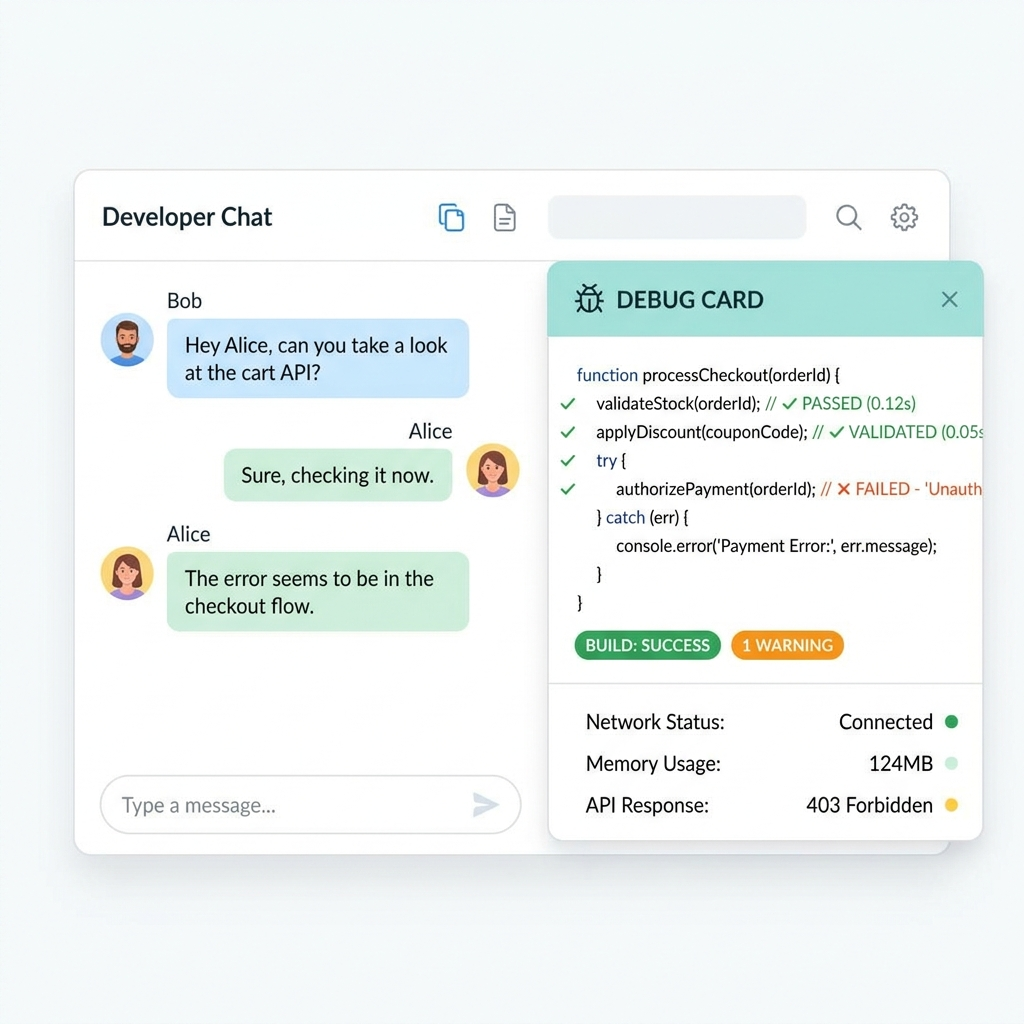
The card returns JSON-formatted insight that maps directly to your manifest:
- Agent metadata — the active Agent ID, Version, Conversation ID, and Request ID. When you’re iterating fast, the Version field is your ground truth for “is Copilot even running my latest build?” (See Section 3 — this is where stale caches reveal themselves.)
- Capabilities — every capability configured on the agent (Web Search, SharePoint, Code Interpreter, Graph Connectors) and whether Copilot chose to invoke it for this turn. Configured-but-not-invoked is the tell-tale sign of a matching problem.
- Actions (plugins / MCP tools) — the full execution lifecycle: the functions Copilot semantically matched, the ones it selected, and — critically — the raw HTTP request and response payloads. This is where you catch a malformed payload, a 401, or an empty response body.
Two debuggers, not one: Developer Mode traces the orchestrator’s decisions inside Copilot. For breakpoints in your plugin’s own code (the API or MCP server behind the action), run the agent in Agents Toolkit local debug in VS Code (F5) and attach to your service. Use the card to see what Copilot sent; use local debug to see what your code did with it.
3. Beating the Cache: Version Bumping
A classic sideloading frustration: you edit your agent’s instructions, reload Copilot, and it stubbornly replies with the old logic. The backend is serving a cached build.
The fix is to bump the version field in your Teams app manifest (appPackage/manifest.json) — this is the version that controls the cached app package, not the version inside declarativeAgent.json.
Then re-provision:
Confirm the bump landed by checking the Version field on the debug card (Section 2). If it still shows the old number, Copilot is still serving cache — bump again.
Make it a reflex: Bump the manifest version every time you reload during local testing. It’s a one-character change that saves you from chasing phantom bugs that are really just stale cache. Some teams script it into their reload task so it auto-increments.
4. Distribution & Lifecycle Management
“Works on my machine” doesn’t survive contact with real OAuth flows and other people’s identities. The Agents Toolkit gives you three escalating distribution stages — here are the actual commands behind each:
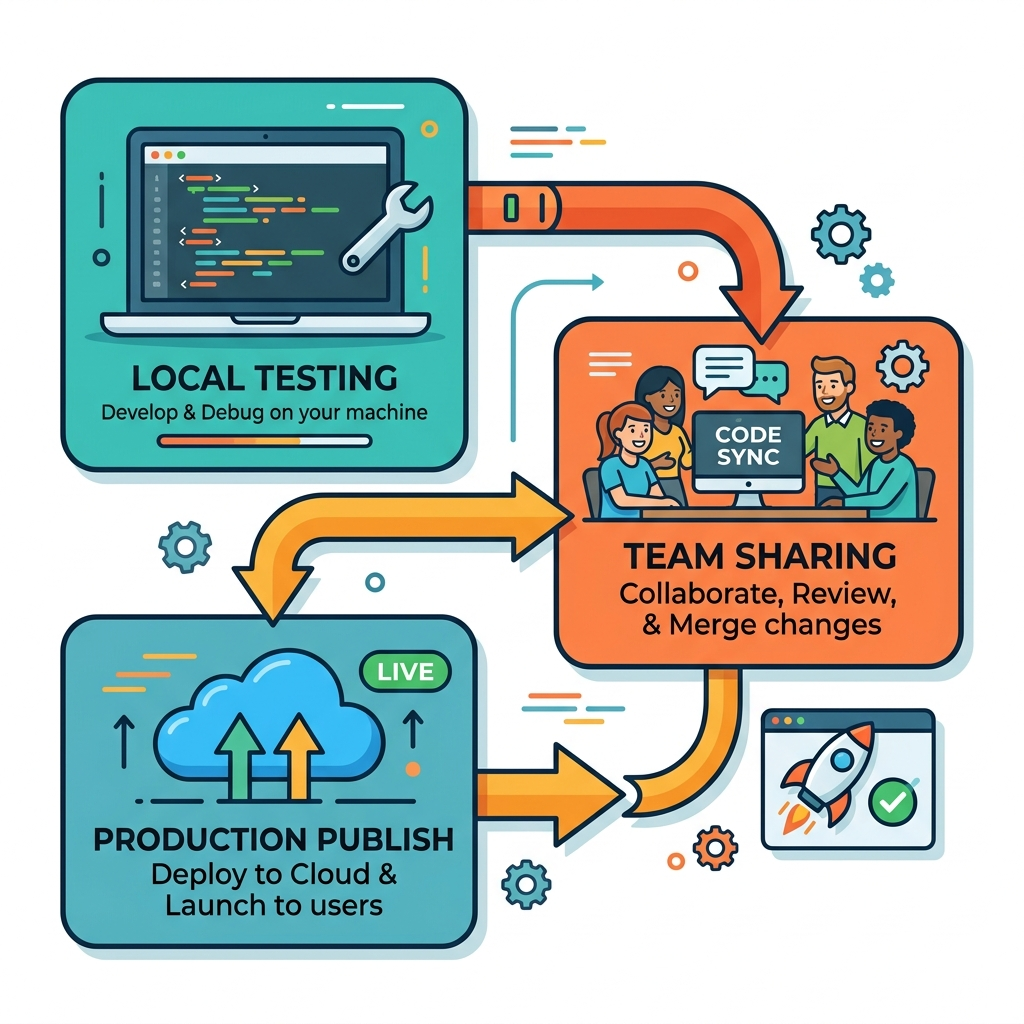
- Provision (personal sideload). Packages the manifest and registers the app for you only. This is your default inner-loop deploy.
Code
- Share with collaborators. To get past “works on my machine” auth errors, grant teammates (or a mail-enabled security group) access so they can run the same registered agent under their identity — perfect for validating OAuth and data-grounding across users. This is the
collaboratorcommand (there is noatk share):Code - Publish (tenant-wide). Submits the validated package to your org’s app catalog for admin approval, after which it can be deployed tenant-wide.
Code
Pure declarative agents have no deploy stage — provision and publish
handle the whole flow. You only need atk deploy when there’s backend code (a
custom API or MCP server) to push to Azure.
5. Multi-Environment Configurations
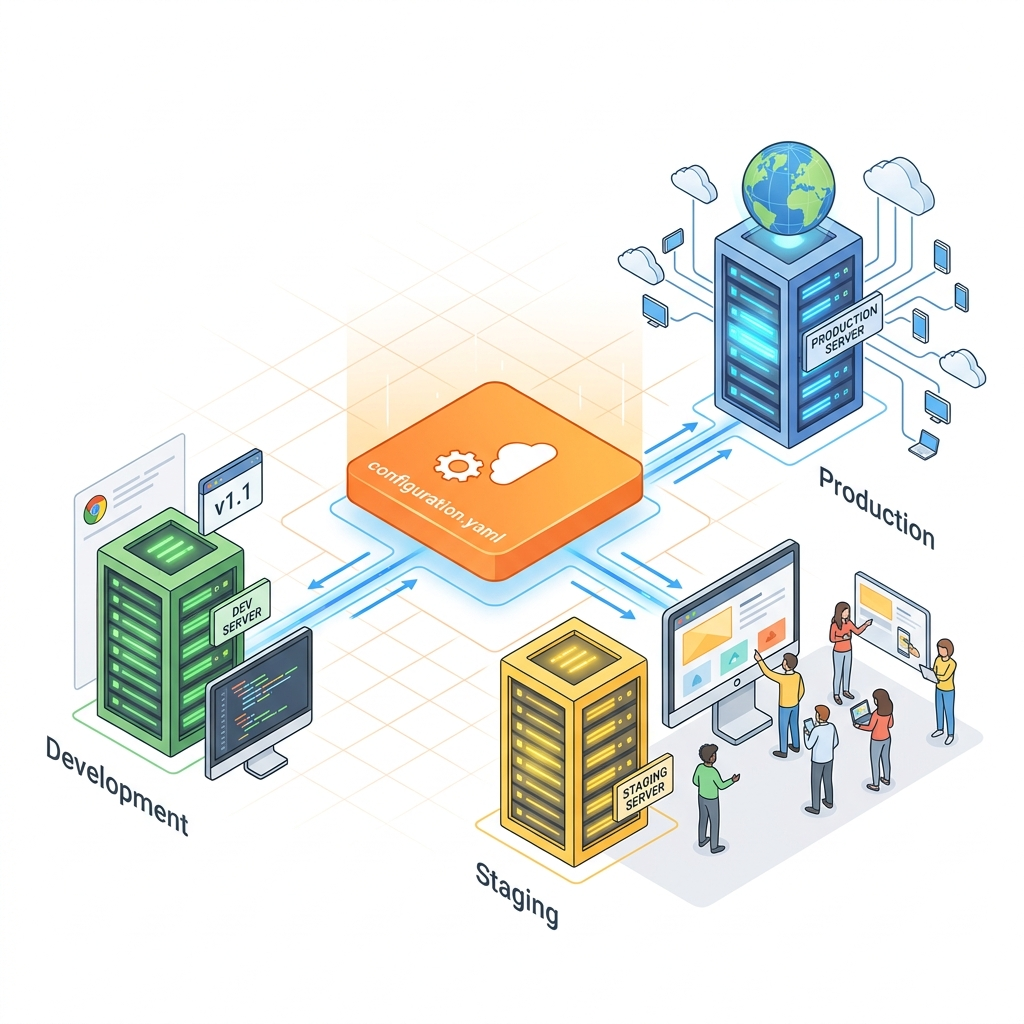
Hardcoding an API endpoint is how a Dev agent ends up calling Production. Isolate Local, Dev, Staging, and Prod with per-environment files under env/ (.env.local, .env.dev, .env.staging, .env.prod). Each one independently owns:
- App ID and Tenant ID
- SharePoint Site URLs
- Teams App / manifest versions
- API endpoints (and the MCP server URL, if any)
The Toolkit substitutes these via ${{VARIABLE}} placeholders in manifest.json and m365agents.yml, keyed off the active environment:
Because every command is --env-scoped, your local testing can never accidentally corrupt staging data or page a production user. In CI/CD, the same commands run unattended — pass M365_ACCOUNT_NAME / M365_ACCOUNT_PASSWORD as pipeline secrets and use a dedicated service account, never a personal one.
6. Prompt Routing & Semantic Matching (The #1 Bug)
By far the most common declarative-agent failure is a plugin or MCP tool that never fires. If the debug card shows your function wasn’t even matched, the orchestrator simply didn’t understand what your tool is for.
The fix lives in the description_for_model property of your plugin manifest. Copilot routes user intent to tools by semantically matching it against these descriptions — a vague description gets passed over.
Two rules that fix most routing misses:
- Name the real-world phrases users actually type, including synonyms. “Onboarding,” “new hire,” and “first week” should all route to the same tool.
- Reinforce it in the agent instructions. In
declarativeAgent.json, tell the agent when to prefer this tool (e.g., “For any HR or onboarding question, always call the OnboardingChecklist action before answering from general knowledge.”).
After editing, bump the manifest version (Section 3), re-provision, and re-test with -developer on to confirm the function now shows as matched → selected.
7. Debugging MCP Servers & Auth Tokens
MCP servers add their own failure modes on top of standard plugins. When an MCP tool misbehaves, work down this checklist:
- Is the tool even discovered? Run
-developer onand check the Actions list. If your MCP tools don’t appear at all, the orchestrator never loaded the server — verify the server URL and the plugin manifest reference for the active environment. - Matched but not selected? Same root cause as Section 6 — strengthen each tool’s description. MCP tool descriptions are matched exactly like API-plugin descriptions.
- Selected but failing? Read the raw request/response payload on the debug card. A 401/403 means the auth handshake broke; a 5xx or timeout points at your server.
Auth-token debugging deserves its own note, since dropped tokens are silent by default:
- Confirm the manifest’s authentication block matches what your server expects (OAuth vs. API key vs. none) — a mismatch makes Copilot send no credential, which surfaces as a 401 in the card.
- Validate token acquisition by sharing the agent with a second identity (Section 4,
atk collaborator grant) and testing as that user. Token issues that hide under your own cached session often reproduce instantly under a fresh identity. - For deeper inspection, run the MCP server under Agents Toolkit local debug (F5) and log the inbound
Authorizationheader — pair what your server received with what the debug card shows Copilot sent.
Reachability first: If you’re tunneling a local MCP server (e.g., via Dev Tunnels), a “tool not responding” error is often just an expired or unauthenticated tunnel, not your agent. Re-open the tunnel and re-provision before debugging your code.
8. Microsoft Telemetry Feedback
Sometimes it isn’t your code — it’s the platform. For routing failures, persistent hallucinations, or system timeouts you can’t explain, use the native thumbs-up / thumbs-down control on the Copilot response.
Feedback routing: Add the #extensibility tag in the feedback text box
alongside your thumbs rating. This routes the telemetry plus your Request
ID (grab it from the debug card) straight to the product team, helping them
trace platform-level regressions back to your exact conversation.
Quick Reference: The Inner-Loop Cheat Sheet
| Symptom | First move |
|---|---|
| Agent runs old logic after an edit | Bump version in manifest.json, then atk provision |
| Tool never invoked | Strengthen description_for_model with explicit trigger phrases |
| Can’t tell if your build is live | -developer on → check the Version field |
| 401 / dropped token | Inspect raw payload on debug card; test as a second identity |
| Works for you, fails for others | atk collaborator grant and reproduce under their account |
| Wrong environment hit | Re-run with the correct --env flag |
| Suspected platform bug | Thumbs-down + #extensibility + Request ID |
The throughline: stop guessing. -developer on turns the orchestrator from a black box into a glass box — and almost every “my agent is broken” ticket resolves into one of a stale cache, a weak description, or a broken auth handshake. Master those three and your inner loop gets dramatically faster.
Read next