Publishing M365 Copilot Agents to the Org Store

Writer
As organizations increasingly adopt Microsoft 365 Copilot, power users and solution architects are building specialized agents to automate departmental workflows, synthesize knowledge bases, and handle niche business scenarios. But moving an agent from a personal sandbox to an enterprise-grade utility means working through Microsoft’s governance, security, and administrative review machinery — not around it.
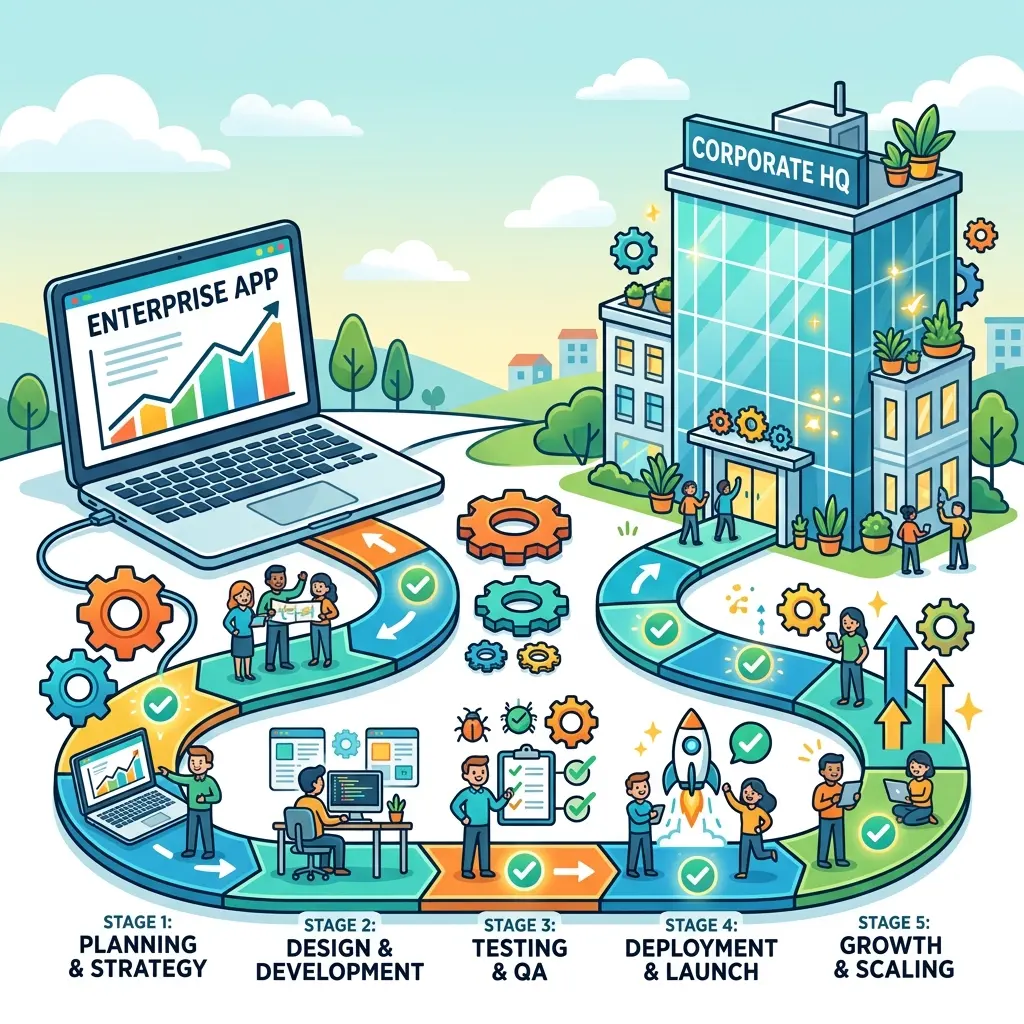
This guide walks the full lifecycle hands-on: build → share → submit → admin review → publish → update. We’ll use a single running example throughout — an internal Football Agent grounded in a SharePoint sports knowledge base — so every abstract step has a concrete click behind it.
0. Scope and Prerequisites (Read This First)
Most confusion in this space comes from conflating two different builders. This article focuses on declarative agents built with Agent Builder — the lightweight “Create an agent” experience inside the Microsoft 365 Copilot app. It is not about Copilot Studio (the advanced, multi-channel, low-code maker tool), although the admin-side approval flow described in Sections 3–4 is largely shared between the two.
Which builder am I in? If you created the agent from Microsoft 365
Copilot → Create an agent with a conversational “describe your agent” panel,
you’re in Agent Builder and producing a declarative agent. If you’re in
a separate copilotstudio.microsoft.com canvas with topics, nodes, and
channels, that’s Copilot Studio — a different (and more powerful) tool
with its own publish flow.
Before you can complete the lifecycle in this article, confirm the following:
| Requirement | Why it matters |
|---|---|
| A Microsoft 365 Copilot license (Business/Enterprise) | Agent Builder and the richer grounding capabilities require it. Copilot Chat alone limits what your agent can do. |
| The agent is published at least once | The Submit to your org catalog menu item stays disabled until you’ve published (shared) the agent at least once. |
| An admin with Copilot Control System permissions | Approval happens in the M365 admin center. This needs Global Administrator or a role granted the relevant Copilot/app-management permissions. |
| Awareness of metered billing | Agents that reach shared tenant data (SharePoint sites, Graph connectors) are billed on metered consumption and are off by default for Copilot Chat users. Budget for this before a broad rollout. |
1. Governance Architecture: Sharing vs. Publishing
When distributing an Agent Builder agent, you choose between two distinct mechanisms: Direct Sharing and Organizational Catalog Submission. They are not two stages of the same pipeline — they are parallel paths, and the platform tracks them as two separate entries. (That distinction becomes critical in Section 5, so hold onto it.)
| Feature / capability | Direct Sharing | Organizational Catalog Submission |
|---|---|---|
| Primary use case | Ad-hoc testing, peer feedback, isolated validation. | Enterprise deployment, departmental rollout. |
| Target audience | Named individuals, security groups, or teams (via a share link). | Anyone in the tenant, scoped by admin availability settings. |
| Store listing | Does not appear in the Agent Store. | Listed under Built by your org. |
| Ownership | Retained and managed by the maker. | Maker authors it; the admin manages the store listing. |
| Admin intervention | None required. | Mandatory admin review and approval cycle. |
| Update cycle | Changes apply immediately when you publish. | Changes apply only after an admin approves a resubmission. |
Practical rule of thumb: Use Direct Sharing for everything up to and including your pilot — it’s instant and reversible. Switch to Catalog Submission only when the agent is production-ready and you want it discoverable org-wide. Many teams keep the shared version as their permanent “staging” channel and the catalog version as “production.” That dual-track is exactly what the platform is designed for.
The Rationale for Administrative Gates
Because catalog agents become broadly discoverable and can touch enterprise data, Microsoft enforces an admin gate. Admins evaluate submissions across several high-impact vectors:
- Capacity and credit consumption: Agents that query SharePoint or Graph connector content incur metered consumption charges, so admins weigh cost against value before opening an agent to the whole tenant.
- Standardization: Alignment with corporate naming conventions, branding, and neutral/professional language.
- Utility and redundancy: Ensuring the agent delivers unique value rather than duplicating an existing solution.
- Security and data footprint: Which knowledge sources, capabilities, and permissions the agent requests.
2. Hands-On: Build, Test, and Share
Before any submission, you build and validate locally. Using our Football Agent example:
- In Microsoft 365 Copilot, select Create an agent.
- Describe the agent in natural language, then refine Name, Description, Instructions, and Starter prompts in the configure panel.
- Attach Knowledge — point it at the SharePoint site hosting your sports library. Prefer governed, shared sources over personal files (more on why in Section 3).
- Test in the live preview pane. Ask it the questions your real users will ask (“Which European countries are playing this weekend?”) and tune the instructions until answers are grounded and on-tone.
- Select Create. The agent starts private — only available to you.
- Select Share and choose the audience:
- Only you (default) — keep iterating privately.
- Specific users in your organization — name users, security groups, security-enabled M365 groups, or a team. Sharing to a team can post a discovery notification to its home channel.
- Anyone in your organization — anyone with the link (may be greyed out if your admin restricted org-wide sharing).
Knowledge access ≠ agent access. Sharing the agent doesn’t automatically grant access to the SharePoint files behind it. When you share to Specific users, Agent Builder offers to share the underlying SharePoint sources too — use it, or your testers will get an agent that can’t answer anything.
3. Preparing an Agent for the Org Catalog
Before triggering a submission, the agent must pass your own validation, and you must compile complete metadata.
Data Access and the Zero-Trust Security Model
A vital safeguard of the M365 Copilot infrastructure is that individual user permissions are always honored at query time.
Security note — answers are filtered per user, in real time. If your agent points to an enterprise data source (a SharePoint site, a OneDrive directory, an internal repository), it only surfaces content the current user already has permission to see. If User A can open a financial spreadsheet and User B cannot, the same agent returns different answers for each — it filters dynamically against the caller’s access token. The agent never becomes a back door around existing permissions.
This is powerful, but it has a sharp edge worth designing around: the agent inherits whatever oversharing already exists. If a SharePoint library is accidentally open to “Everyone,” the agent will happily surface it to everyone. Zero-Trust filtering protects against privilege escalation, not against pre-existing misconfiguration. Two practical habits:
- Ground in governed sources. Prefer curated SharePoint sites with deliberate permissions over ad-hoc personal files.
- Apply a sensitivity label to the agent. Admins review the label during approval, and it travels with the agent as a compliance signal.
Required Submission Manifest Properties
When you select Submit to your org catalog, you complete a manifest form. Have these ready before you start, because an incomplete manifest is the most common reason an admin bounces a submission:
- Display name — the official public name (e.g., promoting a sandbox name like Soccer Agent to an enterprise-ready Football Agent).
- Short description — what the agent does and how to prompt it. If it uses personal Work IQ sources (Teams meetings, chats, email), disclose that here so users know it may reference their personal work data.
- Creator website — a validated URL to your department or corporate landing page.
- Privacy statement & Terms of Use — real, resolvable links (e.g.,
https://domain.com/privacy.html). - Developer names — explicit attribution to the authors/maintainers.
- Sensitivity label — the compliance classification admins will check.
Pre-Submission Checklist
Run this before you click submit — it mirrors exactly what the admin reviews:
- Agent published (shared) at least once, so Submit to your org catalog is enabled.
- Instructions and starter prompts use neutral, professional, org-scale language.
- Knowledge sources are governed and accessible to the intended audience.
- Tested with sample users who are not you (to catch permission gaps).
- All manifest metadata complete and links resolve.
- Sensitivity label applied.
- Personal-data usage disclosed in the description (if applicable).
How to Submit
In Microsoft 365 Copilot, go to All agents → select your agent → Edit. If the draft has unpublished edits, select Update first (submission always uses the latest published version). Then, in the authoring header, open the More (⋯) menu and choose Submit to your org catalog. You can also start from the share dialog via the Submit to your catalog link.
4. The Administrator Review and Deployment Flow
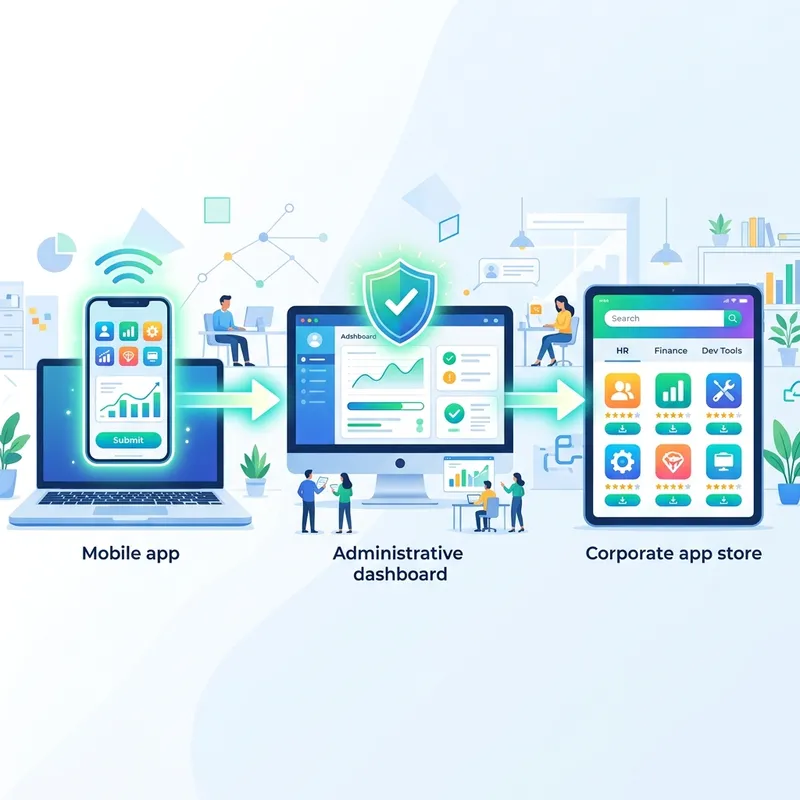
Once submitted, the agent appears in the Microsoft 365 admin center, inside the Copilot Control System, as a review request.
Step 1: Find and Evaluate the Request
The admin signs in to the M365 admin center and navigates to Agents → All agents → Requests. Requests appear in one of three states:
- Pending review — a brand-new agent awaiting first approval.
- Pending update — a resubmission of an already-published agent (see Section 5).
- Pending activate — an approved agent awaiting activation.
Selecting the request opens the full manifest. The admin inspects the Data & tools details to confirm capabilities, knowledge/data sources, requested permissions, and any custom actions or API endpoints before deciding.
Admin tip — “I don’t see the submission.” The Requests view remembers filters. If a submitted agent seems to be missing, clear any State or Channel filters first. Channel values include Teams, Copilot, Office, Outlook, Word, Excel, and PowerPoint — a stale channel filter is the usual culprit.
Step 2: Publish with Granular Access Control
Choosing Publish to store launches the publishing wizard, which steps the admin through four decisions:
- Audience — who can install the agent: everyone, no one, or specific users/security groups for a controlled rollout.
- Pre-installation (optional) — select users/groups who get the agent pre-installed and pinned in their Copilot sidebar, bypassing manual opt-in. Reserve this for genuinely critical workflows; forced installs erode goodwill fast.
- Policy template — apply an existing, default, or custom protection policy (the hook for Conditional Access, Identity Governance access packages, and other compliance layers).
- Review permissions — view the permissions the agent requests and grant admin consent where appropriate, so it can access data or act on users’ behalf.
A final Publish makes the agent live under Built by your org.
5. The Continuous Integration and Update Lifecycle
Real agents are never “done.” You’ll tune instructions, swap knowledge sources, and add starter prompts (e.g., “European countries playing football”). The trap is assuming those edits reach production automatically. They don’t — and understanding why is the single most important operational concept in this whole article.
Remember from Section 1: the shared version and the catalog (store) version are two separate entries in the Agent Registry. Editing one does not touch the other.

- Local editing — you modify the agent in Agent Builder.
- Local update — clicking Update instantly pushes the new logic to your shared version (you and anyone with the share link see it immediately).
- The disconnect — users who got the agent from the Built by your org store still see the previously approved version. The live catalog copy does not change.
- Re-submission gate — to ship to production, select Submit to your org catalog again. This creates a Pending update request in the admin center.
- Re-approval — the admin reviews the delta and selects Publish to store. Until they do, the old version stays live — which is the point: end users are never disrupted by an unreviewed change.
Mental model: Treat the shared version as your dev branch and the
catalog version as main. You commit freely to dev; promoting to main
always requires a review (the admin) and a merge (Publish to store). The two
never auto-sync.
Deployment latency note: Approved changes don’t propagate instantly across
the tenant. CDN caching, token lifetimes, and app sync mean an update can take
anywhere from a few minutes to several hours to surface for every user — this
is normal, not a failure. To force a refresh, have users reload their active
web session (m365.cloud.microsoft) or remove and re-add the agent. There is
no published SLA, so plan rollouts with a buffer rather than a hard cutover
time.
6. Troubleshooting: Common Pitfalls
| Symptom | Likely cause | Fix |
|---|---|---|
| ”Submit to your org catalog” is greyed out | Agent never published. | Share/publish it once; the menu item then enables. |
| My edits aren’t reaching catalog users | You updated the shared version only. | Re-run Submit to your org catalog; wait for admin Publish to store on the Pending update. |
| Admin can’t find the submission | A filter is hiding it in the Requests list. | Clear the State and Channel filters in the admin center. |
| Agent loads but answers “I can’t find that” | Users lack permission to the underlying knowledge source. | Grant access to the SharePoint site/files; re-test with a non-admin sample user. |
| Some users get an error opening the agent | License mismatch — capabilities exceed their Copilot license. | Confirm the audience has the required M365 Copilot license for the agent’s capabilities. |
| Approved update still not visible | Propagation/cache lag. | Refresh m365.cloud.microsoft, or remove and re-add the agent; allow up to several hours. |
| Unexpected consumption charges | Agent reaches shared tenant data (SharePoint/Graph). | Expected — this is metered consumption. Scope the audience and monitor usage. |
Key Takeaways
- Two builders, one approval flow. This is the Agent Builder (declarative agent) path; Copilot Studio is separate but shares the admin review machinery.
- Sharing and catalog publishing are parallel tracks, stored as two entries. Treat shared = dev, catalog = main.
- Zero-Trust filtering is per-user and real-time — but it inherits existing oversharing, so ground agents in governed sources and label them.
- The admin gate lives at M365 admin center → Copilot Control System → Agents → All agents → Requests, with a four-step publishing wizard for audience, pre-install, policy, and permissions.
- Updates never auto-promote. Every production change is a fresh Submit → Pending update → Publish to store cycle, and propagation can lag by hours.
Master these five mechanics and the rest of the lifecycle — pilots, rollouts, and iteration — becomes a predictable, governable routine rather than a guessing game.
Read next