Navigating the New Microsoft 365 Copilot Experience

Writer
Microsoft is rolling out a significant wave of upgrades to the Microsoft 365 Copilot experience. These changes give Copilot a major facelift, altering how the digital AI assistant looks, feels, and operates. While the new design is snappier and more integrated, muscle memory might cause a few of these changes to catch you out.
Today, we’re breaking down the new look and feel of Copilot, detailing exactly what has moved, what has been replaced, and how you can leverage these updates to maintain your productivity. Let’s dive into the new Copilot experience and see how all these technical tweaks come together.
1. The Web App Redesign: The Waffle’s Return and Work IQ
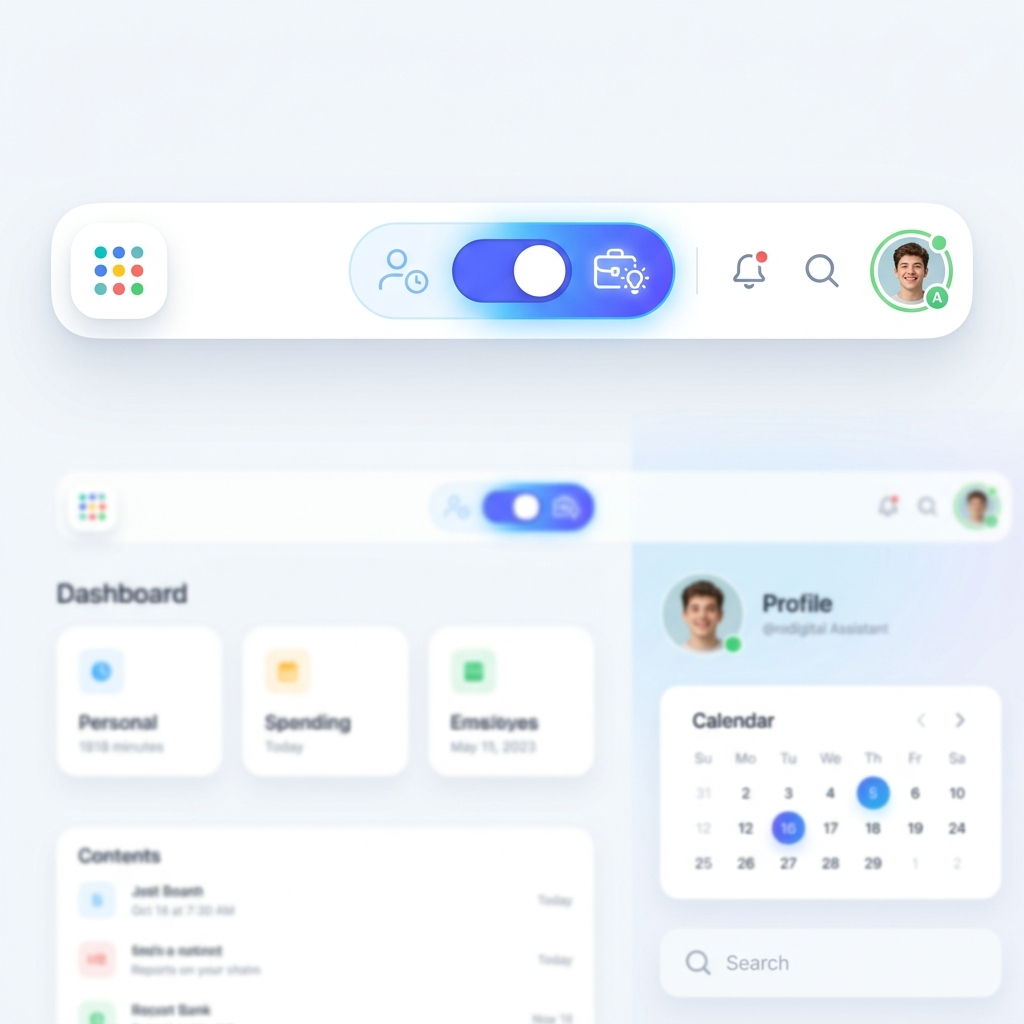
When you log into the Copilot app on the web with a premium (paid) license, the first thing you’ll notice are structural shifts to the main navigation and data toggles.
The Return of the Waffle
A true blast from the past: the “Waffle” (the app launcher) has reappeared in the top-left corner. Previously, apps were stored in the bottom-left under the word “Apps.” Now, by left-clicking the Waffle, you can instantly access the Microsoft 365 apps you use every day without leaving the Copilot interface.
Work IQ vs. The Web Tab
In the past, users relied on a clear “Work” and “Web” tab toggle to dictate whether Copilot was searching internal company data or the public internet. This has been replaced by the Work IQ feature.
By default, with a paid Copilot license, Work IQ is turned on and highlighted, meaning your chat is securely connected to your work-based data. If you want to perform web-only research without touching your internal files, you must left-click the Work IQ icon to turn it off. This is a subtle but critical departure from the previous dual-tab system.
Subtle Interface Shifts
The layout has been re-optimized for speed and accessibility:
- Model Drop-down: The auto drop-down to change the underlying model has moved from the right to the left side of the screen.
- Temporary Chat: Quick access to temporary chats is now prominently available on the right-hand side.
- Chat Settings: The three-dot menu is now much more prominent, granting immediate access to chat settings and personalization options.
2. Prompting Evolved: Attachments and Agentic Capabilities
The way we input data and interact with specialized agents inside the chat window has been fundamentally restructured.
From Paperclip to Plus Icon
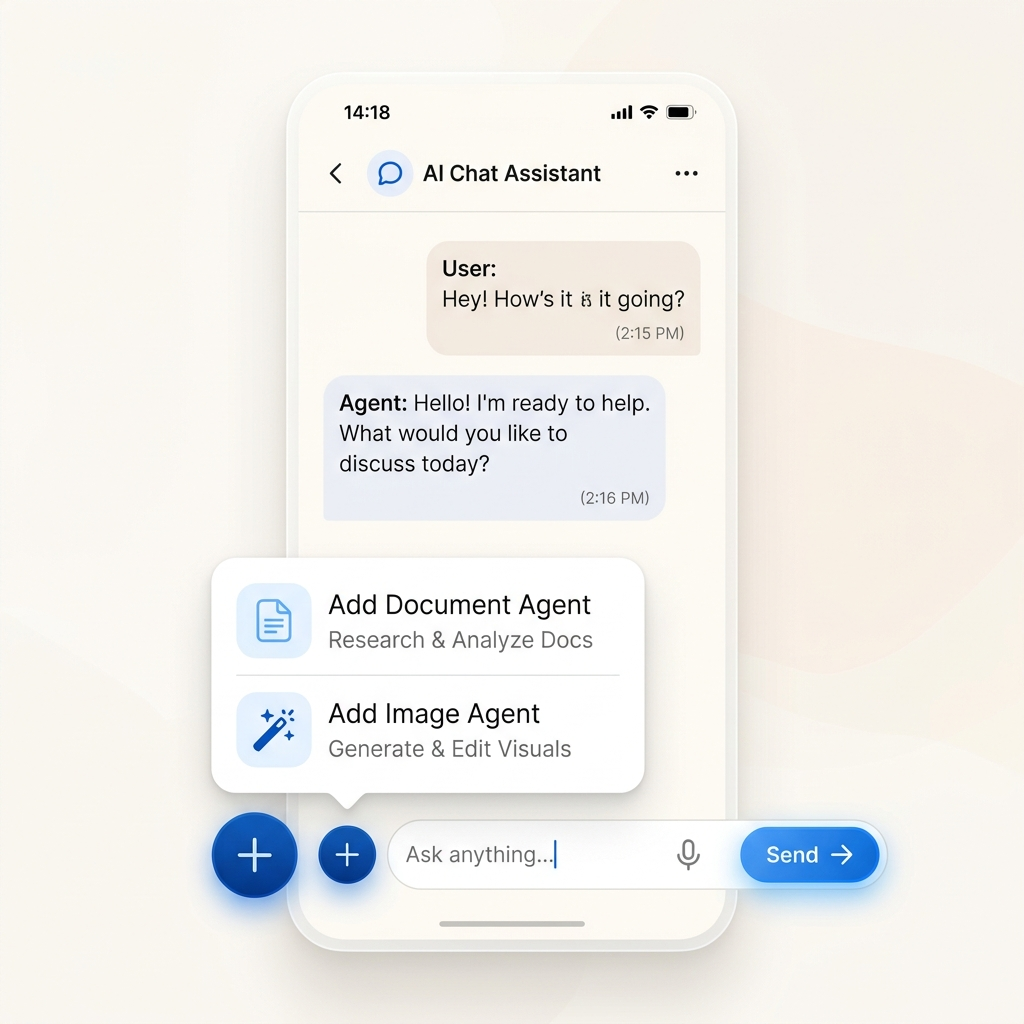
If you regularly bring work files into your prompts, you are likely used to looking for the paperclip icon. That is gone. Instead, you now use the Plus (+) icon. Clicking this opens the dialogue to attach your files, emails, and other work content directly into the prompt box.
Inline Agentic Experiences
Previously, utilizing agents (like a Researcher or Analyst agent) required navigating to a separate agent experience. Now, clicking that same Plus icon allows you to Add Capabilities.
You can call in specialized agents directly into your current conversation. For example, selecting “Create a visual” lets you choose content styles and prompt your Copilot to generate images right in the chat.
Similarly, if Copilot generates an executive stakeholder report and you want to convert it into a polished document, you can click the Plus icon, select Add Capabilities, and bring in the Word Agent. The Word Agent will jump into the chat, ask clarifying questions (like primary audience, detail level, and theme), and build the brand new Word document right before your eyes.
3. Deep Reference Integration
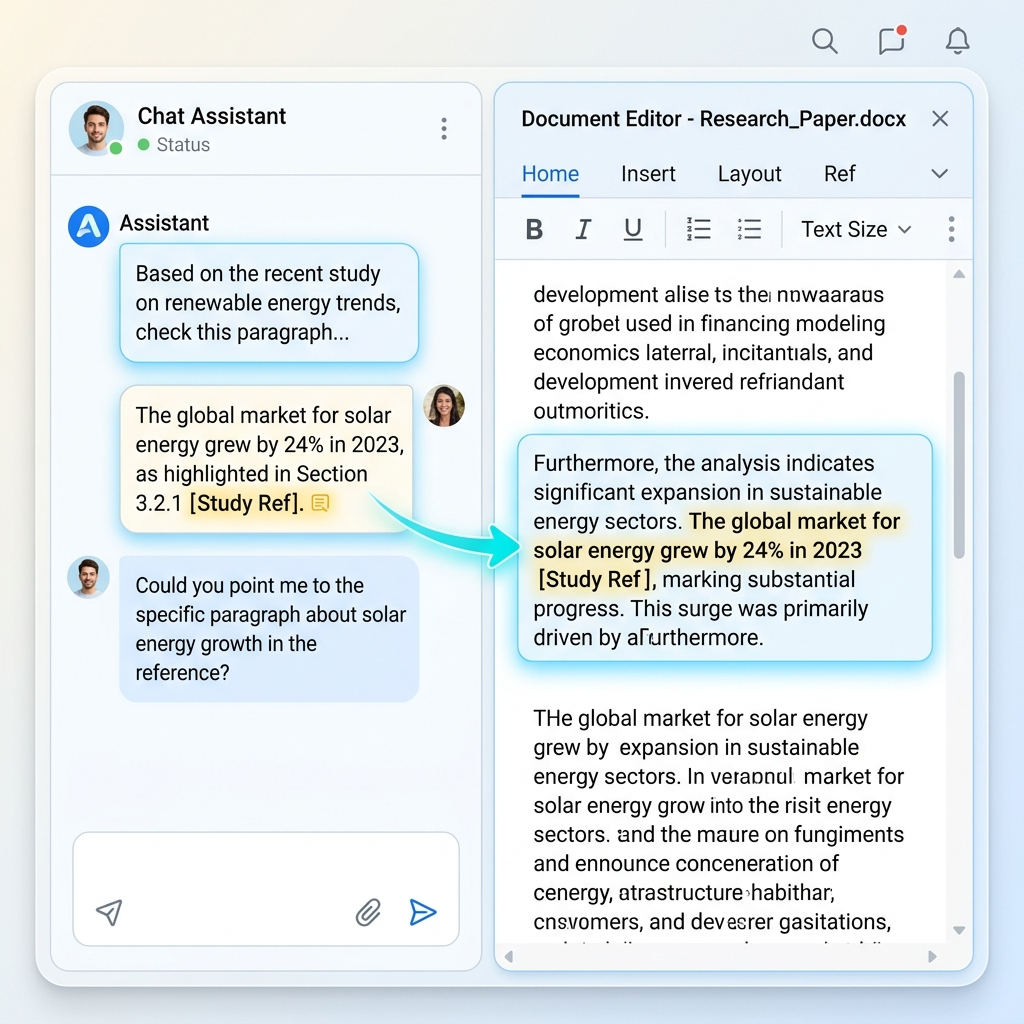
One of the most frustrating aspects of the previous Copilot iteration was dealing with references. Clicking a citation would open a separate browser tab, pulling you out of your workflow.
In the new update, references are handled much more elegantly. When Copilot cites a Microsoft Word document, PowerPoint presentation, or Excel spreadsheet, left-clicking the reference will now open the document on the right-hand side of your Copilot chat window. You can view and engage with the source material side-by-side with your chat. (Note: Websites and PDFs will still open in a separate tab).
4. Finding Your Tools: Navigation Tweaks
Several buttons and menus have been relocated, which might cause momentary confusion for veteran users:
- New Chat Button: When you are deep in an existing conversation, the “New Chat” button is no longer centrally located; it has been moved to the left-hand side.
- Prompt Lab: The old “Prompt Gallery” has been renamed to Prompt Lab. Accessed via the three-dot menu, it holds your saved and shared prompts, allowing you to left-click and instantly reopen them.
- Agent Prompts: Also located under the three-dot menu, this new option allows you to select pre-configured prompts for any specific agents you have access to, quickly passing instructions to them without typing from scratch.
- Teams Sharing: Previously, sharing a Copilot conversation to a Microsoft Teams group chat had its own dedicated icon. This functionality is now hidden beneath the Share icon in the top right of the chat window.
5. Office App Enhancements: The Floating Copilot Icon
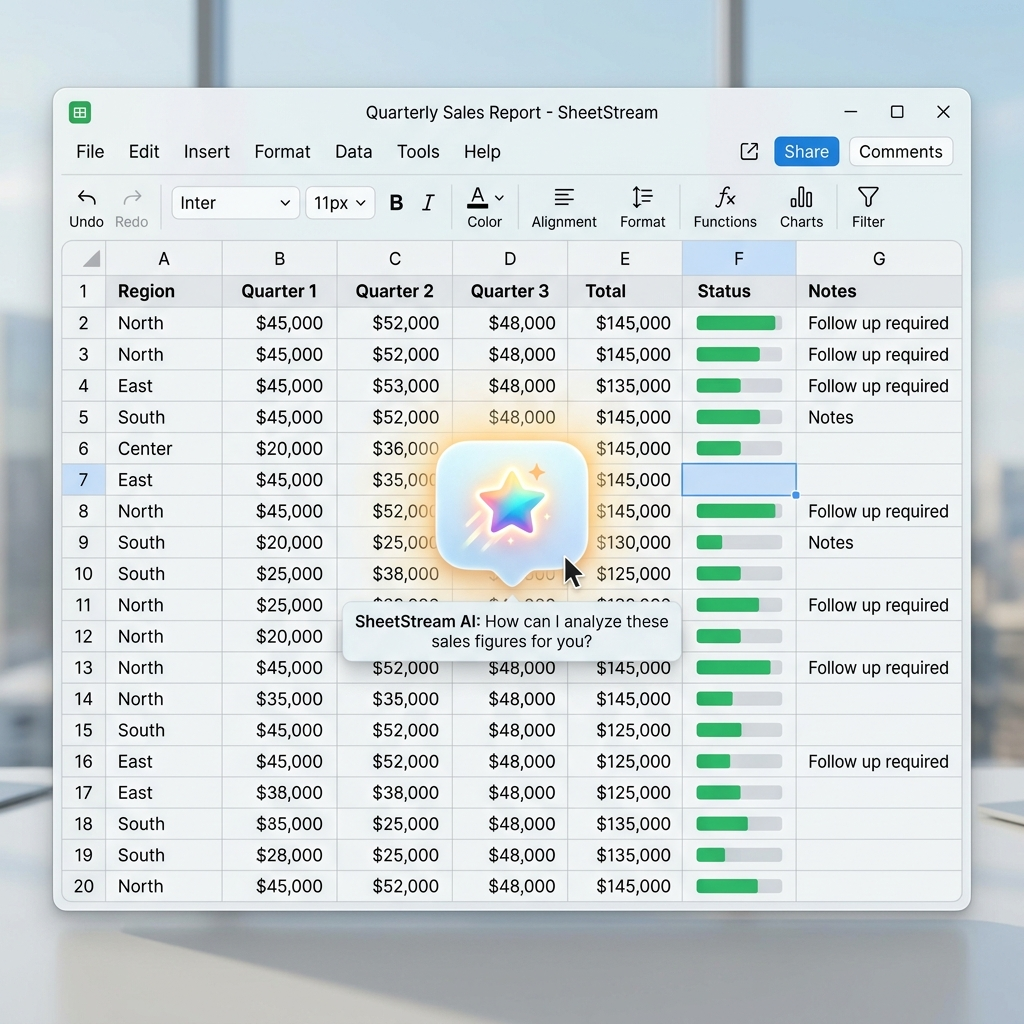
The updates aren’t limited to the web app; they extend deeply into rich client applications like Word, Excel, and PowerPoint.
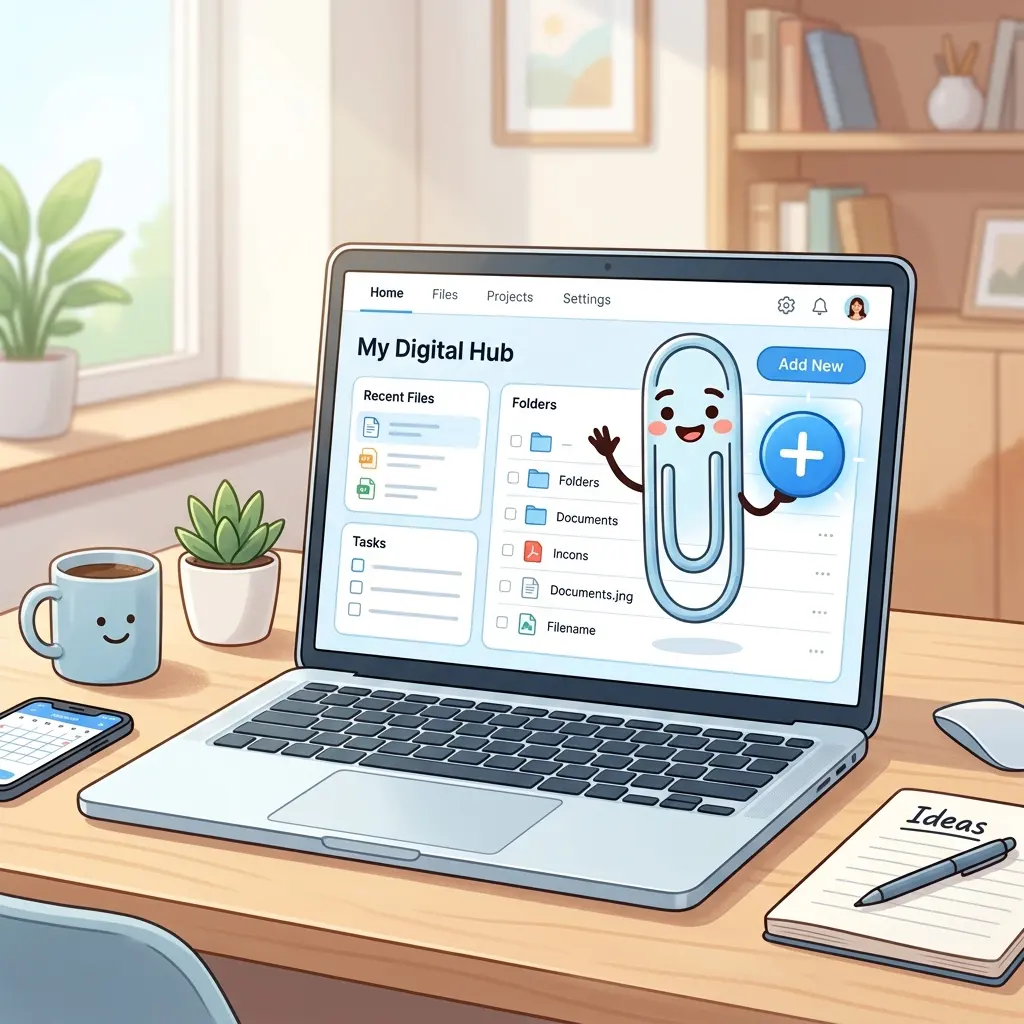
Historically, the Copilot icon was strictly reserved for the ribbon bar. Now, it appears as a floating icon directly on the document canvas (reminiscent of the classic Clippy experience).
Hovering over this floating icon reveals predefined prompts, while left-clicking opens the Copilot sidebar. If you close the sidebar, the icon returns to floating on the canvas.
Dealing with Canvas Clutter: If the floating icon gets in the way of your content (which has been a common complaint, especially in Excel), you can right-click the icon and select Dock. This pins the sidebar to the right. However, docking currently only lasts for the active session; if you close and reopen the app, the floating icon returns. Microsoft has noted this feedback, and an update to permanently dock the icon back into the ribbon bar is expected soon.
6. Release Timeline and Performance
When will you see these changes?
- Today: Available for users in the Frontier program.
- June: Available as an opt-in toggle for standard users.
- July: Turned on by default for everyone.
Overall, these updates make the Copilot app significantly more performant. Microsoft suggests the app now loads and executes twice as quickly as before, a difference that is highly noticeable during daily use. While terms like “Work IQ” might take some getting used to, the integration of inline agents and side-by-side reference viewing makes this a massive step forward for enterprise AI productivity.
Read next