Orchestrating M365 Copilot: Skills & Agentic Workflows

Writer

The approach to working with Microsoft 365 Copilot is fundamentally shifting. We are moving past simple, single-turn chat interactions and entering an era of agentic workflows. In this new paradigm, Copilot functions less like a search engine and more like a direct report.
For developers, solution architects, and power users, the real value lies in building automated, repeatable processes. To truly leverage this capability, you need to adopt a new philosophical mindset: trust the intermediate steps, verify the final output. Let the LLM handle the intermediate data synthesis and orchestrate the process, while you focus on the high-level review.
Here is a deep dive into engineering these capabilities through Custom Skills and Plugins, navigating the latest UI changes, and architecting robust AI workflows within the Microsoft 365 ecosystem.
The Automation Factory: Copilot Custom Skills
A “Skill” in Copilot is essentially a bounded piece of automation. It functions as an automation factory, executing a predefined process against your enterprise data—emails, Teams chats, meetings, and SharePoint files. Common examples include an “Impact Summary” generator or a “Project Pulse” tracker.
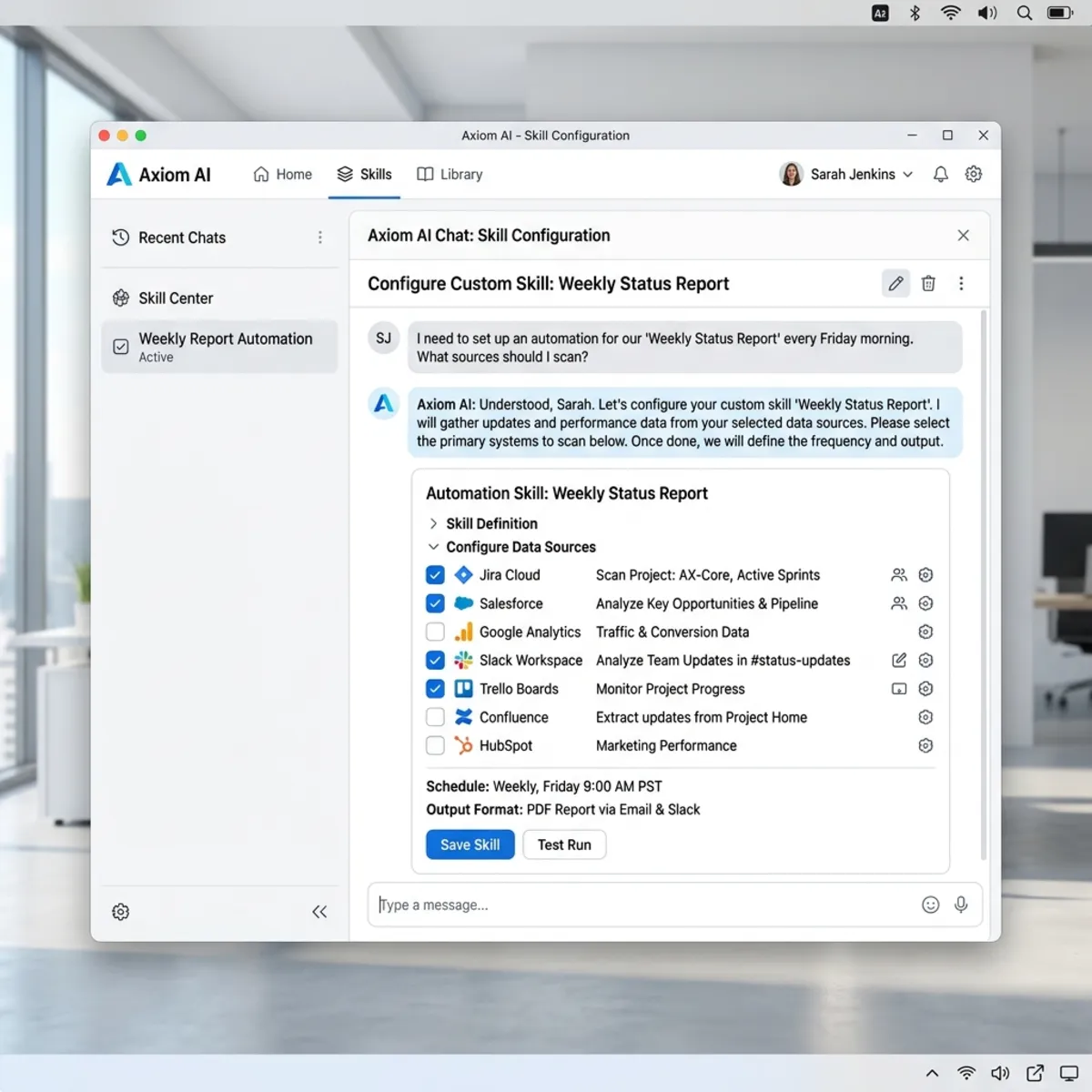
If you want to automate a weekly status update, you build a custom skill. However, the most effective way to engineer a skill is not to jump straight into execution, but to force the LLM to plan the architecture first.
Skill Creation Methodology
- Brain-dump your context: Speak or type to Copilot using verbose, natural language. Detail the exact data sources to check, the logic required, and the desired output format.
- Demand a plan: Instruct Copilot to analyze your enterprise data, propose a workflow, and output a structured plan before it builds the actual skill.
- Handle edge cases (Fuzzy Matching): Build disambiguation logic directly into the skill. If you are building a “Project Pulse” skill, explicitly instruct it to use fuzzy keyword matching for project aliases rather than requiring exact string matches.
- Format the output: Specify exactly how the deliverable should look. You can instruct the skill to output heavily customized, HTML color-coded templates for readability.
- Schedule the execution: You can configure these skills to run on daily automated schedules, completely removing the need for manual invocation.
Caution on Prompt Coach: While the built-in Prompt Coach is useful for structuring text, it can sometimes aggressively edit and strip out the actual execution command (e.g., the specific instruction to “create the skill”). Always review the final prompt before hitting submit.
Exposing the Code: The skill.md File
Copilot Skills are not impenetrable black boxes. They are powered by underlying markdown files that dictate the system instructions, output schemas, and matching logic.
You can inspect the source code of any custom skill you create without leaving the chat interface. By simply prompting, “Show me the exact skill.md file for [Skill Name],” Copilot will output the raw markdown.
This allows you to look under the hood to audit the tasks it plans to run, review the status deciders, and manually tweak the HTML generation templates for your scheduled automations.
Elevating to Plugins via MCP Servers
While a Custom Skill automates an internal process, a Plugin is a major step up in complexity and capability. Plugins typically package multiple custom skills alongside external data connections.
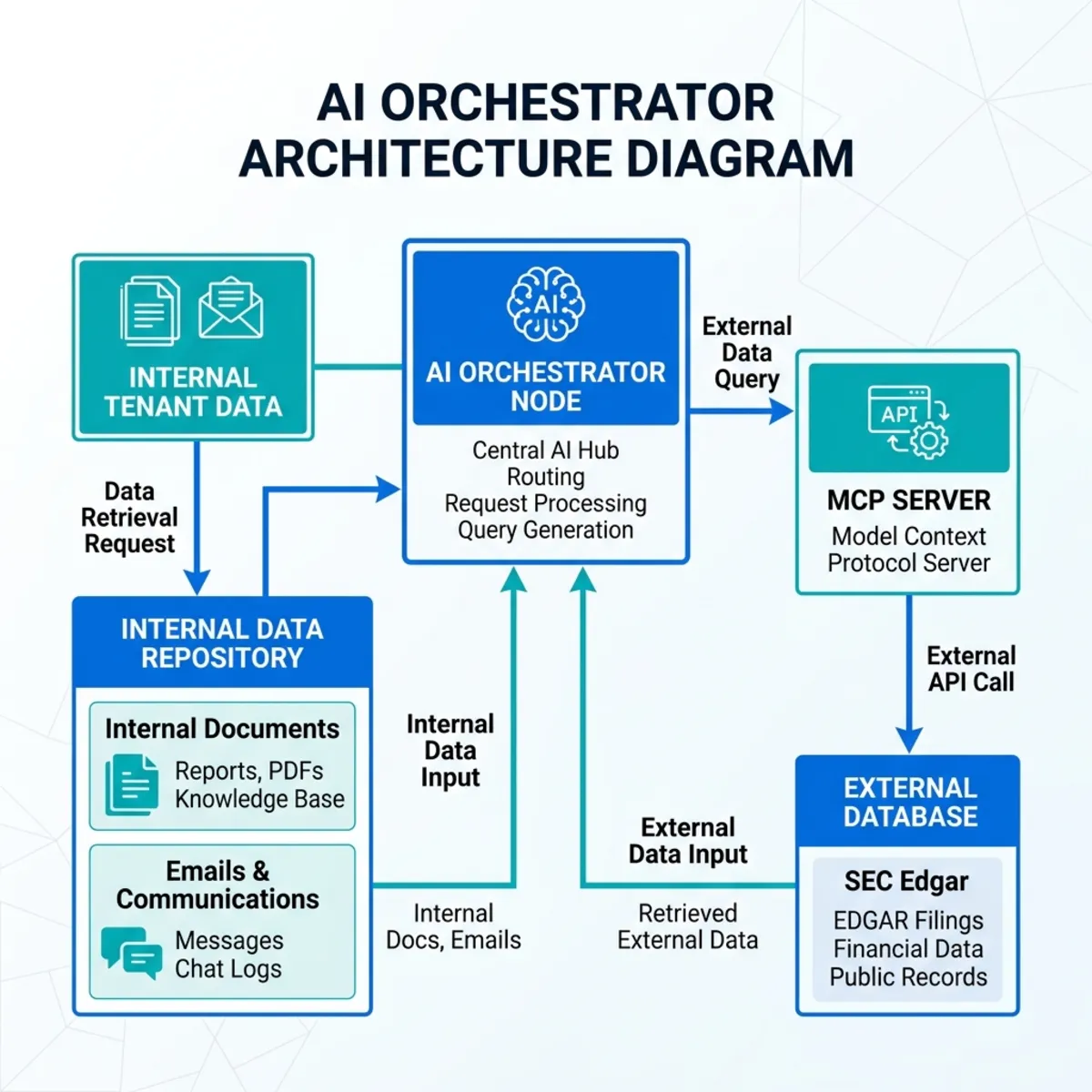
By leveraging the Model Context Protocol (MCP), you can connect M365 Copilot to external endpoints. For example, a custom financial plugin can connect directly to an SEC Edgar MCP server. Copilot can pull real-time external financial data, run it through your custom skills for risk analysis, synthesize the information with internal tenant data, and output a comprehensive executive summary.
Admin Controls and Governance
Because Plugins handle external data routing and broader multi-skill orchestrations, they currently require M365 Tenant Admin privileges to deploy. Custom Skills, on the other hand, can be built and managed directly by end-users in their own workspaces.
Architecture and Enterprise Data Protection
A common concern when integrating models like Claude (Anthropic) or OpenAI into enterprise workflows is data leakage. It is critical to understand the underlying architecture: Microsoft 365 Copilot does not send your data to public LLM endpoints.
Models integrated into M365 operate entirely within the Microsoft Azure data boundary. This architecture ensures that all Custom Skills, scheduled automations, and enterprise data processing fall strictly under Microsoft’s Enterprise Data Protection policies, keeping your tenant data secure and completely isolated from public consumer models.
UI Updates, Limitations, and Workflow Tips
The M365 Copilot interface and its underlying systems are actively evolving. Navigating these nuances can save you significant time.
Copilot UI/UX Updates
The explicit Web/Work toggles have been retired from the main interface. Orchestration is now handled intelligently by the system, though you can still explicitly manage data scopes using the “Work IQ” and Web Search settings in the Copilot interface menu.
Known Limitations & The Drafts Folder Workaround
Currently, there is an unavoidable limitation: the inability to remove the “Sent by Copilot” tag from automated emails sent directly by a skill.
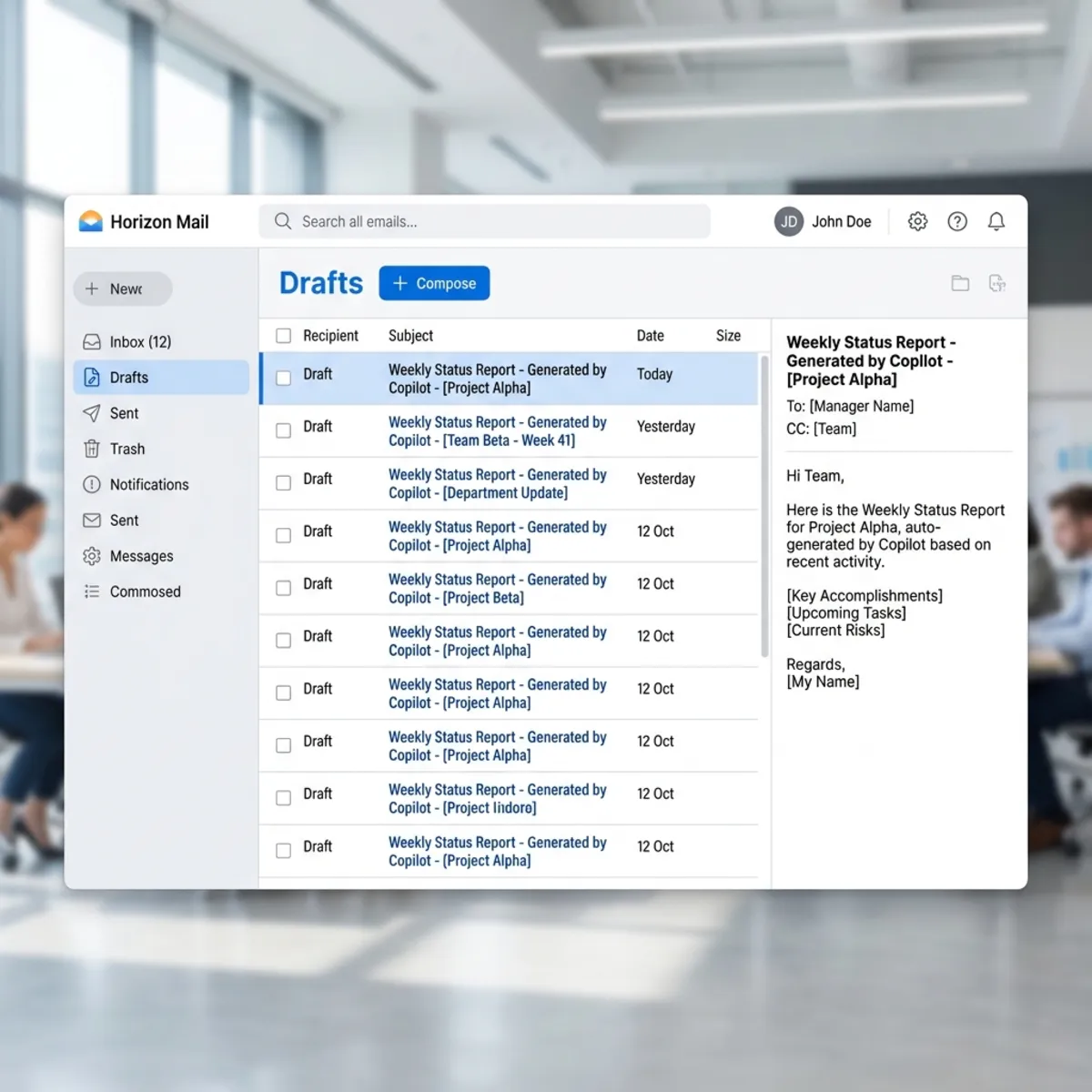
If you require final approval before a message goes out, or want to send communications seamlessly without the automated tag, there is a simple workaround. Configure your skill to send the generated HTML output directly to your Outlook Drafts folder. This allows you to perform a quick manual review and hit send yourself.
Workflow Efficiency: Queue Your Prompts
You no longer need to wait for Copilot to finish generating a long analysis before giving it the next instruction. You can queue up multiple prompts concurrently in the chat. This allows you to orchestrate multiple work streams without dead time waiting for individual generations to complete.
Dealing with the Frontier
Finally, remember that Custom Skills and advanced scheduling are often part of experimental rollout phases, known as the Frontier program.
Because these are bleeding-edge features, timeouts and glitches are common. If the UI hangs or a command fails to execute properly, simply refresh the browser or restart the chat session. Trust the orchestrator, verify the outputs, and leverage these tools to build your personal enterprise automation factory.
Read next