Mastering Microsoft Copilot Brand Kits in PowerPoint

Writer
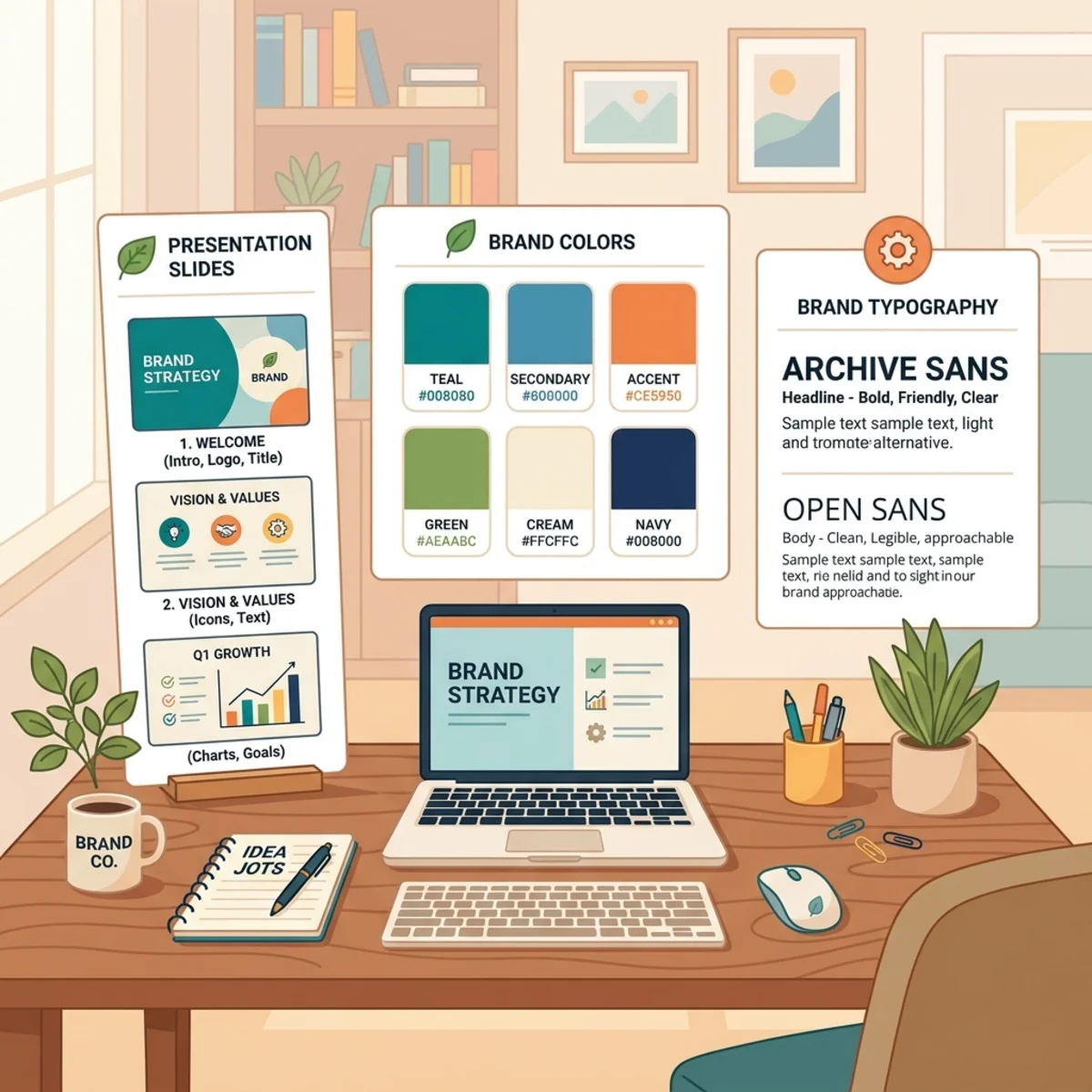
For those of us entrenched in enterprise Microsoft 365 environments, the evolution of Copilot in PowerPoint has been a double-edged sword. The leap from generating basic, uninspired slides to structuring complex narratives has been massive. But the resulting output often suffered from a glaring lack of corporate governance: generic colors, rogue fonts, and missing logos. You would prompt Copilot for a high-level architectural proposal and get a beautifully structured deck—then lose all the time you saved manually re-formatting it to match company standards.
Microsoft has closed this loop with Copilot Brand Kits. This guide is designed to be the only resource you need to create, manage, and—critically—use a Brand Kit. The usage section is the heart of this article, because it is the part most other write-ups get wrong or skip entirely.
0. The 60-Second Summary
| Question | Answer |
|---|---|
| What is a Brand Kit? | A collection of your organization’s approved brand elements—logos, colors, fonts, templates, icons, data-viz styles, photography rules, and brand voice—that Copilot applies automatically. |
| What license do I need? | A Microsoft 365 Copilot Premium license is required to create and manage official Brand Kits. |
| Where is it built? | The Create tab in the Microsoft 365 Copilot app (microsoft365.com / m365copilot.com) → More… → Brand kits. |
| Who can build one? | Anyone licensed can build Personal and Shared kits. Official (tenant-wide) kits require brand manager rights, granted by IT via policy. |
| Where does it work? | Copilot in PowerPoint for Windows, Mac, and the Web. |
| How do I use it to generate a deck? | Inside PowerPoint via Edit with Copilot (the PowerPoint agent, formerly “Agent Mode”). It picks up your templates and Brand Kits automatically. |
| Can Cowork use a Brand Kit to build a deck? | Cowork’s documented role is to create the brand guidelines document that feeds a kit, and it can build a deck from a branded template file. Consuming the published Brand Kit object for generation is, today, a PowerPoint (Edit with Copilot) capability—not a Cowork one. Full detail in Section 5. |
1. The Architecture: What a Brand Kit Actually Is
Instead of relying on Copilot to guess your visual identity from a stray .potx file, a Brand Kit acts as a centralized, reusable rule set that defines your organization’s visual and verbal identity. You define the parameters once, and Copilot honors them during every generation and edit cycle.
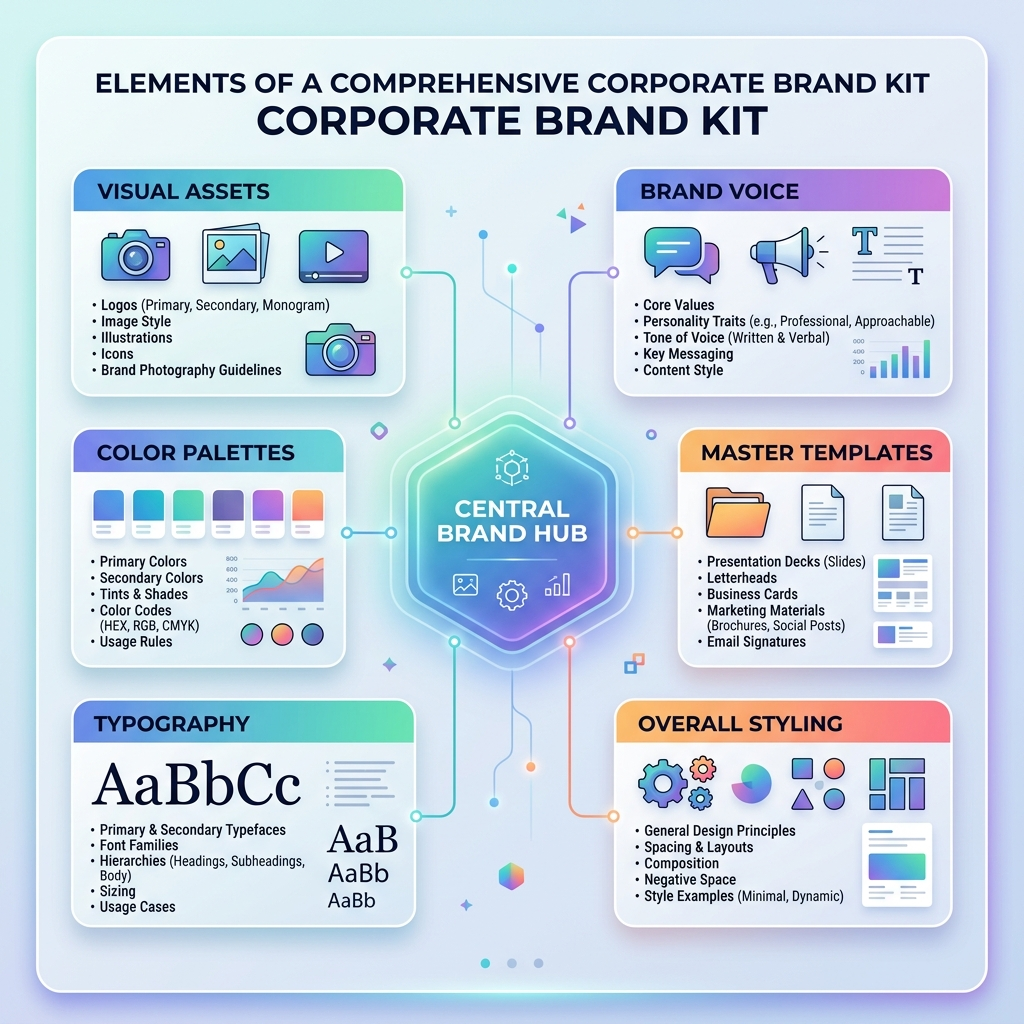
A Brand Kit can include:
- Logos — primary, secondary, and variations (transparent, dark-mode, light-mode)
- Color palettes — defined with specific HEX codes
- Typography — primary and secondary typefaces, with roles for headings, body, and special uses
- Templates and layout patterns — your .potx/.pptx files
- Icons and data-visualization styles
- Photography rules and picture styles
- Brand voice — tone, terminology, and writing guidance
- Dos and don’ts for visual and verbal identity
A useful analogy: think of your tenant as a hotel chain. The Brand Kit is the brand book (the rules). The Organization Asset Library is the warehouse of approved materials. Brand managers are the compliance team. Brand Reviewer is the inspector who checks each room. Copilot is the designer building new rooms that follow the book by default.
The three types of Brand Kits
This is a critical distinction the original version of this article missed. There are three kit types, and only one of them needs special permissions:
| Type | Who can create it | Who can use it |
|---|---|---|
| Official | Brand managers only | Everyone in the tenant |
| Shared | Any licensed user | A select group, set at share time |
| Personal | Any licensed user | Only the creator |
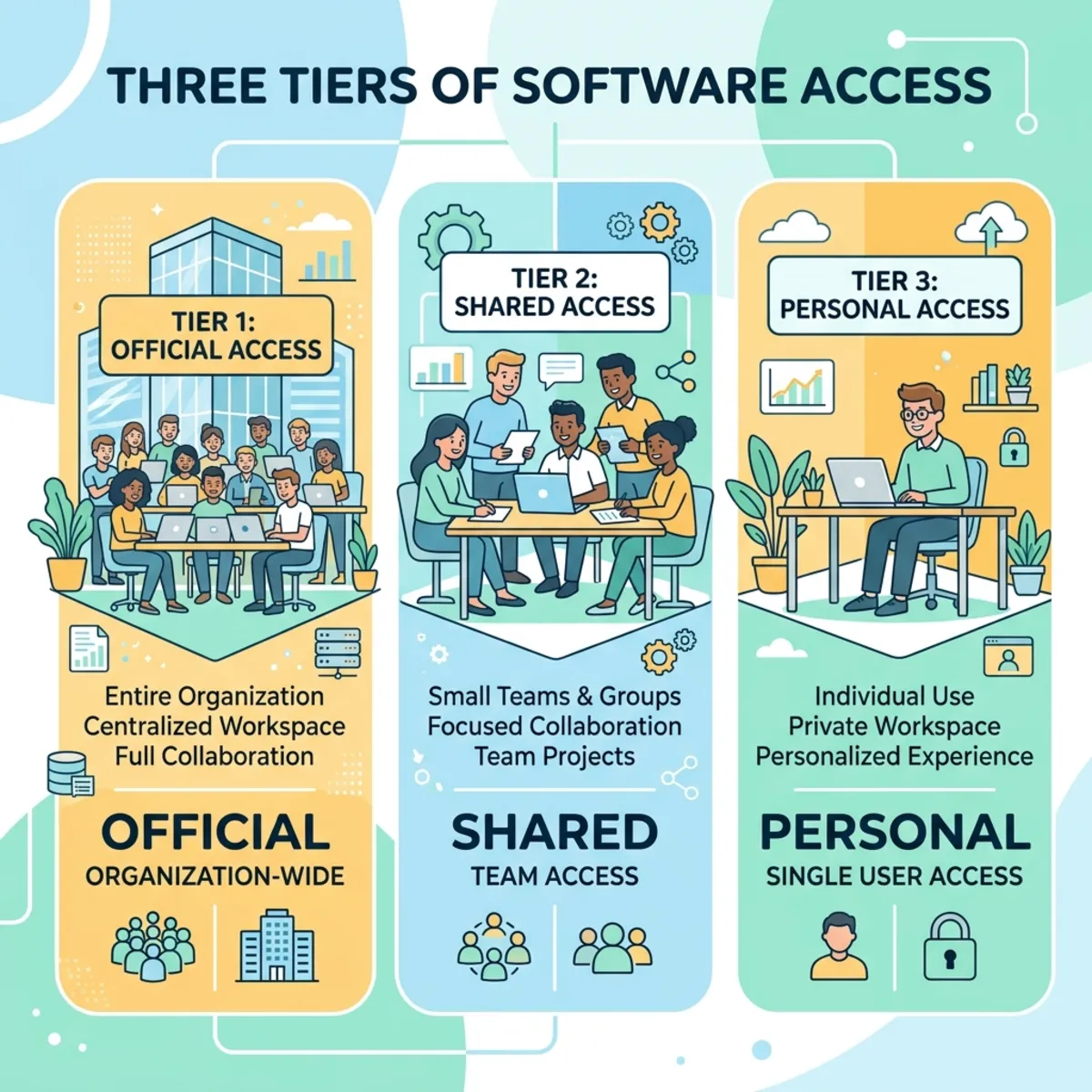
So if you are a Solution Architect or consultant who wants to experiment, you do not need to wait for admin rights—you can build a Personal kit today. You only need brand-manager rights to publish an Official, tenant-wide kit.
Correcting a common myth: Brand Kits did not replace SharePoint
Organization Asset Libraries (OAL) or .potx templates. They work together.
Your template remains the primary source of truth; the Brand Kit layers brand
rules and assets on top. More on this priority model in Section 4.
2. Prerequisites: License & Brand Manager Policy
2.1 Licensing
Creating and managing official Brand Kits requires a Microsoft 365 Copilot Premium license. If you don’t see Copilot in PowerPoint at all, your subscription or organization settings may not include it.
2.2 Becoming a brand manager (for Official kits)
Editing, renaming, and publishing official Brand Kits is restricted to brand managers, who are designated by IT through the Enterprise Brand Manager policy. The setup, performed by an administrator, is:
- Create a mail-enabled security group containing your intended brand managers.
- Enable the Enterprise Brand Manager policy (the “Elevated role for Brand Managers” policy) at config.office.com, pointing it at that group.
- Wait for propagation.
Plan for the delay: after you are designated a brand manager, it can take up to 24 hours to receive permission to create official kits. Don’t panic if the option isn’t there immediately.
3. Creating a Brand Kit (Step by Step)
3.1 The creation path
In the Microsoft 365 Copilot app (microsoft365.com or m365copilot.com):
- Select Create in the left navigation menu.
- Select More…, then select Brand kits.
- Select + New Brand kit.
- Name your Brand kit.
- Configure your Brand kit assets (see below).
Naming note: the feature lives in the Create tab of the Microsoft 365 Copilot app. This is distinct from the consumer “Microsoft Create” site (create.microsoft.com). If a guide tells you to go to create.microsoft.com for Brand Kits, it’s pointing you to the wrong place.
3.2 Configuring assets
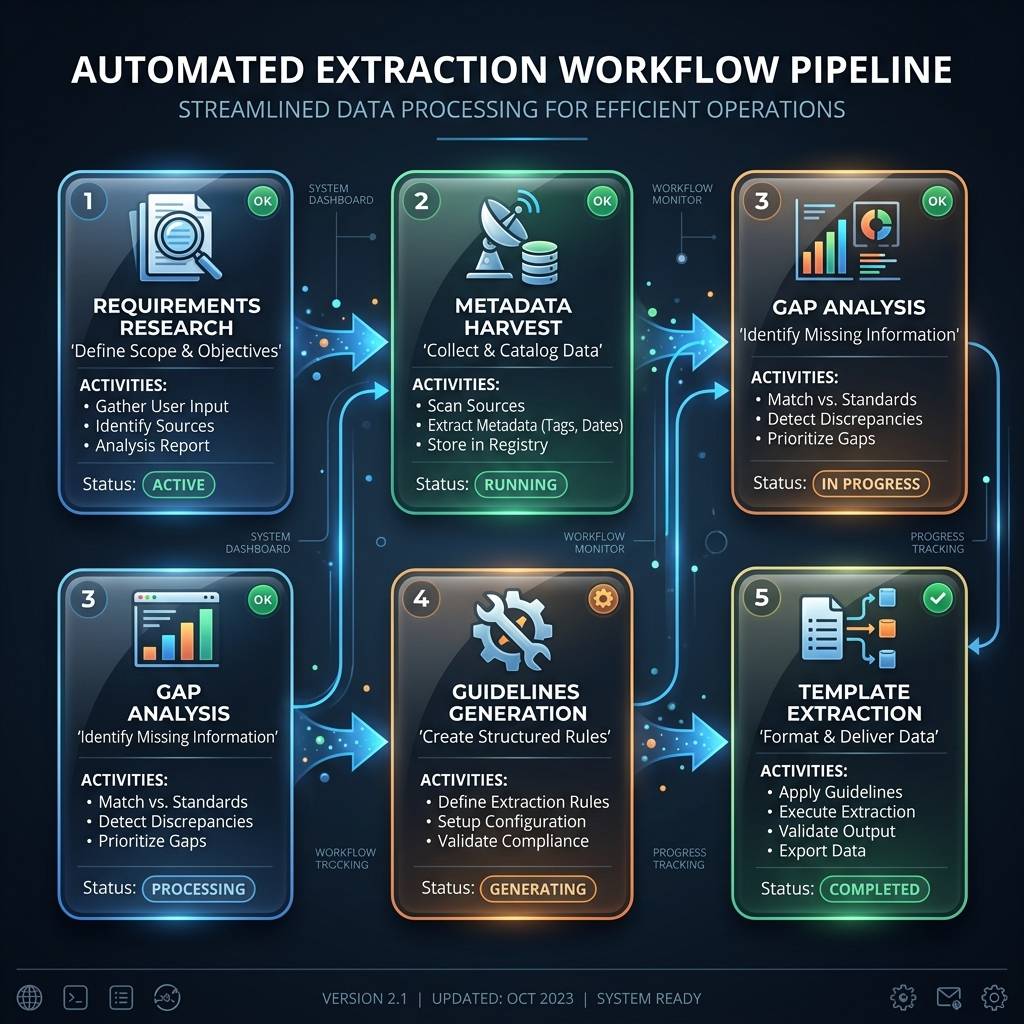
You configure the following sections. Each can be populated manually, and most can be auto-extracted (Section 3.3):
- Logos — primary, secondary, and variations for consistent representation.
- Color — official colors with specific HEX codes.
- Fonts — primary and secondary typefaces, with roles for headings, body, and special uses.
- Images and Icons — approved photos, graphics, icons, and visual elements.
- Templates — presentation, document, and other templates (see Section 4 for PowerPoint specifics).
- Brand voice — the personality and tone of your content.
- Brand guidelines — upload your guidelines PDF.
- Style and Data Visualization — picture treatments, chart and data-viz styles.
Assets can stay where they live. You don’t have to re-upload everything. Brand Kits can pull approved assets directly from SharePoint, OneDrive, Microsoft 365 Organization Asset Libraries (OALs), and supported third-party DAM systems (e.g., Templafy), so users browse and apply compliant assets without downloading files.
3.3 AI-powered extraction (the time-saver)
Rather than mapping every asset by hand, upload your marketing team’s official Brand Guidelines PDF. Built-in AI analyzes it and auto-populates the kit by extracting:
- Color palettes (primary, secondary, background)
- Fonts and typography rules
- Photography styles and image treatments
- Layout structures
- Brand voice patterns
- Visual dos and donts (e.g., “logo must not be recolored, skewed, or rotated”)
You then review and refine the extracted values before publishing.
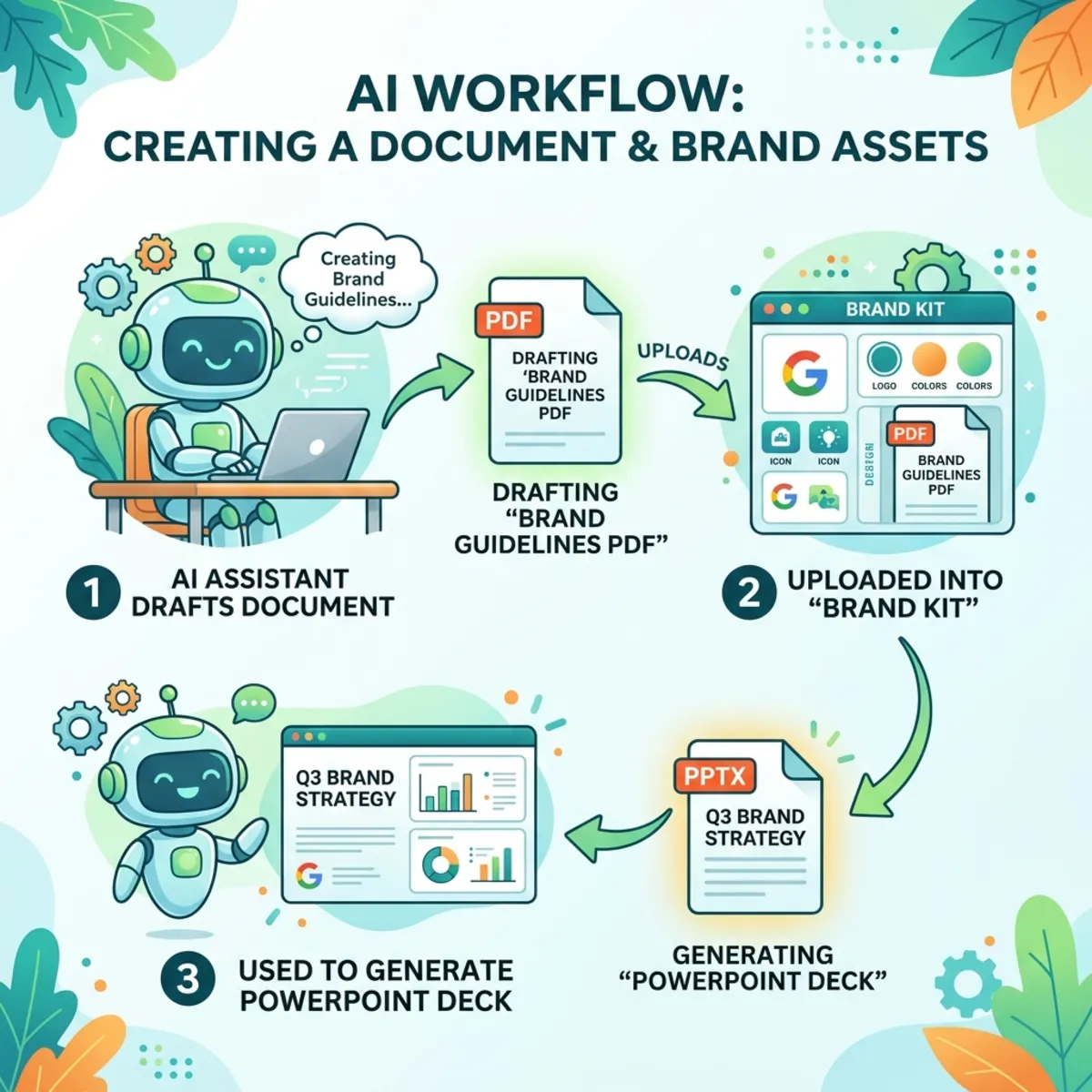
Where Cowork helps at this stage: if you don’t have a polished brand guidelines PDF, you can use Copilot Cowork to generate one. The typical workflow is: Cowork drafts the brand guidelines document → you upload/feed it into the kit → AI extraction populates the kit → you publish. This is Cowork’s documented role in the Brand Kit lifecycle (see Section 5 for the important distinction about generating decks).
3.4 Manual verification
Even with accurate extraction, verify and inject these for a flawless pipeline:
- Role-based typography — explicitly assign Heading, Subheading, and Body roles.
- Visual assets — high-res logo variants (transparent, dark, light) and approved iconography.
- Corporate templates — your official .potx/.pptx. Uploading one generates a live preview; Copilot uses the placeholder structures to determine where to inject generated text and imagery.
3.5 Publishing
For an Official kit, the final step is Publish, which makes it available across the tenant. Until you publish, the kit is a draft.
3.6 Brand Reviewer (the quality gate)
A key feature absent from most guides: Brand Reviewer keeps finished presentations on-brand by identifying issues and suggesting one-click fixes for:
- Incorrect colors or fonts
- Misplaced or unapproved logos
- Off-brand imagery or picture styles
- Layout, spacing, or alignment issues
- Other violations of your brand’s usage rules
You’ll see this called “Brand Checker” in third-party blogs and demos. The official Microsoft term is Brand Reviewer. Same capability.
4. Templates & the Organization Asset Library
Brand Kits and templates are partners, not competitors. Understanding the priority model is essential to predicting Copilot’s output.
4.1 The priority model (read this twice)
When you prompt Copilot in PowerPoint, it draws on three sources:
- Templates (primary source of truth)
- Brand Kit assets
- Organization Asset Libraries (OAL)
The official rule: “When both a template and a Brand kit are available, Copilot in PowerPoint uses your template first, then applies rules and guidance from the Brand kit.”
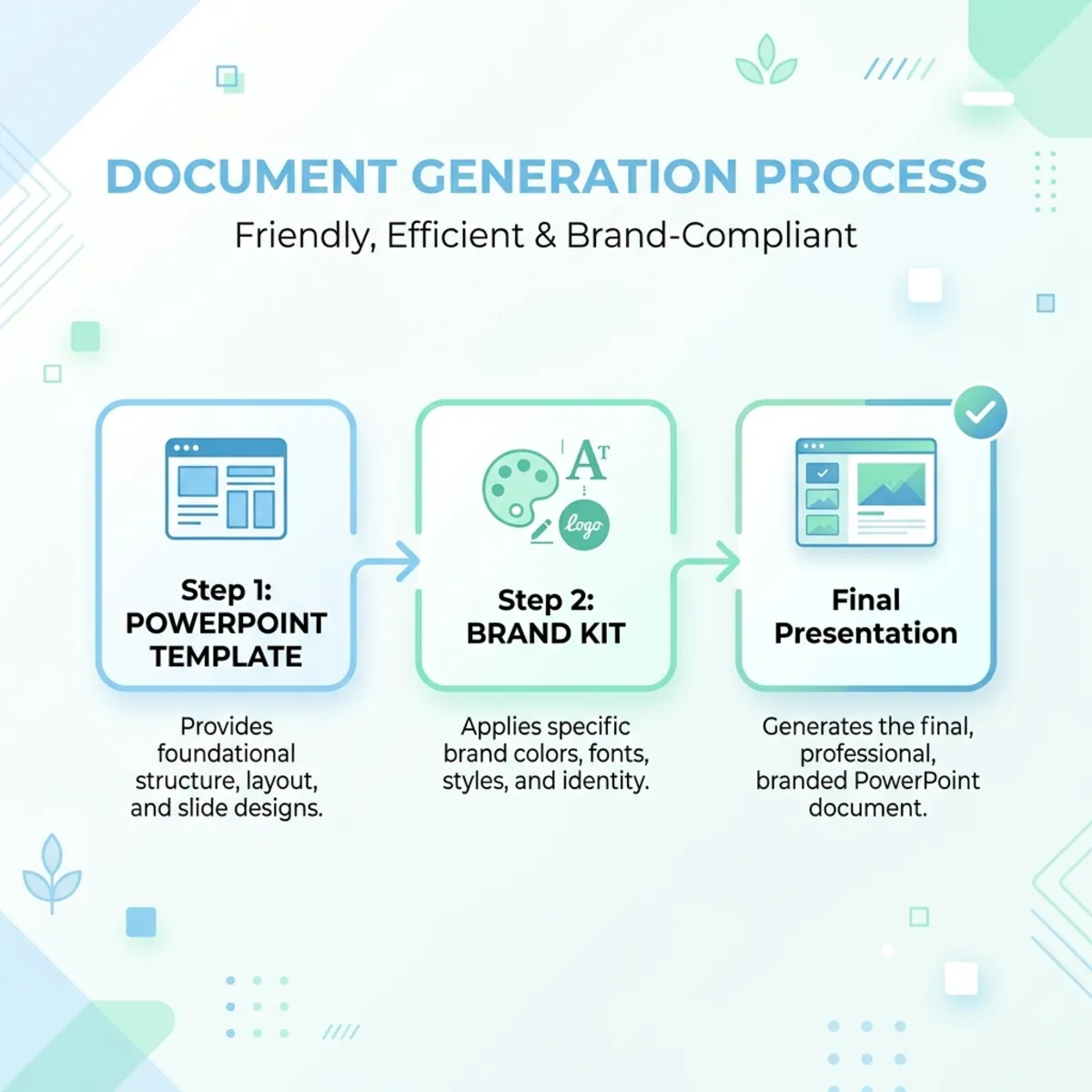
In other words: the template drives structure and layout; the Brand Kit enforces brand rules, voice, and assets on top. Copilot interprets your request, selects layouts from your template, generates content against that structure, and then applies brand assets (images, icons, brand voice) from the kit.
4.2 Optimizing your template for Copilot
Copilot learns from the sample slides in your template—their layout structure, placeholder types, content density, visual hierarchy, and object relationships. If your template lacks enough sample slides, Copilot falls back to the Slide Master, which produces less optimal results.
Include representative sample slides covering, at minimum:
- Title • Agenda • Section Header / Divider
- Content (text, bullets, icons, focus areas, image layouts)
- Data Visualization (tables, charts, statistics, dashboards)
- Timelines • Process Diagrams / Flow Charts / Lists
- Quotes / Testimonials • Q&A
- Summary / Key Takeaways • Conclusion • Thank You / Next Steps
Demonstrate how your brand handles content density (light, medium, heavy). Aim for good coverage—a dozen or more representative layouts is a healthy baseline.
Platform caveat for template authoring: templates must be created in PowerPoint for Windows or Mac—not the Web. This is the one genuinely web-restricted step in the whole workflow. Everything else (including using the Brand Kit) works on the Web too.
4.3 Uploading a template to a kit
From the Microsoft 365 Copilot app → Create → More… → Brand kits → open the kit → Templates → Upload Template (or select from your OAL) → choose your .potx or .pptx → add metatags → Add to Brand kit.
4.4 The OAL connection
For organization-wide PowerPoint integration, set up a SharePoint Organization Asset Library for templates and a separate one for images, and enable the image library for Copilot. This lets enterprise templates appear automatically for users and let Copilot prioritize your approved imagery.
Image library scale: for the branded-image experience to feel rich, organizations are advised to stock 1,000+ approved images (via SharePoint OAL or a DAM like Templafy). Start with 50–100 and grow.
5. USING the Brand Kit to Generate a Deck (The Most Important Section)
This is the question everyone actually has, and the one most articles fumble. Let’s answer the three sub-questions directly and precisely.
5.1 Can you use the PowerPoint agent to use Brand Kits? — Yes.
The PowerPoint agent—formerly “Agent Mode,” now branded “Edit with Copilot”—uses natural language to plan, execute, review, and deliver complex presentation tasks across an entire deck. The PowerPoint product team has explicitly confirmed:
“If an official Brand Kit is added to Copilot Create, will it be available for PowerPoint? Yes, the Brand Kits from Create are leveraged in PowerPoint Edit with Copilot.”
It also leverages templates from your OAL or Brand Kits in Create, and you can have multiple Brand Kits (e.g., per business unit) and pick the relevant one. Templates surface contextually in the chat pane for selection.
How to do it, end to end:
- Open (or create) a presentation in PowerPoint.
- Open the Copilot pane and start Edit with Copilot.
- When prompted, select your organization’s template (these appear contextually in the chat pane—your enterprise/“Your Organization” templates alongside Microsoft’s).
- Prompt Copilot to build or restructure the deck. It grounds output in your template first, then applies Brand Kit rules (colors, fonts, logos, imagery, voice).
- Run Brand Reviewer to catch and one-click-fix any remaining off-brand elements.
Model note: Edit with Copilot currently runs on an OpenAI model, with a model picker coming (OpenAI or Claude). It can ground its work in your files, the web, and the current presentation, and self-corrects as it goes.
5.2 Is it supported within the Copilot app inside PowerPoint? — Yes, and that’s the primary surface today.
Brand Kit consumption for generation lives inside PowerPoint, via Edit with Copilot. The product team was asked whether you can generate a branded deck from the main Copilot Chat landing page versus inside the PowerPoint app, and answered:
“For now, it will be available via ‘Edit with Copilot’ inside PowerPoint. We will eventually have it at other surfaces as well.”
Practical takeaways:
- Inside PowerPoint (Edit with Copilot): ✅ supported today. This is where you go.
- Edit with Copilot availability: on the Web today, rolling out to the desktop app.
- Main Copilot Chat landing page: ⏳ not yet the surface for Brand-Kit-driven deck generation—Microsoft says other surfaces will come later.
5.3 Can Cowork use a Brand Kit to generate a new presentation? — Important nuance.
You already know Cowork can help create a kit. The real question is whether Cowork can consume a Brand Kit to produce a finished deck. Here’s the precise, sourced answer:
What is officially documented:
- Cowork creates the brand guidelines document. In Microsoft’s own walkthroughs, the sequence is: Cowork drafts the brand guidelines doc → that feeds the kit → the kit is then applied inside PowerPoint. Cowork’s role sits on the creation side of the lifecycle.
- Brand Kit consumption for deck generation is a PowerPoint (Edit with Copilot) capability, per the product team’s “for now, inside PowerPoint” statement above—not a Cowork one.
What Cowork can do for branded decks:
- Cowork (part of Microsoft 365 Copilot Wave 3, built with Anthropic’s Claude models inside Microsoft’s security boundary) can build a full slide deck from a branded template file. A Wave 3 launch demo used the prompt “Create an executive summary of the last three AI Corner meetings, use our brand template, and build a slide deck”—and Cowork pulled the content, structured it, and built the deck using the company’s actual fonts, logos, and colors.
The distinction that matters:
| Capability | Cowork | PowerPoint (Edit with Copilot) |
|---|---|---|
| Create the brand guidelines document | ✅ Yes | — |
| Build a deck from a branded template (.pptx/.potx) | ✅ Yes | ✅ Yes |
| Consume the published Brand Kit object from Create to generate a deck | ⏳ Not a documented Cowork capability today | ✅ Yes — this is the supported path |
So, to answer your question directly: today, the supported way to use a Brand Kit to generate a presentation is Edit with Copilot inside PowerPoint—not Cowork. Cowork can still produce an on-brand deck if you point it at a branded template file, and it’s the right tool for authoring the guidelines that become a kit. If you need the published Brand Kit’s full rule set (voice, dos/don’ts, Brand Reviewer) applied to generation, do it in PowerPoint.
Licensing nuance worth flagging to stakeholders: Cowork requires a Microsoft 365 Copilot license. The PowerPoint agent is a related but separate capability that is available to Microsoft 365 users with or without a Copilot license—though the Brand Kit features themselves require Copilot Premium. Confirm exactly what’s enabled with your IT admin.
6. Multiple Brands & Multi-Tenant Scenarios
If you manage several brands—business units, product lines, or client agencies—you can maintain multiple Brand Kits in one place, each with its own templates, assets, and defaults. Inside Edit with Copilot, you select the relevant template/kit per session, so you can move between, say, a corporate kit and a product kit without re-formatting. The product team confirmed multiple kits “at company level” is fully supported.
7. Troubleshooting & Known Limitations
- Kit not appearing after creation? For official kits, allow up to 24 hours after brand-manager designation, and confirm the kit is Published.
- Kits intermittently disappearing? A known issue was reported in the March 2026 M365 Champions call for official corp kits; Microsoft asked affected admins to file feedback so they can track it. If you hit this, report it.
- Copilot output looks generic? Your template likely lacks enough sample slides—Copilot is falling back to the Slide Master. Add representative layouts (Section 4.2).
- No brand templates at all? You can still use Edit with Copilot without templates—it just won’t be as on-brand. Add a template and kit when you can.
- Template won’t author on the Web? Expected—create templates in Windows or Mac PowerPoint, then upload.
8. The Result
The shift is from “generate and fix” to “generate on-brand by default.” With a published Brand Kit and an optimized template:
- Your template supplies structure and layout.
- Your Brand Kit enforces colors, fonts, logos, imagery, and voice.
- Edit with Copilot inside PowerPoint assembles the deck across all of it.
- Brand Reviewer catches anything that slipped through, with one-click fixes.
- Cowork accelerates the upstream work—drafting the guidelines that become your kit—and can build decks from branded template files.
A proposal that used to take an hour of reformatting now comes out of the first generation looking like your organization made it. That’s the whole point.
The one-line answer to “how do I use my Brand Kit?”: Open PowerPoint → start Edit with Copilot → pick your org template in the chat pane → prompt away → run Brand Reviewer. For tenant-wide kits you need Copilot Premium + brand-manager rights; for personal experimentation, a Personal kit needs neither.
Read next