Next-Gen Low-Code: Building Canvas Apps with AI and the Canvas Authoring MCP Server

Writer
Quiz available
Take a quick quiz for this article.
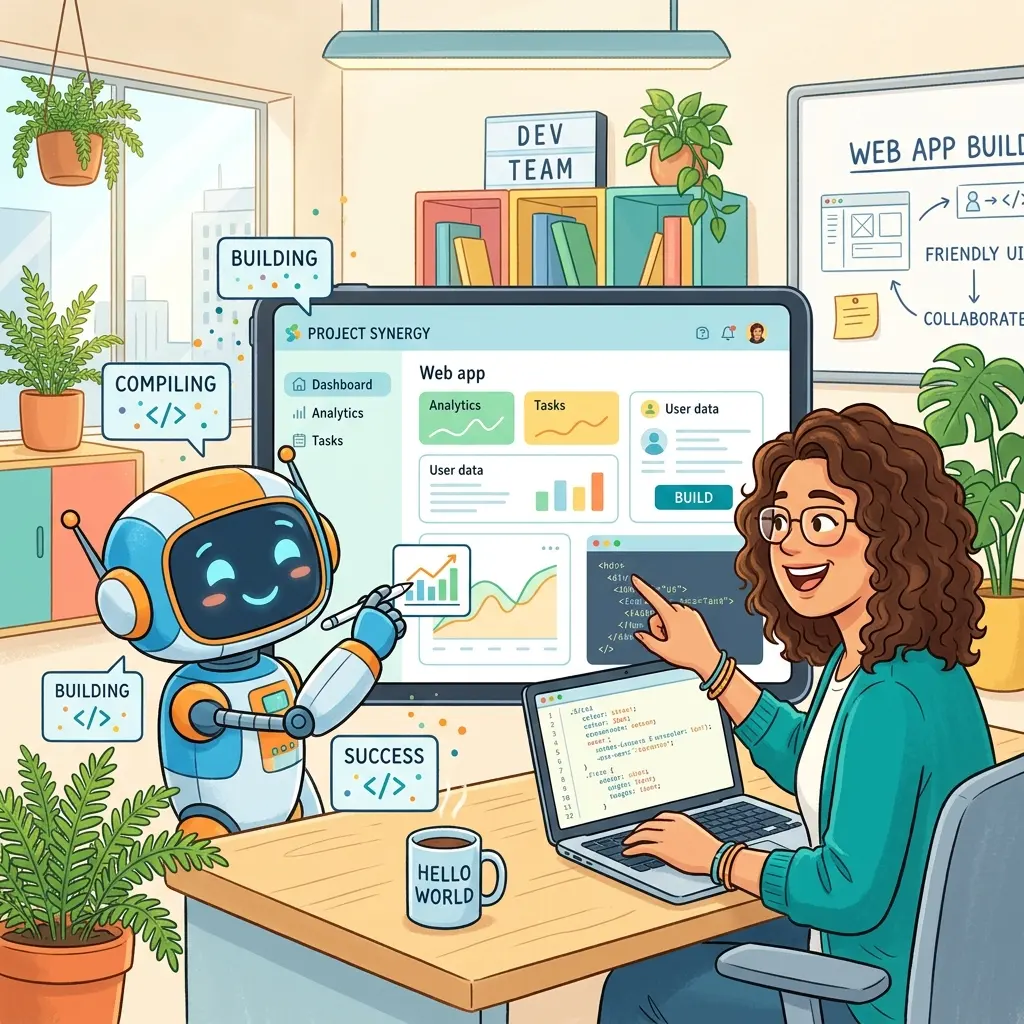
The landscape of enterprise low-code development experienced a foundational paradigm shift in April 2026 with the introduction of AI-generated authoring for Microsoft Power Apps canvas apps. Long considered a highly visual but occasionally tedious environment to build manually, canvas apps can now be structured, wired, and modified programmatically using local AI coding agents.
This technical guide breaks down how to implement this workflow using the Canvas Authoring MCP (Model Context Protocol) server, taking an application from a conceptual data model to a polished, multi-screen SaaS product in under an hour.
1. Architectural Blueprint: Understanding Canvas Authoring MCP
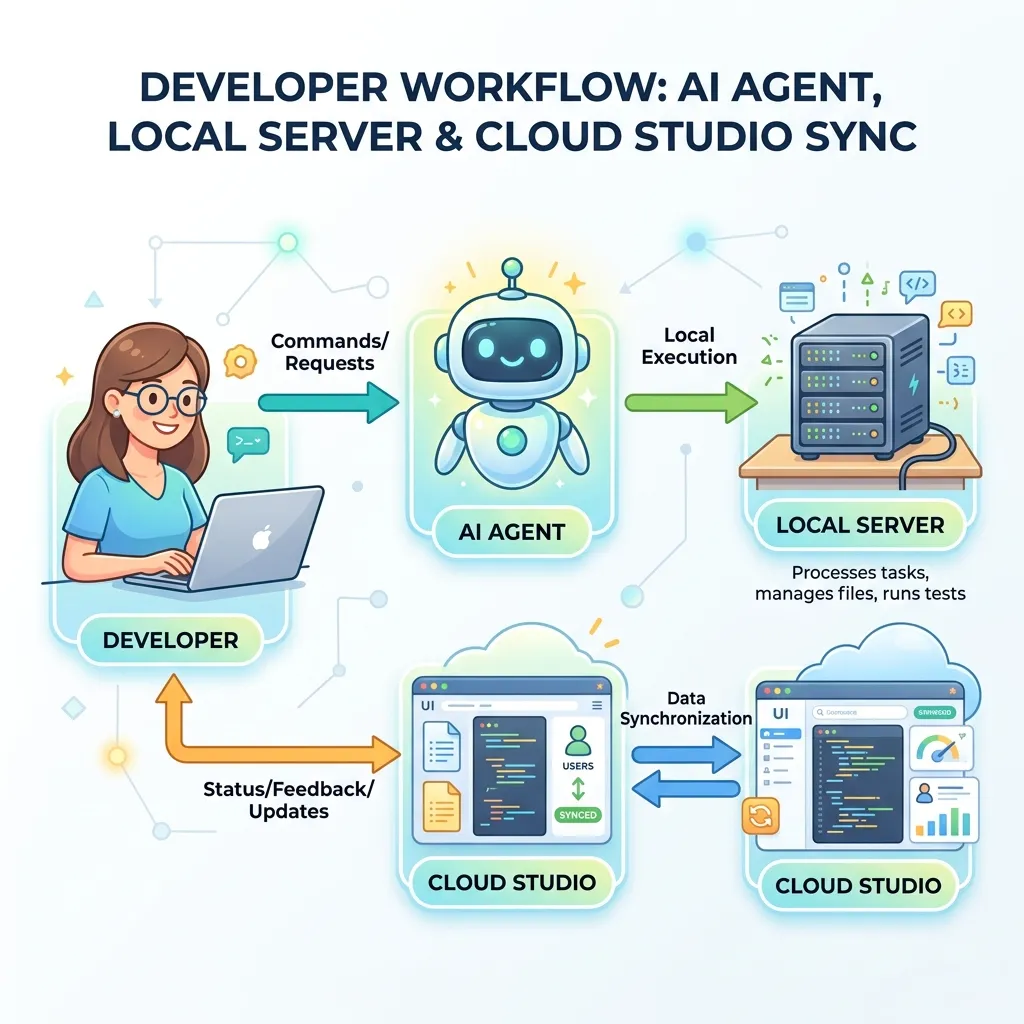
The Canvas Authoring MCP is not a Cloud-based SaaS functionality; it is a local Model Context Protocol server running on your workstation. It functions as a bi-directional translation bridge between an LLM coding agent (such as Anthropic’s Claude Code or GitHub Copilot CLI) and the live Power Apps Studio environment.
The Four-Stage Flow
Distinguishing the MCP Ecosystem
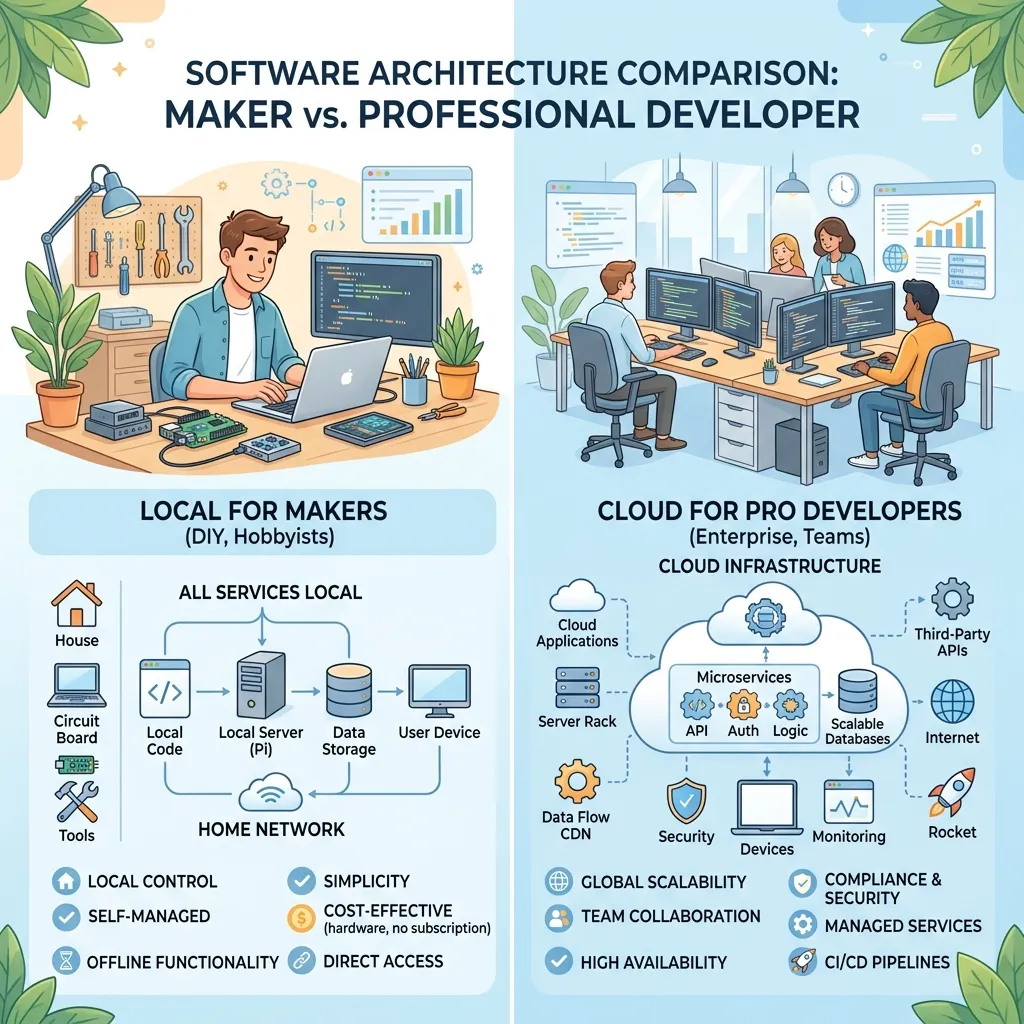
Microsoft utilizes similar terminology for distinct products within the Power Platform ecosystem. It is critical to differentiate between them:
2. Setting Up Your Local Environment
Before initiating an AI authoring session, your local development machine must be configured with specific SDKs and dependencies to sustain the local server loop.
Core Prerequisites
- .NET 10 SDK: Necessary to host and execute the local MCP server binaries.
- Git for Windows: Required specifically by Claude Code to execute system shell commands via Git Bash.
- IDE: Visual Studio Code or an equivalent command-line friendly development environment.
- Premium AI Accounts: Accessing the protocol requires a paid subscription tier (Claude Pro, Max, Team, or Enterprise; or an active GitHub Copilot subscription). Free consumer tiers do not support the required API authentication blocks.
System Verification
Open a new terminal instance within your IDE and validate your environment using the following commands:
Note: Ensure all three commands return a valid semantic version number before moving forward.
3. Preparing the Power Apps Studio Session
The Canvas Authoring MCP server does not inject files blindly into the cloud; it piggybacks on a live co-authoring session.
Step 1: Establish Your Data Architecture
Ensure your back-end tables (e.g., Dataverse tables tracking organizational assets) are populated and finalized with logical schemas before initializing the application canvas.
Step 2: Initialize App and Form Factor
- Navigate to your solution inside the Power Apps Maker Portal.
- Create a new Canvas App.
- Always select the Tablet layout.
- Design Principle: A tablet layout can scale downwards effectively to match phone dimensions using responsive layout containers. Conversely, a phone-native canvas cannot flex upwards gracefully to fill large desktop displays.
Step 3: Inject the Data Source & Enable Co-Authoring
- Manually add your target Dataverse tables to the application data pane. Doing this up front prevents data resolution errors during the AI generation process.
- Save your application to the cloud.
- Navigate to Settings > Updates.
- Locate and toggle Co-authoring to On.
- Save the application a second time to commit the co-authoring metadata state.
4. Initializing the MCP Server Bridge
With both your local machine and your browser session ready, you can configure the communication pipeline.
Step 1: Open the Project Workspace
Open an empty directory inside Visual Studio Code. This folder will act as the local repository where the AI agent spits out the raw YAML files representing your screens and components.
Step 2: Install the Power Platform Plugin
Launch the AI agent via the terminal:
Once the agent initializes, access the plugin ecosystem by executing:
Using the arrow keys, navigate to the Marketplaces tab, choose Add Marketplace, and specify the official plugin wrapper package:
Locate and install the canvas app module inside this skill container. Press Escape twice to return to the active prompt line.
Step 3: Bind the MCP Server to Power Apps Studio
Execute the configuration skill to initialize the bridge parameters:
The server configuration wizard will request two operational variables:
- Scope Selection: Input
1-userto make the server globally accessible to your local user environment profile. - Studio URL: Copy the complete, active web address from your browser tab where Power Apps Studio is open and paste it directly into the terminal prompt.
Accept the accompanying bash script permission requests. Once completed, exit the current shell context to refresh environment pathways:
Re-enter the persistent agent environment by appending the resume flag:
To confirm the pipeline is active, run a secondary test terminal and confirm that canvas authoring MCP registers as successfully connected:
5. The Core Toolset: Generating and Modifying Apps
The Canvas Authoring MCP exposes three core structural commands within your command line interface.
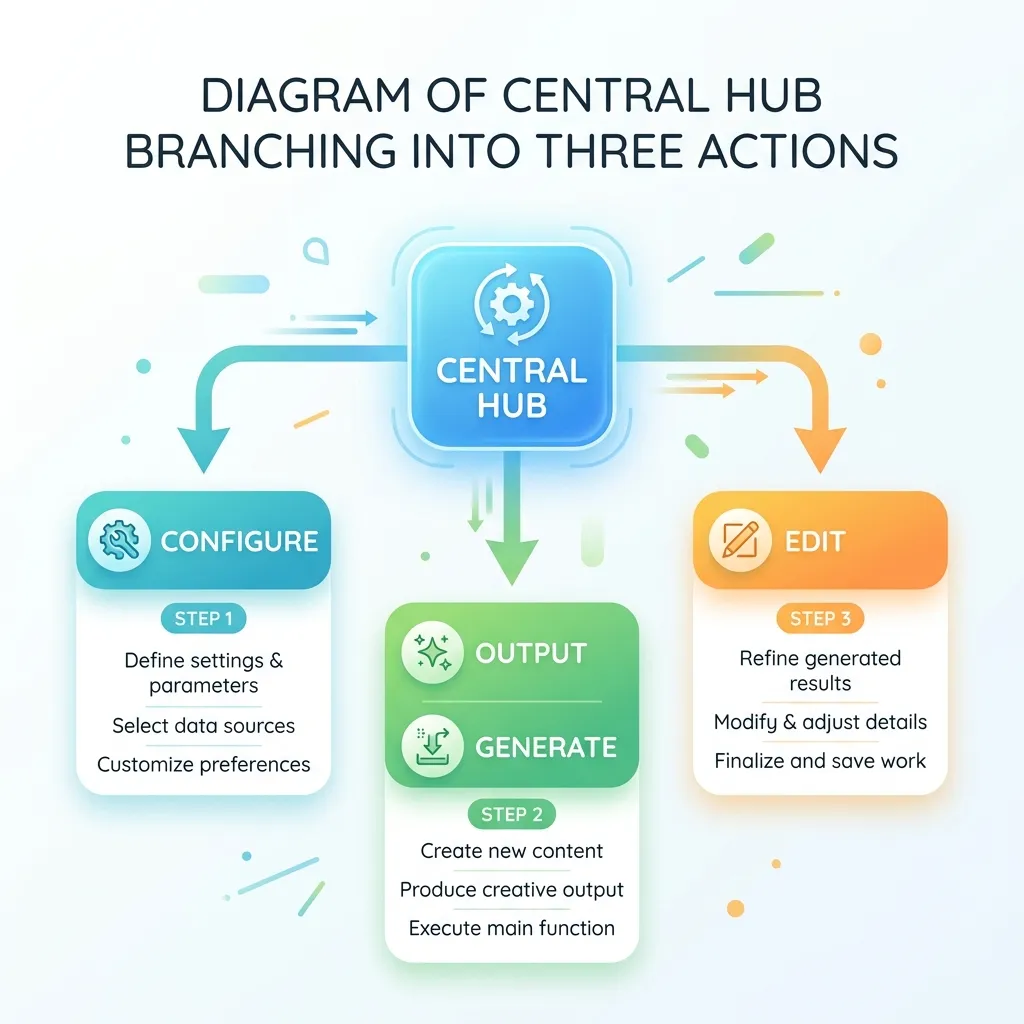
Orchestrating Initial Generation
To spin up a new application skeleton, use the /generate canvas app skill along with a highly detailed natural language prompt.
Critical Troubleshooting Workaround: The OAuth Cache Loop
The console will trigger an authentication prompt redirecting to your web browser. If your default browser profile has heavily cached cookies, Microsoft’s identity provider may throw a Bad Request - Request Too Long error.
- The Fix: Immediately copy the generated authentication token URL from the terminal, open a new Incognito / Private Window, and execute the authentication step there. Ensure you receive the browser confirmation reading “Authentication Complete” before switching back to your IDE.
While generating components, the AI writes out structural app.pa.yaml scripts and individual screen files into your workspace directory.
Token Efficiency Tip: This automation model can exhaust your LLM token allocations very quickly. To preserve system limits, reduce code verbosity parameters early in the session by running /effort and dialing the execution energy down to Medium.
Resolving Interface Desynchronization
If the generation process finishes successfully in your IDE but the Power Apps Studio browser tab shows an unchanged canvas, the sync engine has dropped frames. Simply reload/refresh the browser window. The application will pull the updated states from the co-authoring buffer, automatically formatting the newly generated layouts into view.
Tweaking Components via Micro-Edits
AI generations are rarely perfect; layouts may appear misaligned, or specific structural links might be omitted. Rather than re-running full builds, implement targeted adjustments via the /edit canvas app utility.
For example, if an action item lacks programmatic logic, target it directly:
The MCP server handles background recompilation, altering only the corresponding YAML properties and rendering the functionality operational instantly inside your refreshed browser session.
6. Engineering Guardrails: Best Practices & Drawbacks
To successfully integrate AI-driven canvas authoring into standard corporate environments, observe the following parameters:
Best Practices Checklist
- Embrace Incremental Complexity: Initiate your project with a lean core feature set (e.g., simple data viewing lists) and scale up linearly through iterative edits.
- Over-Index on Prompt Specificity: Explicitly declare logical schemas, targeted data collection rules, and precise container behaviors inside your initial configurations.
- Implement Architectural Patterns: Command the agent to reference established UX structures (like left-navigation panels or standardized header components) rather than letting it generate arbitrary spatial interfaces.
- Validate Generated Output: Audit the compiled local YAML structures prior to final environmental promotions to verify compliance with internal enterprise guardrails.
- Demand Creative UI Aesthetics: Avoid basic default templates. Explicitly prompt the agent to use premium SaaS layout aesthetics, specific drop shadows, and modern component padding schemes.
Known Technical Bottlenecks
- High Token Depletion Rates: The underlying schema maps for visual canvases generate vast quantities of structured instructions, resulting in substantial token consumption.
- Fragile Web Session Dependencies: If your connection drops, your browser refreshes unannounced, or system timeouts occur, the communication state breaks. Fixing this requires exiting, re-configuring the canvas URL metadata values, and re-initializing the local compiler.
- Preview Constraints: As a technology currently in public preview, feature structures are subject to regular engineering revisions. Keep your developer SDK packages updated to prevent syntax divergence.
Read next