Power Automate Meets MCP: Refactor Flows with an Agent, Not Just a Designer

Writer

A flow can deliver the right business result and still be unpleasant to maintain. An expected condition appears as a failed action. A temporary Compose action survives long after debugging. A child flow works, but nobody remembers which parent calls it.
These are not necessarily difficult problems. They are problems that remain unfixed because reopening the designer, tracing dependencies, changing expressions, and retesting takes effort.
The Power Automate plugin in Microsoft’s Power Platform Skills repository offers a different maintenance loop: ask an agent to inspect the real flow, explain its weaknesses, make a targeted change, and help validate the result. Its execution layer is FlowAgent, a Model Context Protocol (MCP) server that exposes Power Automate operations as tools. The repository documents flow authoring, surgical edits, run inspection, connection management, and environment routing. [1]
The interesting question is not whether this eliminates the designer. It is whether it makes small, worthwhile improvements easier to complete without losing control of what changes.
Agentic workflow refactoring does not eliminate the Power Automate visual designer or bypass software engineering judgment. Instead, it transforms natural language into a planning layer and uses the local FlowAgent MCP server as an execution engine to inspect, diagnose, and surgically refactor flow definitions while keeping the developer firmly in control of the approval and testing boundary.
What this integration actually is
Several components are easy to blur together. Keeping them separate makes both the capabilities and the risks clearer.
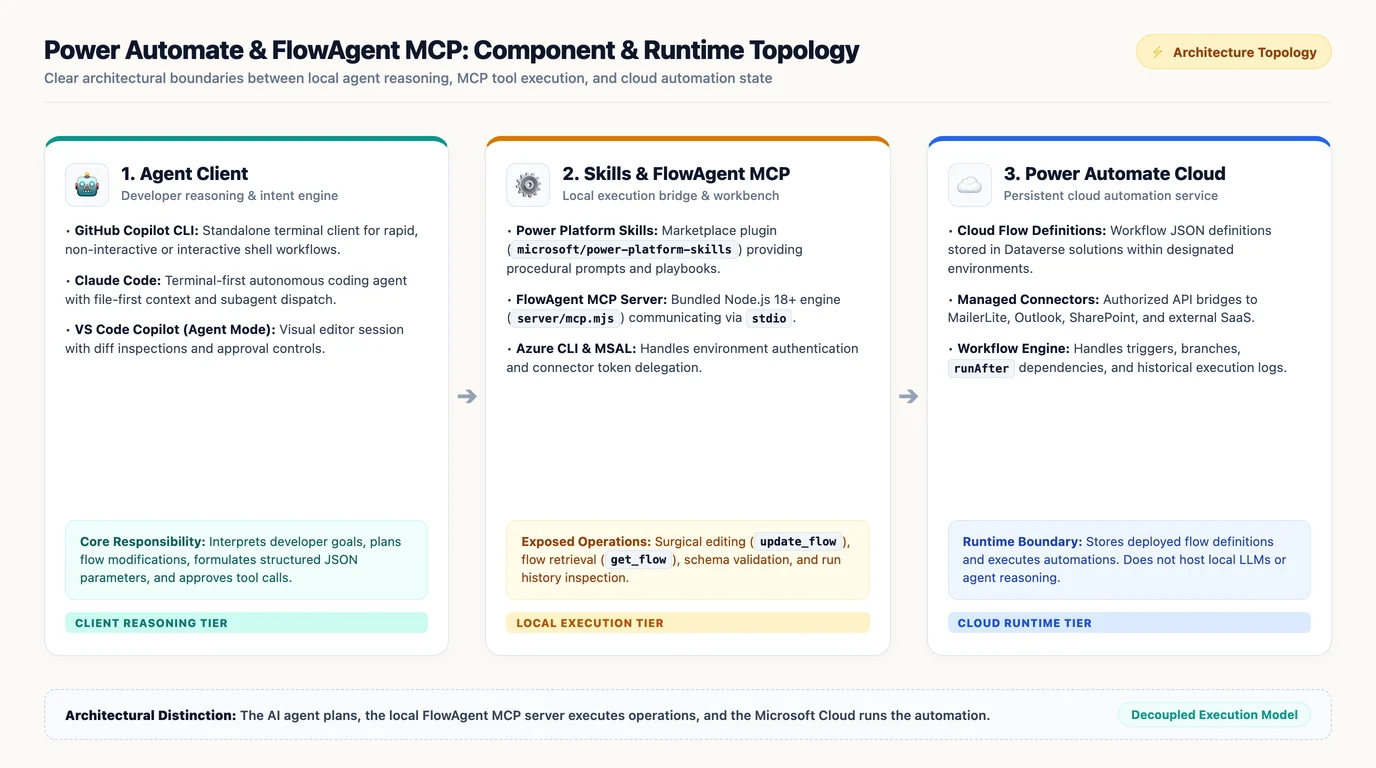
| Component | Role |
|---|---|
| Agent client | Hosts the conversation, reasons about the task, and requests tool execution. |
| Plugin marketplace | Makes the packaged integration discoverable and installable. |
| Power Automate plugin | Bundles skills, reference material, MCP configuration, and the FlowAgent engine. |
| Skills | Provide task-specific guidance for activities such as browsing, building, debugging, and managing flows. |
| FlowAgent MCP server | Exposes executable operations for environments, flows, connections, and runs. |
| Power Automate service | Stores and executes the actual cloud flows. |
This separation follows the plugin’s documented packaging and tool-routing model. The plugin registers FlowAgent through .mcp.json; the engine is bundled at server/mcp.mjs. Its guidance directs agents to use the available MCP tools for flow operations rather than repeatedly invoking a separate command-line process. [1][2]
A useful mental model is a maintenance engineer with a runbook and a toolbench. The model interprets the request. The skills and references supply procedural knowledge. The MCP tools perform concrete operations.
The analogy has a limit: an agent’s explanation is not proof that it understood the flow correctly. A successful tool call proves that an operation completed, not that the resulting automation meets the business requirement.
Local server does not mean offline automation
The plugin README describes a self-contained engine that needs Node.js 18 or later, without a separate npm installation or remotely hosted MCP engine. Authentication uses Azure CLI, with Microsoft Authentication Library (MSAL) also used for connectivity endpoints. [1]
That does not mean the complete workflow operates offline. Listing cloud flows, updating them, inspecting runs, and authenticating still require access to the relevant services. “Local” describes where the MCP process runs, not where the automation lives.
This is a Microsoft-published project, not a universal support promise
The marketplace repository identifies these as official Microsoft Power Platform skills and plugins. Its support policy, however, limits project support to the listed resources, including GitHub Issues and Power Platform documentation. [3][4]
That is a more precise description than calling the integration either an unofficial community workaround or a generally available platform feature with an assumed enterprise support commitment. Use the project’s own documentation to establish its capabilities and support boundaries.
The worked example: stop treating an existing group as an error
The source demonstration centers on a child flow that creates or retrieves an email-marketing group in MailerLite.
Its original behavior is straightforward:
- Attempt to create the group.
- If creation fails, look for an existing group.
- Continue using the existing group when one is found.
The presenter reports that this produces the desired result when the group already exists, but leaves distracting failure indications in the execution history.
There is an important distinction here. A failed action and a failed overall run are not the same thing. Power Automate’s Run after settings can route execution after an action succeeds, fails, times out, or is skipped. The final outcome depends on the rest of the flow and its error handling. The demonstration does not establish a universal rule that a handled action failure always makes the entire run fail. [5]
The design issue is more specific: the flow uses failure as its normal existence check.
Why the fallback is incomplete
“Creation failed” does not necessarily mean “the group already exists.” It could mean invalid input, an unavailable service, or a connection problem.
If the fallback lookup returns no matching group, the flow needs a deliberate outcome. Otherwise, later actions may attempt to use an identifier that was never obtained.
In the demonstration, the agent identifies this empty-result edge case. It also notices an apparently unused Compose action containing a leftover literal value. Those are findings from the supplied demonstration, not independent evidence that every flow review will detect equivalent problems.
Together, they show why inspecting an existing flow can be more valuable than generating a new one: the agent can reason about the relationship between actions, not merely suggest individual actions to add.
A clearer control-flow model
For this scenario, the proposed refactor is:
- Retrieve matching groups.
- Check whether a valid match exists.
- Reuse its identifier when it does.
- Create the group when it does not.
- Return a valid identifier, or report a genuine failure.
The improvement is semantic. “Already exists” becomes a normal branch, while a real creation failure remains an error.
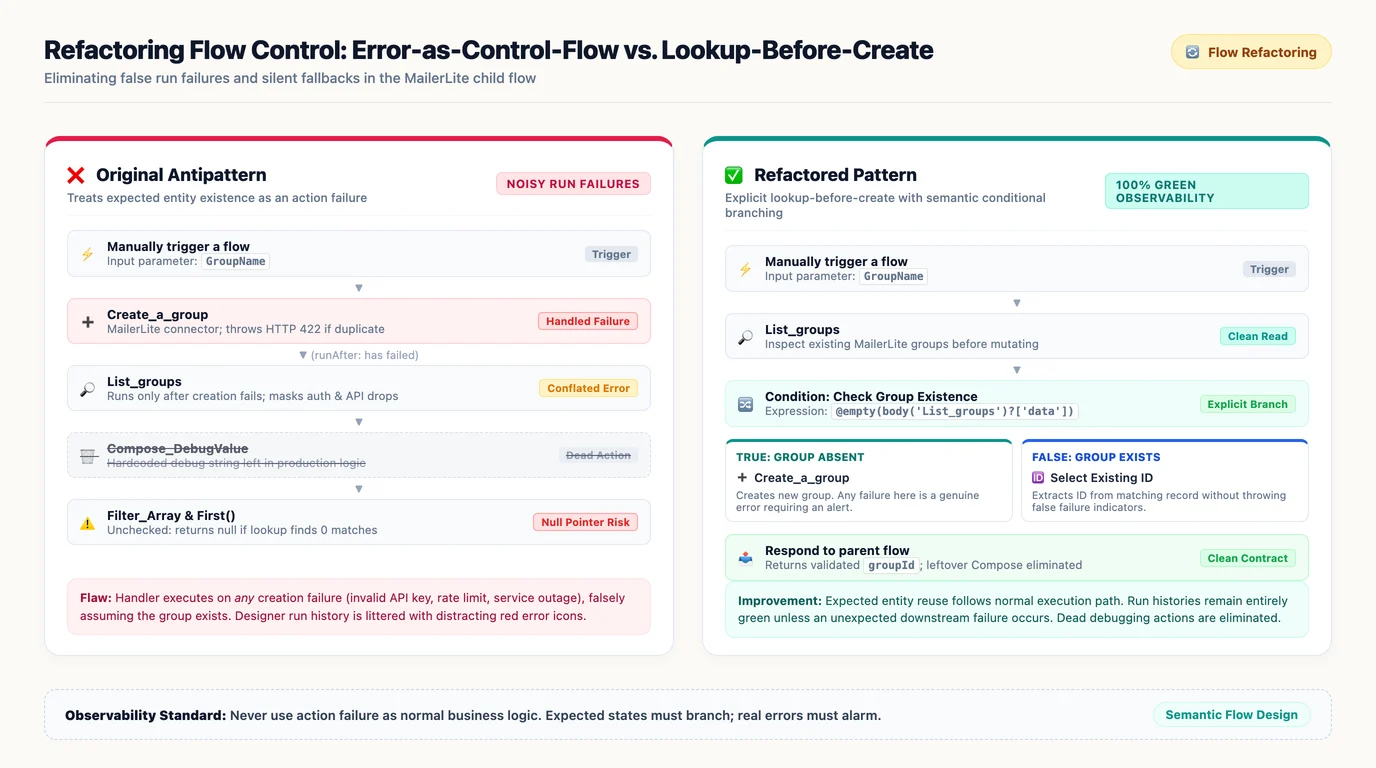
Do not confuse a quieter run history with better error handling. The goal is to remove expected failures, not hide unexpected ones.
Power Automate supports explicit conditions and collection checks such as empty(). The exact expression must match the connector’s actual response structure; an array path or identifier property should not be guessed from a generic example. [6][7]
The concurrency caveat
Lookup-before-create is easier to read, but it is not automatically an atomic upsert.
Consider two executions running close together. Both look up the group. Both see no match. Both attempt creation.
That thought experiment exposes a remaining design question: does the destination enforce uniqueness, provide an atomic create-or-reuse operation, or require handling a specific duplicate response? The supplied material does not establish MailerLite’s exact behavior under concurrent creation, so this article does not claim the demonstrated refactor solves that problem.
The practical lesson is to separate cleaner branching from concurrency correctness. They are related, but they are not interchangeable.
Getting started without confusing the clients
The demonstration uses Visual Studio Code, but references to a terminal, Copilot, and plugin commands can make the execution surface ambiguous. Visual Studio Code is not Visual Studio, and an agent running in its integrated terminal is not necessarily the same session as the editor’s Chat view.
The Power Automate plugin README explicitly documents installation from GitHub Copilot CLI or Claude Code. The most direct reproducible path is therefore to start with one of those clients, including Copilot CLI running inside the VS Code terminal. [1]
Prerequisites
For that documented path, prepare:
- GitHub Copilot CLI or Claude Code with a working agent session.
- Node.js 18 or later, as specified by the plugin; use a currently supported Node.js release that satisfies that requirement.
- Azure CLI.
- An account with access to the intended Power Automate environment and flow.
- The connector connections needed by the flow being inspected or tested.
The plugin’s setup guide checks Node.js, Azure CLI, authentication, MCP tool registration, and an end-to-end environment listing. It also documents separate connectivity authentication, so a working Azure CLI sign-in alone does not prove every connection-management operation is using the intended identity. [8]
Install the marketplace and plugin
Run these commands inside the agent session, not as ordinary operating-system shell commands:
These are the installation commands documented by the plugin. If the marketplace is already registered, it does not need to be added again. [1]
Authenticate through Azure CLI using the account intended for Power Automate:
Then ask the agent to verify that FlowAgent tools are available and list the accessible environments. The setup guide treats environment listing as the smoke test for the integration. [8]
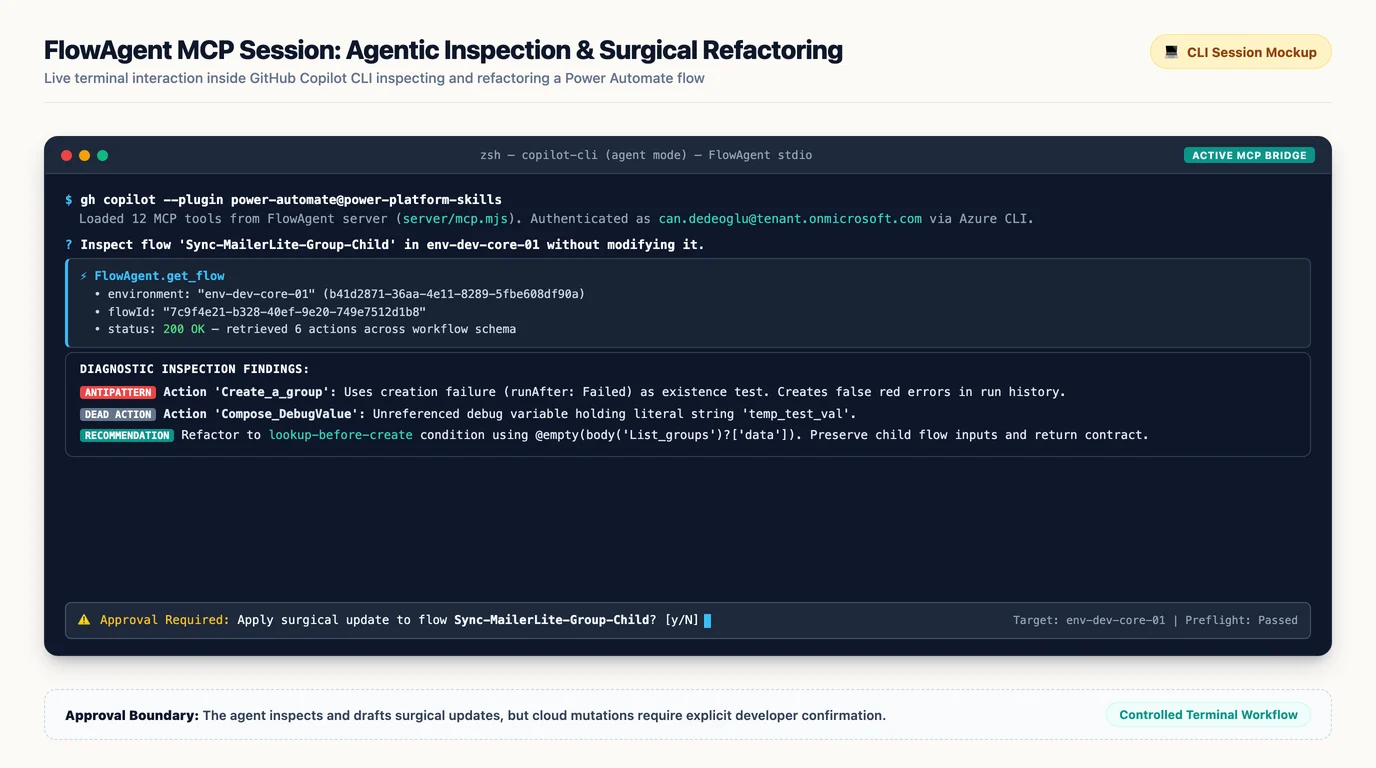
Installing a skill is not enough if the executable tools never appear. If the agent can explain flows but cannot retrieve one, inspect the MCP registration and authentication before attempting a refactor.
What about Copilot Chat in VS Code?
VS Code also documents agent plugins, including packaged skills and MCP servers. Its current documentation describes plugin enablement through chat.plugins.enabled, marketplace discovery, and installation operations in a Copilot harness session. It explicitly notes that available components depend on the harness and plugin format. [9]
That establishes a VS Code plugin mechanism, but it should not be stretched into a claim that every client loads every Power Automate plugin component identically. Check the installed client’s plugin support, confirm that FlowAgent starts, and verify its tools before assuming parity with the CLI path.
The reliable boundary is observable tool availability, not the presence of a Copilot icon.
A controlled refactoring loop
The strongest part of the demonstration is the sequence: inspect, change, refine, test. It is worth making that sequence explicit rather than treating a single broad prompt as the entire workflow.
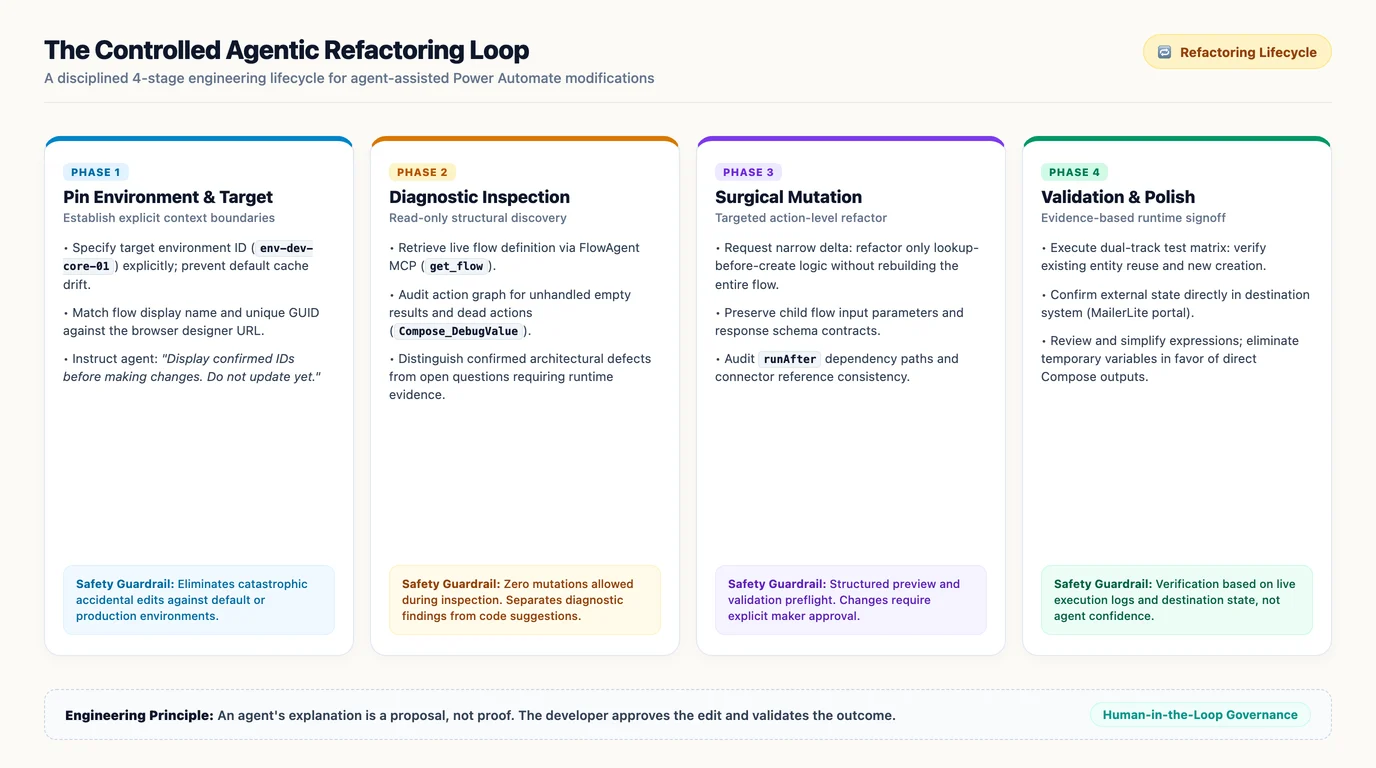
1. Pin the environment and flow
In the demonstration, the agent initially gravitates toward the default environment. The presenter corrects it to the intended developer environment and checks the flow identifier against the browser.
That is not incidental. A plausible flow name in the wrong environment is still the wrong target.
Use an instruction such as:
Use the Power Automate skills. Work only in my selected development environment. Show its environment ID and the target flow’s display name and ID before making changes. Do not update anything yet.
FlowAgent documents environment routing and session-scoped environment and flow context. Explicit selection makes those capabilities useful rather than leaving the target implicit. [1][2]
2. Inspect before editing
The presenter already has a Dataverse solution available locally, including workflow files. That gives the agent useful workspace context, but it should not be mistaken for a universal prerequisite: the plugin also documents live flow listing and retrieval. [1]
A local definition is valuable for review and version history. A live retrieval is valuable for confirming what is actually deployed. If both are present, ask the agent to identify any differences before editing.
A focused review prompt is:
Inspect this flow without changing it. Identify unused actions, expected conditions handled as failures, empty-result paths, and assumptions about connector responses. Separate confirmed findings from questions that require runtime evidence.
This keeps the first pass diagnostic. It also prevents a stylistic preference from being presented as a functional defect.
3. Request a narrow change
The demonstration shows an action-level editing operation rather than rebuilding the flow from scratch. The plugin calls this surgical editing and documents it as part of its flow-management capabilities. [1]
A useful instruction is:
Refactor only the group lookup and creation logic. Reuse an existing group when found, create it when absent, and preserve the child flow’s inputs and outputs. Keep genuine failures visible. Show the proposed changes before applying them.
The plugin’s setup tool catalog includes preview, validation, preflight, and backup-related operations. Their availability gives the agent mechanisms for safer editing, but does not prove that every edit automatically invokes them. Ask for the checks you need and inspect the resulting tool output. [8]
Review more than the action names. Check the condition, response paths, connection references, and Run after dependencies. The plugin’s definition reference specifically identifies connection-name consistency and valid runAfter references as validation concerns. [10]
4. Refine the implementation, not just its appearance
The first generated refactor in the demonstration introduces variables. The presenter asks for a simpler version without them, and the agent revises it.
That is a useful code-review interaction, not evidence that variables are inherently wrong.
As a design rule of thumb:
- Use a variable when a value genuinely needs to change across the execution.
- Prefer a direct action output or Compose when a value is computed once and reused.
- Keep an explicit Condition when it makes branch behavior easier to inspect.
- Do not compress several steps into one expression merely to reduce the action count.
The demonstration also mentions an expression warning after simplification, without supplying enough detail to establish its cause. The right response is to inspect and test the actual expression, not infer that the warning is harmless.
Pay particular attention to references to actions that run only in one branch, and to attempts to read the first item from an empty collection. The official workflow-expression reference documents the relevant functions, but correctness still depends on the specific action outputs and execution paths. [7]
Test the business behavior, not the agent’s confidence
The demonstration reports two successful checks: reusing an existing group and creating a new one. The presenter also checks the destination system to confirm the new group exists.
That is stronger evidence than a designer refresh alone. It is still a limited demonstration, not a comprehensive reliability benchmark.
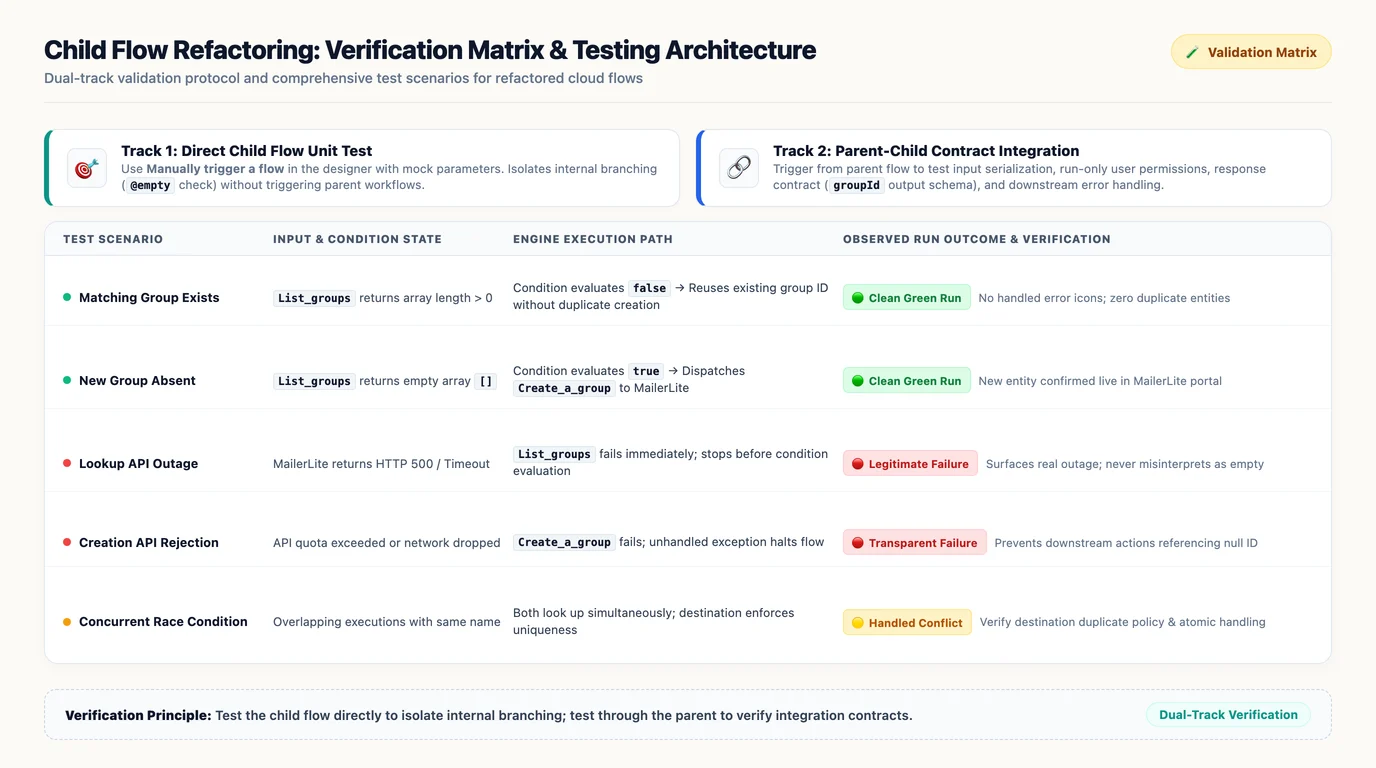
For an equivalent refactor, use a small test matrix:
| Scenario | Expected result |
|---|---|
| Matching group exists | Reuse its identifier without attempting ordinary duplicate creation. |
| No matching group exists | Create the group and return the new identifier. |
| Lookup fails | Surface the lookup problem rather than interpret it as an empty result. |
| Creation fails for a genuine reason | Report failure rather than continue with a missing identifier. |
| Input is empty or invalid | Produce a deliberate validation outcome. |
| Executions overlap | Verify destination uniqueness and duplicate handling where concurrency matters. |
This matrix is a recommended validation plan, not a claim that all these cases were tested in the source.
FlowAgent documents run history, action details, resubmission, diagnosis, and loop-iteration inspection. Those tools can help collect execution evidence. [1]
Resubmission deserves care: replaying a run may repeat external side effects. Use controlled inputs and a suitable test environment rather than assuming a historical run is safe to repeat.
Child flows can be tested directly
The presenter initially suggests finding the parent to test the child flow, then uses a simpler manual test.
Microsoft’s documentation resolves the distinction: solution-based child flows use the Manually trigger a flow trigger, and instant flows can be tested directly in the designer. Parent and child flows should be created in the same solution, and child-flow connection configuration has specific requirements. [11][12]
Test the child directly to isolate its logic. Test through the parent to verify the integration contract, including input mapping, output handling, and downstream behavior.
The agent also finds a caller in the demonstration. That is useful dependency discovery, but “one caller found” should be interpreted within the inspected environment and available definitions, not as proof of every possible external dependency. Ask the agent to explain its search scope and evidence.
From one repair to a maintenance backlog
The final request in the demonstration is broader: inspect the flows and produce a README describing what should change.
This is a sensible next step because inventory and review do not need to become bulk mutation. FlowAgent documents flow browsing and management capabilities, while the agent client can turn retrieved definitions into a local report. [1]
A bounded prompt is:
Review the flows you can access in this development environment and create a maintenance README. Do not modify any flows. For each finding, include the flow ID, affected actions, supporting evidence, impact, proposed change, and validation needed. Separate defects from optional cleanup, and identify flows you could not inspect.
That report can become a useful backlog. It is not a formal audit, and it should not imply complete coverage when access or retrieval was incomplete.
The source also proposes combining Playwright and a Dataverse MCP server for further automation. Treat that as an extension idea, not a prerequisite or a tested end-to-end framework established by the demonstration. Browser automation may complement tool-based inspection, but a browser that renders successfully does not prove the workflow’s business logic is correct.
Approvals remain part of the workflow
The presenter encounters repeated approval prompts and advises against broadly allowing every operation. That caution fits the architecture: plugins can include MCP servers and hooks that execute code locally, and FlowAgent exposes operations that can modify flows and manage runs. VS Code’s documentation explicitly recommends reviewing plugin contents and publishers before installation. [1][9]
The practical boundary is simple: let inspection be easy, but keep consequential changes deliberate. Confirm the target, review the change, and approve execution with an understanding of its effects.
Do not interpret a repeated approval prompt as proof that an operation failed. Check the actual tool result before retrying, especially when the operation creates or updates something.
The real shift: a shorter path from finding to fixing
The source opens with two sweeping promises: that this will become the way everyone builds flows, and that looking up Power Automate guidance will almost disappear.
The evidence supports a narrower, more useful conclusion.
The plugin combines task guidance with executable access to flows and runs. Its own instructions use a two-tier knowledge model: local references first, then Microsoft Learn MCP for unfamiliar connectors, expressions, current behavior, and support questions. Documentation has not disappeared; it has become part of the agent’s workflow. [2]
What changes is the maintenance experience. A developer can ask for a review, challenge the proposed implementation, request a smaller edit, and collect runtime evidence without manually navigating every step.
That is valuable precisely because it does not require surrendering engineering judgment.
Use the agent to shorten the path from finding a problem to fixing it. Keep the environment, change scope, and test evidence explicit. The designer remains useful, documentation remains necessary, and the business outcome remains the final test.
Sources
The implementation details above were checked against the following documentation on October 27, 2026. Repository content and client capabilities can change; consult these references before reproducing the setup.
- Power Automate plugin README: installation, packaging, and capabilities
- Power Automate agent guidance: MCP routing and documentation lookup
- Microsoft Power Platform Skills repository
- Power Platform Skills support policy
- Microsoft Learn: Employ robust error handling
- Microsoft Learn: Use expressions in conditions
- Microsoft Learn: Workflow expression functions for Logic Apps and Power Automate
- Power Automate plugin setup guide and tool catalog
- Visual Studio Code: Agent plugins
- Power Automate plugin: Flow definition reference
- Microsoft Learn: Create child flows
- Microsoft Learn: Create reusable code with child flows
Read next
Related articles

Refactoring Power Automate Flows Agentically with GitHub Copilot CLI
Build Power Apps and Power Automate with Your Coding Agent: A Practical Guide for VS Code Copilot, Copilot CLI, and Claude Code